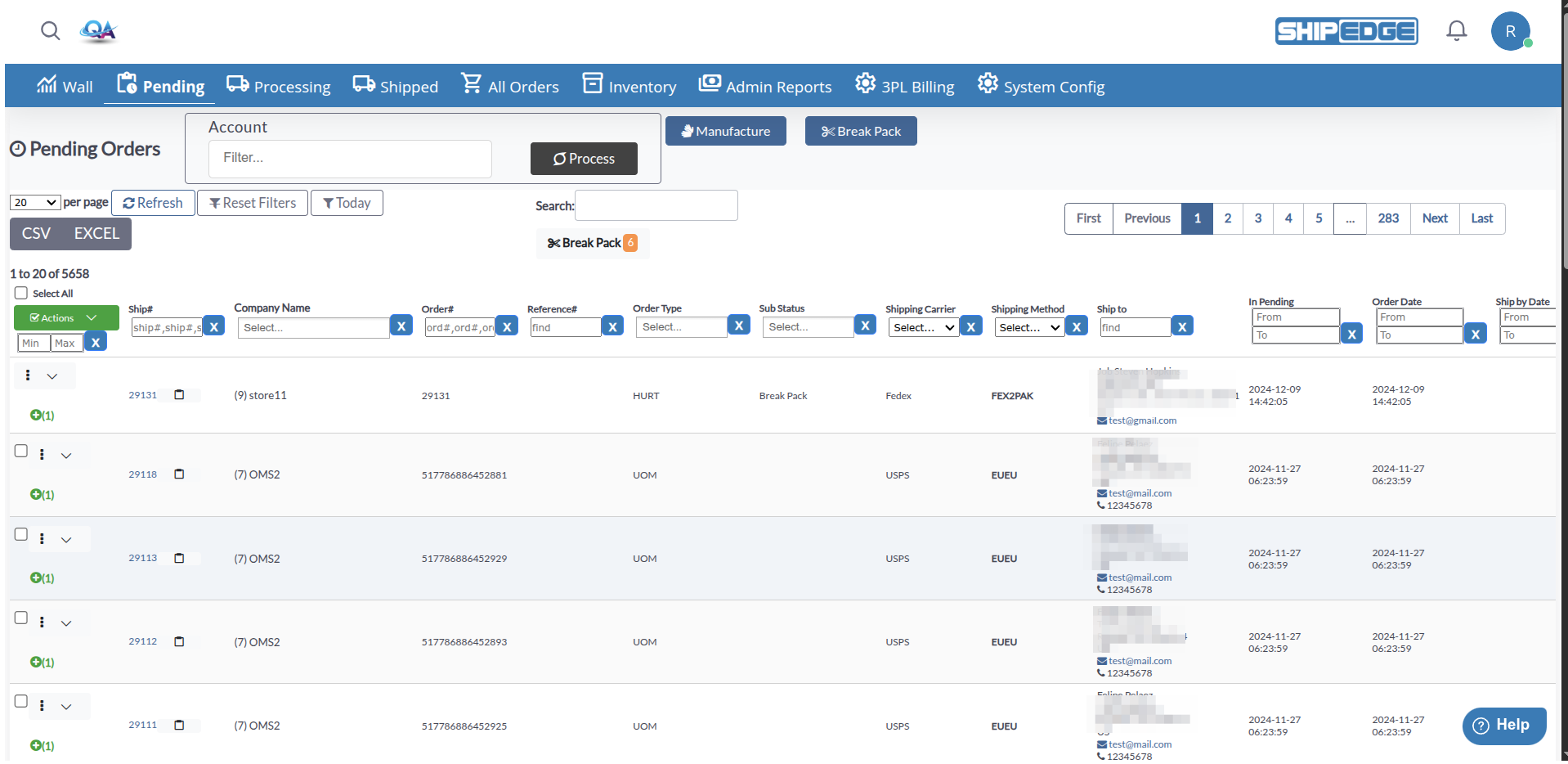
Pending Orders shows all orders with status “Pending” that are ready to be processed in the warehouse. These orders have been validated and are waiting to move into the processing workflow where they’ll be picked, packed, and shipped.
See all orders ready for fulfillment in one place. Track which orders are waiting to be processed and move them to processing when ready.
Select multiple orders and process them together using waves or individual processing. Handle large batches efficiently.
View key order information including items count, shipping carrier, shipping method, customer details, and special notes without opening each order.
Filter orders by account to process orders from specific customers. Process all pending orders for an account at once.
-
Navigate to Pending Orders
Click Pending in the warehouse navigation menu. The page loads showing all orders with status “Pending”.
-
View Order Table
Browse the table showing key information: Ship#, Company Name, Order#, Reference#, etc.
-
Select Orders to Process
Check the boxes next to orders you want to process. You can select individual orders or use “Select All” to select all visible orders.
-
Process Selected Orders
Click the Actions dropdown and select Process to move selected orders to processing status.
The pending orders table displays the following information:
- Checkbox - Select orders for bulk processing
- Actions Menu (⋮) - Access individual order actions (View, Activity log)
- Ship# - Internal system order ID (OrderID)
- Company Name - Account name (AcountID)
- Order# - Customer-facing order number
- Reference# - External reference or PO number
- Order Type - Type of order (regular, dropship, etc.)
- Sub Status - Special status like “Break Pack” if items need to be broken down
- Shipping Carrier - Selected shipping carrier
- Shipping Method - Selected shipping service level
- Ship to - Customer shipping address with name, company, address, city/state/zip, country, email, and phone
- In Pending - Date and time when order entered pending status
- Order Date - When the order was created
- Ship by Date - Latest date the order should be shipped
- Note to Customer - Customer-facing notes
- Note to Warehouse - Internal warehouse notes and special instructions
- Channel - Sales channel or integration source (Amazon, Shopify, Shipedge, etc.)
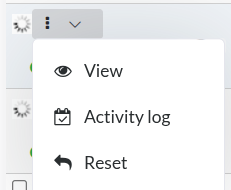
Click the actions menu (⋮) on any order row to access:
Available for All Orders:
- View - Open detailed order information in a new window showing complete order details
- Activity log - View the complete activity history for the order
Available for Orders Stuck in Process:
- Reset - Reset an order that’s stuck in “inprocess” status back to pending
- Reset/Update - Reset and update order status if it has bin history or shipping records
Select multiple orders using checkboxes, then perform bulk operations:
Process Selected Orders:
- Click the Actions dropdown button (green button with checkmark icon)
- Select Process to move selected orders to processing status
- Orders are moved to processing using wave processing for efficiency
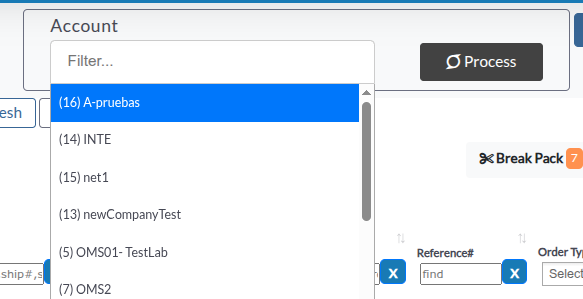
Process all pending orders for specific accounts:
-
Select Account Filter
Use the Account dropdown in the top navigation to select one or more accounts.
-
Click Process Button
Click the Process button next to the Account filter (with superpowers icon).
-
Review Summary
A confirmation dialog shows how many orders will be processed for each account.
-
Confirm Processing
Click Yes to process all pending orders for the selected accounts.
Some orders may show “Break Pack” or “Break Required” status. This means the order contains pack items that need to be broken down into individual units before processing.
If the Break Pack module is enabled, you’ll see a Break Pack button in the top navigation. Click it to open the Break Pack tool in a new window.
Orders with “Break Required” sub status cannot be processed until the pack items are broken down. Process these orders through Break Pack first.
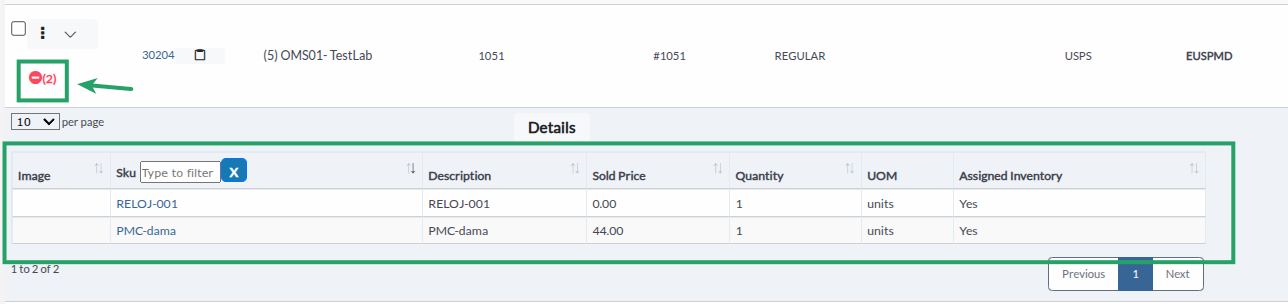
Expand any order row to see detailed item information:
-
Click Items Button
Click the button showing the item count (e.g., “(5)”) next to the actions menu.
-
View Item Details
A detailed table expands showing:
- Product image (thumbnail)
- SKU (clickable link to SKU history)
- Description
- Sold Price
- Quantity
- UOM (Unit of Measure) if applicable
- Assigned Inventory status (Yes/No)
-
Access Full Order Details
Click the Details button in the expanded section to open the complete order view in a new window.
Use the filter row below column headers to filter by specific values:
- Items - Filter by number of items (range filter)
- Ship# - Filter by Ship# (comma-separated list: ship#,ship#,ship#,…)
- Company Name - Multi-select filter by account
- Order# - Filter by Order# (comma-separated list: ord#,ord#,ord#,…)
- Reference# - Text search filter
- Order Type - Multi-select filter by order type
- Sub Status - Multi-select filter (e.g., “Break Pack”)
- Shipping Carrier - Multi-select filter by carrier
- Shipping Method - Multi-select filter by shipping method
- Ship to - Text search across customer name, company, address fields
- In Pending - Date range filter
- Order Date - Date range filter
- Ship by Date - Date range filter
- Note to Customer - Text search filter
- Note to Warehouse - Text search filter
- Channel - Multi-select filter by sales channel
Today Filter:
- Click the Today button to filter orders that entered pending status today
- Quickly focuses on today’s new pending orders
Reset Filters:
- Click the Reset Filters button to clear all active filters
- Returns the view to show all pending orders
Type in the search box at the top right to search across all visible columns. The search has a 1-second delay to avoid excessive queries while typing.
The page displays alert buttons showing counts for special statuses:
- Break Pack - Shows count of orders requiring pack breakdown (if UOM module enabled)
- Click any alert button to automatically filter orders with that status
Download pending order data for reporting or analysis:
CSV Export:
- Click the CSV button above the order table
- Downloads all visible columns for filtered orders
- Maximum 5,000 records per export
- Filename format:
pending_orders_YYYY_MM_D__HH_mm_ss.csv
Excel Export:
- Click the EXCEL button above the order table
- Downloads formatted Excel spreadsheet with all data
- Maximum 5,000 records per export
- Filename format:
pending_orders_YYYY_MM_D__HH_mm_ss.xlsx
- Large numbers (16+ digits) are preserved as text to prevent Excel formatting issues
When possible, process orders grouped by account. This helps with batch picking and reduces shipping label errors.
Review orders with “Break Required” status before bulk processing. Break packs first to avoid processing errors.
Start each day by clicking the “Today” filter to focus on new pending orders. Process these first before older orders.
Check “Note to Warehouse” column for special instructions before processing. Some orders may have specific handling requirements.
Sort or filter by “Ship by Date” to prioritize orders with upcoming deadlines. Process time-sensitive orders first.
Export order data before processing large batches. This provides a backup record of what was processed.
Problem: An order shows a spinning wait icon and cannot be selected for processing.
Solutions:
- Wait a few minutes - the order may still be processing
- Click the actions menu (⋮) on the order
- If a Reset option appears, click it to reset the order back to pending
- If the order has bin history or shipping records, use Reset/Update instead
- After resetting, the order can be processed again normally
Problem: Process button is disabled or shows “System busy” message.
Solutions:
- Wait a few minutes - the system may be processing other orders
- Check if you’ve selected at least one order (checkbox must be checked)
- Verify orders aren’t stuck in “inprocess” status
- Try processing a smaller batch (fewer than 1,000 orders)
- Refresh the page and try again
Problem: Orders with “Break Required” status cannot be processed.
Solutions:
- These orders must be processed through Break Pack first
- Click the Break Pack button in the top navigation (if available)
- Process the pack items in Break Pack tool
- Return to Pending Orders - the order should no longer show “Break Required”
- Now you can process the order normally
Problem: Export button shows alert about too many records (over 5,000).
Solutions:
- Apply date range filter to reduce the result set
- Filter by specific account(s) to narrow results
- Use additional column filters to further reduce the count
- Export in multiple batches using different filter combinations
- Maximum export is 5,000 records per file
Problem: Clicking the items button doesn’t expand to show SKUs.
Solutions:
- Wait a moment - the items table loads via AJAX and may take a few seconds
- Check your internet connection
- Refresh the page and try again
- Verify the order actually has items (check the items count number)
- Try clicking the button again after the page fully loads
Problem: Selected account filter doesn’t show expected orders.
Solutions:
- Clear all filters using “Reset Filters” button
- Re-select the account from the dropdown
- Verify the account has pending orders (check the order count)
- Make sure you’re not filtering by date range that excludes the orders
- Try selecting a different account to test if the filter is working
Next Steps:
