
Process Orders Together
Group multiple orders into batches to process them together. Print labels and packing lists for entire batches at once instead of one at a time.
Batch Processing lets you group multiple orders together into batches for efficient processing. Create batches, manage orders within batches, print labels and packing lists for entire batches, and track batch progress. This helps streamline warehouse operations by processing multiple orders together.

Group multiple orders into batches to process them together. Print labels and packing lists for entire batches at once instead of one at a time.
Monitor batch completion with progress bars showing how many orders are ready. See label status and print status for each batch.
Print labels, packing lists, and picking summaries for entire batches with one click. Save time by printing multiple orders together.
Add or remove orders from batches as needed. View all orders in a batch and manage them individually or as a group.
Navigate to Batches
Click Batches in the warehouse navigation menu. The page loads showing all batches in a table on the left.
View Batch Table
Browse batches showing Batch#, Type, Status, Quantity of Shippings, Progress, Labels Status, Print Status, Description, User, and Created At.
Select a Batch
Click on any batch row to view its orders in the right panel.
Manage Batches
Select batches and use the Actions menu to print labels, packing lists, or perform other batch operations.
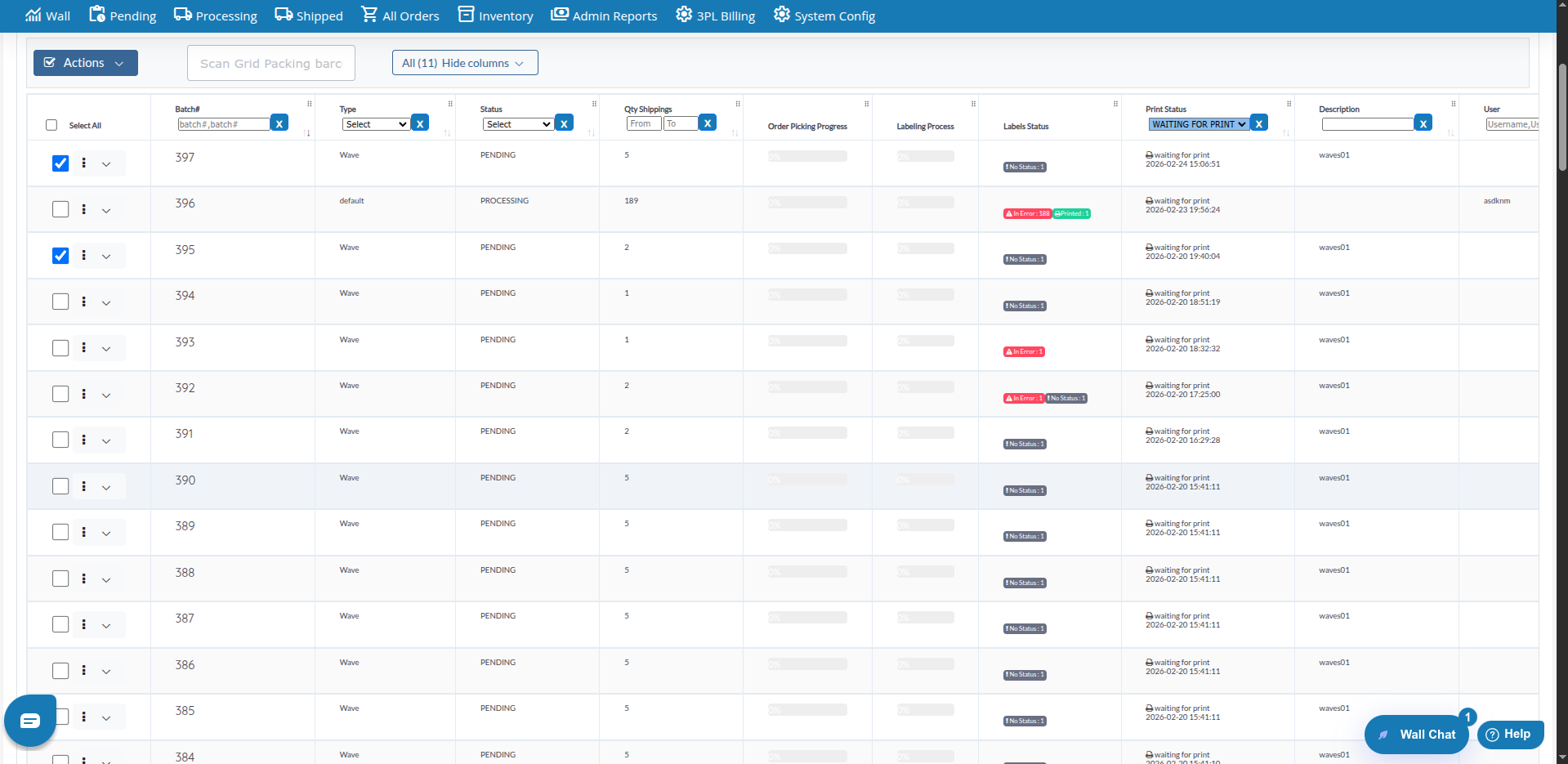
The batches table displays the following information:
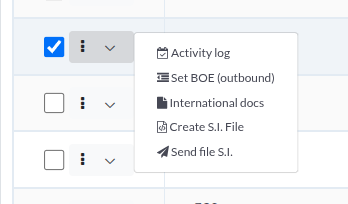
Click the actions menu (⋮) on any batch row to access:
Available for All Batches:
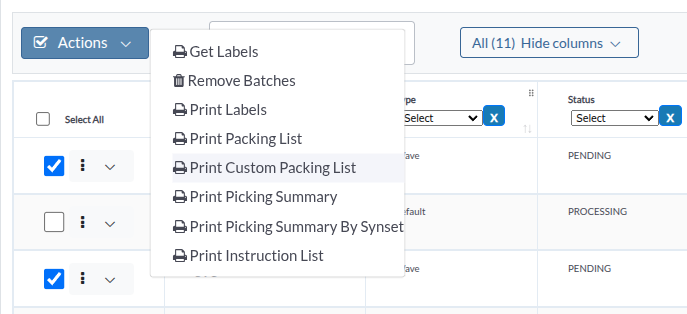
Select multiple batches using checkboxes, then perform bulk operations:
Remove Batches:
Print Labels:
Print Packing List:
Print Custom Packing List (if custom templates enabled):
Print Picking Summary:
Print Picking Summary By Synset:
Print Instruction List:

Use the filter form at the top to narrow down batches:
Basic Filters:
Column Filters: Use filters below column headers:
Grid Packing Button:
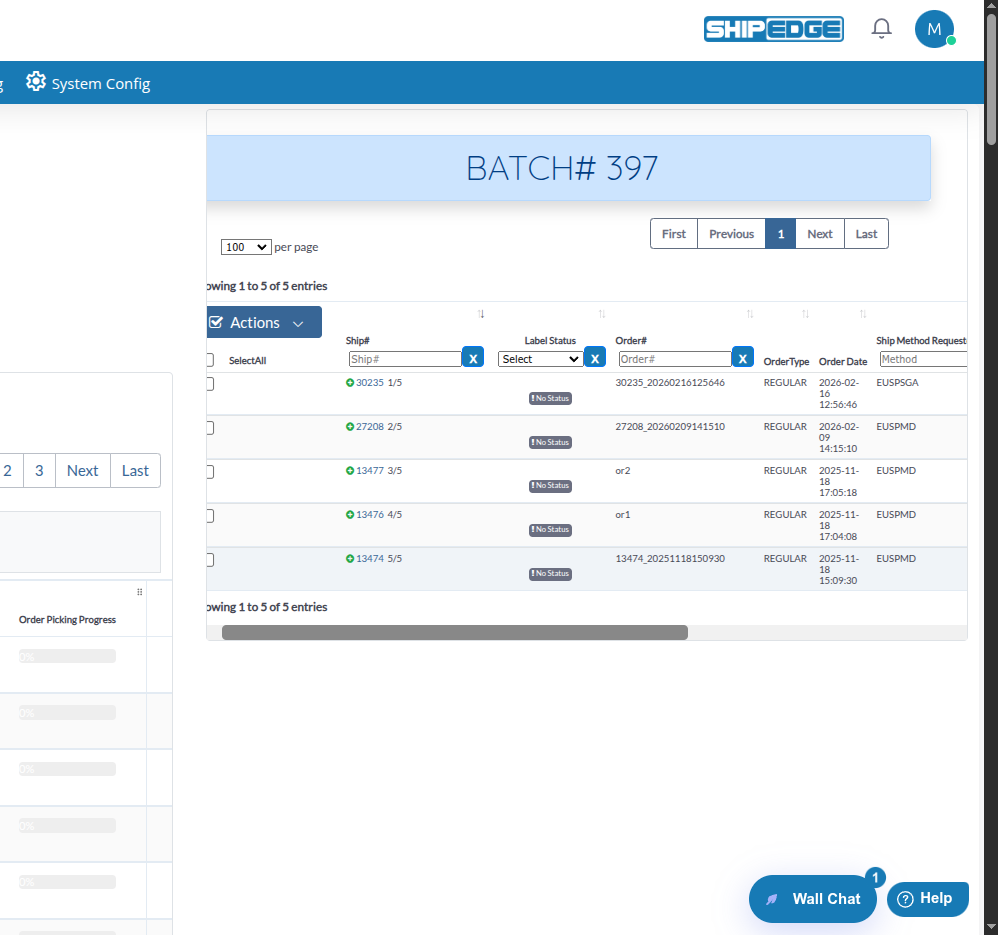
When you click on a batch row, the right panel shows all orders in that batch:
Orders Table Columns:
Order Actions Menu:
Find Batch
Use filters or browse the batch table to find the batch you want to view.
Click Batch Row
Click anywhere on the batch row in the table.
View Orders
The right panel opens showing all orders in that batch with batch number displayed at the top.
Review Order Details
Browse orders to see their status, label status, and other details.
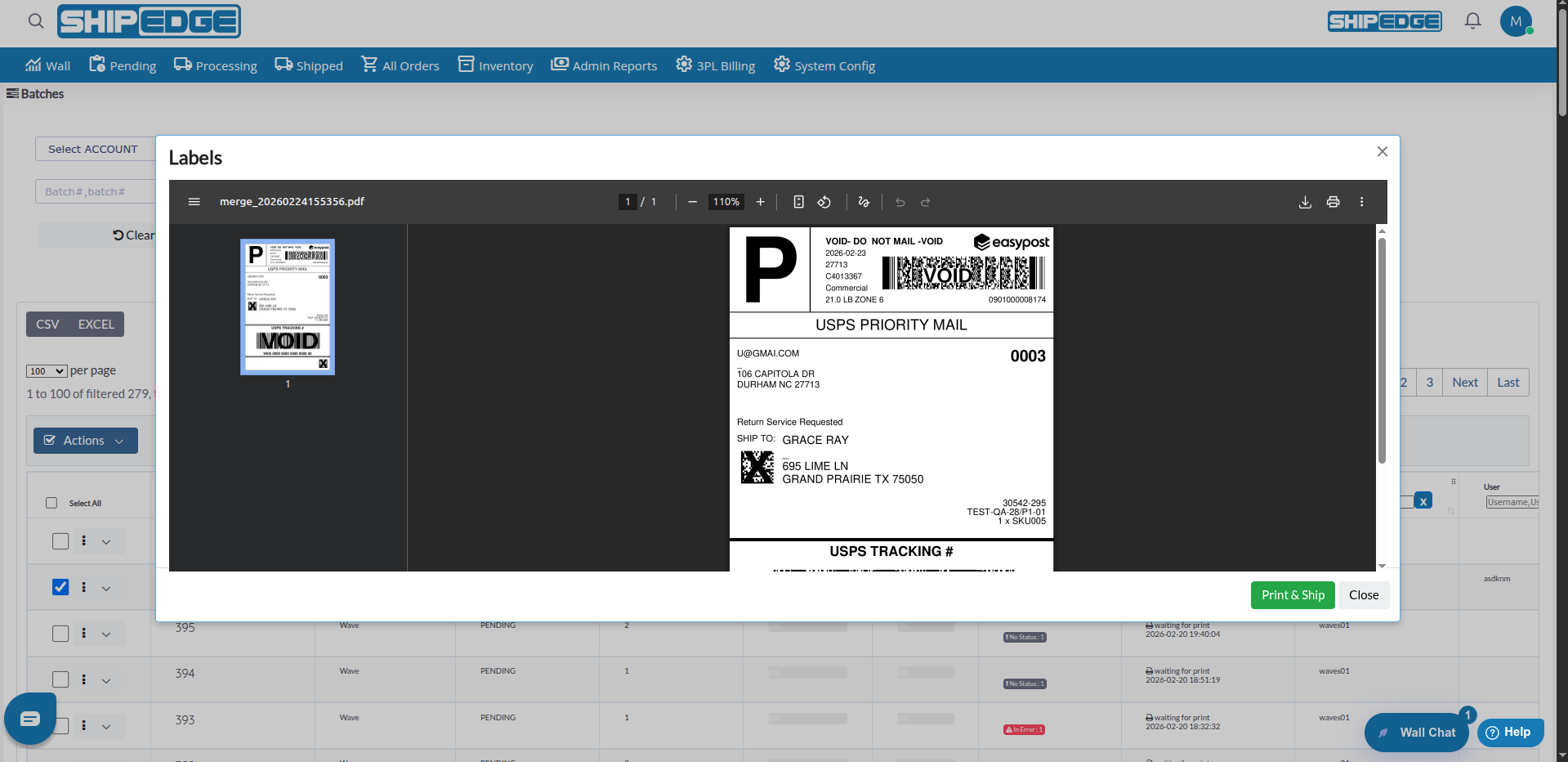
Select Batch
Check the box next to the batch (or batches) you want to print labels for.
Open Actions Menu
Click the Actions dropdown button (blue button with checkmark icon).
Select Print Labels
Click Print Labels from the dropdown menu.
Wait for Processing
The system generates labels for all orders in the selected batches. A progress indicator shows processing status.
Print Labels
Once generated, labels open in a print window. Print using your browser’s print function.
Select Batch
Check the box next to the batch (or batches) you want to print packing lists for.
Open Actions Menu
Click the Actions dropdown button.
Select Print Packing List
Click Print Packing List (or Print Custom Packing List if using custom templates).
Review Packing Lists
Packing lists open in a print window showing all orders in the batch.
Print using your browser’s print function.
Select Batch
Click on the batch row to view its orders.
Select Orders
Check boxes next to orders you want to remove from the batch.
Open Actions Menu
Click the Actions dropdown in the orders table (right panel).
Select Remove from Batch
Click Remove from Batch from the dropdown menu.
Confirm Removal
Orders are removed from the batch. The batch progress updates automatically.
Select Batches
Check boxes next to batches you want to remove.
Open Actions Menu
Click the Actions dropdown button in the batch table.
Select Remove Batches
Click Remove Batches from the dropdown menu.
Confirm Removal
Batches are deleted from the system. This action cannot be undone.
For batches with type “Grid Packing”:
Find Grid Packing Batch
Look for batches with Type = “Grid Packing” or click the Grid Packing button in filters.
Open Grid Packing
Click the Grid Packing button next to the batch, or click the Grid Packing link in the batch actions menu.
Organize Orders
Use the Grid Packing interface to organize orders in a grid layout for efficient packing.
Generate international shipping documents for batches:
Select Batch
Find a batch that needs international documents.
Open Actions Menu
Click the actions menu (⋮) on the batch row.
Select International docs
Click International docs from the menu.
Choose Document Type
Select from available international documents:
Generate Document
The document is generated and downloaded.
Set outbound batch number for batches:
Select Batch
Find the batch you want to set BOE for.
Open Actions Menu
Click the actions menu (⋮) on the batch row.
Select Set BOE
Click Set BOE (outbound) from the menu.
Enter BOE Number
Enter the outbound batch number in the dialog.
Save
BOE number is saved to the batch.
Create batches grouped by account when possible. This makes it easier to track which customer’s orders are being processed together.
Regularly check batch progress bars to identify batches that need attention. Focus on batches with low completion percentages.
Always use batch printing for multiple orders. It’s faster and more efficient than printing orders one at a time.
Review Labels Status before printing. Ensure all labels are ready (green badge) before printing packing lists.
Use filters to find specific batches quickly. Filter by account, user, or date range to focus on relevant batches.
Always review batch contents before removing batches. Ensure all necessary documents have been printed.
Problem: Batch table is empty or shows no batches.
Solutions:
Problem: Batch progress bar doesn’t update or shows incorrect percentage.
Solutions:
Problem: Print Labels button doesn’t work or labels don’t generate.
Solutions:
Problem: Clicking on batch doesn’t show orders in right panel.
Solutions:
Problem: Remove from Batch option doesn’t work.
Solutions:
Problem: Grid Packing button doesn’t appear for Grid Packing batches.
Solutions:
Next Steps:
Related Features: