All Orders shows all orders in the system across all statuses (except cancelled, deleted, and transfer orders). View orders from Pending to Shipped, filter by multiple criteria, export order data, and track order activity. This page provides a comprehensive view of all order activity in your warehouse.

See all orders in one place regardless of status. View orders from Pending, Processing, Shipped, Backorder, Hold, and other statuses together.
Filter orders by status, date range, account, order type, shipping method, carrier, channel, and more. Find specific orders quickly.
Export orders to CSV or Excel for reporting and analysis. Export up to 5,000 records per export with all order details.
View order activity logs and track order changes. See order history and status changes in one place.
-
Navigate to All Orders
Click All Orders in the warehouse navigation menu. The page loads showing all orders in a table.
-
View Order Table
Browse orders showing Items, Ship#, Company Name, Order#, Reference#, Order Type, Shipping Method, Status, Ship to, Tracking#, Order Date, Channel, Shipping Carrier, and Sub Status. Use Refresh to reload data.
-
Filter Orders
Use column filters, date range dropdown, status alert buttons, or Today button to find specific orders.
-
View Order Details
Click on Ship# to view order details in a new window.
The all orders table displays:
- Items - Number of items in the order
- Actions menu (⋮) at top - Access View (open order details) and Activity log
- Items button (+) below - Click to expand and view SKUs (tooltip: “Show skus”)
- Ship# - Internal system order ID (clickable link to order view)
- Copy button to copy Ship# to clipboard
- Links to appropriate order view based on status (Pending, Processing, Shipped, or All Orders)
- Company Name - Customer/account name
- Order# - Customer-facing order number
- Reference# - Order reference number
- Order Type - Type of order (e.g., Standard, FBA, etc.)
- Shipping Method - Shipping method used or requested
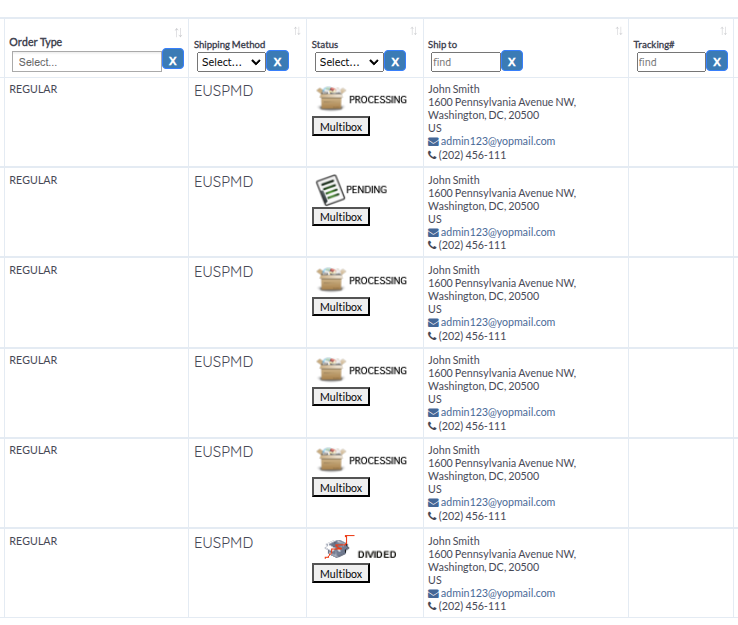
- Status - Current order status with status badge:
- Shows status name and link
- For shipped orders (Status 9), shows sub-status badge:
- Ready to Process (sky blue badge)
- On Delivery (yellow badge)
- Delivered (green badge)
- Failed Delivery (red badge)
- Shows “Multibox” button if order is divided
- Shows release date for orders on hold with release date
- Ship to - Shipping address details:
- Customer name
- Address lines
- City, State, ZIP, Country
- Email (clickable mailto link)
- Phone number
- Tracking# - Carrier tracking number (clickable link to carrier tracking page)
- Copy button to copy tracking number to clipboard
- Shows “Work Order” link for manufactured orders
- Order Date - Date and time when order was created
- Channel - Sales channel/enterprise name (with logo if available)
- Shipping Carrier - Shipping carrier name (with tooltip showing description)
- Sub Status - Delivery sub-status (hidden column, used for filtering)

Click the actions menu (⋮) on any order row to access:
View:
- Open order details in a new window
- Shows complete order information
- Links to appropriate view based on order status
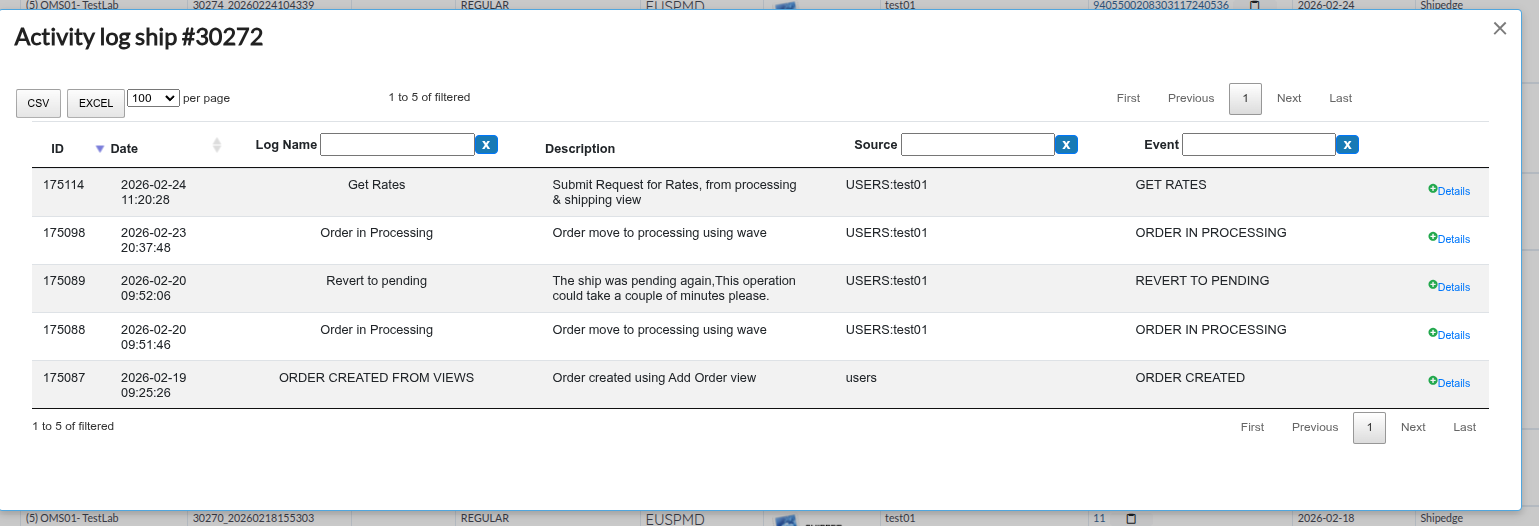
Activity log:
- View complete activity history for the order
- Shows all changes and actions performed on the order
- Useful for tracking order modifications
Display SKUs:
- Click the items count button (+) to expand and view all SKUs in the order
- Shows product details, quantities, prices, and stock status
- Collapsible row expansion
- Details link in expanded row opens full order view in new tab
Column Filters:
Use filters below column headers:
- Items - Range filter (min-max items)
- Ship# - Text filter (comma-separated: ship#,ship#,ship#,…)
- Company Name - Multi-select filter by account
- Order# - Text filter (comma-separated: ord#,ord#,ord#,…)
- Reference# - Text filter (search)
- Order Type - Multi-select filter by order type
- Shipping Method - Multi-select filter by shipping method
- Status - Multi-select filter by order status
- Ship to - Text filter (searches customer name, address, email, etc.)
- Tracking# - Text filter (search)
- Order Date - Date range filter
- Channel - Multi-select filter by sales channel
- Shipping Carrier - Multi-select filter by carrier
Date Range Filters:
- Last 2 months (default) - Shows orders from last 2 months
- Last month - Shows orders from last month
- Last 10 days - Shows orders from last 10 days
- Specific Year - Filter by specific year (e.g., 2023, 2024)
- Today - Quick filter button to show orders created today
Status Alert Buttons:
- Buttons above the table show order counts by status (e.g., Processing (5), Pending (12))
- Click a status button to filter the table to that status only
Global Search:
- Use the search box above the table to search across multiple columns
- Searches Ship#, Order#, Reference#, Tracking#, and customer information
- 2-second delay before searching (debounced)
Reset Filters:
- Click Reset Filters button to clear all filters
- Resets table to default view (Last 2 months)
Refresh:
- Click Refresh button to reload table data without changing filters
Download order data for external analysis or reporting:
CSV Export:
- Click the CSV button above the order table
- Downloads all visible columns for filtered orders
- Maximum 5,000 records per export
- Filename format:
all_orders_YYYY_MM_D__HH_mm_ss.csv
- Exports status as text (not HTML)
Excel Export:
- Click the EXCEL button above the order table
- Downloads formatted Excel spreadsheet with all data
- Maximum 5,000 records per export
- Filename format:
all_orders_YYYY_MM_D__HH_mm_ss.xlsx
- Preserves long tracking numbers as text (prevents Excel from converting to scientific notation)
- Exports status as text (not HTML)
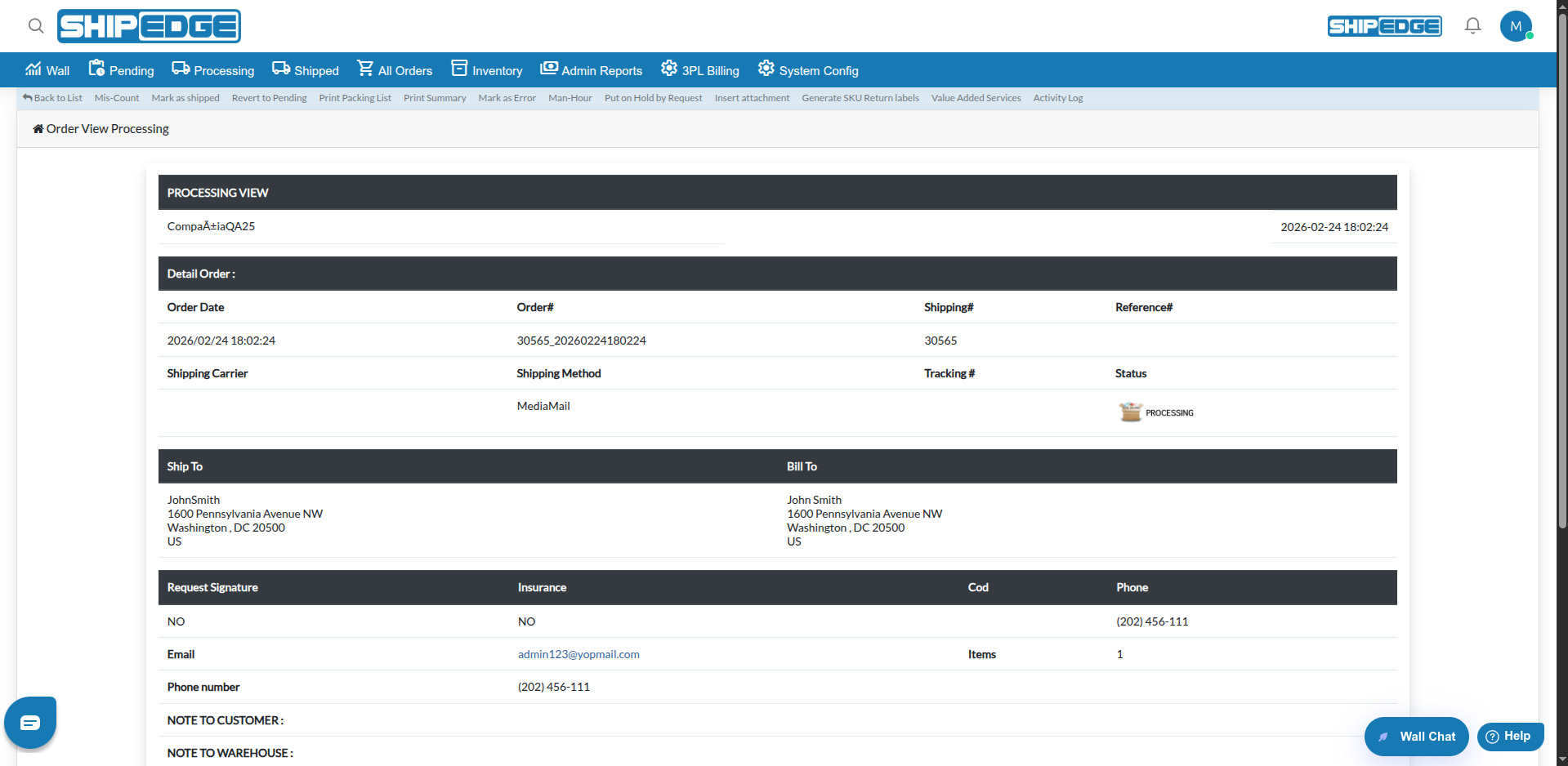
Clicking Ship# or View opens order details in a new window. The view shown depends on order status:
- Pending orders - Pending Orders view
- Processing orders - Processing Orders view
- Shipped orders - Shipped Orders view
- Other statuses - All Orders view
If there are API errors in the system, an alert appears above the table:
- API Errors badge with error count
- Click to open error list in new tab
- Refresh icon button next to it to update error count
-
Open Status Filter
Click the Status filter dropdown below the Status column header.
-
Select Statuses
Check boxes next to statuses you want to view (e.g., Pending, Processing, Shipped).
-
Apply Filter
Table updates showing only orders with selected statuses.
-
Open Date Filter
Click the date filter dropdown button (shows current filter: “Last 2 months”, “Last month”, etc.).
-
Select Date Range
Choose from options:
- Last 2 months (default)
- Last month
- Last 10 days
- Orders YYYY (specific year, e.g., Orders 2024)
-
Apply Filter
Table updates showing orders within selected date range.
-
Click Today Button
Click the Today button next to the date filter dropdown.
-
View Today’s Orders
Table filters to show only orders created today.

-
Find Order
Locate the order in the table.
-
Click Items Button
Click the items button (+) below the actions menu.
-
View SKUs
Row expands showing all SKUs in the order with details:
- SKU code
- Product description
- Quantity
- Sold price
- Stock status
- Product images (if available)
-
Collapse Row
Click the items button again to collapse the row.
-
Find Order
Locate the order in the table.
-
Open Actions Menu
Click the actions menu (⋮) on the order row.
-
Select Activity log
Click Activity log from the menu.
-
Review Activity
Activity log modal opens showing all changes and actions performed on the order.
-
Find Divided Order
Locate an order that shows “Multibox” button in Status column.
-
Click Multibox Button
Click the Multibox button.
-
View Related Orders
Table filters to show all orders with the same OrderID_DIV (related divided orders).
-
Apply Filters (optional)
Filter orders to export only the data you need.
-
Check Record Count
Ensure filtered results are 5,000 or fewer (check table info).
-
Click Export Button
Click CSV or EXCEL button above the table.
-
Download File
File downloads with timestamped filename. Open in spreadsheet application.
Filter by status to focus on specific order types. Combine status filters with date filters for targeted views.
Export order data regularly for reporting and analysis. Use CSV or Excel export to track order metrics over time.
Check activity logs when investigating order issues. Activity logs show all changes and help track order history.
Use Multibox button to track divided orders. This helps ensure all parts of a divided order are processed correctly.
Check API Errors alert regularly. Address errors promptly to prevent order processing issues.
Problem: Order table is empty or shows no orders.
Solutions:
- Check date range filter - default is “Last 2 months”, try expanding to specific year
- Clear all filters - click Reset Filters button
- Verify orders exist - check if orders are in valid statuses (not cancelled, deleted, or transfer)
- Check user permissions - ensure you have access to view all orders
- Refresh the table - click Refresh button next to the length selector
- Try different date range - select “Last month” or specific year
Problem: Filters don’t work or don’t apply correctly.
Solutions:
- Clear filters and reapply - click Reset Filters, then set filters again
- Check filter syntax - use comma-separated values for Ship#, Order#, etc.
- Verify date ranges - ensure date ranges are valid
- Check multi-select filters - ensure options are selected correctly
- Refresh the table after applying filters
- Try global search instead - use search box above table
Problem: CSV or Excel export doesn’t work or shows error message.
Solutions:
- Check record count - if more than 5,000 records, refine filters first
- Verify filters are applied - export includes only filtered results
- Try smaller date range - reduce to last month or specific week
- Check browser download settings - ensure downloads are allowed
- Try different browser
- Check available disk space
Problem: Clicking Ship# doesn’t open order details.
Solutions:
- Check browser popup blocker - ensure popups are allowed
- Verify order status - order must be in valid status
- Try right-click and “Open in new tab”
- Check browser console for errors
- Try different browser
- Refresh the page and try again
Problem: Activity log option doesn’t work or modal doesn’t open.
Solutions:
- Check browser JavaScript - ensure JavaScript is enabled
- Try refreshing the page
- Check browser console for errors
- Verify order has activity - new orders may not have activity log entries
- Try different browser
Problem: Multibox button doesn’t filter orders.
Solutions:
- Verify order is divided - check if OrderID_DIV is not 0
- Check browser JavaScript - ensure JavaScript is enabled
- Try refreshing the page
- Check browser console for errors
- Try clicking button again
Problem: Date filter doesn’t update table or shows wrong results.
Solutions:
- Clear filters and reapply - click Reset Filters, then set date range again
- Check date format - ensure dates are valid
- Try different date range - select “Last month” or specific year
- Refresh the table - click Refresh button
- Check browser console for errors
- Verify date picker is working - try clicking date fields
Problem: API Errors alert doesn’t appear when there are errors.
Solutions:
- Check if errors exist - visit error list page directly
- Refresh the page - alert loads on page load
- Check browser JavaScript - ensure JavaScript is enabled
- Check browser console for errors
- Verify user permissions - ensure you have access to view errors
Next Steps:
Related Features:
