Skip to content

Units of Measure (UOM)

Units of Measure (UOM) allows you to define different units of measure for your products, such as individual units, boxes, packs, or containers. This is useful when you sell products in different presentations and need to track inventory and process orders using different units.
Multiple Presentations

Define different units for the same product (individuals, boxes of 12, pallets, etc.) and manage inventory in all of them.

Automatic Conversion

The system automatically converts between units using the conversion factor (unit_factor) you define.

Accurate Inventory Management

Track available inventory in each unit of measure and automatically calculate available units considering orders in process.

Order Processing

Process orders that require different units of measure, such as complete boxes or individual units of the same product.

Bin Tracking

Associate specific units of measure to bins for precise location and quantity control.

Packaging Integration

Integrates with Packaging for automatic packaging recommendations based on configured units of measure.

You can access Units of Measure from:

  1. Inventory Menu: Navigate to Inventory > Units of Measure (UOM)
  2. From Packaging: If you have Lot active, you’ll see a link to “Unit Of Measure” on the Packaging page
  3. Directly: Access /uomlist.php

Unit Factor is the number that indicates how many individual units a unit of measure contains. For example:

  • Unit Factor = 1: Individual unit (singles)
  • Unit Factor = 12: Box with 12 units
  • Unit Factor = 144: Pallet with 144 units (12 boxes × 12 units)

The system uses this factor to automatically convert between units when processing orders or querying inventory.

The number of units this package or presentation contains. Used together with Unit Factor for inventory calculations.

A unique SKU that identifies this specific unit of measure. Useful for integrations with sales channels that require different SKUs for different presentations.

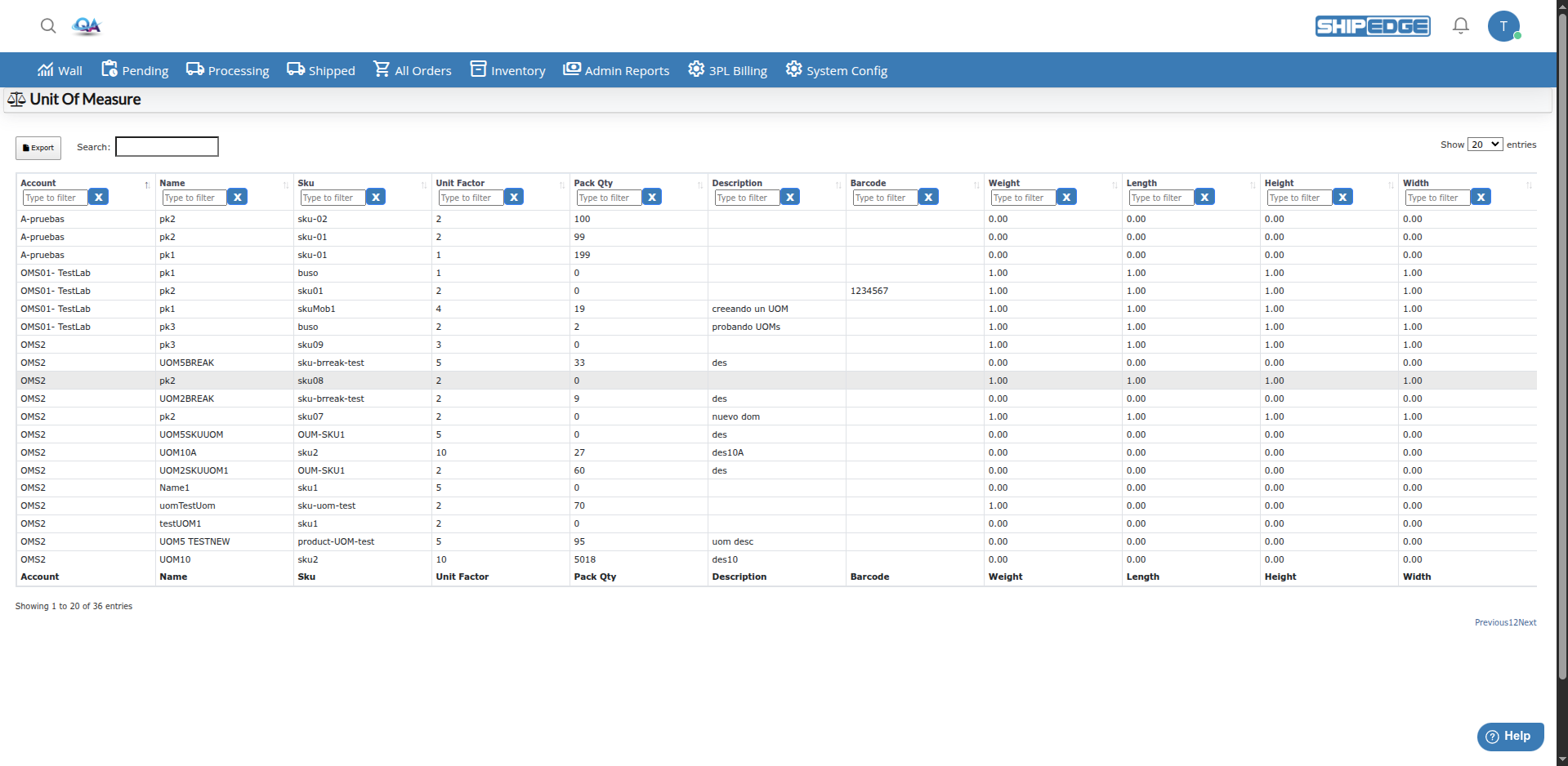
The main page shows a table with all configured units of measure:

  • Account: Account associated with the unit
  • Name: Unit name (e.g., “Box”, “Case”, “Pallet”)
  • Sku: Base product SKU
  • Unit Factor: Conversion factor
  • Pack Qty: Quantity per package
  • Description: Unit description
  • Barcode: Associated barcode
  • Weight: Unit weight
  • Length, Height, Width: Unit dimensions

You can filter and sort the table using search fields in each column.

  1. Access Units of Measure

    Go to Inventory > Units of Measure (UOM) or access directly to /uomlist.php.

  2. Click create new

    In the table, click the button to create a new record (usually a ”+” or “New” button).

  3. Select the account

    In the Account field, select the account this unit of measure belongs to.

  4. Enter the name

    In the Name field, enter a descriptive name for the unit (e.g., “Box of 12”, “Case”, “Pallet”).

  5. Select the product

    In the Sku or Product field, select the base product this unit of measure belongs to.

  6. Configure Unit Factor

    In Unit Factor, enter the number that indicates how many individual units this unit contains. For example:

    • For a box of 12 units: 12
    • For a pallet of 144 units: 144
    • For individual units: 1
  7. Configure Pack Qty (optional)

    In Pack Qty, enter the number of units this package contains.

  8. Add description (optional)

    In Description, add an additional description of the unit.

  9. Configure barcode (optional)

    In Barcode, enter the barcode associated with this unit of measure.

  10. Configure dimensions (optional)

    Enter unit dimensions:

    • Weight: Unit weight
    • Length: Length
    • Height: Height
    • Width: Width
  11. Configure costs and prices (optional)

    If applicable, enter:

    • Cost: Unit cost
    • Price: Unit sale price
  12. Select package type (optional)

    In Type Pack or UOM Type, select the type:

    • inner: Internal package
    • outer: External package
    • pallet: Pallet
    • 20ft container: 20-foot container
    • 40ft container: 40-foot container
  13. Save the unit

    Click Save or Add to create the new unit of measure.

  • Account: Account the unit of measure belongs to
  • Name: Unit name (required). Must be unique for each product within the same account
  • Sku / Product: Base product this unit belongs to
  • Unit Factor: Conversion factor (required). Indicates how many individual units this unit contains
  • Pack Qty: Number of units per package
  • Description: Additional unit description
  • Pack SKU: Unique SKU for this unit of measure (useful for integrations)
  • Barcode: Barcode associated with the unit
  • Weight: Unit of measure weight
  • Length: Unit length
  • Height: Unit height
  • Width: Unit width
  • Cost: Unit cost
  • Price: Unit sale price
  • UOM Type: Unit type (inner, outer, pallet, 20ft container, 40ft container)
  • Package Type ID: Associated package type (related to Packaging)
  • Ship Ready: Indicates if the unit is ready for direct shipping (Ship Ready)
  1. Search for the unit

    In the Units of Measure table, find the unit you want to edit using available filters.

  2. Click edit

    Click the edit button (pencil icon) in the unit row.

  3. Modify fields

    Update any field you need to change. Keep in mind that:

    • The name must be unique for the same product within the account
    • Unit Factor affects inventory and conversion calculations
  4. Save changes

    Click Update or Save to save changes.

Unit Factor is key for conversion between units. Here are examples:

Example 1: Product sold in boxes

  • Base product: “Widget”
  • Individual unit: Name = “Single”, Unit Factor = 1
  • Box: Name = “Box”, Unit Factor = 12

If you have 5 boxes in inventory, the system calculates: 5 × 12 = 60 individual units available.

Example 2: Product sold in pallets

  • Base product: “Widget”
  • Individual unit: Name = “Single”, Unit Factor = 1
  • Box: Name = “Box”, Unit Factor = 12
  • Pallet: Name = “Pallet”, Unit Factor = 144 (12 boxes × 12 units)

If you have 2 pallets in inventory, the system calculates: 2 × 144 = 288 individual units available.

Example 3: Order processing If an order requires 50 individual units and you have inventory in boxes:

  • The system can assign: 4 boxes (4 × 12 = 48 units) + 2 individual units
  • Or can assign: 5 complete boxes (5 × 12 = 60 units)

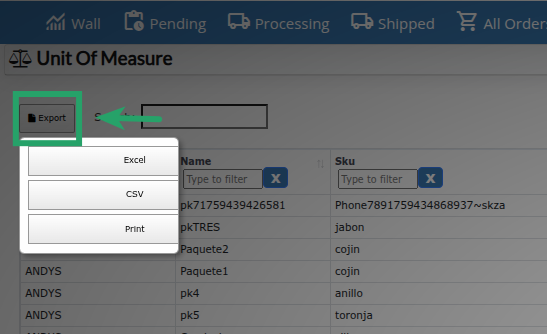
You can export the Units of Measure list:

  1. Access Export

    In the table, click the Export button (file icon).

  2. Select format

    Choose export format:

    • Excel: Excel file (.xlsx)
    • CSV: CSV file
    • Print: Print view
  3. Download the file

    The file will download with all data from the current table (including applied filters).

Use descriptive names

Use clear and descriptive names for units (e.g., “Box of 12” instead of just “Box”) to facilitate identification.

Verify Unit Factor

Make sure Unit Factor is correct. An error here affects all inventory and conversion calculations.

Configure dimensions

Complete dimensions (Length, Width, Height, Weight) to improve Packaging recommendations and shipping calculations.

Use Pack SKU for integrations

If you integrate with sales channels that require different SKUs for different presentations, configure Pack SKU.

Maintain consistency

Use the same name structure and factors for similar products. Facilitates management and reduces errors.

Review inventory regularly

Verify that inventory in different units of measure is consistent and reflects warehouse reality.

Document complex conversions

For complex conversions or special cases, use the Description field to document how the unit should be used.

Validate before using in production

Test units of measure with test orders before using them in production to ensure conversions work correctly.

Problem: Available inventory doesn’t reflect correct units when there are multiple units of measure.

Solution:

  • Verify Unit Factor is correct for each unit
  • Make sure inventory in bins is correctly associated with units of measure
  • Check there are no orders in process (hold) affecting the calculation
  • Verify the base product has correct inventory

I can’t create a unit with the same name

Section titled “I can’t create a unit with the same name”

Problem: You receive an error indicating the name is already in use.

Solution:

  • The name must be unique for each product within the same account
  • If you need to use the same name, make sure it’s for a different product
  • Consider using more specific names (e.g., “Box of 12 - Widget A” vs “Box of 12 - Widget B”)

Problem: Orders don’t convert correctly between units of measure.

Solution:

  • Verify Unit Factor is configured correctly
  • Make sure the product has associated units of measure
  • Check the order is using the correct SKU type (typesku = ‘uom’)
  • Verify there’s available inventory in the required unit of measure

Problem: Units of Measure option doesn’t appear in the menu.

Solution:

  • Verify Lot functionality is active for your account
  • Confirm you have necessary permissions to access Inventory
  • Contact system administrator if functionality is not available

Problem: You receive an error when configuring Pack SKU indicating it already exists.

Solution:

  • Pack SKU must be unique within the account
  • Verify it’s not being used by another product or unit of measure
  • If you need to reuse a SKU, consider using aliases or variants instead

Problem: Dimensions configured in UOM aren’t reflected in Packaging recommendations.

Solution:

  • Make sure dimensions are complete (Length, Width, Height)
  • Verify the base product also has dimensions configured
  • Check that Packaging is configured to use product dimensions
  • Consider configuring Package Type ID to associate the unit with a specific package type