
Process Returns Efficiently
Receive and process customer returns quickly. Inspect items and update inventory in one place.
Returns lets you process customer return orders in your warehouse. When customers send products back, use Returns to receive packages, inspect items, classify them as good or damaged, and update inventory. This keeps your stock accurate and helps manage the return process efficiently.
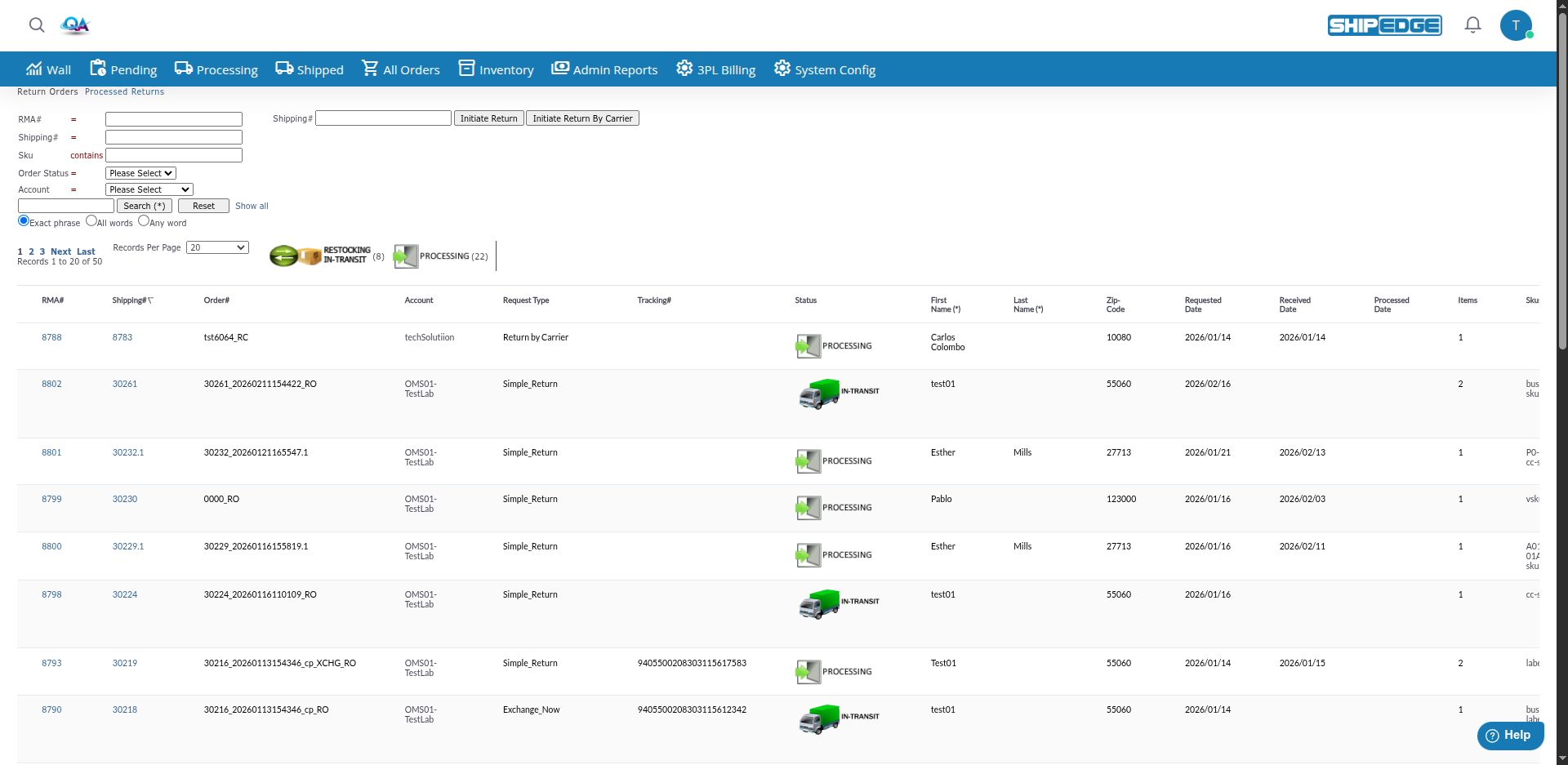
Receive and process customer returns quickly. Inspect items and update inventory in one place.
Start processing returns by entering the Shipping# and clicking Initiate Return or Initiate Return By Carrier. No need to search through orders first.
Classify returned items as Good (ready for resale) or Hurt (damaged). Keep inventory accurate.
Track return status from IN-TRANSIT through PROCESSING to COMPLETE. Know where each return is in the process.
Automatically restock good items back into inventory. Damaged items go to appropriate bins.
View returns by OMS account. See which accounts have returns pending processing.
Return orders move through different statuses as they progress:
| Status | Description |
|---|---|
| IN-TRANSIT | Customer has shipped the return. Package is on the way to your warehouse. |
| PROCESSING | Return package has arrived and is being processed in your warehouse. |
| COMPLETE | Return processed successfully. All items inspected and inventory updated. (only shows in archived returns) |
| DISCREPANCY | Return processed but there was a discrepancy (wrong items, wrong quantity, etc.). (only shows in archived returns) |
| UNEXPECTED | Return contains unexpected items that weren’t in the original order. (only shows in active returns) |
| AS EXPECTED ARCHIVED | Return completed and archived. (only shows in archived returns) |
| DISCREPANCY ARCHIVED | Return with discrepancy archived. (only shows in archived returns) |
| UNEXPECTED ARCHIVED | Unexpected return archived. (only shows in archived returns) |
Navigate to Returns
Go to Inventory → Returns directly.
Use Page Actions
Enter Shipping# in the quick initiation section and click:
Review the List
The table shows: RMA#, Shipping#, Order#, Account, Request Type, Tracking#, Status, First Name (*), Last Name (*), Zip-Code, Requested Date, Received Date, Processed Date, Items, Skus (*).
Filter and Search
Use the search form: RMA#, Shipping#, Sku (contains), Order Status (dropdown), Account (dropdown). Use Search (*) with Exact phrase, All words, or Any word. Use Reset or Show all to clear.
Sort and Paginate
Click column headers to sort. Use Records Per Page (10, 20, 50, 100, 200, 500, All Records) and First, Previous, Next, Last to navigate.
You can start processing a return without searching for the order:
Enter Shipping#
In the quick initiation section at the top, enter the Shipping# of the order being returned.
Click Initiate Return or Initiate Return By Carrier
Review Validation
The system checks if the order exists and is valid. If a return already exists, you can choose Continue to initiate a restocking request or View Returns to see existing returns.
Start Processing
After validation, the system opens the return processing page. Click RMA# in the list to open return details.
When a return package arrives (IN-TRANSIT or PROCESSING):
Open Return Details
Click on the RMA# for a return with status IN-TRANSIT or PROCESSING.
Review Return Information
The detail view shows:
Inspect Returned Items
Check what was actually returned:
Classify Items
For each item, classify as:
Handle Discrepancies
If items don’t match:
Assign Bins
Assign bins for returned items:
Complete Processing
Once all items are processed:
If returned items have serial numbers:
Enter Serial Numbers
When processing items, enter serial numbers for products that require tracking.
Verify Serial Numbers
The system checks if serial numbers match the original order.
Handle Mismatches
If serial numbers don’t match:
What it is: Customer returns items for refund or credit.
Process:
What it is: Customer returns items to exchange for different items.
Process:
What it is: Return processed and items restocked into inventory.
Process:
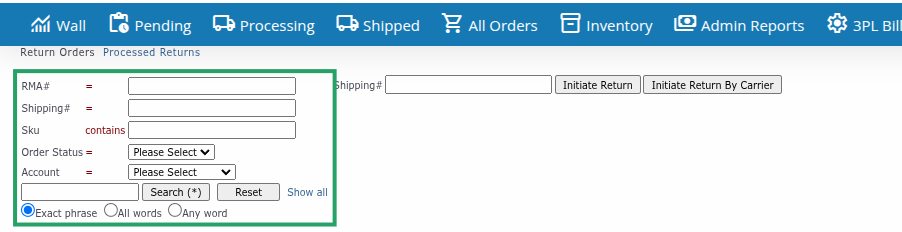
Filter by RMA#, Shipping#, Sku, Order Status, or Account
Use the search form fields:
Use Basic Search
Enter keywords and click Search (*). Basic search finds matches in: RMA#, Shipping#, Order#, Request Type, customer name, email, phone, zip, tracking, and more. Choose Exact phrase, All words, or Any word.
Clear Filters
Use Reset or Show all to clear all filters.
Process returns as soon as packages arrive. This keeps inventory accurate and customers satisfied.
Always inspect returned items carefully. Check condition, verify items match the order, and count quantities accurately.
Classify items correctly as Good or Hurt. This affects inventory accuracy and resale potential.
Document discrepancies clearly. Wrong items or quantities should be marked appropriately for customer service follow-up.
Use Initiate Return for fast return initiation. Enter Shipping# directly instead of searching through orders.
Monitor return status regularly. Process IN-TRANSIT returns when packages arrive, and complete PROCESSING returns promptly.
Problem: A return doesn’t appear in the list.
Solution:
Problem: Return status doesn’t update when expected.
Solution:
Problem: Customer returned different items than ordered.
Solution:
Problem: Serial numbers don’t match original order.
Solution:
Problem: Can’t open or process a return.
Solution:
After processing returns: