
Centralized View
See all replenishment requests from all OMS accounts in one place. Track what’s coming, what’s arrived, and what’s being processed.
Replenishments shows all replenishment requests from OMS accounts. View incoming inventory shipments, track their status, and coordinate receiving operations. This is your central hub for managing all inventory that’s coming into your warehouse.
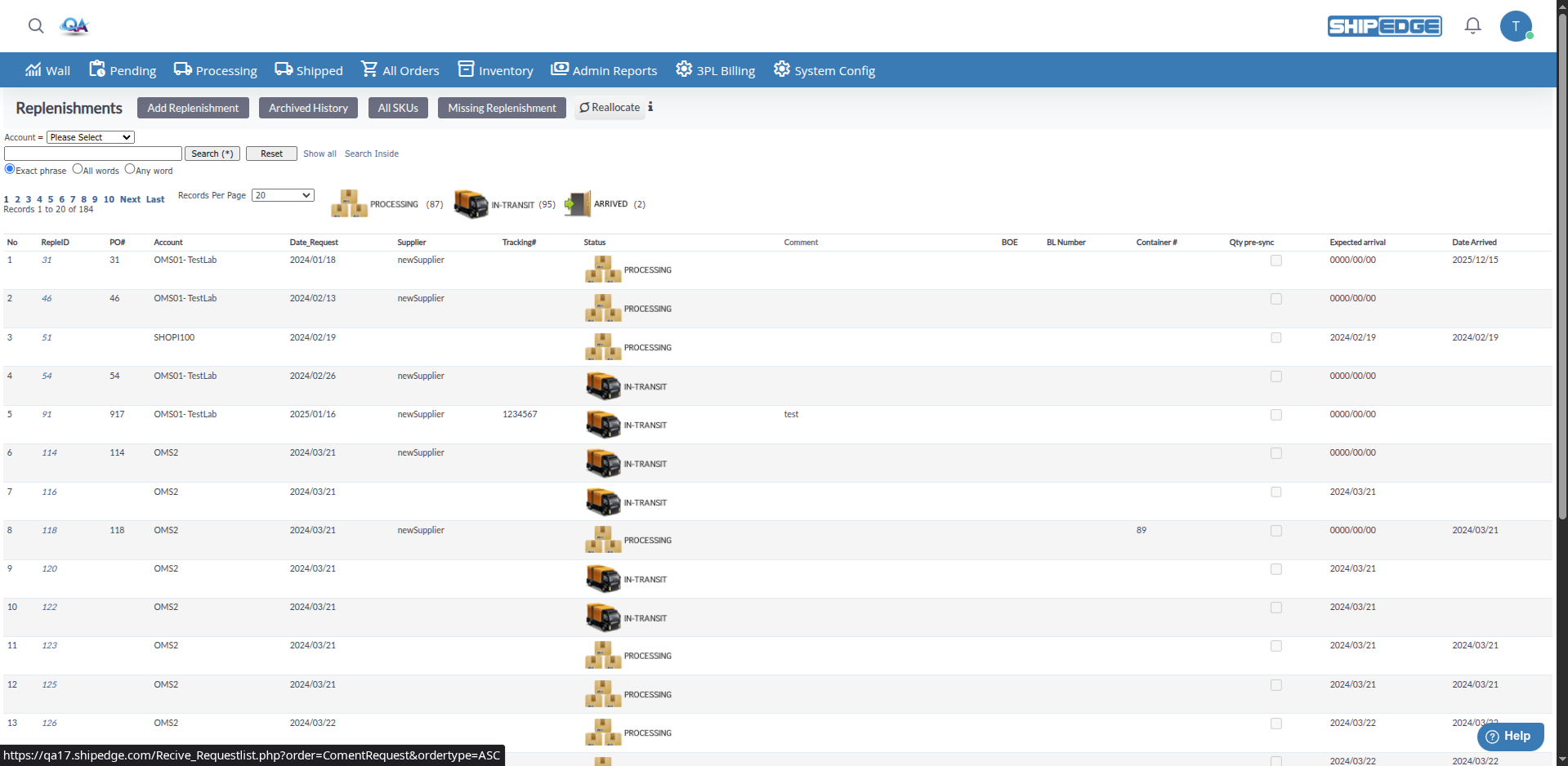
See all replenishment requests from all OMS accounts in one place. Track what’s coming, what’s arrived, and what’s being processed.
Monitor the status of each replenishment request. Know what’s in transit, what’s arrived, and what’s ready for receiving.
View replenishments by OMS account. See which accounts have pending shipments and coordinate receiving accordingly.
Plan warehouse operations based on expected arrival dates. Know when shipments are due to arrive.
Coordinate receiving operations. See which requests are ready for receiving and which are still in transit.

Replenishment requests move through different statuses as they progress from creation to completion:
| Status | What It Means |
|---|---|
| IN-TRANSIT | Inventory is on the way to your warehouse. Shipment has been sent but hasn’t arrived yet. |
| PROCESSING | Inventory has arrived and is being received. Warehouse staff is processing the shipment. |
| ARRIVED | Inventory has physically arrived at your warehouse and is ready for receiving. |
| BUSY | System is processing the request. Wait at least 30 minutes, then click Check Status if it appears. |
Navigate to Replenishments
Go to Inventory → Replenishments.
Use Page Actions
From the page header:
Review the List
The table shows: No, RepleID (Request ID), PO#, Account, Date_Request, Supplier, Tracking#, Status, Comment, and more.
Sort and Paginate
Click column headers to sort. Use Records Per Page (10, 20, 50, 100, 200, 500, All Records) and First, Previous, Next, Last to navigate.
Click on a Request
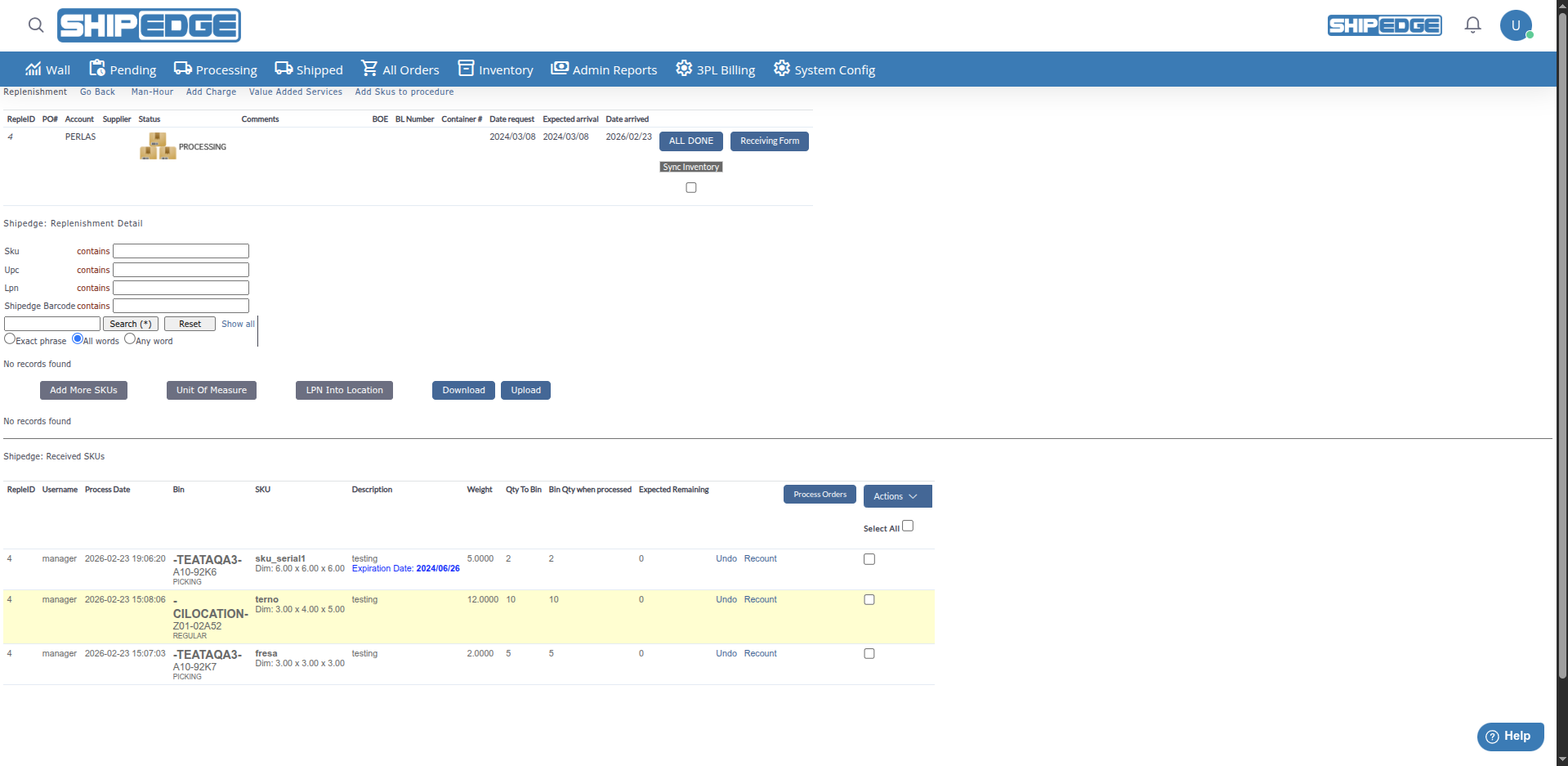
Click the RepleID (Request ID) to open the detail view.
Review Master Information
The master view shows:
View Request Items
Scroll down to see all products (SKUs) in this replenishment request. Each line shows:
Access Receiving
If the request has arrived or is processing, click to start receiving inventory.
When a request shows IN-TRANSIT:
When a request shows ARRIVED:
When a request shows PROCESSING:
If a request shows BUSY:
Filter by Account
Use the Account dropdown to show only replenishments for a specific OMS account.
Use Basic Search
Enter keywords in the search box. Click Search (*) to find requests by:
Choose Search Type
Select Exact phrase, All words, or Any word before searching.
Clear or Expand Search
Use Reset or Show all to clear filters. Use Search Inside to open an advanced search popup.
Replenishments works closely with Receiving:
Monitor Arrivals
Check Replenishments regularly to see which requests have arrived.
Start Receiving
When a request shows ARRIVED, click on it to start the receiving process.
Track Progress
As items are received, the status updates to PROCESSING. Monitor until completion.
Complete Receiving
Once all items are received, the request is archived and appears in Archived Replenishments.
The Qty pre-sync column shows a checkbox for Sync API:
This setting is controlled by the OMS account and affects how replenishment data updates.
Review Replenishments daily to see what’s arriving and plan receiving operations accordingly.
Pay attention to expected arrival dates. Plan warehouse resources based on when shipments are due.
Use the Account dropdown to focus on replenishments from a specific OMS account.
Keep track of PO numbers, tracking numbers, and container numbers. This helps coordinate with shipping carriers.
If multiple OMS accounts have shipments arriving, coordinate receiving to balance workload.
Check the Comment column for notes and procedure information on each request.
Problem: Request status doesn’t change when expected.
Solution:
Problem: A replenishment request doesn’t appear in the list.
Solution:
Problem: Expected arrival date has passed but request still shows IN-TRANSIT.
Solution:
Problem: Multiple replenishment requests from the same account arriving at once.
Solution: