
Processing Control
Define specific rules for how certain products should be processed, ensuring special packaging or shipping requirements are met.
Procedures are special rules assigned to products to define how they should be processed during order fulfillment. Each procedure contains specific characteristics that affect processing, such as packaging requirements, weight limits, or mixing rules.
With Procedures you can:
Define specific rules for how certain products should be processed, ensuring special packaging or shipping requirements are met.
Procedures are automatically evaluated during the pending to processing process, dividing orders when necessary according to defined rules.
Assign costs and prices to special procedures for accurate billing of additional services like custom packaging or box reinforcement.
Create multiple procedures for different needs and assign them to specific products according to their unique requirements.
Navigate to Inventory
From the warehouse menu, click Inventory.
Open Procedures
Click Procedures in the Inventory submenu (or use the Procedures link from Catalog).
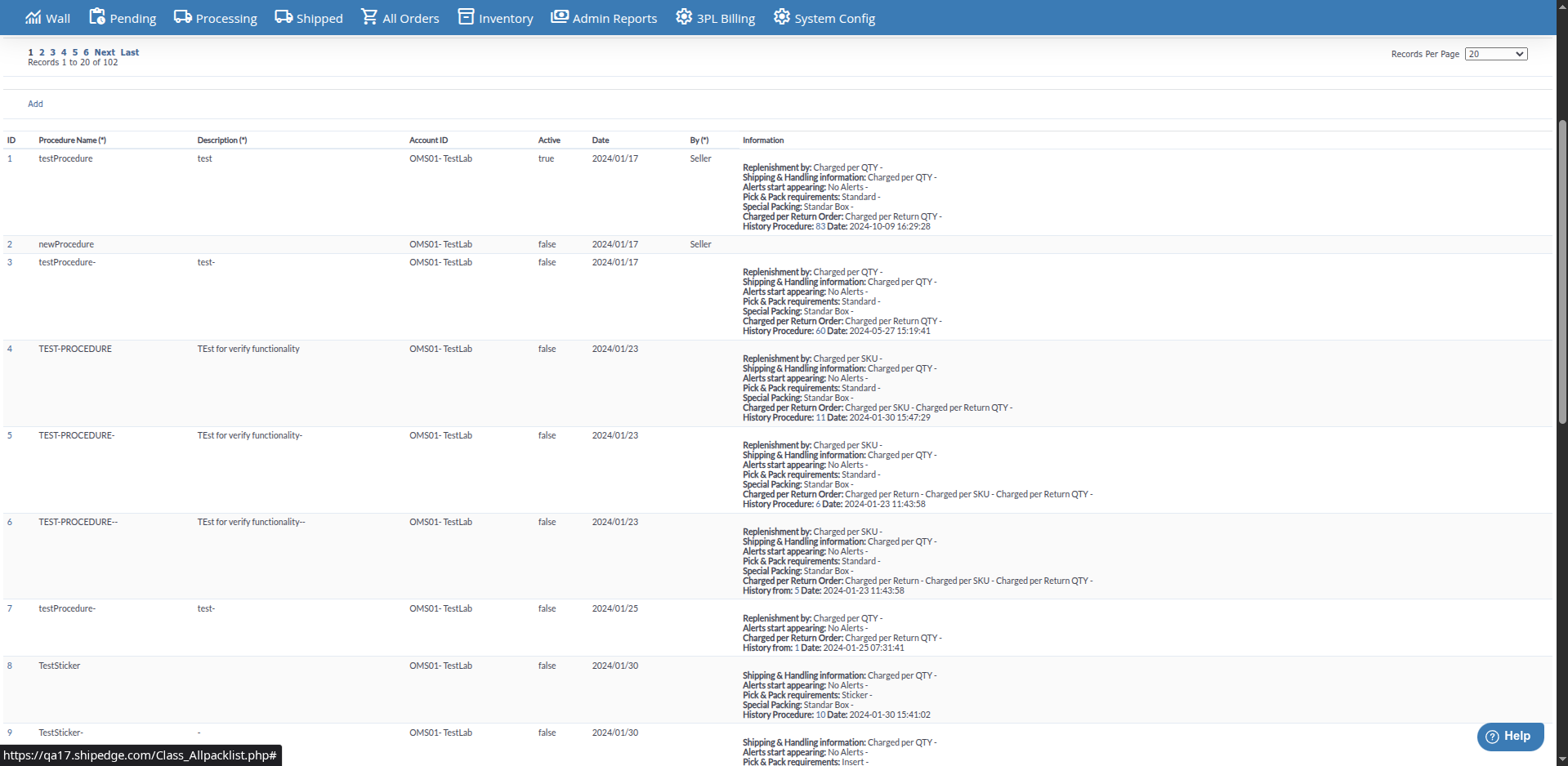
View Procedures List
You’ll see a table with all existing procedures: ID, Procedure Name, Description, Account ID, Active, Date, By, and Information.
Use Simple List (Optional)
Click Simple List in the page header to open a simplified view.
Procedures can include the following characteristics:
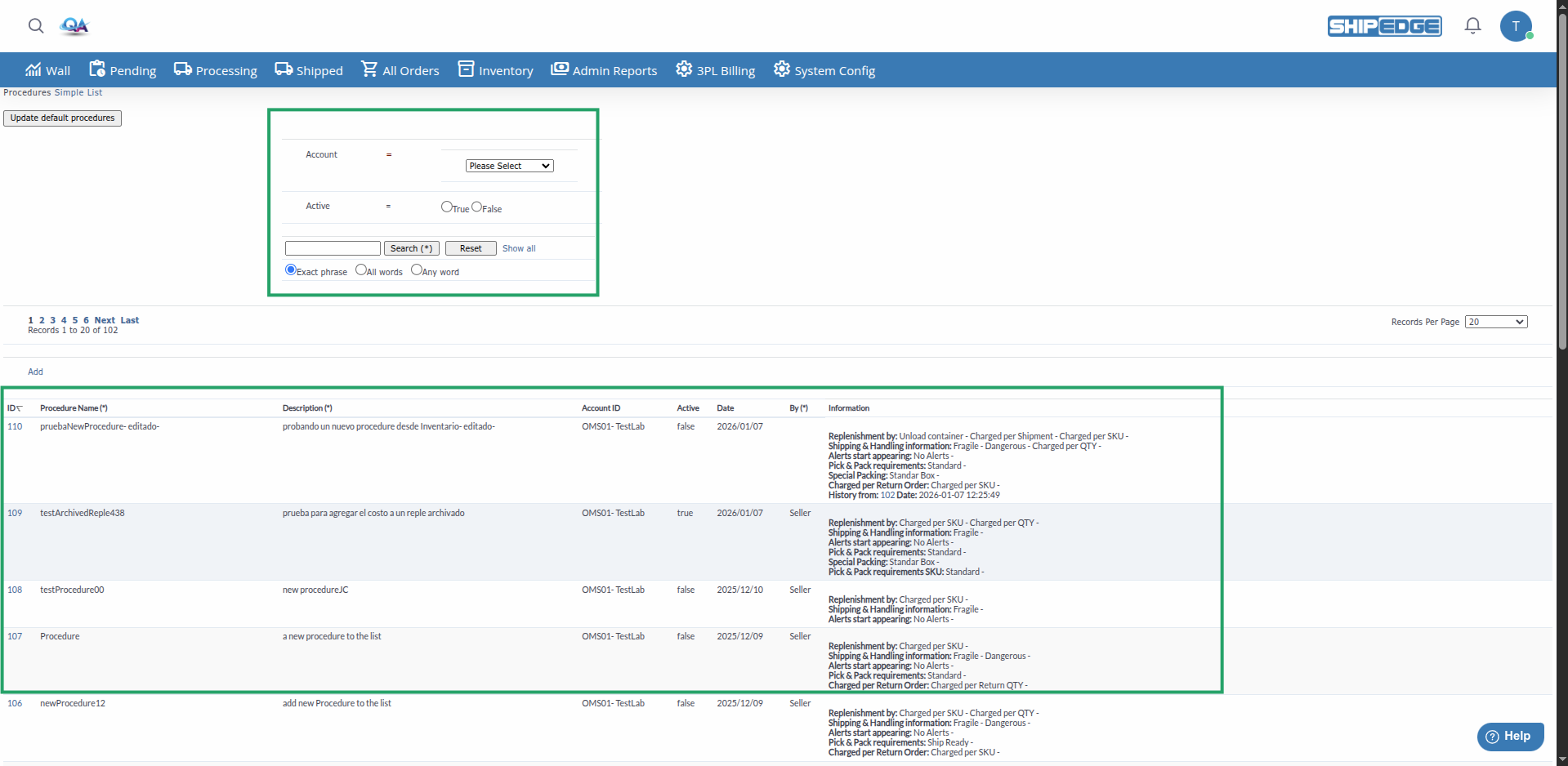
The Procedures table shows:
You can filter by:
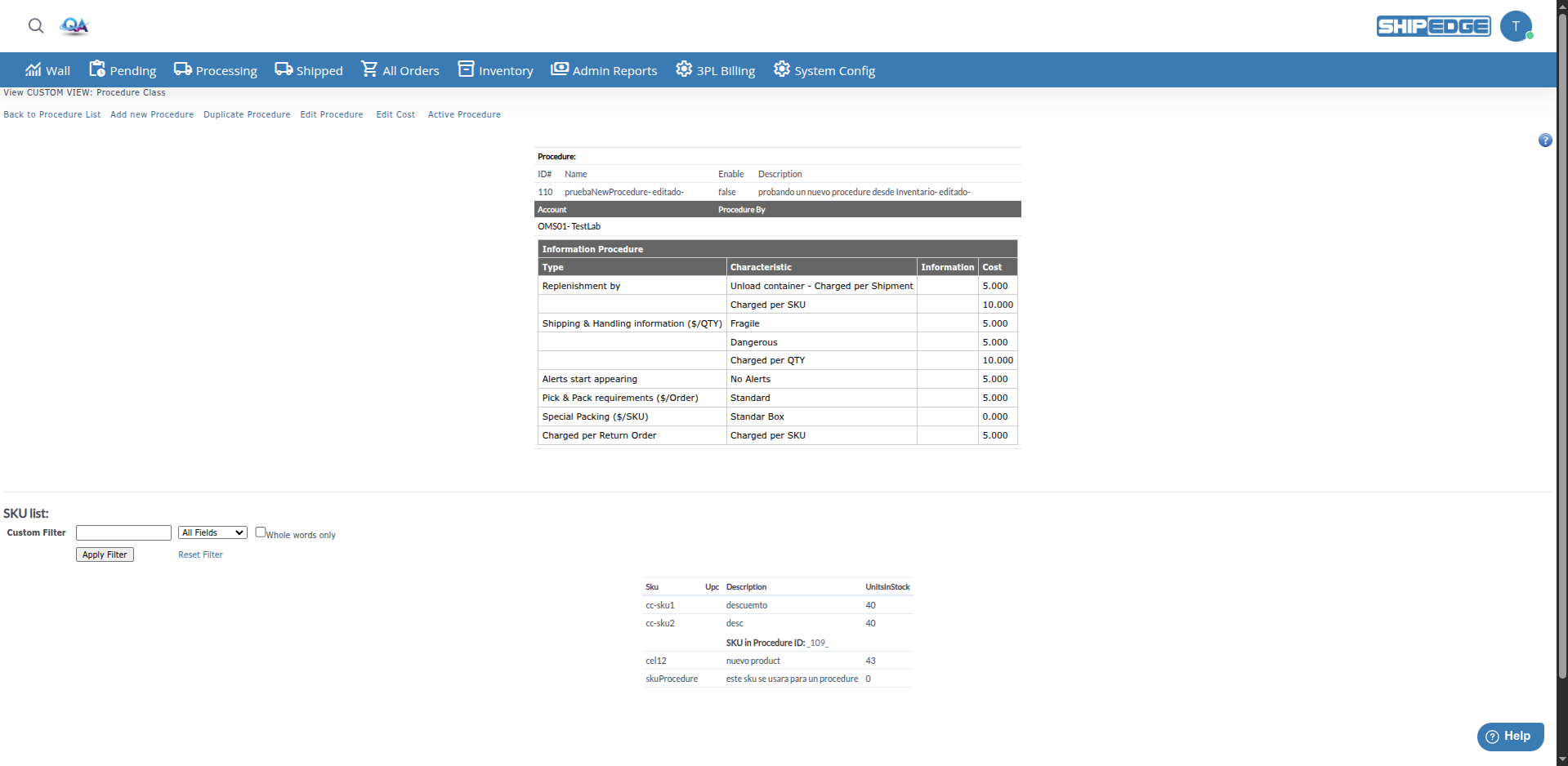
Click the Procedure ID
In the Procedures table, click the ID number of the procedure you want to view.
Review Basic Information
You’ll see:
Review Characteristics
The “Information Procedure” section shows all characteristics assigned to the procedure, including:
Review Assigned SKUs
You’ll see a list of all products (SKUs) that have this procedure assigned.
Use Page Actions
From the view page: Back to Procedure List, Add new Procedure, Duplicate Procedure, Edit Procedure, Edit Cost, Disable Procedure or Active Procedure.
Click Add
On the Procedures page, click the Add button at the top or bottom of the table.
Complete Basic Information
Configure Characteristics
Assign necessary characteristics to the procedure. Each characteristic can have:
Activate the Procedure
After saving, use Active Procedure on the view page to enable it.
Save the Procedure
Click Save to create the procedure.
Open the Procedure
Click the ID of the procedure you want to edit.
Click Edit Procedure
On the details page, click Edit Procedure. This opens the class/SKU edit page.
Confirm Edit
The system warns: “Editing a procedure will duplicate and disable this procedure. Make sure you activate the new procedure at the end of the edit process.” Confirm to continue.
Modify Information
Update the name, description, characteristics, costs, or prices. Use Edit Cost to change procedure costs.
Activate the New Procedure
After saving, click Active Procedure if the previous one was active.
If you need to create a procedure similar to an existing one:
Open the Procedure
Click the ID of the procedure you want to duplicate.
Click Duplicate Procedure
On the details page, click Duplicate Procedure. This opens the add form with data copied.
Modify the Copy
The new procedure will be an exact copy. Edit it according to your needs.
Save and Activate
Save changes and activate the procedure if necessary.
Open the Procedure
Click the ID of the procedure you want to activate or deactivate.
Change Status
Confirm Change
Confirm the action when prompted.
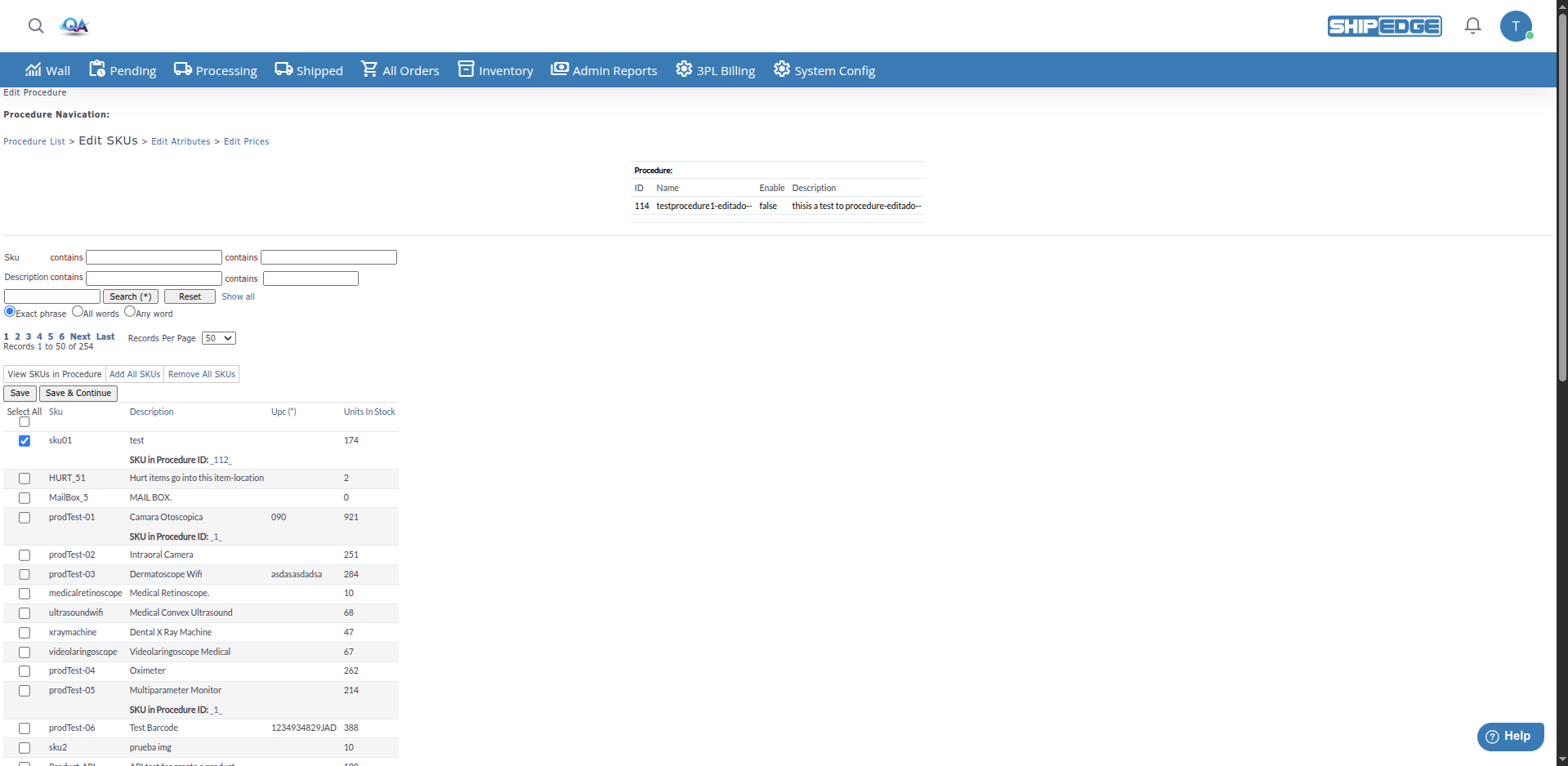
To assign a procedure to a product:
Navigate to Product
Go to the products or inventory view.
Edit the Product
Open the product to which you want to assign the procedure.
Select the Procedure
In the product’s Class or Procedure field, select the desired procedure.
Save Changes
Save the product with the new procedure assigned.
The system can automatically update default procedures for all SKUs:
Go to Procedures
Navigate to the Procedures page.
Click Update default procedures
Click the Update default procedures button in the page header.
Confirm Update
Confirm when prompted “Update default procedures?”
Wait for Completion
The system will process all SKUs and assign the default procedure to those that don’t have a specific procedure.
Effect:
Use: Products that require special labeling and must be shipped individually.
Effect:
Use: Fragile products, products with special requirements, or products that shouldn’t be shipped together.
Effect:
Use: When different products require different packaging types and shouldn’t be shipped together.
Effect:
Use: Control maximum shipment weight to comply with transportation restrictions.
Effect:
Use: Ensure products with special procedures are processed separately from standard products.
Effect:
Use: Products that require special or custom packaging.
Effect:
Use: Heavy or fragile products that require reinforced boxes.
The table shows the following columns:
You can sort by any column by clicking the header. Use Records Per Page (10, 20, 50, 100, 200, 500, All Records) to control pagination.
Use clear and descriptive names for your procedures. This helps quickly identify what each procedure does without having to review details.
Add detailed descriptions in the Description field of each characteristic. This helps other users understand why it was configured that way.
Create and test procedures in inactive mode before activating them. This allows you to verify they work correctly without affecting order processing.
Periodically review procedure costs and prices to ensure they reflect actual costs and correct prices for customers.
Problem: I created a procedure but it’s not being applied during processing.
Solution:
Problem: I can’t modify a procedure that’s active.
Solution:
Problem: Orders with “No Mix” products aren’t being divided.
Solution:
Problem: Procedures doesn’t appear in the menu.
Solution: