Catalog Management provides a comprehensive view of all products in your warehouse catalog. See product details, inventory quantities by status, and perform bulk actions on multiple products. Filter by any column, customize visible columns, edit product information, and export catalog data for reporting.

See all products with complete details including SKU, UPC, description, quantities, supplier, and product attributes.
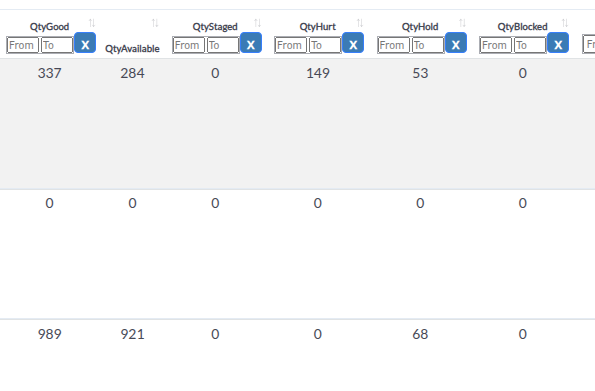
Track inventory quantities by status: Good, Available, Staged, Hurt, Hold, and Blocked. Monitor inventory health at a glance.
Filter products by any column including SKU, UPC, description, quantities, supplier, category, dates, and more.
Select multiple products and perform actions like printing labels, changing pick style, or updating editing permissions.
Edit product details including dimensions, weight, case quantity, serial tracking, pick style, and harmonization codes.
Export catalog data to CSV or Excel format for reporting, analysis, or integration with other systems.
-
Navigate to Catalog
Click Inventory from the warehouse menu, then select Catalog (or navigate to /cataloglist.php). The page loads showing all products in your catalog.
-
View Catalog Table
Browse the table showing product information: Account, Picture, SKU, UPC, Description, quantities by status, dimensions, supplier, and more.
-
Apply Filters
Use column filters below headers to narrow down products by any criteria.
-
Customize View
Use the column selector to show or hide columns based on your needs.
The Catalog Management table displays comprehensive product information:
Product Identification:
- Account - Company/account name (CompanyName)
- Picture - Product thumbnail image (if available)
- SKU - Product SKU identifier
- UPC/Barcode - Product UPC or barcode
- Description - Product description
Inventory Quantities:
- QtyGood - Quantity in good condition (available for picking)
- QtyAvailable - Available quantity (QtyGood minus QtyHold)
- QtyStaged - Quantity staged/reserved for orders (QtyReserved)
- QtyHurt - Quantity damaged or hurt
- QtyHold - Quantity on hold (not available)
- QtyBlocked - Quantity blocked from picking
Product Details:
- Weight/Dim - Product weight and dimensions (Weight, Length x Width x Height)
- CaseQty - Case quantity (units per case)
- Serial# - Serial number tracking setting:
- Out - Track serials when shipping out
- In/Out - Track serials when receiving and shipping
- No - No serial tracking
- Supplier - Supplier name (SupplierNick)
- Model# - Product model number
- Manufacturer - Product manufacturer
- Category - Product category
- PickStyle - Picking style preference (see Pick Styles section)
- Tags - Product tags for organization
Product Values:
- Declared Value - Product retail/declared value (Retail)
- Harmonization - HTS (Harmonized Tariff Schedule) code
- CountryOfOrigin - Country of origin
Dates:
- DateCreation - Product creation date
- LastUpdated - Last update timestamp (updated_at)
QtyGood:
- Total quantity in good condition
- Available for picking (unless on hold or blocked)
- Base inventory quantity
QtyAvailable:
- Calculated as QtyGood minus QtyHold
- Shows actual available quantity for new orders
- Updates automatically when hold quantities change
QtyStaged (QtyReserved):
- Quantity reserved/staged for orders in processing
- Not available for new orders
- Released when orders ship or cancel
QtyHurt:
- Quantity damaged or hurt
- Not available for picking
- Requires correction or disposal
QtyHold:
- Quantity on hold (various reasons)
- Not available for picking
- Reduces QtyAvailable
QtyBlocked:
- Quantity blocked from picking
- Not available for orders
- Requires unblocking action
Filter catalog products using advanced column filters:
Available Filters:
- Account - Filter by company/account name
- Picture - Filter by products with/without images (if view_filtering enabled)
- SKU - Text filter to find specific SKUs
- UPC/Barcode - Text filter to find specific UPCs
- Description - Text filter to search descriptions
- QtyGood - Range filter (Min/Max) for good quantity
- QtyAvailable - Range filter for available quantity
- QtyStaged - Range filter for staged quantity
- QtyHurt - Range filter for hurt quantity
- QtyHold - Range filter for hold quantity
- QtyBlocked - Range filter for blocked quantity
- Weight - Range filter for product weight
- CaseQty - Exact match filter for case quantity
- Serial# - Text filter for serial tracking
- Supplier - Text filter for supplier name
- Model# - Text filter for model number
- Manufacturer - Text filter for manufacturer
- Category - Text filter for category
- PickStyle - Text filter for pick style
- Tags - Text filter for tags
- Declared Value - Exact match filter for retail value
- Harmonization - Text filter for HTS code
- CountryOfOrigin - Text filter for country
- DateCreation - Date range filter for creation date
- LastUpdated - Date range filter for update date
Using Column Filters:
-
Locate Filter Box
Find the filter input box below each column header.
-
Enter Filter Value
Type your search value in the filter box. Filters apply automatically after typing stops.
-
Use Range Filters
For quantity and weight columns, enter minimum and maximum values in the range filter boxes.
-
Use Date Filters
For date columns, select date range using date picker.
-
Combine Filters
Multiple filters work together (AND logic) to narrow results further.
-
Clear Filters
Clear individual filters or refresh page to reset all filters.
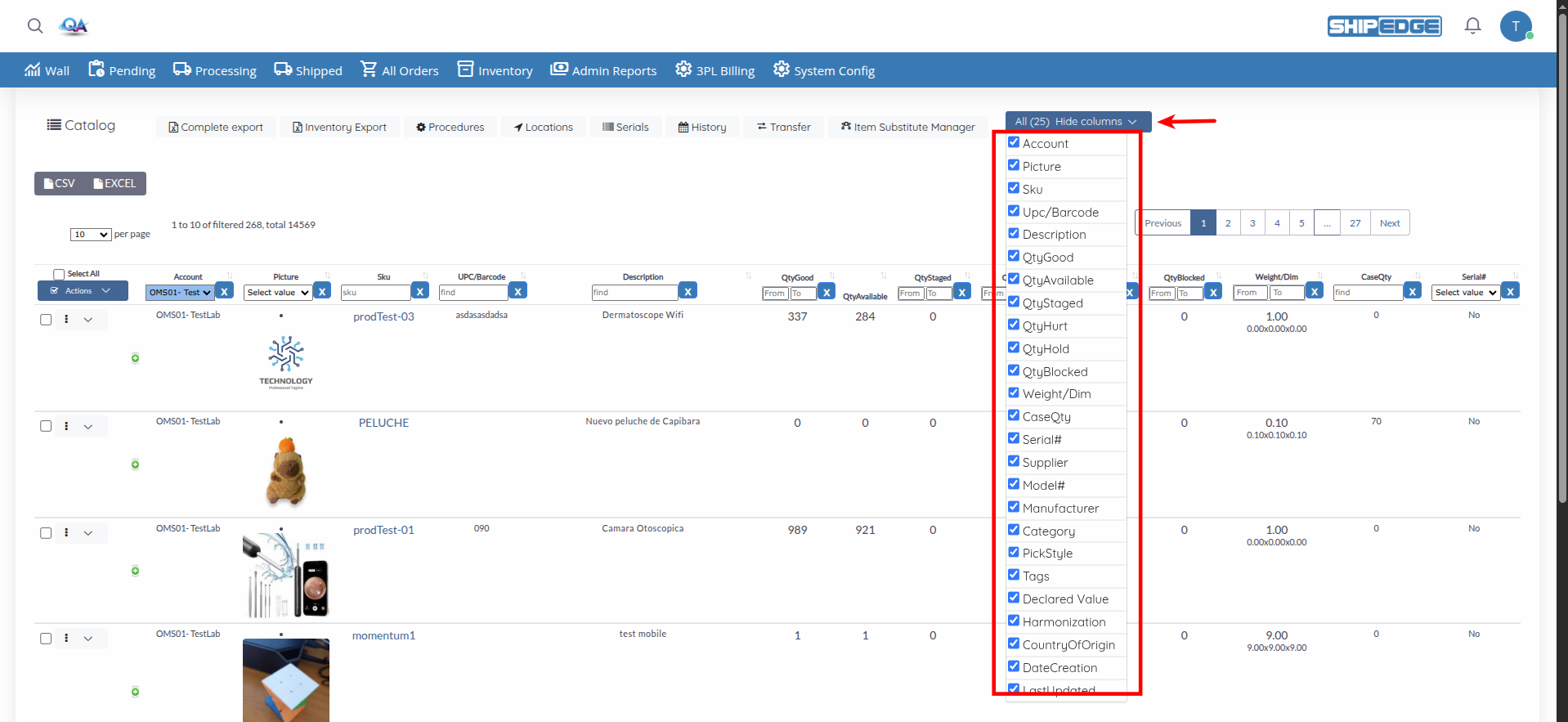
Show or hide columns to customize your view:
-
Open Column Selector
Click the column selector dropdown button (shows “Hide columns”).
-
Toggle Columns
Check or uncheck columns to show or hide them:
- Account - Company name
- Picture - Product images
- SKU - Product SKU
- Upc/Barcode - Product barcode
- Description - Product description
- QtyGood - Good quantity
- QtyAvailable - Available quantity
- QtyStaged - Staged quantity
- QtyHurt - Hurt quantity
- QtyHold - Hold quantity
- QtyBlocked - Blocked quantity
- Weight/Dim - Weight and dimensions
- CaseQty - Case quantity
- Serial# - Serial tracking
- Supplier - Supplier name
- Model# - Model number
- Manufacturer - Manufacturer
- Category - Product category
- PickStyle - Pick style
- Tags - Product tags
- Declared Value - Retail value
- Harmonization - HTS code
- CountryOfOrigin - Country of origin
- DateCreation - Creation date
- LastUpdated - Update timestamp
-
Save Preferences
Column visibility preferences are saved automatically for your user account.
Select multiple products and perform actions on them:
Selecting Products:
-
Select Individual Products
Check the checkbox next to each product row to select it.
-
Select All Products
Check the Select All checkbox in the table header to select all visible products.
-
View Selection
Selected products are highlighted. The selection persists as you navigate pages.
Available Bulk Actions:
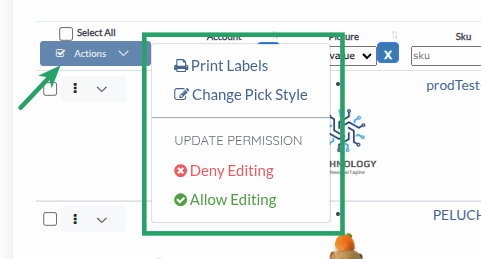
Click the Actions dropdown button to access bulk actions:
Product Actions:
- Print Labels - Print product labels for selected products
- Change Pick Style - Update pick style for selected products
Update Permissions:
- Deny Editing - Prevent editing of selected products
- Allow Editing - Allow editing of selected products
Performing Bulk Actions:
-
Select Products
Check the boxes next to products you want to act on.
-
Choose Action
Click Actions dropdown and select the desired action.
-
Follow Prompts
Some actions require additional information (e.g., pick style selection, label options).
-
Confirm Action
Follow prompts to confirm the action.
-
Review Results
System shows success message or any errors encountered.
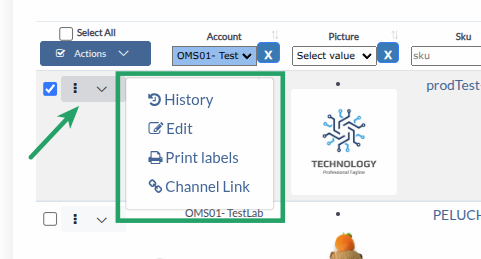
Edit product details directly from the catalog:
-
Open Edit Modal
Click the edit icon or action button on a product row.
-
Edit Product Fields
Update product information:
- SKU - Read-only (cannot be changed)
- UPC - Product barcode
- Description - Product description
- Weight - Product weight
- Length, Height, Width - Product dimensions
- Case Qty - Units per case
- Serial# - Serial tracking setting (Out, In/Out, No)
- Model# - Model number
- Harmonization - HTS code (alphanumeric and period only)
- Pick Style - Picking style preference
-
Save Changes
Click Update to save changes.
Pick styles determine how products are picked from bins:
Available Pick Styles:
- Standard Max Efficiency (0) - Default picking method for maximum efficiency
- Save Space (empty bins) (1) - Prioritize emptying bins to save space
- FIFO: Pick First In First Out (2) - Pick oldest inventory first
- LIFO: Pick Last In First Out (3) - Pick newest inventory first
- FEFO: Pick First Expire First Out (4) - Pick items expiring soonest first
- FLFO: Pick First Lot# First Out (5) - Pick lowest lot numbers first
- LLFO: Pick Last Lot# First Out (6) - Pick highest lot numbers first
- BIN_ASC: Bin ascending (7) - Pick from bins in ascending order
- BIN_DESC: Bin descending (8) - Pick from bins in descending order
Changing Pick Style:
-
Select Products
Check the boxes next to products you want to update.
-
Open Change Pick Style
Click Actions → Change Pick Style.
-
Select Pick Style
Choose the desired pick style from the dropdown.
-
Save Changes
Click Save to update pick style for all selected products.
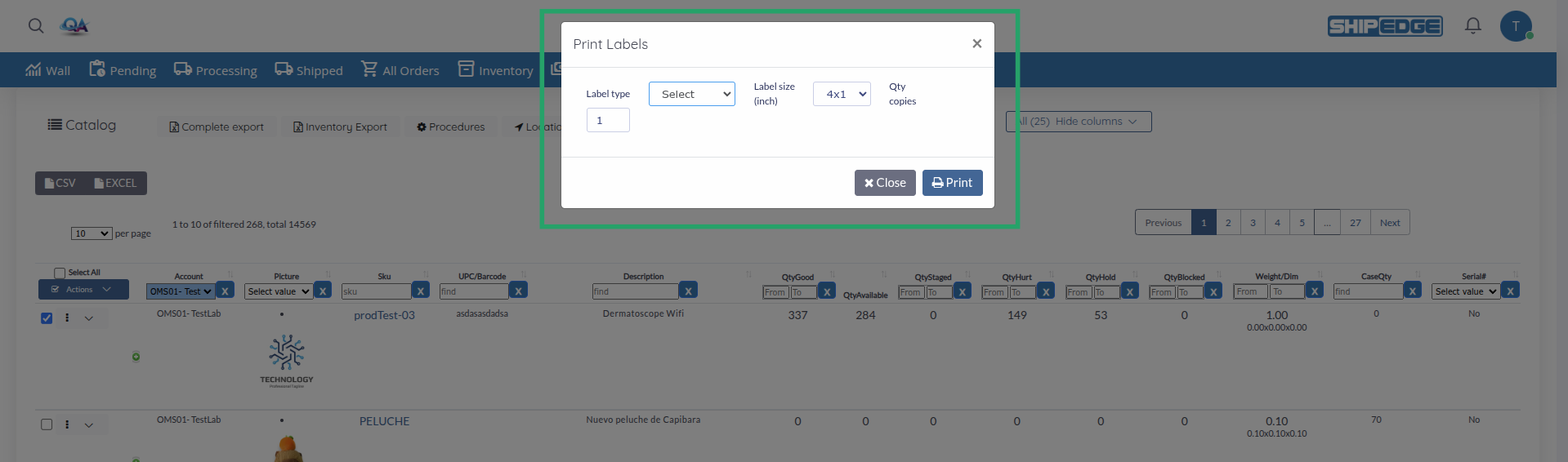
Print labels for selected products:
-
Select Products
Check the boxes next to products you want to print labels for.
-
Open Print Labels
Click Actions → Print Labels.
-
Configure Label Options
Select:
- Label Size - 4x1, 4x6, or 6x4 inches
- Code Type - ProductID, SKU, UPC, Opt1, or Barcode
- Quantity - Number of labels per product
-
Generate Labels
System generates PDF with labels ready for printing.
-
Print
Use browser print function to print labels.
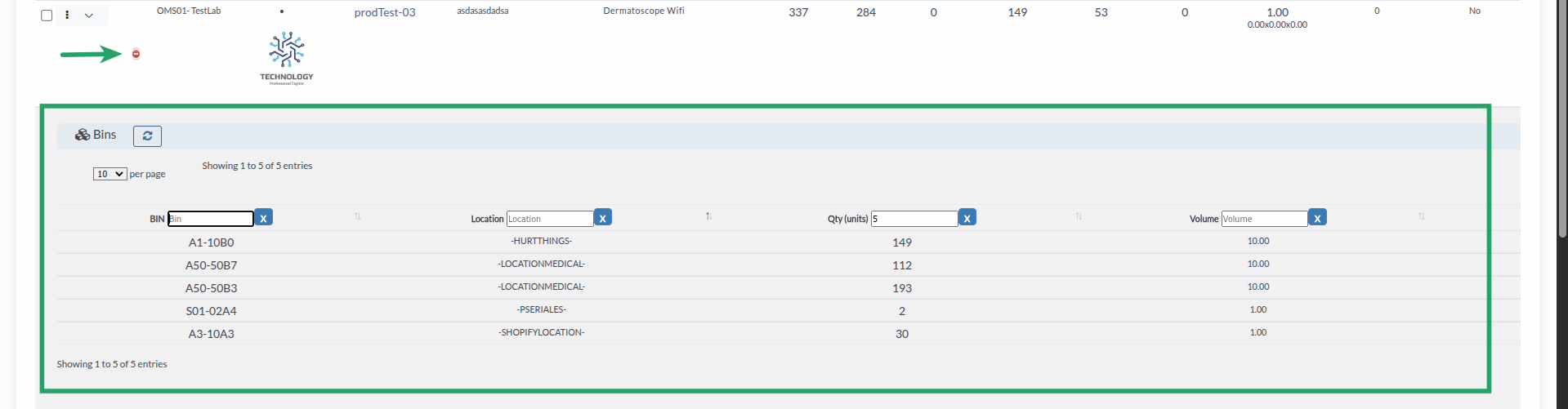
Expand product rows to see detailed information:
Expandable Details:
- Bins - View all bins containing this product
- POD (Point of Distribution) - View distribution center quantities
- History Hub - View quantity history by distribution center
Expanding Details:
-
Find Product Row
Locate the product you want to review.
-
Expand Row
Click the expand icon (plus/minus) in the first column to expand details.
-
View Details
See detailed tables showing bins, POD quantities, or history.
-
Filter Details
Use filters within detail tables to narrow information.
-
Collapse Row
Click the expand icon again to collapse and hide details.
Catalog Management shows inventory alerts at the top:
Available Alerts:
- Oversold - Products with negative UnitsInStock (shown in red)
- Reorder Level Alerts - Products at reorder levels (shown with flag icons):
- Red flag - Critical reorder level (ReorderLevel = 3)
- Orange flag - Medium reorder level (ReorderLevel = 2)
- Yellow flag - Low reorder level (ReorderLevel = 1)
Using Alerts:
-
View Alert Icons
Check the top of the page for alert icons showing counts.
-
Click Alert
Click on an alert icon to filter products matching that alert condition.
-
Review Products
Table filters automatically to show only products matching the alert.
-
Take Action
Review products and take appropriate action (reorder, investigate, etc.).
Export catalog data for reporting or analysis:
CSV Export:
-
Apply Filters (Optional)
Set up any filters you want to include in the export.
-
Export CSV
Use the export button (if available) or browser export function to download CSV file.
-
Open File
Open the CSV file in Excel or other spreadsheet application.
Excel Export:
-
Apply Filters (Optional)
Set up any filters you want to include in the export.
-
Export Excel
Use the export button (if available) to download Excel file.
-
Open File
Open the Excel file with all formatted data including separate columns for weight, length, width, height.
Complete Export:
- Click Complete export button to export all catalog data (not filtered)
- Downloads complete product catalog in Excel format
Inventory Export:
- Click Inventory Export button to export inventory-specific data
- Includes quantity and inventory-related fields
Access related warehouse features directly from Catalog Management:
- Procedures - View and manage warehouse procedures
- Locations - Manage warehouse locations
- Serials - Serial number management
- History - View product history (binmirror.php)
- Transfer - Transfer products between distribution centers (if logistic centers enabled)
- Item Substitute Manager - Manage product substitutes
Start with SKU or Description filters to find specific products quickly. Use quantity filters to identify low stock or oversold items.
Regularly review QtyStaged, QtyHold, and QtyBlocked to ensure inventory is available for orders. Clear holds and blocks when appropriate.
Configure pick styles based on product characteristics. Use FIFO for perishables, FEFO for expiration-sensitive items.
Select multiple products for bulk operations like changing pick styles or printing labels to save time.
Check inventory alerts daily to identify oversold items and products at reorder levels. Take action promptly.
Export catalog data regularly for backup and analysis. Use filters to export specific subsets when needed.
Problem: Catalog Management page doesn’t load or shows access denied.
Solutions:
- Verify you have user level 2 (warehouse user) permissions
- Ensure you’re logged in with appropriate user level
- Check if catalog feature is enabled
- Try refreshing the page
- Contact administrator if access issues persist
Problem: Catalog table is empty or shows no products.
Solutions:
- Clear all filters - you may have filters excluding all products
- Check if products exist in your account
- Verify you’re viewing the correct account
- Check if products are discontinued (filter shows only active products by default)
- Try resetting filters or refreshing the page
Problem: Applied filters don’t show expected results.
Solutions:
- Wait for filter delay - filters apply automatically after typing stops
- Verify filter values are correct (check spelling, format)
- Clear all filters and reapply one at a time to identify the issue
- Check if multiple filters are conflicting
- Refresh the page and reapply filters
Problem: Edit button doesn’t work or products can’t be edited.
Solutions:
- Check if editing is allowed for the product (check update permissions)
- Verify you have edit permissions
- Ensure product is not locked or restricted
- Try refreshing the page
- Check browser console for JavaScript errors
Problem: Bulk actions don’t execute or show errors.
Solutions:
- Verify products are selected (checkboxes checked)
- Ensure you have permissions for the action
- Check if action is valid for selected products
- Review error messages for specific issues
- Try selecting fewer products at once
- Refresh page and try again
Problem: Print labels action doesn’t work or generates errors.
Solutions:
- Verify products are selected
- Check if label options are configured correctly
- Ensure code type is valid for selected products
- Try printing labels for fewer products
- Check browser popup blockers
- Verify PDF generation is working
Problem: Export buttons don’t appear or don’t work.
Solutions:
- Verify export feature is enabled in your system
- Check if you have export permissions
- Ensure filters are applied correctly before exporting
- Check browser popup blockers
- Try exporting a smaller subset of data
- Contact administrator if export feature is not available
Problem: Quantity statuses don’t match expected values.
Solutions:
- Refresh the page - quantities update from database
- Check if orders are in processing (affects QtyStaged)
- Verify hold and block quantities are correct
- Review product history for quantity changes
- Contact administrator if quantities consistently incorrect
Next Steps:
Related Features: