
Edit Bin Identifiers
Change bin names when reorganizing warehouse layouts or correcting bin identifiers. Update Current BIN while preserving Previous BIN history.
Bin Management provides tools to edit bin identifiers, relocate bins, and manage bin information. Change bin names, view previous bin locations, and import or export bin data via CSV. This tool is essential for reorganizing warehouse layouts, correcting bin identifiers, and maintaining accurate bin records.

Change bin names when reorganizing warehouse layouts or correcting bin identifiers. Update Current BIN while preserving Previous BIN history.
Move bins between warehouse locations. Update bin location assignments while maintaining bin history.
See Previous BIN information to track bin movements and changes over time. Maintain audit trail of bin relocations.
Import or export bin data via CSV for bulk updates. Export bins for re-counting or moving operations.
Find bins quickly using advanced search by BIN, SKU, UPC, Account, or Location. Filter to specific subsets for editing.
Track CSV import history. Review past imports and download success/error reports for bulk operations.
Navigate to Bin Management
Click Bin Management from Warehouse Overview. The page loads showing all bins.
View Bin Table
Browse the table showing bin information: Location, Current BIN, Previous BIN, SKU, UPC, Description, Qty_Good, Volume, and Account.
Search for Bins
Use the search form to filter bins by BIN, Previous BIN, SKU, UPC, Account, or Location.
Edit Bins
Click Inline Edit on any bin row to edit the Current BIN identifier.
The Bin Management table displays comprehensive bin information:
Location Information:
Product Information:
Bin Details:
Change bin names when reorganizing or correcting identifiers:
Find Bin
Use search filters to locate the bin you want to edit.
Click Inline Edit
Click Inline Edit link on the bin row (only available if bin format is valid).
Edit Current BIN
Change the Current BIN field value. Previous BIN is automatically preserved.
Save Changes
Click Update to save the new bin identifier.
Cancel Edit
Click Cancel to discard changes and return to view mode.
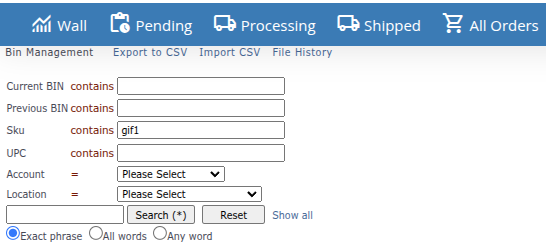
Filter bins using advanced search criteria:
Available Search Fields:
Using Advanced Search:
Open Search Form
The search form appears at the top of the page.
Enter Search Criteria
Fill in any combination of search fields:
Execute Search
Click search button or press Enter. Table filters to show matching bins.
Clear Search
Click Show all link to clear all filters and show all bins.
Basic Search:
Use the basic search box for quick text search across multiple fields:
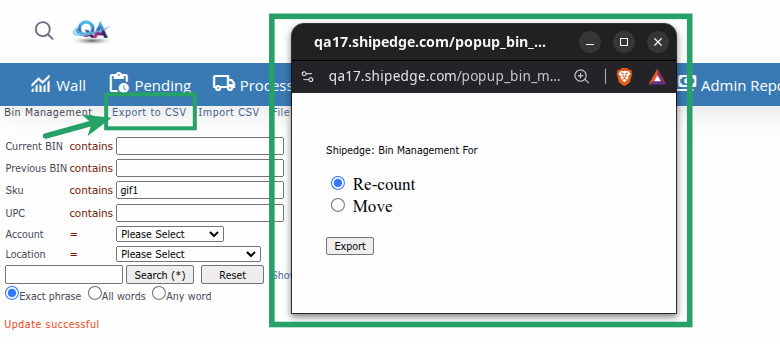
Export bin data to CSV for bulk operations:
Export Options:
Open Export Dialog
Click Export to CSV link at the top of the page.
Select Export Type
Choose export purpose:
Generate Export
Click Export button. CSV file downloads automatically.
Use Export File
Open CSV file in Excel or text editor. File includes all bin data for selected operation type.
Export File Contents:
CSV export includes:
File name format: Bin-manager-YYYYMMDDHHMMSS.csv
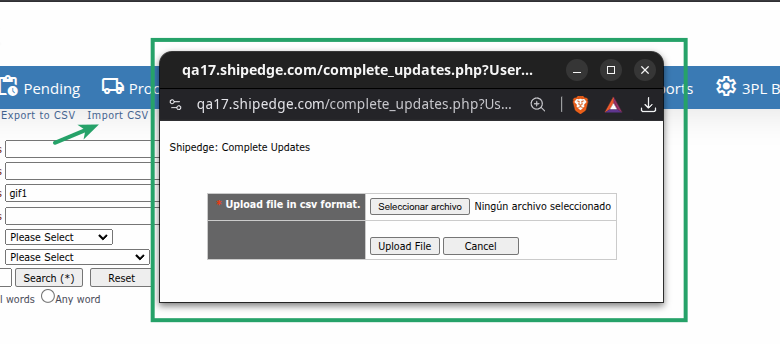
Import bin changes from CSV file:
Prepare CSV File
Create CSV file with bin data matching export format. Include columns: Location, Current BIN, Previous BIN, SKU, UPC, Description, Qty_Good, Volume, Account.
Open Import Dialog
Click Import CSV link at the top of the page.
Upload File
Select your CSV file and upload it.
Review Results
System processes import and shows results:
Download Reports
Click download links to review success and error reports.
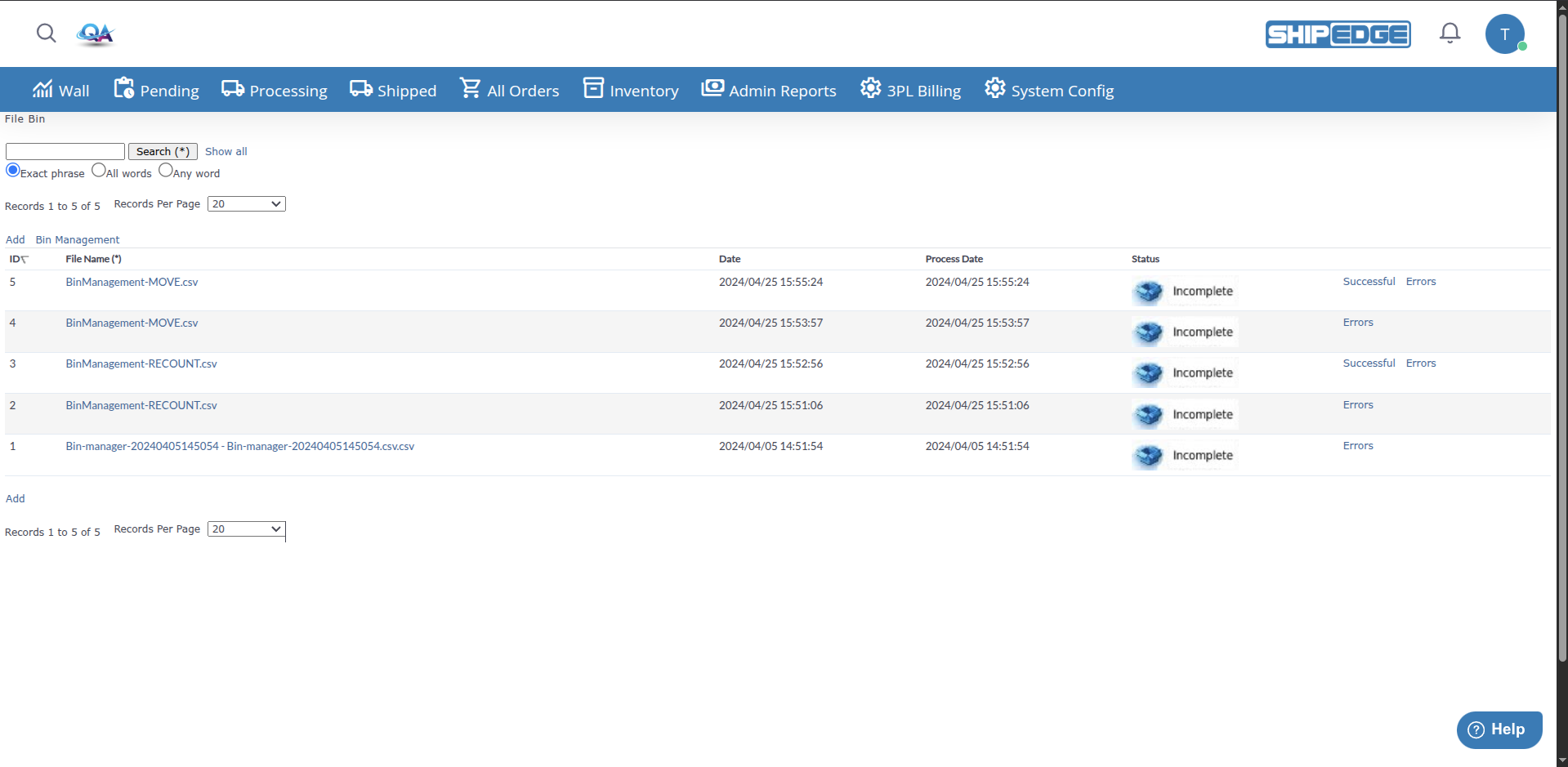
View history of CSV imports:
Open File History
Click File History link at the top of the page.
Review Import History
See list of past CSV imports with dates and status.
Download Reports
Download success or error reports from past imports if available.
Bins must follow a specific format to be editable:
Valid Bin Format:
[Letter][Number]-[Number][OptionalLetter/Number]A1-123 - Simple formatA1-123B - With letter suffixA1-123B12 - With letter and number suffixT1-45 - With location prefix (T, S, P, F, M, N, R)Format Validation:
Invalid Formats:
Current BIN:
Previous BIN:
When BIN Changes:
These fields cannot be edited in Bin Management:
Before editing bins, ensure they follow valid format. Only valid format bins can be edited inline.
Use advanced search to filter bins before editing. This helps focus on specific subsets and reduces errors.
Export bins before making bulk changes. This provides backup and allows offline preparation of changes.
Always download and review error reports after CSV imports. Fix errors and re-import corrected rows.
Check File History regularly to track CSV imports and review past bulk operations.
Problem: Bin Management page doesn’t load or shows access denied.
Solutions:
Problem: Inline Edit link doesn’t appear or is disabled.
Solutions:
Problem: Bin edit doesn’t save or shows errors.
Solutions:
Problem: Export to CSV doesn’t work or file doesn’t download.
Solutions:
Problem: CSV import shows many errors or fails completely.
Solutions:
Problem: Search filters don’t show expected results.
Solutions:
Problem: Previous BIN doesn’t match expected value.
Solutions:
Next Steps: