Skip to content

Server Status

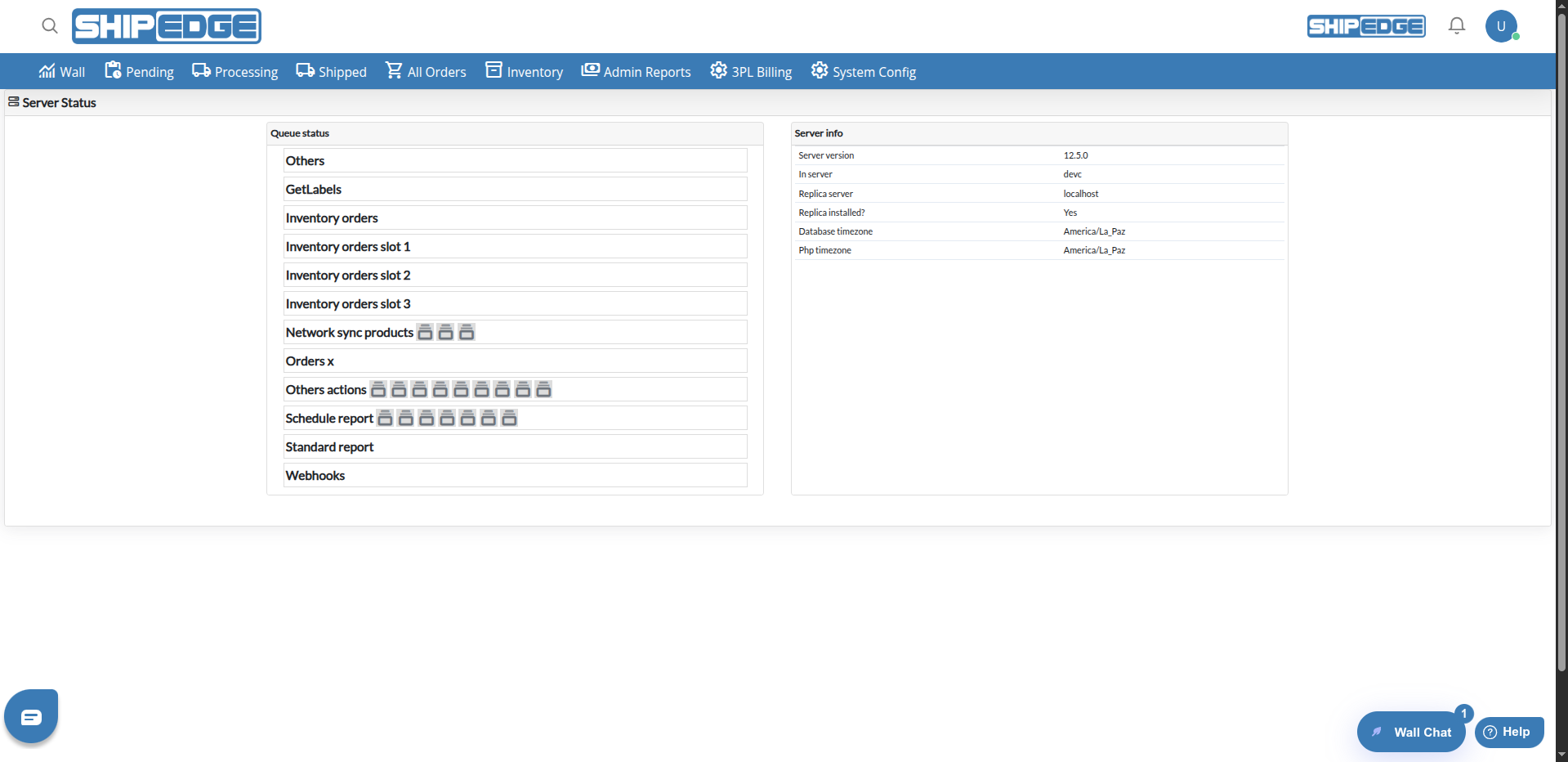
Server Status is a technical monitoring view that shows real-time information about server status, system configuration, processing queues, and infrastructure details. This tool helps administrators and technical staff diagnose problems, verify configurations, and monitor system performance.

Server Status automatically updates queue information every 5 seconds to maintain constant visibility of system status.

Real-Time Monitoring

Visualize current system status and processing queues that update automatically every 5 seconds.

Quick Diagnosis

Identify configuration problems, missing extensions, or blocked queues quickly from a single view.

Technical Information

Access server technical details, PHP versions, timezone configuration, and RabbitMQ status.

Change History

Review system update history, current Git branch, and recent commits to track changes.


  1. Navigate to Configuration Menu

    Go to the main menu and select the configuration or administration section.

  2. Select Server Status

    Click Server Status from the menu. The page will load automatically with all system information.

  3. Review Information Shown

    The page shows multiple cards with information organized by categories. Each section updates automatically.


Server Status organizes information into several sections:

Shows information about system updates and version control:

Git Information

  • Current Branch: Current Git repository branch
  • Last Commit Date: Date and time of last commit
  • Recent Changes: List of last 20 commits related to merges

This information helps identify what code version is running and when the system was last updated.


Shows PHP configuration and installed extensions:

PHP Configuration

  • PHP Version: PHP version installed on the server
  • Post Max Size: Maximum POST data size allowed
  • Upload Max Filesize: Maximum file upload size
  • Max Execution Time: Maximum script execution time (in seconds)
  • Memory Limit: Memory limit available for PHP
  • Max Input Vars: Maximum number of input variables allowed

PHP Extensions

  • PHP Extensions: Complete list of installed PHP extensions
  • Shows status (installed or not) of each required extension
  • Common extensions include: curl, gd, mysqli, pdo_mysql, zip, xml, etc.

This section is useful to verify all necessary extensions are installed and configuration limits are adequate.


Shows system timezone configuration:

Timezone Configuration

  • Database Timezone: Timezone configured in the database
  • PHP Timezone: Timezone configured in PHP

Both configurations must match to avoid problems with dates and times in the system.


Shows RabbitMQ processing queue status:

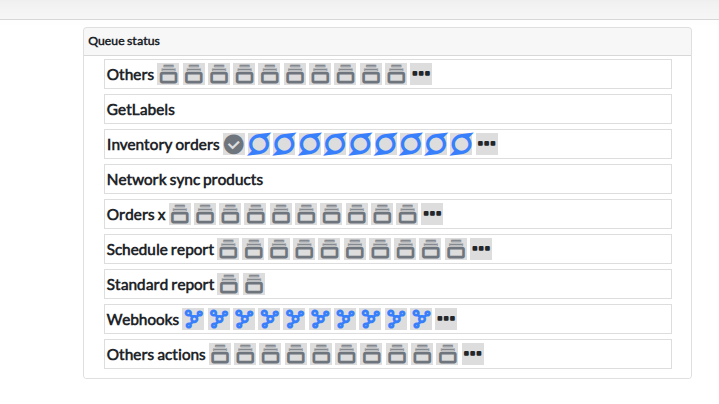
Queue Status

  • Queues: List of all active RabbitMQ queues
  • Shows status of each processing queue
  • Useful to identify blocked or problematic queues

RabbitMQ handles asynchronous processing of tasks like label generation, webhooks, and order processing.


Information about server configuration:

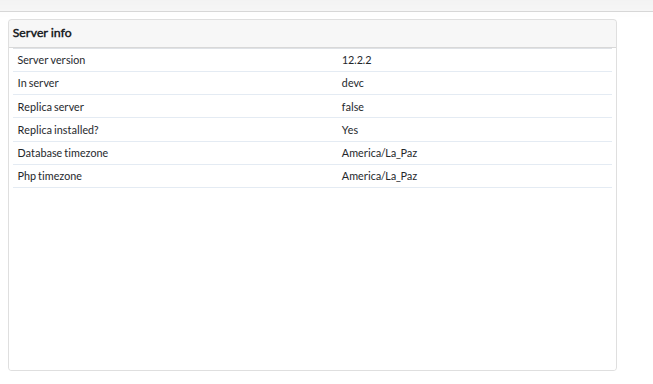
Server Information

  • In Server: Main server where the application runs
  • Replica Server: Replica server (if configured)
  • Replica Installed: Indicates if there’s a replica server installed (Yes/No)
  • Server Version: Installed ShipEdge system version

This information helps identify which server the application is running on and if there’s high availability configuration.


Shows real-time processing queue status:

Queue Activity

  • Queue Status: Visual view of active queues
  • Shows last 10 items of each queue
  • Icons indicate process type (P2P, Webhooks, Cancel Orders, etc.)
  • Updates automatically every 5 seconds

Icons and names in queues represent different process types:

  • P2P (Pending to Processing): Regular processing of pending orders
  • P2P Wave: Wave processing
  • Big P2P: Large order processing
  • Cancel Orders: Order cancellation
  • Webhooks: Webhook notification sending
  • Recount: Inventory recount
  • Libera Backorder: Backorder activation
  • Store Activity Log: Activity logging
  • Reprocess Orders: Order reprocessing by different criteria
  1. Click on a Queue

    Click on a queue name or the “Show more” icon (three dots) to see all items.

  2. Review Details Table

    A modal opens with a table showing:

    • Item ID
    • Action/Process
    • Current status
    • Creation date
    • Button to view more details
  3. View Details of Specific Item

    Click the information button (circle icon with “i”) to see the complete item payload in JSON format.


System Working Correctly:

  • All required PHP extensions are installed
  • Memory and execution time limits are adequate
  • Database and PHP timezones match
  • Queues are processing items normally
  • No visible errors in server information

⚠️ Possible Problems:

  • Missing PHP extensions (marked as not installed)
  • Very low memory limits
  • Timezones that don’t match between database and PHP
  • Queues with many accumulated items not processing
  • Errors in RabbitMQ connection

Review Regularly

Review Server Status periodically to detect problems before they affect daily operations.

Monitor Queues

Pay attention to queues that have many accumulated items. This may indicate slow or blocked processes.

Verify Extensions

After server updates, verify all required PHP extensions are still installed.

Document Changes

Use “Last System Refresh” information to track when changes were made to the system and what version is running.


Possible Causes:

  • RabbitMQ is not running
  • Processing workers are stopped
  • There’s an error in code blocking processing
  • Connection between application and RabbitMQ is interrupted

Solution:

  1. Verify RabbitMQ status in “RabbitMQ status” section
  2. Review server logs for errors
  3. Verify workers are running
  4. Contact technical team if problem persists

Possible Causes:

  • Server update that removed extensions
  • New installation without all required extensions
  • Incorrect PHP configuration

Solution:

  1. Identify which extensions are missing in “System Requirements”
  2. Install missing extensions on the server
  3. Restart PHP services if necessary
  4. Verify again in Server Status

Possible Causes:

  • Incorrect database configuration
  • Incorrect PHP configuration
  • Recent server configuration change

Solution:

  1. Verify both timezones in “Timezone Configuration”
  2. Adjust configuration so they match
  3. Restart services if necessary
  4. Verify dates display correctly in other parts of the system

Problem: “Page doesn’t load or shows errors”

Section titled “Problem: “Page doesn’t load or shows errors””

Possible Causes:

  • User permission problems
  • Error connecting to health check API
  • Network or server problems

Solution:

  1. Verify you have necessary permissions (All_Orders_A)
  2. Review browser console for JavaScript errors
  3. Verify /apiv2/internal_health_check/info API is accessible
  4. Contact technical support if problem persists

How often is information updated?

  • Queue Status: Updates automatically every 5 seconds
  • Other information: Loads when you access the page or reload manually

Can I export this information?

Currently there’s no integrated export function. You can take screenshots or manually copy the information you need.

What do I do if I see queues with many items?

If a queue has many accumulated items:

  1. Review item details to identify the problem
  2. Verify system logs for errors
  3. Consider restarting processing workers if necessary
  4. Contact technical team if problem persists

Why don’t I see the Queue Status section?

The Queue Status section only appears if there’s queue data available. If all queues are empty, you’ll see the message “Great job! The queue is empty”.

What does “Replica Installed: No” mean?

It means there’s no replica server configured for high availability. This is normal in standard installations and doesn’t indicate a problem.


Explore Related Features: