Skip to content

Automation Rules

Automation Rules are custom workflows that automatically execute actions based on specific conditions. You can create rules for orders, shipments, batches, and pending processes that are triggered by system events or scheduled times.

With Automation Rules, you eliminate repetitive manual tasks and ensure your operation responds consistently to specific situations.

Save Time

Eliminate repetitive manual tasks. Rules work 24/7 executing actions automatically when conditions are met.

Reduce Errors

Consistent and predictable actions every time. Rules eliminate human error in repetitive tasks.

Immediate Response

Trigger rules by system events in real-time or schedule periodic executions with custom schedules.

Full Control

Create rules with advanced filters and multiple actions. Manage priorities, enable/disable rules, and review complete history.


ShipEdge supports different rule types based on your user level:

Shipping Rules

Shipping Rules: Automate processes related to orders in shipping status.

  • Automatic label generation
  • Batch creation
  • Shipping method assignment
  • Tracking status updates

Batch Rules

Batch Rules: Manage creation and processing of picking batches.

  • Automatic batch creation
  • Order assignment to batches
  • Picking prioritization
  • Batch splitting

Pending Rules

Pending Rules: Control orders in pending status.

  • Available inventory validation
  • Pending order notifications
  • Automatic movement to Processing
  • Backorder management

Orders Rules

Orders Rules: Automate order workflows from import to shipment.

Available Actions:

  • Automatic order cancellation
  • Shipping method change
  • Webhook notification sending
  • Auto-processing to WMS
  • Order hold (retention)
  • Order splitting by backorder
  • Availability information sending

  1. Access Automation Rules

    Go to the main menu and select Rules. You’ll see a list of all your existing rules organized by priority.

  2. Click “Create Rule”

    • Warehouse: Select the rule type from the dropdown menu (Shipping Rule, Batch Rule, or Order Pending Rule)
    • OMS: Click directly on Create Rule to create an orders rule
  3. Configure Basic Information

    • Rule Name: Give your rule a descriptive name
    • Status: Check “Active rule” to activate it immediately
    • Priority: Assign a priority number (higher numbers execute first)
  4. Select Activation Type

    Choose how your rule will be triggered:

    Option A: Select Trigger (By Event)

    • Select a system event that will trigger the rule
    • Examples: “Imported Orders”, “Order Created”, “Order Processing”, “Shipped”
    • The rule executes automatically when the event occurs

    Option B: Config Custom Schedule (By Schedule)

    • Configure a custom schedule using the cron selector
    • The rule executes periodically according to the defined schedule
    • Useful for maintenance tasks or periodic checks
  5. Add Filters (Optional but Recommended)

    Filters determine WHICH orders/shipments will apply to this rule:

    • Click “Add Filter”
    • Select the field to evaluate (Order Status, Shipping Method, Account, etc.)
    • Choose the condition (equals, contains, greater than, etc.)
    • Enter the value to compare
    • You can add multiple filters that will be evaluated together
  6. Define Actions

    Actions are the tasks that will be executed when filters are met:

    • Click “Add Action”
    • Select the action to execute
    • Configure the action parameters
    • You can add multiple actions that will execute in sequence
  7. Save the Rule

    Click Save to create your rule. If marked as active, it will start working immediately.


Order rules can be triggered with the following events:

Import and Creation

  • Imported Orders: When orders enter via API v4 or channel automation
  • Order Created: When an order is manually created
  • Order updated: When an order is updated in any way

Status Changes

  • Order pending: When an order changes to Pending status
  • Order processing: When an order changes to Processing
  • Order BackOrder: When an order changes to Backorder
  • Order canceled: When an order is canceled
  • Order divided: When an order is divided into multiple shipments

Shipments and Fulfillment

  • Order shipped: When an order changes to Shipped
  • Order shipped by FBA: Shipped by Amazon FBA
  • Order shipped by MCF: Shipped by Amazon MCF
  • Order shipped by Dropshipper: Shipped by Dropshipper
  • Order sent by FBA: Sent to Amazon FBA
  • Order sent by MCF: Sent to Amazon MCF

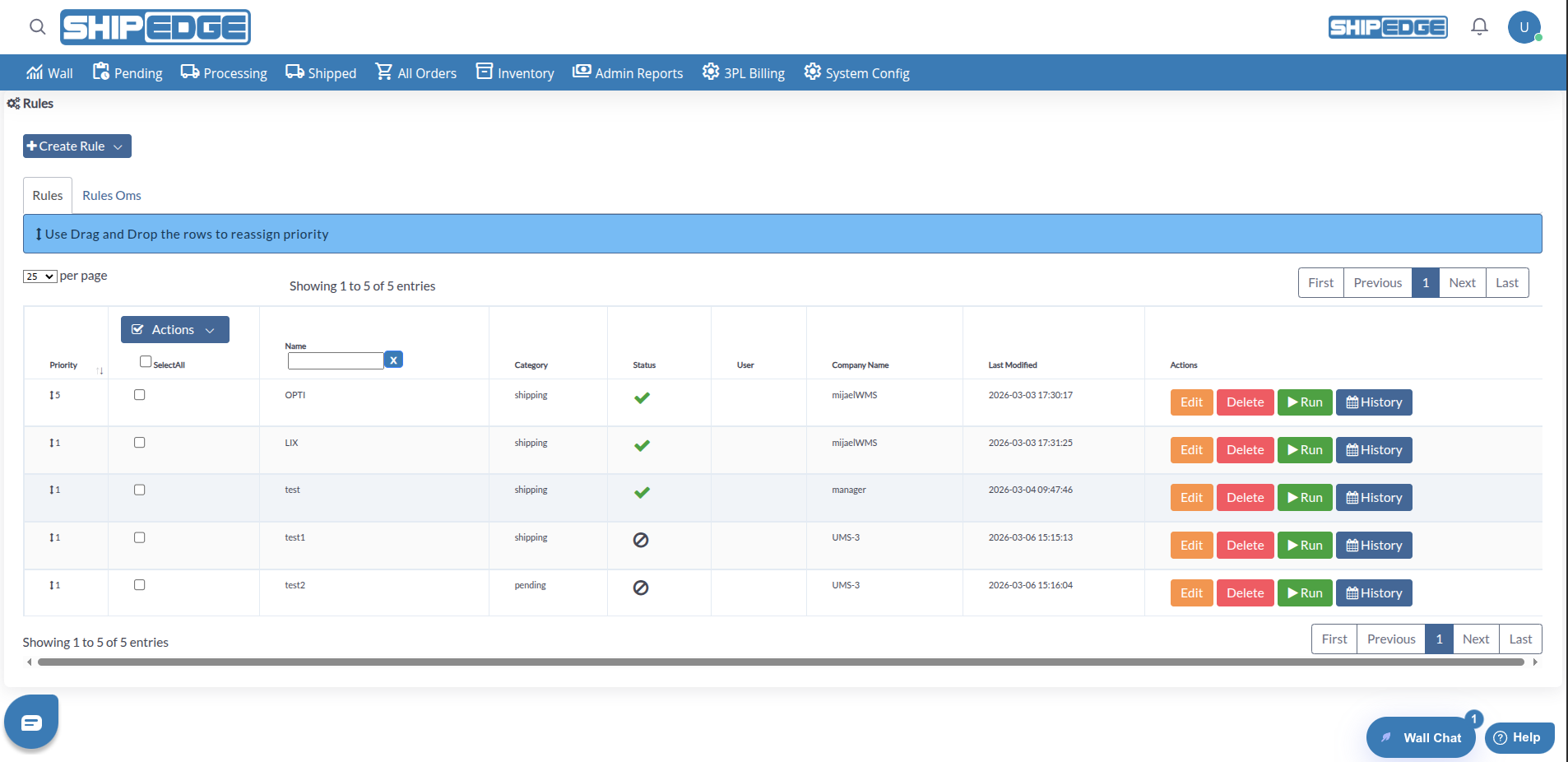
The rules table shows:

  • Priority: Execution priority (drag and drop to reorder)
  • Name: Rule name
  • Category: Rule type (orders, shipping, batchs, pending)
  • Status: Active status (✓) or inactive (🚫)
  • Company Name: Associated account (if applicable)
  • User: User who created the rule
  • Last Modified: Last modification date

For each rule you can:

  1. Edit

    Modify filters, actions, triggers, or any rule configuration.

  2. Delete

    Permanently delete the rule. Confirm deletion to prevent accidental deletions.

  3. Run (Manual Execution)

    Execute the rule immediately without waiting for trigger or schedule. Useful for testing rules or executing actions on demand.

  4. History (View History)

    Review the complete execution history of the rule:
    • Date and time of each execution
    • Status (success or error)
    • Number of records processed
    • Log messages and errors

You can manage multiple rules at once:

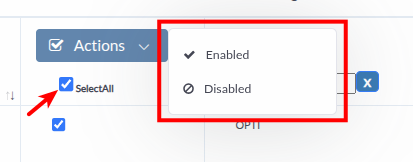
  1. Select Rules

    Check the boxes of the rules you want to modify. Use “SelectAll” to select all.

  2. Choose an Action

    From the Actions menu:

    • Enabled: Enable selected rules
    • Disabled: Disable selected rules
  3. Confirm Operation

    The system will ask for confirmation before changing the status of multiple rules.


Use Case: Auto-Cancel Orders from a Specific Customer

Section titled “Use Case: Auto-Cancel Orders from a Specific Customer”

Objective: Automatically cancel imported orders from a specific customer that meet certain conditions.

Configuration:

Name: Auto-Cancel High Value Orders - ACME Corp
Status: Active
Priority: 10
Trigger: Select Trigger
└─ Event: "Imported Orders"
Filters:
1. Account → equals → "ACME Corp"
2. Order Total → greater than → 5000
3. Shipping Method → contains → "Ground"
Actions:
1. Cancel Orders
└─ Reason: "High value order requires manual review"

Result: When an order from ACME Corp is imported with a total greater than $5000 and Ground shipping method, it is automatically canceled with the specified reason.


Order Information

  • Order Status
  • Order Type
  • Reference Number
  • Order Total
  • Total Weight
  • Total Items
  • Priority

Customer Information

  • Account (Company Name)
  • Customer Name
  • Shipping Country
  • Shipping State
  • Shipping City

Shipping Information

  • Shipping Method
  • Shipping Carrier
  • Required Ship Date
  • Ship By Date
  • Delivery Date

Product Information

  • SKU
  • Product Description
  • Quantity Ordered
  • Product Category

Test Before Activating

Use the “Run” button to manually execute the rule and verify results before activating it permanently.

Use Descriptive Names

Give clear names that describe WHAT the rule does and WHEN it triggers. Example: “Auto-Process Amazon Orders - Daily 8AM”

Review History Regularly

Monitor execution history to detect errors or unexpected behaviors. Adjust filters if necessary.

Manage Priorities

Assign logical priorities. Critical rules (like cancellations) should have higher priority than notification rules.

Document Your Rules

Use the description field (if available) to document the purpose and logic of each rule for future reference.

Specific Filters

Use specific filters to avoid the rule affecting unwanted orders. It’s better to be conservative and expand later.


Possible Causes:

  • The rule is disabled (Status = inactive)
  • Filters are too restrictive and no orders meet the conditions
  • The trigger/event is not occurring
  • There’s a conflict with another rule of higher priority

Solution:

  1. Verify the rule is marked as “Active”
  2. Review history to see if there are executions
  3. Use the “Run” button manually to test
  4. Simplify filters temporarily to diagnose
  5. Review other rules with higher priority that may be interfering

Problem: “The rule executes but does nothing”

Section titled “Problem: “The rule executes but does nothing””

Possible Causes:

  • Filters are not capturing the correct orders
  • Actions are not configured correctly
  • There’s an error in action parameters

Solution:

  1. Review history to see error messages
  2. Execute the rule manually with the “Run” button
  3. Verify filter values match data exactly
  4. Review action configuration step by step
  5. Simplify the rule (fewer filters, single action) to isolate the problem

Problem: “The rule affects orders it shouldn’t”

Section titled “Problem: “The rule affects orders it shouldn’t””

Possible Causes:

  • Filters too broad or generic
  • Missing an additional necessary filter
  • Error in conditional logic (AND vs OR)

Solution:

  1. Disable the rule immediately
  2. Review history to identify which orders were affected
  3. Add more specific filters
  4. Test the rule with the “Run” button before reactivating
  5. Consider creating two separate rules with more specific conditions

Problem: “Conflict between multiple rules”

Section titled “Problem: “Conflict between multiple rules””

Possible Causes:

  • Two or more rules with contradictory actions
  • Incorrectly configured priorities
  • Multiple rules affecting the same orders

Solution:

  1. Identify conflicting rules by reviewing their filters and actions
  2. Adjust priorities (drag & drop in the table)
  3. Refine filters so each rule has a clear scope
  4. Consider consolidating similar rules into one more complex rule
  5. Use the priority field to control execution order

  • Managers: Full access to create, edit, and delete Shipping, Batch, and Pending rules
  • Other users: Warehouse rules view-only
  • Full access to Orders Rules for their account
  • Cannot view or modify rules from other customers
  • No access to warehouse rules

In Automation Rules you’ll see two tabs:

  • Rules: Rules for your user level (warehouse or OMS)
  • Rules Warehouse/OMS: Rules from the other level (view-only)

How many rules can I create?

There’s no specific limit on rules, but consider performance. Too many active rules can affect processing time.

Can I temporarily disable a rule?

Yes, uncheck “Active rule” or use the “Disabled” option from the actions menu. The rule is saved but not executed.

Do rules execute in order?

Yes, rules execute in priority order (highest to lowest). Use drag & drop to reorder.

What happens if a rule has an error?

The rule stops and the error is logged in history. Other rules continue executing normally.

Can I see which orders were affected by a rule?

Yes, review the rule history with the “History” button. You’ll see details of each execution and number of records processed.

Do scheduled rules work 24/7?

Yes, scheduled rules work according to the configured cron, regardless of time.


Explore Related Features: