Shipping Estimates lets you get shipping rate estimates from multiple carriers before processing a shipment or to plan costs. Simply enter destination information, package dimensions, and weight, and the system will show all available shipping options with their prices, helping you make informed decisions about the best shipping method.
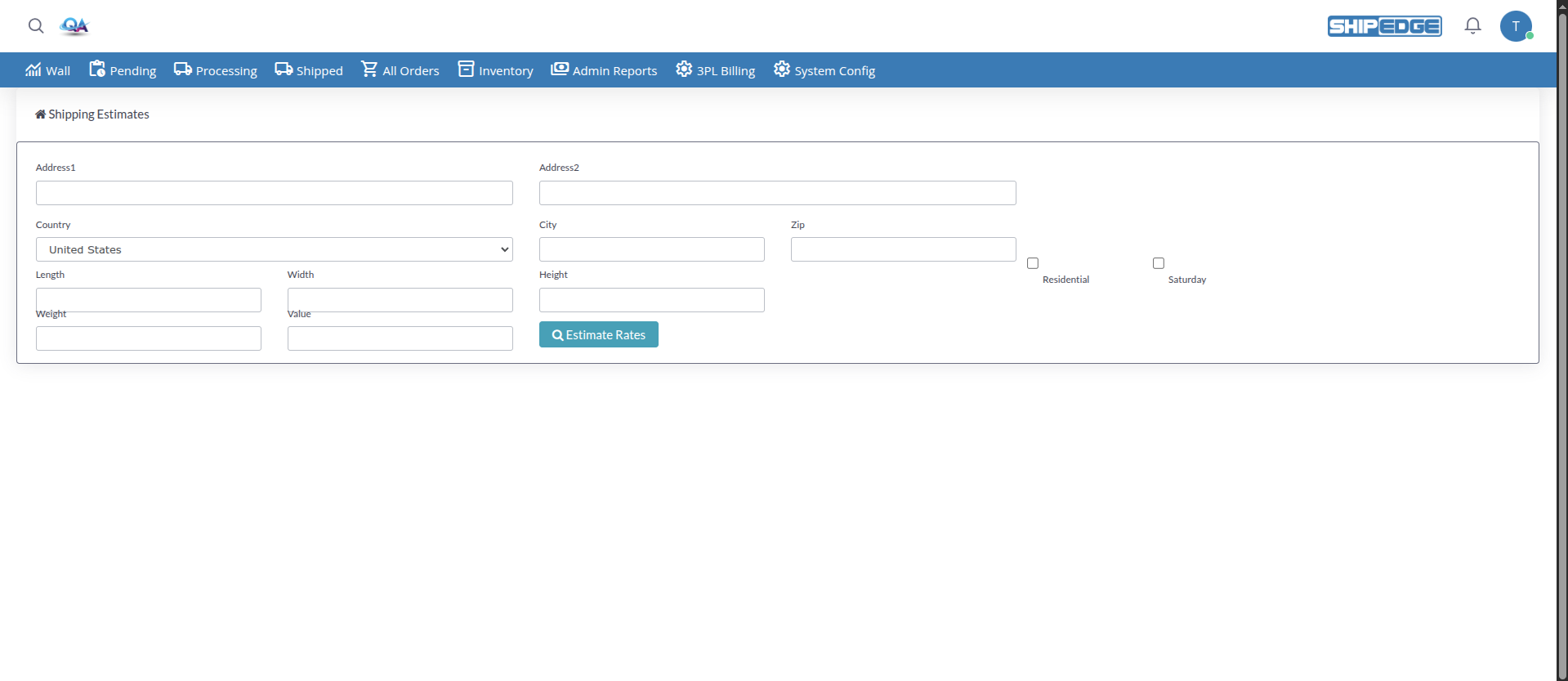
This tool is especially useful for the warehouse when it needs to compare rates between different carriers and shipping methods, allowing you to provide accurate estimates to clients and plan operating costs.
See all available shipping options from multiple carriers in a single view, sorted by price to facilitate comparison and selection of the best method.
Get accurate cost estimates before processing shipments, helping you set correct expectations with clients and plan warehouse budget.
Explore different shipping methods including standard, express, and Saturday delivery services to find the best option according to client needs.
See complete information including carrier, shipping method, method code, price with applied discounts, and negotiated rate when available.
Get instant results without needing to create a complete order, allowing you to provide quick quotes to clients.
Compare prices between different carriers and methods to identify the most economical options and optimize warehouse shipping costs.
-
Navigate to Billing Menu
From the main warehouse menu, go to Admin Reports.
-
Select Shipping Estimates
In the Admin Reports dropdown menu, click “Shipping Estimates”.
-
View the Form
The “Shipping Estimates” page will open with a form to enter shipping information.
-
Complete Address Information
In the top section of the form, enter:
- Address1: Main destination address
- Address2: Secondary address or apartment (optional)
- Country: Select destination country from the dropdown menu
- City: Destination city
- Zip: Destination zip code
- Residential: Check this box if the address is residential (this may affect rates)
- Saturday: Check this box if you need Saturday delivery (premium service available)
-
Enter Package Dimensions
In the dimensions section, enter measurements in inches:
- Length: Package length
- Width: Package width
- Height: Package height
-
Specify Weight and Value
Complete the following fields:
- Weight: Package weight in pounds (required)
- Value: Declared value of the package (optional, used for insurance and protection)
-
Search Rates
Click the “Estimate Rates” button (with search icon). The button will show a loading spinner while the system processes the request.
-
View Results
The system will show a table with all available shipping options, including:
- Price: Final price with applied discounts (OMS rate)
- Negotiated Rate: Rate negotiated with the carrier (if available and you have administrator permissions)
- Carrier: Carrier name (USPS, FedEx, UPS, etc.)
- Method: Shipping method code and name
Results are automatically sorted by price (lowest to highest) to facilitate comparison.
- Address1: Main destination address. Free text field.
- Address2: Additional address information such as apartment, suite, or unit. Optional.
- Country: Destination country. Selection from dropdown menu with all available countries.
- City: Destination city. Free text field.
- Zip: Destination zip code. Required to get accurate estimates.
- Residential: Checkbox indicating if the address is residential. Some carriers charge different rates for residential vs commercial addresses.
- Saturday: Checkbox to request Saturday delivery. Premium service available on some carriers with additional cost.
- Length: Package length in inches. Accepts decimals.
- Width: Package width in inches. Accepts decimals.
- Height: Package height in inches. Accepts decimals.
- Weight: Package weight in pounds. Required. Accepts decimals. If left empty, the system uses 1 pound as default.
- Value: Declared value of the package in dollars. Optional. Used to calculate insurance and additional protection when available.
The results table shows the following columns:
- Price: Final price that will be charged to the client (OMS rate with applied discounts)
- Negotiated Rate (if available): Rate negotiated directly with the carrier
- Carrier: Shipping carrier name
- Method: Shipping method code and its descriptive name
- Results are automatically sorted by price (ascending)
- You can use DataTables filters to search by carrier, method, or price
- The table is fully sortable by clicking column headers
The system can show three types of responses:
- Rates: Complete list of available shipping options from multiple carriers
- Prime: Specific Amazon Prime options (if applicable)
- Empty: Message indicating no rates are available for the entered parameters
Enter exact dimensions of the packaged item to get accurate estimates. Incorrect dimensions can result in significant differences in final cost.
Use the actual package weight including all packaging materials. Weight is one of the most important factors in rate calculation.
Review all available options before making a decision. Sometimes a faster method can be more economical than a standard one depending on the destination.
Correctly mark if the address is residential or commercial, as this can significantly affect rates from some carriers.
Use Shipping Estimates to provide quick quotes to clients before creating orders, helping them make informed decisions.
Remember that these are estimates. Final price may vary due to actual package weight, dimensional volume, or changes in carrier rates.
- Verify zip code: Make sure the zip code is valid for the selected country
- Enter weight: Weight is required. If you don’t enter weight, the system uses 1 pound as default
- Verify connection: Make sure you have stable internet connection to communicate with carrier services
- Review parameters: Some combinations of country, zip code, and weight may not have available options
- Verify dimensions: Incorrect dimensions can result in rates based on incorrect dimensional weight
- Review address type: Make sure to correctly mark if it’s residential or commercial
- Consider dimensional weight: If the package is large but light, the carrier may use dimensional weight instead of actual weight
- Verify discounts: Shown rates include negotiated discounts. Negotiated rate may differ from final price
- Wait for response: The system may take a few seconds to get rates from multiple carriers
- Verify required fields: Make sure at least Country, Zip, and Weight are complete
- Reload page: If the problem persists, reload the page and try again
- Verify permissions: Make sure you have permissions to access Shipping Estimates
- Administrator permissions: The “Negotiated Rate” column is only visible to users with administrator permissions or for specific accounts configured in the system
- Account configuration: Some accounts may have this column hidden by configuration
- Statements - Complete warehouse statement management
- Dashboard - Overview of warehouse operations and expenses
