
Skip to content

Reports

Reports lets you generate detailed reports about your warehouse operations, including shipped orders, inventory, shipping expenses, transactions, and more. You can generate reports immediately or schedule them to run automatically at specific times.
Detailed Analysis

Get detailed information about orders, inventory, expenses, and transactions to make informed decisions.

Multiple Report Types

Access more than 30 different types of standard and advanced reports according to your specific needs.

Custom Filters

Filter reports by account, date range, order status, and other specific criteria to get exactly what you need.

Automatic Scheduling

Schedule reports to generate automatically at specific times and receive them by email.

CSV Export

All reports are generated in CSV format for easy analysis in Excel or other tools.

Report History

Access a complete history of all generated reports for future reference.

You can access Reports from:

  1. Billing Menu: Navigate to Billing > Reports
  2. Main menu: In some menus it appears directly as Reports
  3. Directly: Access /standard_reports_csv.php

Reports includes two main categories:

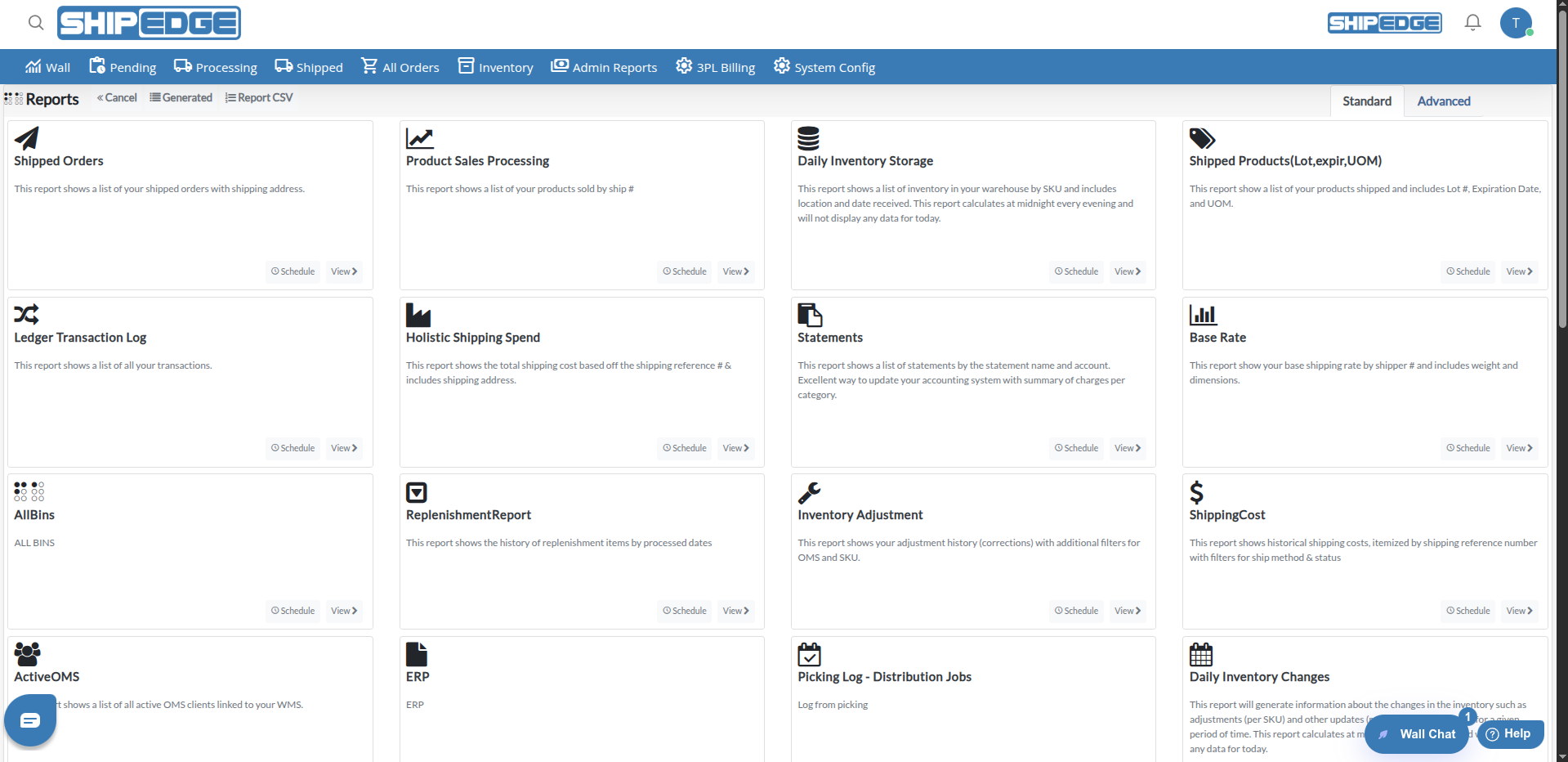
Standard reports are available to all users and don’t require special configuration. They include:

  • Shipped Orders: Orders shipped in a specific period
  • Product Sales Processing: Product sales and processing
  • Daily Inventory Storage: Daily inventory storage
  • Shipped Products: Shipped products with details
  • Ledger Transactions Log: Ledger transaction log
  • Holistic Shipping Spend: Complete shipping expenses
  • Statement: Account statements
  • Base Rate: Base shipping rates
  • All Bins: All warehouse bins
  • Replenishment Report: Replenishment report
  • Inventory Adjustment: Inventory adjustments
  • Shipping Cost: Shipping costs
  • Picking Log: Picking log
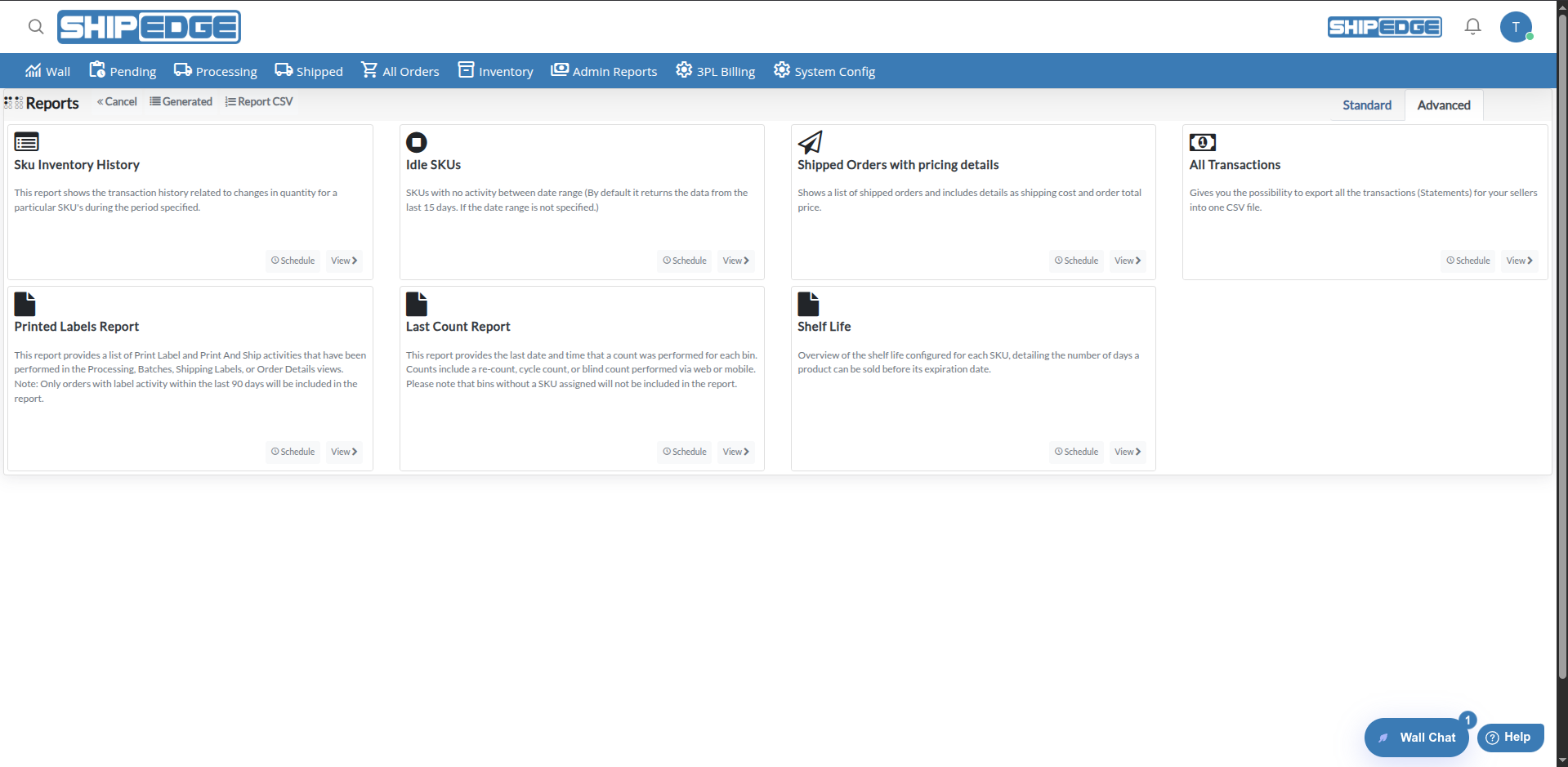
  • Idle Skus: Inactive SKUs
  • Daily Inventory Changes: Daily inventory changes
  • All Transactions: All transactions
  • Manufacture Orders: Manufacturing orders
  • Shipped Boxes: Shipped boxes
  • Routing Orders: Routing orders
  • Shipped Orders Cost: Shipped order costs
  • Shipping Spend Report By Carrier: Shipping expenses by carrier
  • Shipped Orders With RMA: Shipped orders with RMA
  • Product Serials: Product serial numbers

Advanced reports require a configured database replica server. If you don’t have access to these reports, you’ll see a message indicating that additional configuration is required.
  1. Access Reports

    Go to Billing > Reports or access directly at /standard_reports_csv.php.

  2. Select report type

    On the main page, you’ll see cards with all available reports. Each card shows:

    • Report icon
    • Report name
    • Brief description
    • Buttons to generate or schedule
  3. Click View or the report name

    This will open a modal with report parameters.

  4. Select account (if applicable)

    If your user level allows, select the account for which you want to generate the report. You can select “ALL” for all accounts or a specific account.

  5. Select date range

    Use the date range selector to choose:

    • Predefined ranges: Today, Yesterday, Last 7 Days, Last 30 Days, This Month, Last Month, etc.
    • Custom range: Select specific dates using the calendar
  6. Configure additional filters (if applicable)

    Depending on report type, you can configure additional filters such as:

    • Order status
    • Specific SKUs
    • Carriers
    • And other filters according to the report
  7. Review configuration

    Make sure all parameters are correct before generating the report.

  8. Generate report

    Click Generate to create the report immediately. The system will process the report and it will be available in the generated reports list.

You can schedule reports to generate automatically:

  1. Access the report

    Go to Reports and select the report you want to schedule.

  2. Click Schedule

    On the report card, click the Schedule button (clock icon).

  3. Configure parameters

    Complete the same parameters as for generating a manual report:

    • Account
    • Date range (using the range selector for scheduling)
    • Additional filters
  4. Configure frequency

    Use the cron selector to configure when the report will run:

    • Predefined options: Daily (At minute 0 past hour 2 and 8), Daily (At minute 0 past hour 8 and 20), etc.
    • Custom configuration: Use the cron interface to configure specific schedules
  5. Select date range for scheduling

    Choose the time period that each report execution will cover:

    • Last 2 Days
    • Last 5 Days
    • Last 10 Days
    • Last 15 Days
    • Last 20 Days
    • Last 1 month
  6. Save schedule

    Click Schedule to save the schedule. The report will run automatically according to the configured frequency.
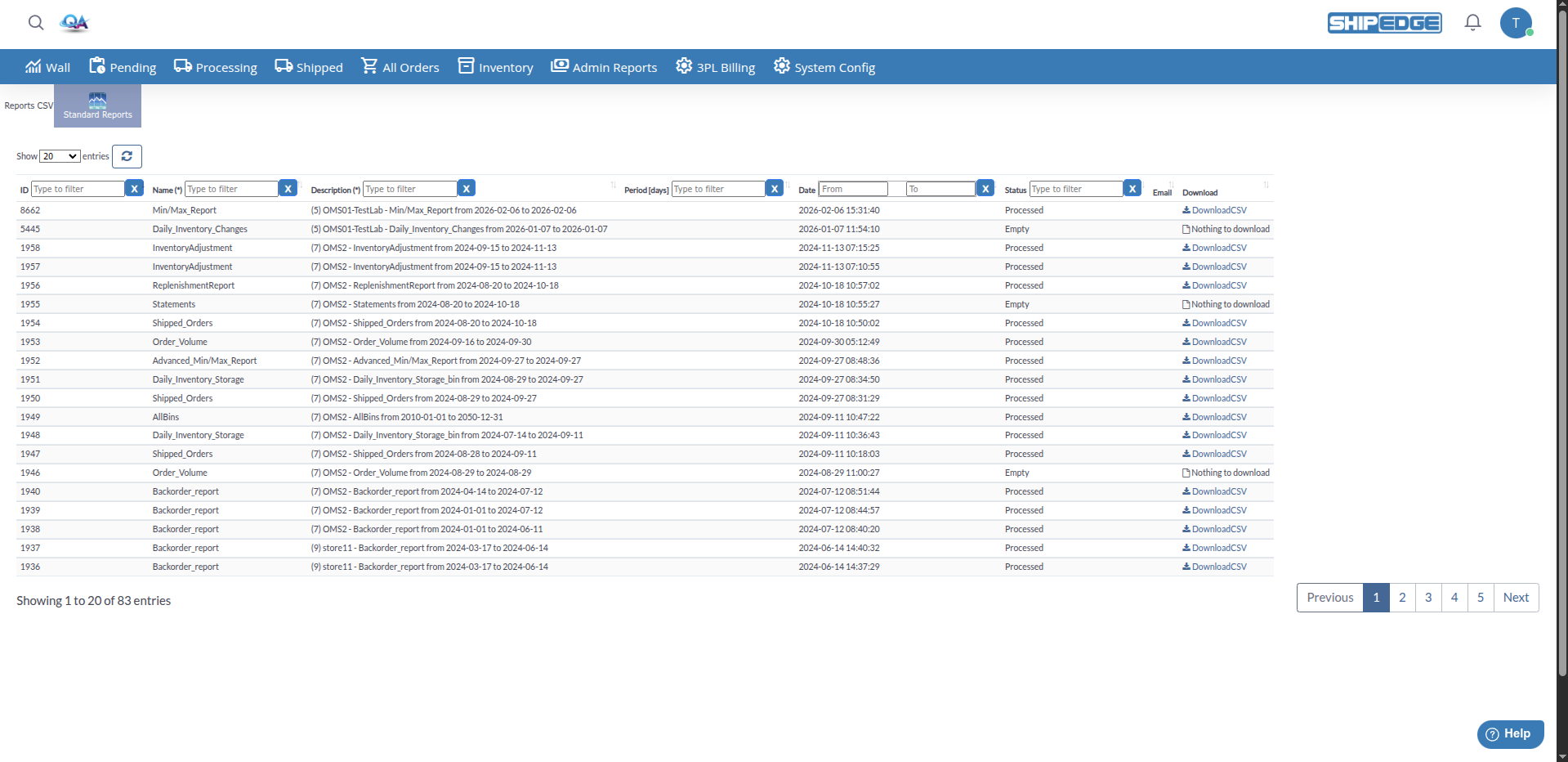
You can view all reports you’ve generated:

  1. Access Generated

    On the Reports page, click the Generated button at the top.

  2. Review the list

    You’ll see a table with all generated reports, showing:

    • Report ID: Unique report ID
    • Report Name: Report name
    • Description: Description with parameters used
    • Report Period: Report period
    • Report Date: Generation date and time
    • Status: Report status (Pending, Completed, Error)
    • Email: Email it was sent to (if applicable)
  3. Filter reports

    Use table filters to search for specific reports by name, description, date, or status.

  4. Download report

    Once status is “Completed”, you can download the report CSV file.

Reports can have different statuses:

  • Pending: Report is in queue waiting to be processed
  • Completed: Report was generated successfully and is ready to download
  • Error: There was an error generating the report

Reports are processed in the background, so it may take a few minutes depending on report size and complexity.

Depending on report type, you can use different types of filters:

  • Simple search: Enter text to search in specific fields
  • Multiple search: Enter multiple values separated by commas
  • Operators: =, >, >=, <, <=, Between
  • Values: Enter specific numbers or ranges
  • Single selection: Choose one option from a list
  • Multiple selection: Choose multiple options from a list

Some reports have special filters:

  • Replenishment Report: Filter by replenishment status (PROCESSING, READY FOR YOU REVIEW, PROCESSED, ARRIVED, PARTIALLY PROCESSED, ARCHIVED)
  • Daily Inventory Storage: Option to group by Bin or Location
  • Shipping Spend Report By Carrier: Field for Distributor ID
  • Idle Skus: Final date field disabled (uses current date)

Some reports have special configurations:
  • All Bins: Doesn’t require date range. Shows all available bins.
  • Daily Inventory Changes: Limited to 90 days maximum. If you select more than 90 days, you’ll receive an error message.
  • Sku Inventory History: Default initial date of 3 months ago
  • Statement: Default initial date of 3 months ago
  • Idle Skus: Default initial date of 15 days ago, final date fixed to today
  • Picking Log: Allows selecting specific date and time (not just date)

You can view and manage reports you’ve scheduled:

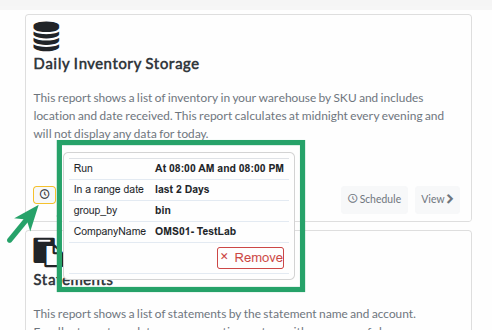
  1. Identify scheduled reports

    On the report card, you’ll see badges with clock icons indicating scheduled reports.

  2. View schedule details

    Hover over the scheduled report badge to see:

    • Execution frequency (when it runs)
    • Date range used
    • Configured filters
  3. Remove schedule

    In the tooltip that appears when hovering, click Remove to remove the report schedule.

Use Appropriate Date Ranges

Select date ranges that are relevant for your analysis. Very large ranges can generate very large and slow reports.

Schedule Regular Reports

Schedule reports you need regularly (daily, weekly) to automate your workflow.

Check Status Before Downloading

Make sure report status is “Completed” before attempting to download it.

Use Filters for More Specific Reports

Take advantage of available filters to get more precise and useful reports instead of large generic reports.

Organize Reports by Name

Report names include parameters. Use this to easily identify what each report contains.

Download Reports Regularly

Download and save important reports regularly to maintain a history outside the system.

Verify Account Permissions

If you don’t see certain reports or can’t generate reports for certain accounts, verify your permissions with the administrator.

Review Scheduled Reports Periodically

Periodically review your scheduled reports to ensure they remain useful and up to date.

Problem: You click Generate but the report doesn’t create or shows an error.

Solution:

  • Verify that all required fields are complete (especially Account and date range)
  • Make sure date range is valid (initial date before final date)
  • Verify that you don’t exceed report limits (e.g., 90 days for Daily Inventory Changes)
  • Check that numeric values in filters are valid (numbers only, no special characters)
  • Verify that alphanumeric values are valid (letters, numbers, spaces, hyphens, and underscores only)

Report stays in Pending status for a long time

Section titled “Report stays in Pending status for a long time”

Problem: Report remains in “Pending” status and doesn’t complete.

Solution:

  • Large reports may take several minutes to process. Wait a bit longer
  • Reload the page to verify updated status
  • If report stays in Pending after a long time, there may be a server problem. Contact support
  • Verify that date range isn’t too large (can cause timeouts)

Problem: You receive a message indicating only one schedule is allowed.

Solution:

  • You can only have one scheduled report at a time for each report type
  • Delete existing schedule before creating a new one
  • Verify that you don’t have another active schedule for the same report

Problem: You see a message indicating advanced reports require a replica server.

Solution:

  • Advanced reports require special server configuration
  • Contact sales@shipedge.com to get more information about enabling advanced reports
  • Use standard reports in the meantime, which cover most needs

Problem: Some reports don’t appear in the list.

Solution:

  • Available reports depend on your user level
  • Some reports require certain modules to be activated (e.g., picking_log, robot_communication, 3pl_billing)
  • Verify your permissions with the system administrator
  • Some reports may be disabled by system configuration

Problem: Account filter doesn’t show expected accounts or doesn’t filter correctly.

Solution:

  • Verify that you have permissions to view accounts you’re trying to filter
  • If you’re a level 1 user, account is set automatically and you can’t change it
  • If you’re a level 2 or 3 user, you can select “ALL” or a specific account
  • Reload the page if the account selector doesn’t load correctly

Problem: Report generates but doesn’t contain data.

Solution:

  • Verify that there is data in the selected date range
  • Check that applied filters aren’t excluding all data
  • Make sure the selected account has data in the specified period
  • Try expanding date range or reducing filters

Problem: Download button doesn’t work or file doesn’t download.

Solution:

  • Make sure report status is “Completed”
  • Verify that your browser allows downloads
  • Try using a different browser if the problem persists
  • Verify that there are no active pop-up blockers
  • Check write permissions on the server if the problem is consistent