
Centralized Management
See all pending and resolved disputes in a single table. Quickly access information for each dispute.
Disputes lets you manage all disputes related to packing errors and carrier insurance claims. Disputes are created by OMS accounts when there are problems with shipped orders. From here you can review each dispute, accept or reject it, add warehouse comments, archive resolutions, and transfer claims to carrier insurance when appropriate.
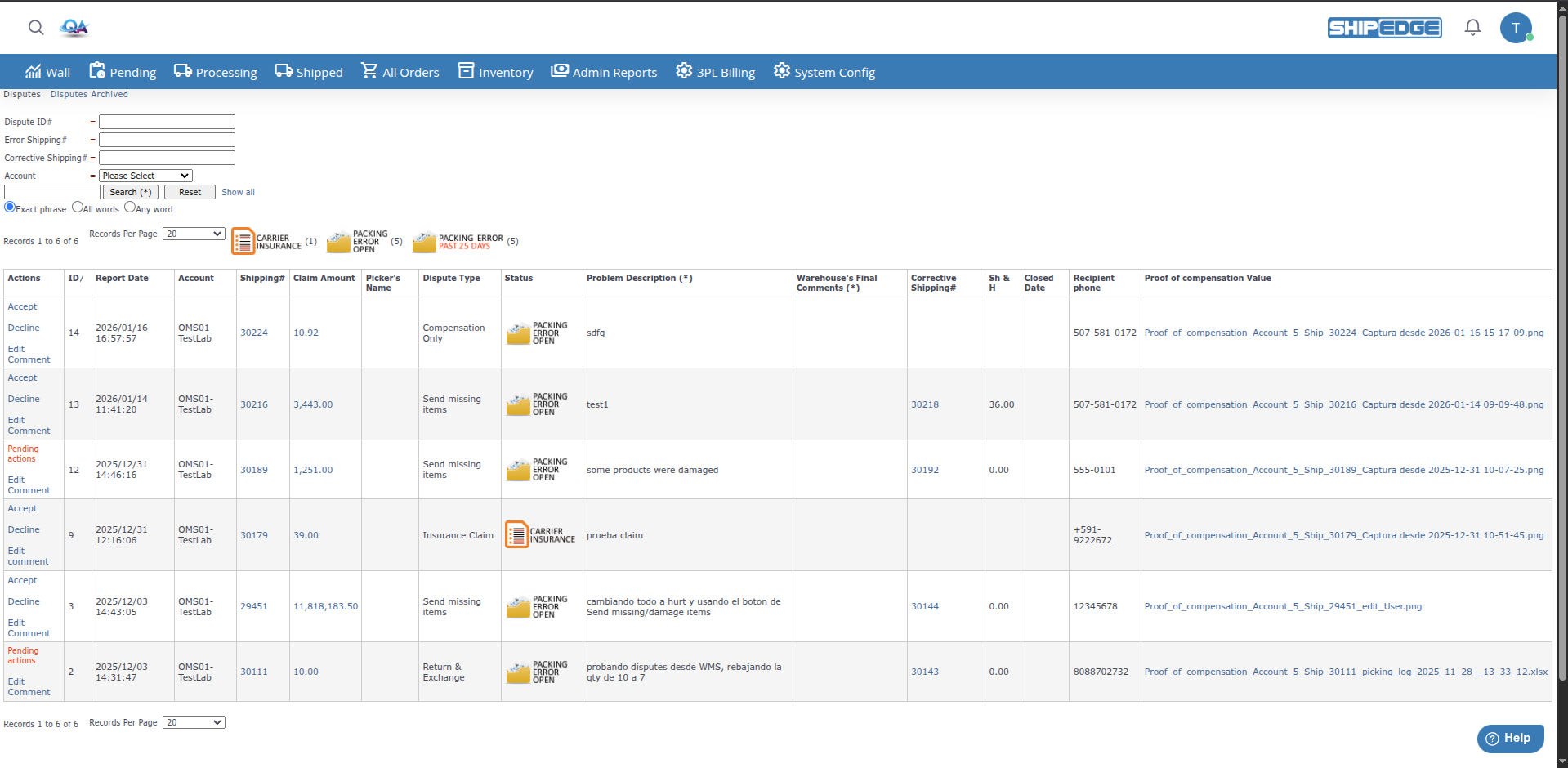
See all pending and resolved disputes in a single table. Quickly access information for each dispute.
Accept or reject disputes directly from the list. The system automatically updates partial invoices when you resolve a dispute.
Add warehouse comments to explain your decision. Sellers can see these comments to understand the resolution.
Transfer disputes to carrier insurance when the problem is the carrier’s responsibility. Available within 30 days from report date.
Archive resolved disputes to keep the list clean and focused on pending disputes.
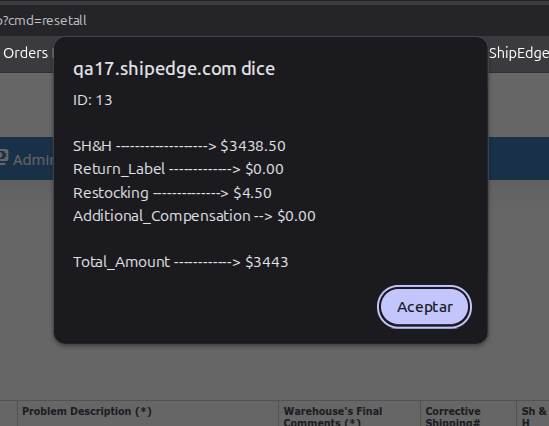
See the total claim amount broken down by components (shipping & handling, return label, restocking, additional compensation).
You can access Disputes from:
The table shows the following columns for each dispute:
Access Disputes
Navigate to Admin Reports > Disputes.
Review counters
At the top of the table, you’ll see icons with counters showing:
Review the table
The table shows all visible disputes according to your permissions. By default it shows 20 records per page and is sorted by ID descending (most recent first).
Navigate between pages
Use pagination controls at the bottom to navigate between result pages. You can go to First, Previous, Next, or Last.
Adjust records per page
Select the number of records you want to see per page from the Records Per Page dropdown menu. Available options: 10, 20, 50, 100, 200, 500, or All Records.
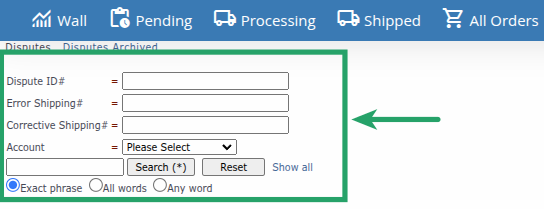
Use the basic search field
At the top of the table, find the search field with the Search (*) button.
Enter your search term
Type the text you want to search. The search looks in the following fields:
Select search type
Choose how you want your search interpreted:
Execute search
Click Search (*) to execute the search.
Clear search
Click Reset or Show all to clear the search and see all records again.
Access advanced search
At the top of the page, you’ll find advanced search fields above the basic search.
Search by Dispute ID#
In the Dispute ID# field, enter the specific dispute number you want to find.
Search by Error Shipping#
In the Error Shipping# field, enter the original order number (FromOrderID) that generated the dispute.
Search by Corrective Shipping#
In the Corrective Shipping# field, enter the corrective order number (OrderID) created to resolve the dispute.
Search by Account
If you have admin access, use the Account dropdown to filter disputes by OMS account.
Execute search
Click Search (*) to apply the filters. The table updates to show only matching results.
Accept Dispute
Click Accept to accept the dispute. This:
Reject Dispute
Click Decline to reject the dispute. This:
Transfer to Carrier Insurance
If the dispute was reported less than 30 days ago, you’ll see the CarrierInsurance option. Click to transfer the claim to carrier insurance. This moves the dispute to pending admin review.
Edit Comments
Click Edit Comment to add or modify final warehouse comments. These comments are visible to the seller.
Locate the dispute
Find the dispute in the table.
Click Claim Amount
Click the amount in the Claim Amount column.
Review breakdown
A popup window will show the detailed breakdown:
Locate the dispute
Find the dispute in the table.
Click Shipping#
Click the number in the Shipping# column. This will open a new tab with complete details of the original order.
Review information
On the order details page, you can see:
Locate the dispute
Find the dispute for which you want to add or edit comments.
Click Edit Comment
Click Edit Comment (Warehouse) in the actions column.
Enter or modify comments
The Warehouse’s Final Comments field will become an editable text field. Write your comments explaining the decision or resolution.
Save changes
Click Update to save comments. Comments will be visible to the seller.
Cancel editing
If you don’t want to save changes, click Cancel to return to view mode.
Dispute statuses indicate what stage of the process they’re in:
You can sort the table by clicking any column header:
Sortable columns include:
Review pending disputes regularly. Packing errors are automatically accepted after 60 days if you don’t take action.
Always add warehouse comments when accepting or rejecting a dispute. This helps the seller understand your decision.
Click Shipping# to see complete order details before accepting or rejecting a dispute.
Transfer disputes to carrier insurance only when the problem is clearly the carrier’s responsibility. Remember you only have 30 days from report date.
Click Claim Amount to see complete breakdown before processing refunds.
Archive resolved disputes regularly to keep the list focused on pending disputes.
Problem: The table is empty, shows “No records found”, or “Please enter search criteria”.
Solution:
Problem: I see “Pending actions” instead of Accept/Decline buttons.
Solution:
Problem: The CarrierInsurance option doesn’t appear for a dispute.
Solution:
Problem: Warehouse comments don’t save when I click Update.
Solution:
Problem: When clicking Claim Amount, the window with breakdown doesn’t appear.
Solution: