
Real-Time Metrics
See live order counts, shipment status, and fulfillment times at a glance. Track key performance indicators like on-time delivery and average fulfillment time.
The Orders Overview is your central hub for managing all customer orders in OmniOrders. This page gives you a complete view of your order pipeline, from new orders to shipped packages, with real-time metrics and tools to find and act on orders quickly.
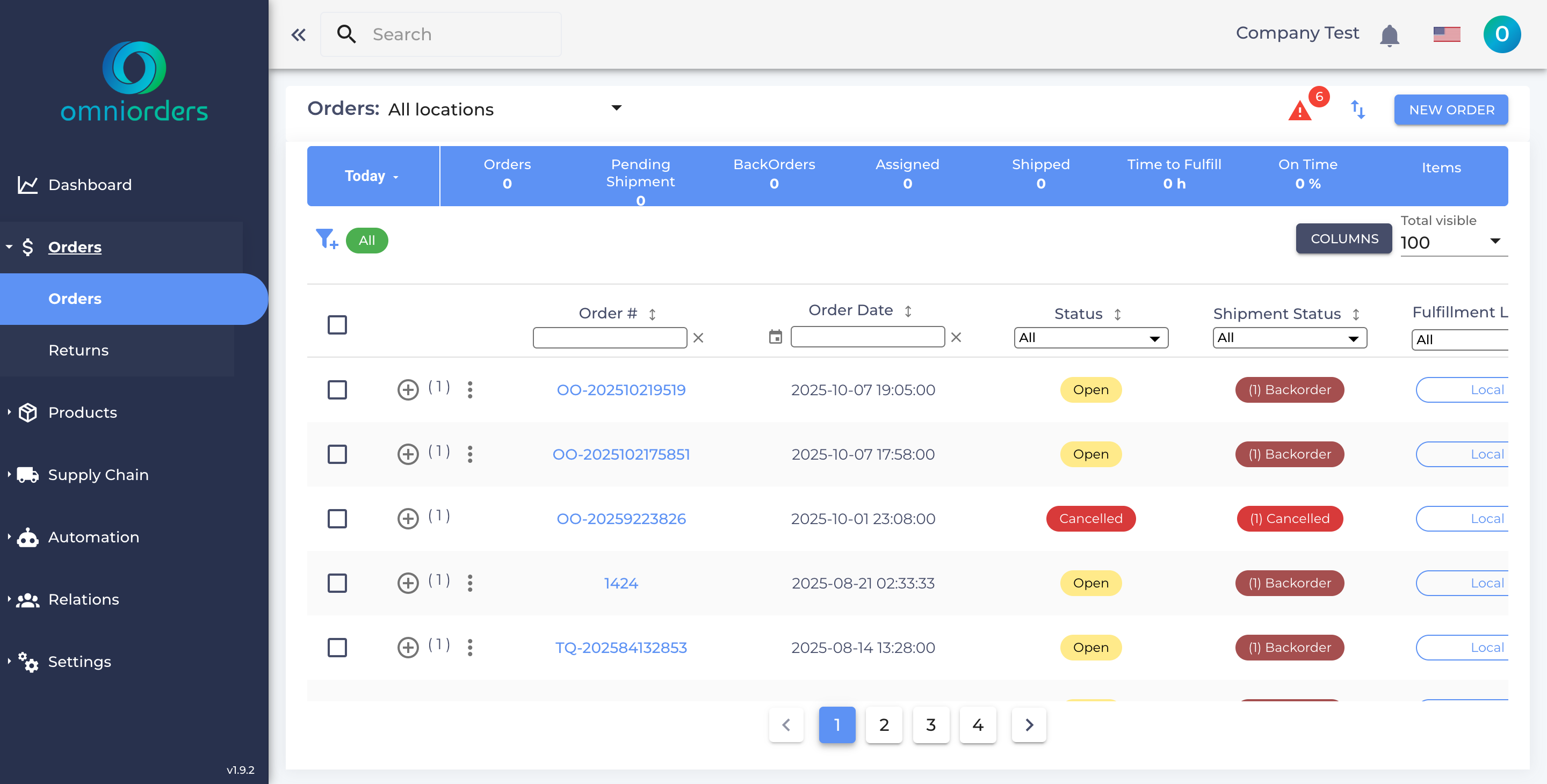
See live order counts, shipment status, and fulfillment times at a glance. Track key performance indicators like on-time delivery and average fulfillment time.
Find orders instantly using saved filters, location filters, and custom search criteria. Filter by status, date range, customer, or any order field.
Select multiple orders and perform actions like hold, release, transfer to location, clone, or cancel all at once.
Choose which columns to display and save your preferred layout. Every team member can customize their view.
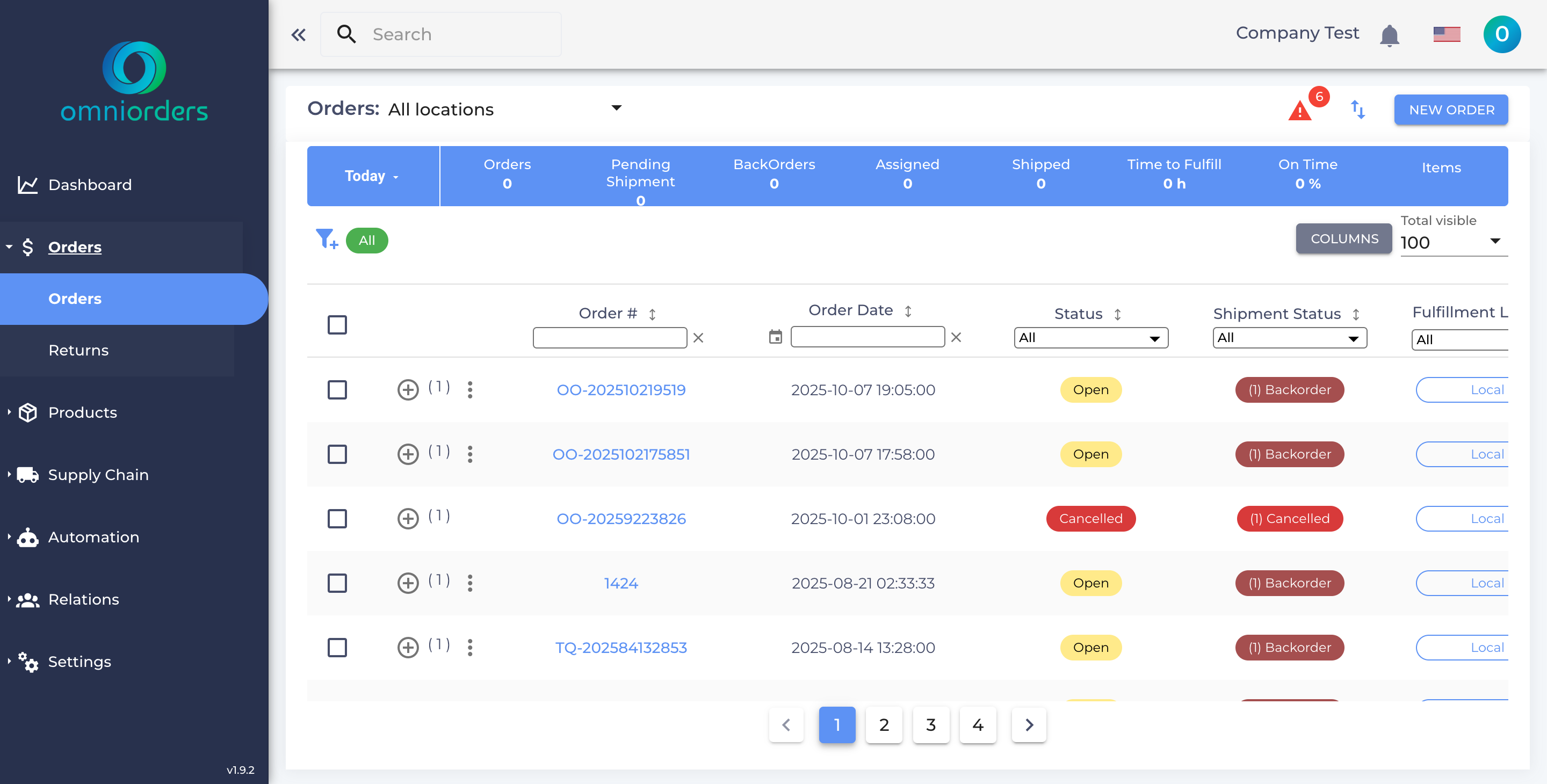
The top of the Orders Overview displays scrollable metric cards that update based on your selected date range. These metrics help you track order flow and fulfillment performance.
| Metric | What It Shows | Icon |
|---|---|---|
| Orders | Total number of orders in the selected date range | 🛒 |
| Pending Shipment | Orders awaiting shipment (includes Routing, On Hold, and Pending Shipment statuses) | 📥 |
| Backorders | Orders with items that are out of stock | 🚫 |
| Assigned | Orders assigned to a warehouse for fulfillment | ✅ |
| Shipped | Orders that have been shipped to customers | 🚚 |
| Items | Total number of items across all orders (excludes cancelled orders) | 📦 |
| Time to Fulfill | Average time to fulfill orders (in hours) | ⏰ |
| On Time | Percentage of orders shipped on time | 🎯 |
Navigate to Orders
Click Orders in the main navigation menu. The Orders Overview page will load with your current orders.
View Dashboard Metrics
Scroll horizontally through the metric cards at the top to see order statistics for your selected date range.
Filter by Location (Optional)
Use the location dropdown to filter orders by fulfillment location. This helps when managing multiple warehouses.
Browse or Search Orders
Scroll through the order table, use the search bar, or apply saved filters to find specific orders.
View all orders in a customizable table with sorting, filtering, and inline actions. Click any order to view detailed information in a side panel.
Create and save custom filter combinations for quick access. Apply saved filters with one click to view specific order segments.
Choose which columns to display and reorder them by dragging. Your preferences are saved automatically.
Select multiple orders using checkboxes to perform bulk actions like hold, release, transfer, or cancel.
Export orders to CSV for reporting or data analysis. Export all orders or only selected ones.
Import orders from CSV files for bulk order creation. Useful for orders from offline sources.
Each order has a menu with available actions based on its current status:
When you select multiple orders using checkboxes, a bulk action toolbar appears at the bottom of the screen with quick actions:
Click “Show More Actions” to access:
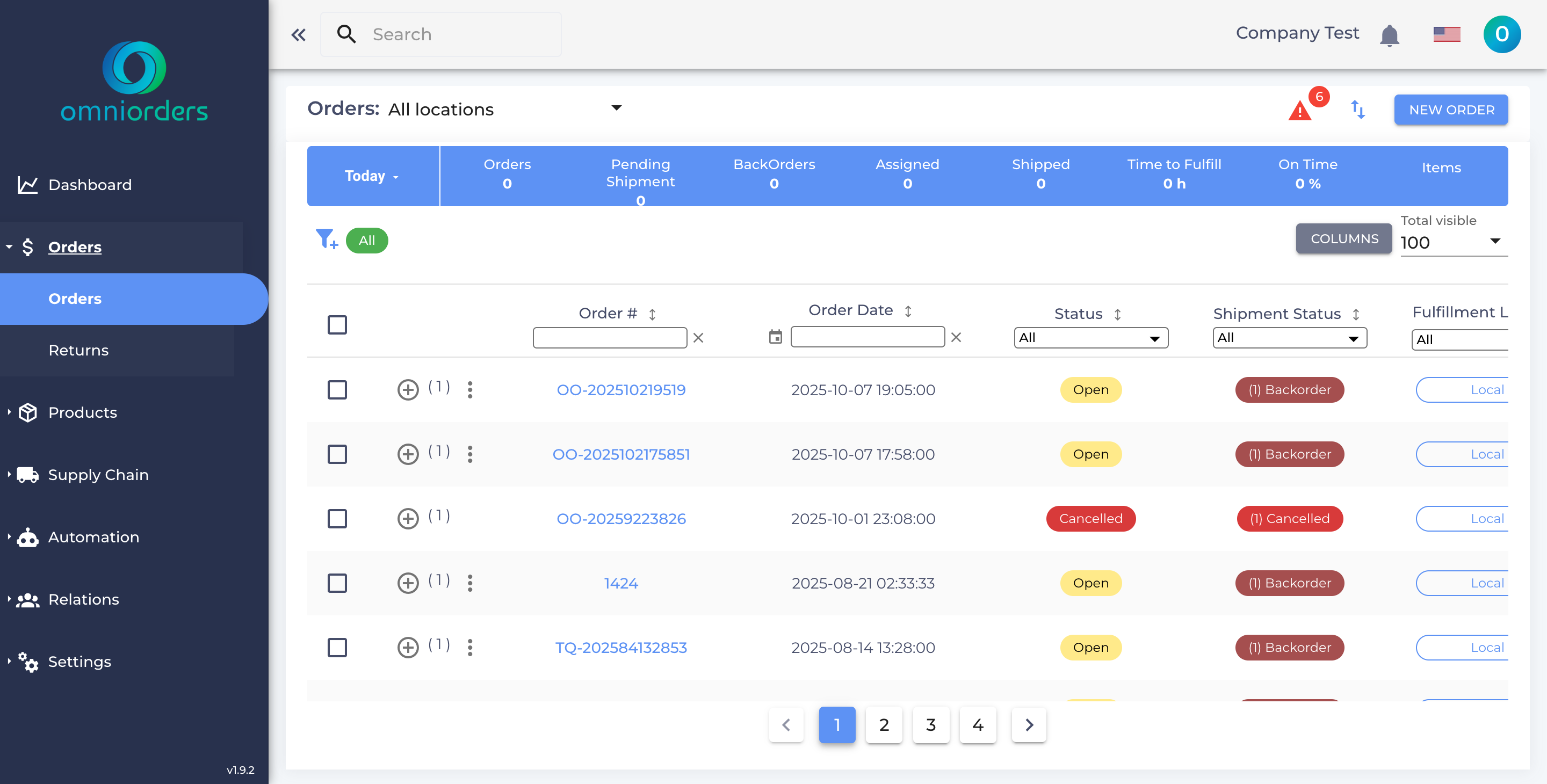
Filter orders by fulfillment location using the location dropdown in the header. This shows orders assigned to specific warehouses.
The filter system supports advanced search conditions:
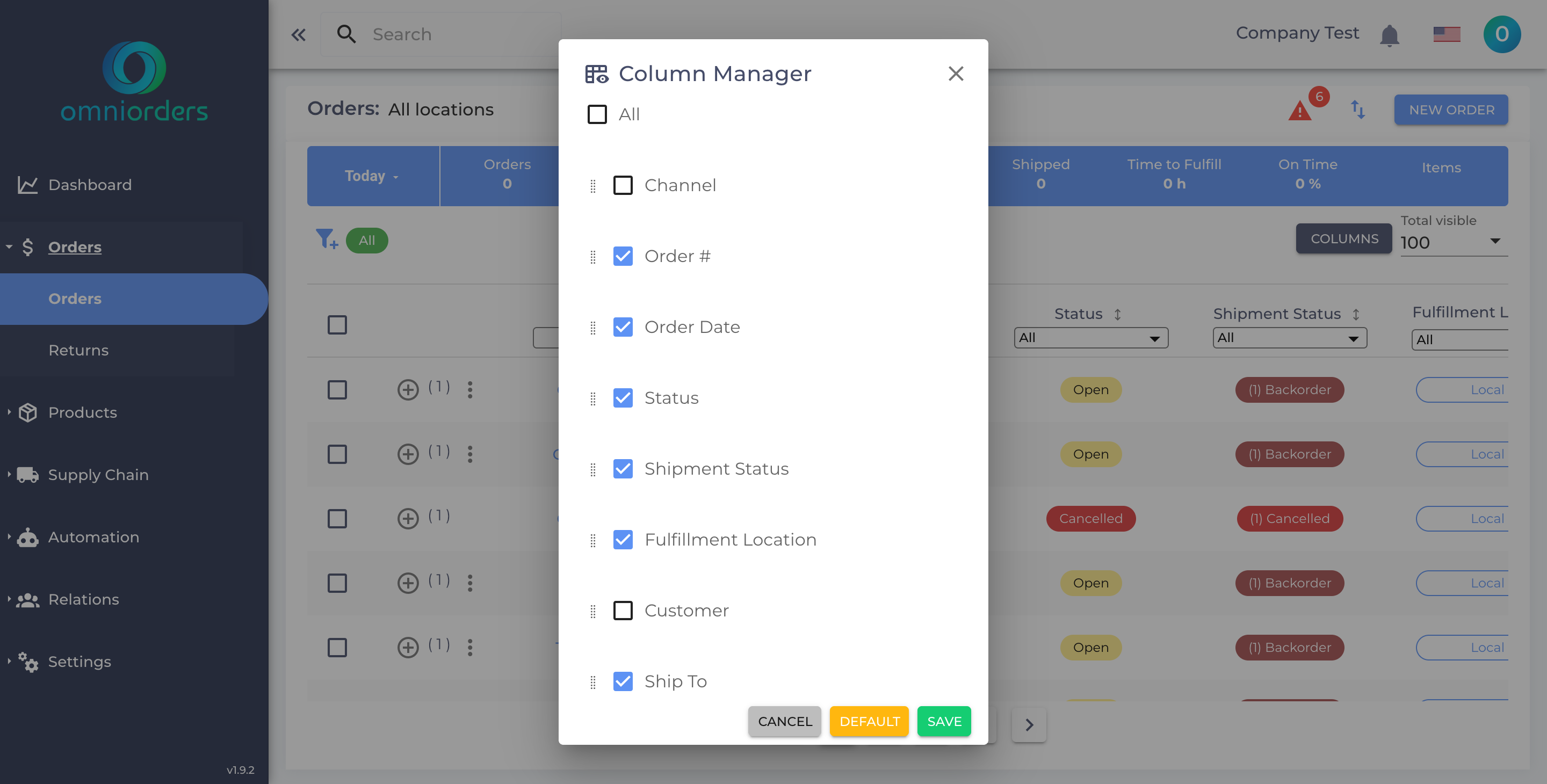
Open Column Settings
Click the Columns button in the toolbar to open the column customization sidebar.
Show/Hide Columns
Toggle checkboxes to show or hide specific columns in the order table.
Reorder Columns
Drag and drop columns to change their order in the table.
Save Preferences
Your column preferences are saved automatically and persist across sessions.
Open Actions Menu
Click the three-dot menu in the secondary toolbar.
Select Export Option
Choose “Export Orders CSV” from the menu.
Configure Export
Choose to export all orders or only selected orders. Select which columns to include.
Download File
Click Export to generate and download the CSV file.
Open Actions Menu
Click the three-dot menu in the secondary toolbar.
Select Import Option
Choose “Upload Orders CSV” from the menu.
Upload File
Select your CSV file and map columns to order fields.
Review & Import
Review the mapping and click Import to create orders.
Orders move through different statuses as they progress through fulfillment:
| Status | Description | Next Steps |
|---|---|---|
| Draft | Order created but not submitted | Edit or submit order |
| Open | Order ready for processing | System assigns to warehouse |
| Routing | System determining warehouse assignment | Automated process |
| On Hold | Order paused from processing | Release hold when ready |
| Pending Shipment | Waiting for warehouse pickup | Warehouse fulfills order |
| Assigned | Assigned to warehouse | Warehouse processes order |
| Backorder | Items out of stock | Wait for inventory |
| Shipped | Order shipped to customer | Track delivery |
| Closed | Order complete | Archive record |
| Cancelled | Order cancelled | No further action |
| Error | Issue requires attention | Review and fix error |
Create saved filters for common order segments like “Today’s Orders” or “Pending Shipment.” This saves time and ensures consistency when reviewing orders.
Check the dashboard metrics each morning to understand your order pipeline. Pay attention to pending shipments and on-time percentage.
Hide columns you don’t need and arrange important columns first. A cleaner view helps you work faster and spot issues quickly.
Double-check your selection before performing bulk actions, especially cancellations. Use the preview to confirm which orders will be affected.
Export orders regularly for reporting and record-keeping. Use custom date ranges and filters to create specific reports.
Watch for the red badge showing order errors. Address these issues quickly to prevent shipment delays.
Problem: Orders are missing from the table.
Solutions:
Problem: An action is disabled or greyed out.
Solutions:
Problem: Bulk action doesn’t affect all selected orders.
Solutions:
Problem: CSV export or import fails.
Solutions:
Now that you understand the Orders Overview, explore these related features: