
Access
Navigate to Returns from the main menu to see all active returns.
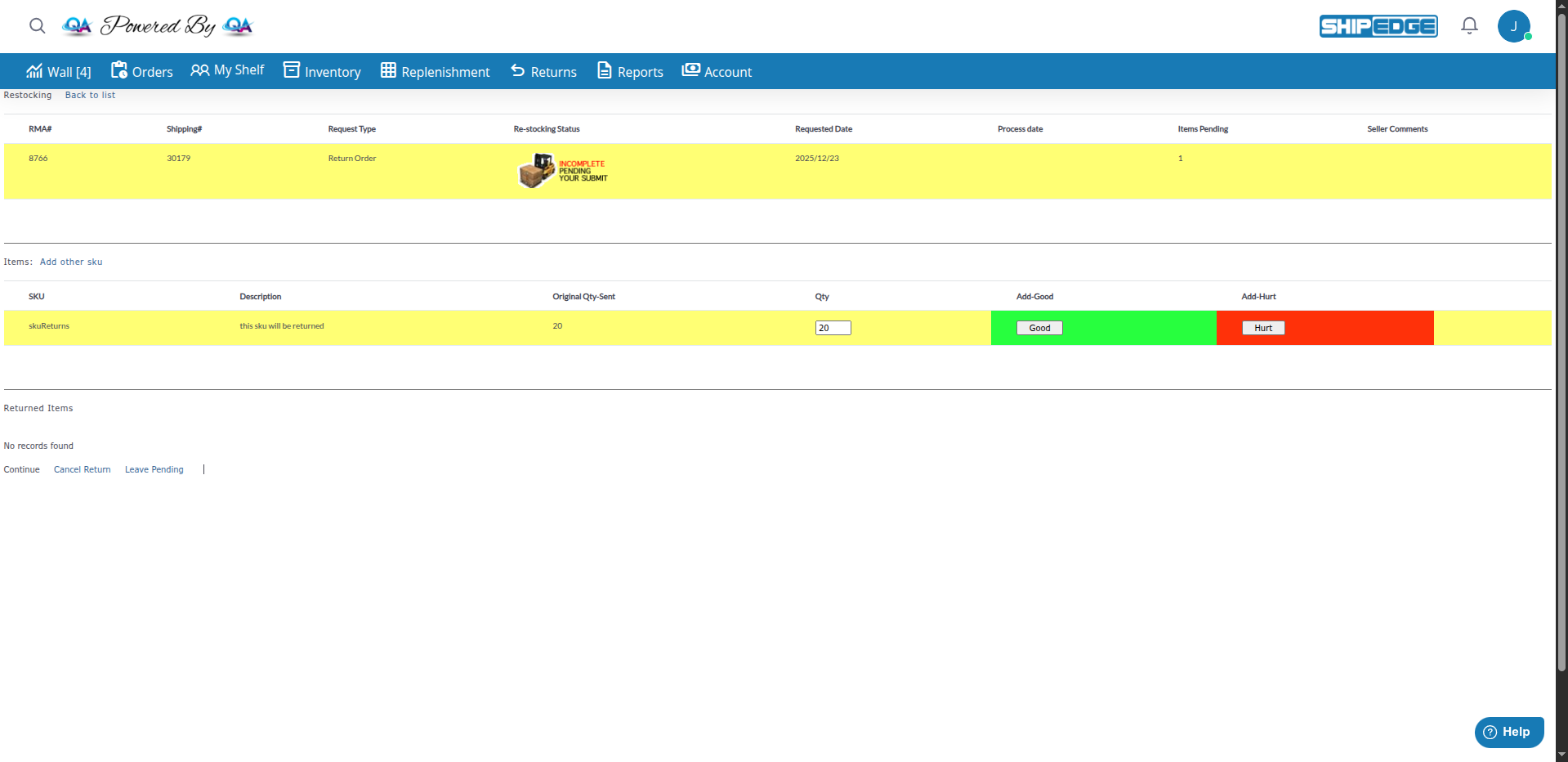
Returns management in the OMS (Order Management System) allows you to create return requests (RMAs) from shipped orders, specify which items customers are returning, generate prepaid shipping labels, and track returns until they reach IN-TRANSIT status. Once a return reaches IN-TRANSIT, the warehouse (WMS) takes over the processing.
This documentation covers the seller-side workflow from creating a return to sending the label to the customer.
Proper return setup ensures customers receive labels quickly and can return items easily.
Specifying expected quantities and conditions helps warehouse staff process returns accurately.
Knowing what’s being returned helps plan inventory restocking and manage stock levels.
Proper return setup prevents unnecessary shipping costs and ensures accurate processing.
Access the Returns
Initiate Return
Select Items to Return
In the return form, you’ll see all items from the original order:
Add Return Instructions
In the comments field, provide instructions for warehouse staff:
Generate Return Label (Optional)
If you want to generate a prepaid return label:
Specify Return Type
Select the return type:
Submit Return
Click “Simple Return” to finalize. The system:
Track Return Status
Monitor the return in the Returns list:
Access
Navigate to Returns from the main menu to see all active returns.
What you’ll see:
Available actions:
When Available
Edit returns that are in PENDING or IN-TRANSIT status.
What you can edit:
How to edit:
Note: Once warehouse starts processing, editing is limited.
Good/Hurt Adjustment
Adjust expected Good and Hurt quantities for each item.
How it works:
When to adjust:
Prepaid Labels
Generate prepaid shipping labels for customers to return items.
How it works:
When to generate:
Access: From return detail view, click “Generate Label” or check option during return creation.
Customer Communication
Send return label to customer via email.
How it works:
Manual send:
When Available
Cancel returns that haven’t been processed by warehouse.
When you can cancel:
How to cancel:
Note: Once warehouse starts processing, cancellation may not be available.
The OMS manages returns through two main statuses. Once a return reaches IN-TRANSIT, the warehouse (WMS) takes over physical processing, but you can still view and track the return.
What it means: The return request exists, but no shipping label has been created yet. This is your active editing window.
What happens in this status:
What you can do:
Transitions to: Changes to IN-TRANSIT automatically when you generate the return label.
What it means: The return label has been generated and sent to the customer. The customer is shipping (or has shipped) the package back to the warehouse.
What happens in this status:
What you can do:
Important: This is the last status you control. Once warehouse receives the package, they take over processing.
Transitions to: Warehouse changes status to PROCESSING when they receive the package.
Description: Customer returns product for refund or credit.
Flow:
Use when: Customer wants refund or store credit.
Description: Exchange that is processed when the return is received at warehouse.
Flow:
Use when: Customer wants exchange and you want to verify return before sending replacement.
Description: Exchange where replacement is sent immediately.
Flow:
Use when: Customer needs replacement quickly and you trust they’ll return original.
Description: Restocking order from manufacturer or supplier.
Flow:
Use when: Restocking inventory from supplier.
Description: Return handled by shipping carrier.
Flow:
Use when: Using carrier return services.
| Field | Description |
|---|---|
| RMA# | Unique return identifier (ID) |
| Shipping# | Shipping number of the return (OrderID) |
| Order# | Original order number (orderNum) |
| Reference# | Customer order reference (orderRef) |
| Date | When return was created (OrderDate) |
| Shipping Method | Shipping method used for the return (orderShipMethod) |
| Request Type | Type of return (Simple Return, Exchange_on_Received, Exchange_Now, Restocking, Return by Carrier) |
| Status | Current return status (PENDING, IN-TRANSIT, PROCESSING, DISCREPANCY, COMPLETE, UNEXPECTED) |
| Customer email address for return label (custEmail) | |
| Items | Total number of items in the return |
| Tracking# | Tracking number for the return shipment |
| Requested Date | Date when return was requested (OrderDate) |
| Received Date | Date when return was received by warehouse (Process_date) |
| Processed Date | Date when warehouse started processing (WHProcessDate) |
| Field | Description |
|---|---|
| SKU | Product identifier being returned |
| Description | Product name and attributes, including Opt1, Opt2, Opt3 when available. May show [OTP] for One-Time Products |
| Items & Quantities | Quantity being returned (for original items) or quantity sent (for restocking items) |
| QtyGood (expected) | Your estimate of items in good condition (TypeRec = 0) |
| QtyHurt (expected) | Your estimate of damaged items (TypeRec = 0) |
| Added by Seller | Indicator shown when item was added manually by seller (not from original order) |
Specify accurate Good/Hurt quantities so warehouse knows what to expect.
Add detailed comments for warehouse staff about inspection requirements.
Generate return labels quickly so customers can ship returns without delay.
Monitor return status regularly to ensure smooth processing.
Ensure customers receive return labels and instructions promptly.
Double-check items and quantities before submitting return.
Situation: Customer wants to return a product for refund.
Action:
Situation: Customer reports damaged item and wants to return it.
Action:
Situation: Customer wants to exchange for different size/color.
Action:
Can't Find Order to Create Return
Cause: Order may not be in Shipped status or may already have a return.
Solution:
Return Label Not Generating
Cause: Shipping method may not be configured or carrier issue.
Solution:
Can't Edit Return
Cause: Return may be in status that doesn’t allow editing.
Solution:
Next Steps: Once a return reaches IN-TRANSIT status, the warehouse (WMS) takes over processing. You can continue to track the return status, but processing happens in the warehouse management system.