
Skip to content

Returns Overview

Returns (also called RMA - Return Merchandise Authorization) is the system that allows you to manage product returns from your customers. When a customer needs to return a product, whether due to a defect, order mistake, or simply because they changed their mind, you can create an RMA to track the process from when the customer ships the package until the inventory is added back to stock.

ShipEdge offers a complete returns management system that includes shipping label generation, package status tracking, warehouse processing, and automatic exchange handling.
Centralized Management

View all your returns in one place with real-time status updates and quick access to details.

Automatic Labels

Generate prepaid shipping labels for customers automatically and send them via email with one click.

Status Tracking

Monitor the progress of each return from IN-TRANSIT to completed, with automatic carrier updates.

Automatic Exchanges

Configure exchanges to automatically send replacement products when the return is received.

Inventory Control

Classify returned products as Good or Hurt to maintain accuracy in your inventory.

Dropship Returns

Handle returns for orders that were shipped via dropshipping or from other warehouses.

The complete flow of a return follows these steps:

  1. Customer Requests Return → User creates RMA from a shipped order
  2. Label Generated → System generates prepaid label and sends to customer via email
  3. Customer Ships Package → Status changes to IN-TRANSIT
  4. Package Arrives at Warehouse → Warehouse marks as PROCESSING
  5. Warehouse Processes Return → Inspects products and marks as Good/Hurt
  6. Return Completed → Final status: AS EXPECTED, DISCREPANCY, or INCOMPLETE
  7. Inventory Updated → Products return to stock according to condition
  8. (Optional) Exchange Shipped → If it’s an exchange, replacement product is sent
  1. Navigate to Returns Module

    From the main menu, look for “Return Orders” or “Returns” and click to access.

  2. You’ll See the Main Returns View

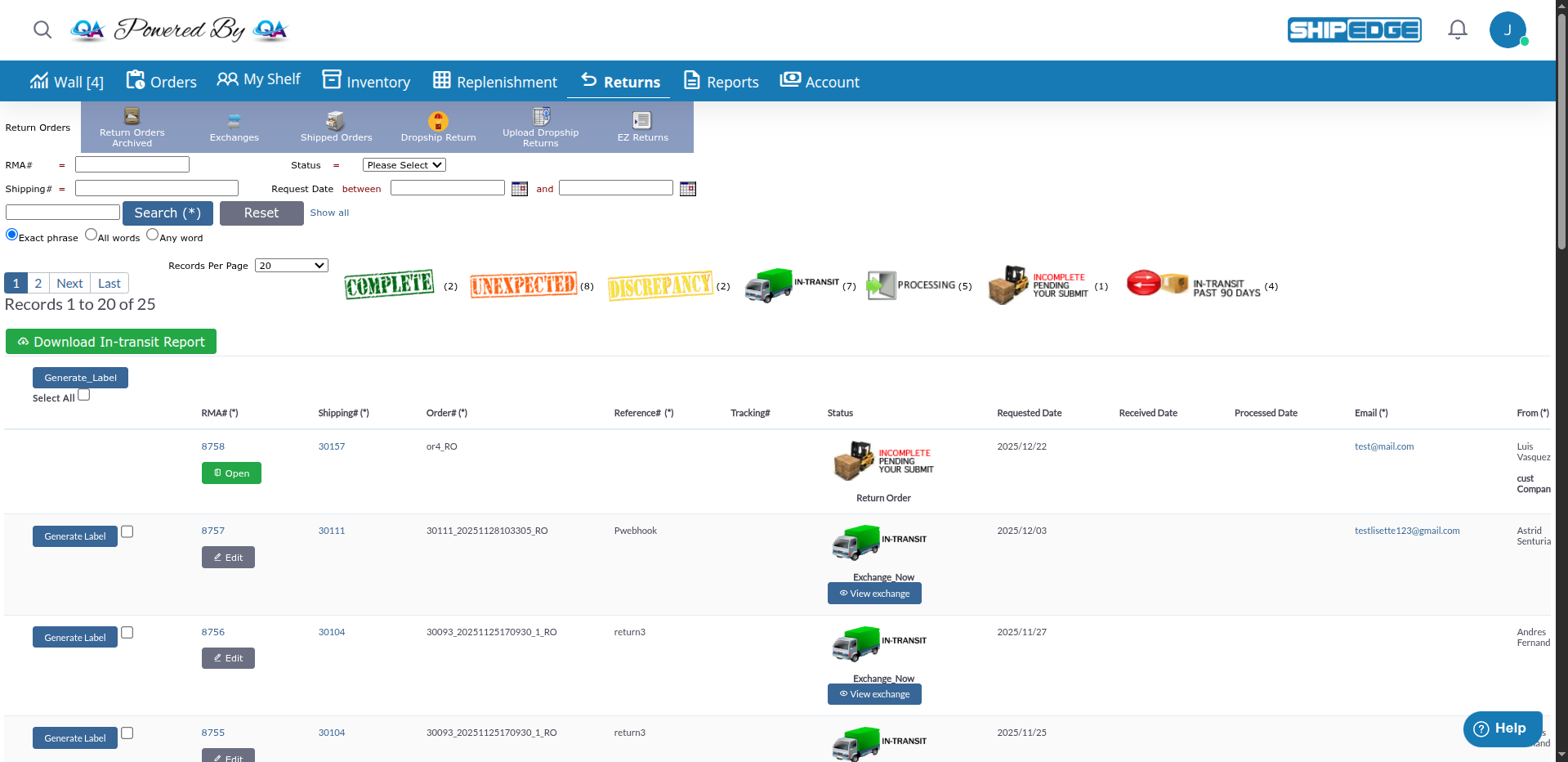
    The system displays:

    • Title: “Shipedge: Return Orders”
    • Quick access buttons at the top
    • Table with all active returns
  3. Available Quick Access Options

    At the top you’ll see buttons for:

    • Return Orders Archived: History of completed returns
    • Exchanges: Product exchange management
    • Shipped Orders: Shipped orders (to create new returns)
    • Dropship Return: Manually create dropshipping returns
    • Upload Dropship Returns: Import returns via CSV
    • EZ Returns: Return label portal

Meaning: The RMA was created but the label has not yet been sent/generated.

Available actions:

  • Generate shipping label
  • Edit RMA details
  • Delete RMA if not needed

When it occurs: When you create an RMA but don’t generate the label immediately.


Meaning: The customer has already shipped the package and it’s on the way to the warehouse.

Icon: intransit.png

Available actions:

  • View tracking number to track the package
  • Mark as archived if it doesn’t arrive
  • Update comments

When it occurs: After generating the label and the customer ships the package.


Meaning: The package arrived at the warehouse and is being processed.

Icon: processing.png

Available actions:

  • Warehouse is inspecting the products
  • Classifying items as Good or Hurt
  • Adding products to inventory

When it occurs: When the warehouse marks that they received the package.


Meaning: The return was completed successfully. Everything expected was received in good condition.

Icon: complete.png

Result:

  • All products were returned
  • Quantities match what was expected
  • Products added to inventory
  • RMA can be archived

When it occurs: When the warehouse processes all items correctly.


Meaning: There is a discrepancy between what was expected and what was received.

Icon: discrepancy.png

Possible reasons:

  • Received quantities don’t match expected quantities
  • Received products are not on the RMA list
  • Product condition different from expected
  • Incorrect SKUs

Available actions:

  • Review discrepancy details
  • Manually adjust quantities
  • Mark as archived if resolved
  • Contact customer if necessary

When it occurs: When the warehouse detects differences during processing.


Meaning: The return is incomplete. Not all expected products were received.

Icon: incomplete.png

Possible reasons:

  • Customer only shipped some of the products
  • Some products were lost in transit
  • Customer changed their mind about returning some items

Available actions:

  • See what’s missing
  • Contact customer about missing items
  • Mark as archived if considered complete

When it occurs: When the warehouse receives fewer products than expected.


Meaning: Products were received that were NOT in the original RMA.

Icon: unexpected.png

Possible reasons:

  • Customer sent wrong products
  • Order confusion
  • Products from another order

Available actions:

  • Identify unexpected products
  • Contact customer to clarify
  • Decide whether to add to inventory or return

When it occurs: When the warehouse finds products not listed in the RMA.

📥 Archived States (Status: 28, 29, 30, 38)

Section titled “📥 Archived States (Status: 28, 29, 30, 38)”

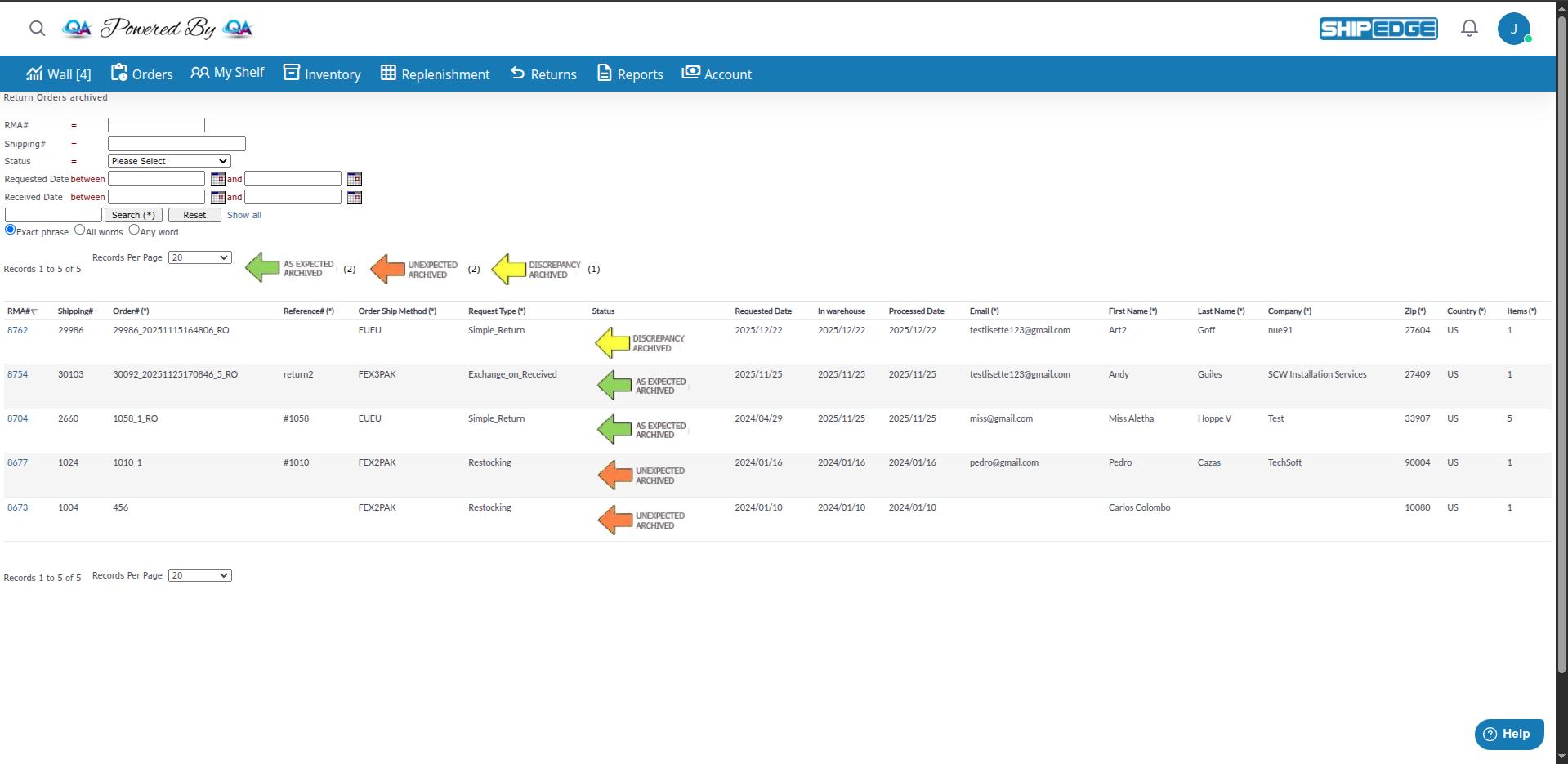
Archived statuses:

  • 28: AS EXPECTED ARCHIVED
  • 29: DISCREPANCY ARCHIVED
  • 30: INCOMPLETE ARCHIVED
  • 38: UNEXPECTED ARCHIVED

Meaning: The RMA was archived and no longer appears in the active list.

Location: View in Return Orders Archived

When it occurs: When you click “Archive” to move the RMA to history.


Simple return where the customer only wants to return the product (usually for refund).

Flow: Customer returns → Inventory updated → End


Standard return initiated from a shipped order.

Flow: Customer returns → Inventory updated → End


Exchange that is processed when the return is received.

Flow: Customer returns → Warehouse receives → Replacement product is sent

Benefit: The customer only receives the new product when they return the original.


Immediate exchange where the replacement product is sent right away.

Flow: Replacement product is sent → Customer returns the original

Benefit: Customer receives the new product faster.


Restocking return, usually from dropshipping or sales channel.

Flow: Returned products are added to inventory

Use: To handle returns from channels like Amazon FBA or dropship.


Return initiated because the carrier returned the package (incorrect address, customer didn’t receive, etc.).

Flow: Carrier returns → Warehouse receives → Inventory updated


The main table shows all active returns with the following columns:

The unique ID of the RMA (Return Merchandise Authorization).

Example: 12345, 67890

Use: Click to view complete RMA details.


The ID of the original order being returned.

Example: 54321

Use: Link to the original order to view history.


The order number from the sales channel.

Example: 123-4567890-1234567 (Amazon), #1234 (Shopify)


The reference of the original order.

Example: CUST-REF-001


Date when the RMA was created.

Format: YYYY/MM/DD


Current status of the RMA (see Status section above).

Visual icon: Each status has a specific icon.


Tracking number of the return package.

Use: To track where the package is.


Return type (Simple_Return, Exchange, etc.).

See: Return Types section above.


Comments about the RMA added by the user or warehouse.

Example: Customer reported item defective, Missing 1 unit


The view includes advanced filters to find specific RMAs:

Search field: RMA#

Use: Enter the RMA ID to find it quickly.


Status dropdown

Options:

  • All
  • IN-TRANSIT
  • PROCESSING
  • AS EXPECTED
  • DISCREPANCY
  • INCOMPLETE
  • UNEXPECTED

Use: Filter to see only RMAs in a specific status.


Date fields: from and to

Use: Filter RMAs created within a specific date range.


General search field at the top.

Searches in:

  • RMA#
  • Shipping#
  • Order#
  • Reference#
  • Tracking#
  • Comments

When: RMA in PENDING YOUR SUBMIT status

How: Click the label button or “Generate Label”

Result:

  • Prepaid label generated
  • Email sent to customer with label
  • Status changes to IN-TRANSIT (when carrier picks up)

How: Click the RMA# (ID)

You’ll see:

  • Customer information
  • Products expected for return
  • Products received (if already processed)
  • Good/Hurt quantities
  • Change history
  • Comments

When: RMA completed or resolved

How: Click “Archive” in the actions column

Result: RMA moves to Return Orders Archived

Use: To keep the active list clean and organized.


Available: Checkbox to select multiple RMAs

Actions:

  • Archive: Archive multiple selected RMAs

Use: To process several RMAs at once.


Case 1: Customer Wants to Return a Product

Section titled “Case 1: Customer Wants to Return a Product”

Scenario: A customer contacts you saying they received the wrong product.

  1. Go to Shipped Orders (button at the top)
  2. Search for the customer’s order by Order# or Shipping#
  3. Open the order and click “Initiate return”
  4. Select the products the customer will return
  5. Choose the type: Simple_Return
  6. Add a comment: “Customer received wrong item”
  7. Click “Create RMA”
  8. Generate the shipping label
  9. The system automatically sends the label to the customer’s email
  10. The RMA appears in the list with status PENDING YOUR SUBMIT or IN-TRANSIT

Result: RMA created and label sent to customer.


Case 2: Customer Wants to Exchange for Another Size

Section titled “Case 2: Customer Wants to Exchange for Another Size”

Scenario: Customer bought size M but needs size L.

  1. Go to Shipped Orders
  2. Search for and open the customer’s order
  3. Click “Initiate return”
  4. Select the product to return (size M)
  5. Choose type: Exchange_on_Received (if you want to wait to receive the return)
    • Or Exchange_Now (if you want to send immediately)
  6. Specify the replacement SKU (size L)
  7. Generate label for the return
  8. If Exchange_Now: Warehouse prepares replacement order immediately
  9. If Exchange_on_Received: Replacement order is created when the return is received

Result: Exchange configured, customer will receive correct size.


Scenario: Customer shipped the package 3 days ago, wants to know if it arrived.

  1. Go to Return Orders
  2. Search for the RMA by RMA# or Order#
  3. Check the Status column: should show IN-TRANSIT
  4. See the Tracking# column
  5. Click the tracking# to view carrier tracking
  6. Verify current package location
  7. Inform customer of status

Result: Updated information about package location.


Scenario: The warehouse received the return but the customer only shipped 2 of 3 expected products.

  1. Warehouse marks the RMA as DISCREPANCY
  2. You see the RMA in the list with discrepancy icon
  3. Click the RMA# to view details
  4. Review what products were received vs. expected
  5. See warehouse comments about the discrepancy
  6. Contact customer about the missing product
  7. Decide:
    • Wait for the missing product
    • Consider complete with discount
    • Mark as INCOMPLETE if customer won’t ship the product
  8. If resolved, click “Archive”

Result: Discrepancy identified and resolved with customer.


Scenario: An Amazon FBA order was returned and Amazon restocked it. You need to record this in ShipEdge.

  1. Go to Dropship Return (button at the top)
  2. Or use Upload Dropship Returns if you have multiple
  3. Enter order information:
    • Order# or Shipping#
    • Returned SKUs
    • Quantities
    • Condition (Good/Hurt)
  4. Choose type: Restocking
  5. Add comment: “Amazon FBA return”
  6. The system automatically creates the RMA
  7. Marks as AS EXPECTED or appropriate status
  8. Inventory updates according to Good/Hurt quantities

Result: Dropship return recorded correctly.


Generate Labels Immediately

When you create an RMA, generate the label immediately so the customer can ship the package quickly.

Use Exchanges When Applicable

If the customer only wants another size or color, use Exchange_on_Received to save time and shipping costs.

Add Helpful Comments

Always add comments explaining why the RMA was created. It helps the warehouse and for future reference.

Review IN-TRANSIT RMAs Regularly

Monitor RMAs that have been in transit for a long time. If it’s been over 2 weeks, investigate with the carrier.

Archive Completed RMAs

Move completed RMAs to archived regularly to keep the active list clean and easy to review.

Use Filters to Prioritize

Filter by PROCESSING to see what’s ready for the warehouse, or DISCREPANCY to identify issues.

Problem: The “Initiate return” button doesn’t appear or is disabled.

Possible Causes:

  1. The order is not in Shipped status: Only shipped orders can have returns
  2. Insufficient permissions: Your user doesn’t have permissions to create RMAs
  3. Order already has active RMA: You cannot create multiple RMAs for the same order

Solutions:

  1. Check the status: The order must be in Shipped status (9)
  2. Contact administrator: To verify user permissions
  3. Review existing RMAs: Search if an RMA already exists for that order

Problem: I click generate label but nothing happens or it gives an error.

Common Causes:

  1. Missing shipping information: Incomplete customer address
  2. Carrier not configured: No carrier configured for returns
  3. Invalid carrier credentials: Expired or incorrect API keys

Solutions:

  1. Verify customer address: Make sure the address is complete
  2. Configure returns carrier: Contact administrator to configure carrier
  3. Update credentials: Review carrier integration configuration

Problem: The RMA has been in IN-TRANSIT status for more than 2 weeks.

Causes:

  1. Customer didn’t ship the package: Generated label but didn’t ship
  2. Lost package: The carrier lost the package
  3. Incorrect warehouse address: Package didn’t arrive at correct destination

Solutions:

  1. Contact the customer: Ask if they already shipped the package
  2. Track with carrier: Use tracking# to locate the package
  3. Open case with carrier: If it’s lost, file a claim
  4. Consider archiving: If the customer won’t ship, archive the RMA

Problem: The warehouse marked DISCREPANCY but it’s not clear what to do.

Causes:

  1. Customer sent wrong products: Doesn’t match the RMA
  2. Missing products: Customer only sent some
  3. Different condition: Products more damaged than expected

Solutions:

  1. Review RMA details: See exactly what was expected vs. what arrived
  2. Contact the customer: Clarify the situation
  3. Make a decision:
    • If acceptable: Mark as AS EXPECTED and archive
    • If something is missing: Mark as INCOMPLETE
    • If it’s a problem: Contact management for resolution
  4. Document in comments: Add notes about the resolution

Differences Between Active and Archived Returns

Section titled “Differences Between Active and Archived Returns”
AspectActive ReturnsArchived Returns
StatusesPENDING, IN-TRANSIT, PROCESSING, DISCREPANCY, INCOMPLETE, UNEXPECTEDAS EXPECTED ARCHIVED, DISCREPANCY ARCHIVED, INCOMPLETE ARCHIVED, UNEXPECTED ARCHIVED
ActionCan be processed, edited, archivedRead-only (usually)
PurposeWork in progressHistory and audit
Location/Return_order_sellerlistlist.php/return_archivedlist.php
QuantityA few (current RMAs)Thousands (all history)
FiltersBy status, date, trackingBy dates, final status

See Also:

Related Flow:

  1. Customer requests return ← You are here
  2. RMA created ← You are here
  3. Label generated ← You are here
  4. Package in transit ← You are here
  5. Warehouse processes → See Processing Returns
  6. Inventory updated → See inventory documentation
  7. RMA archived → See Archived Returns

Returns Overview is your central tool for managing all customer returns. Use this view to:

Create RMAs from shipped orders quickly
Generate prepaid return labels automatically
Track return statuses in real time
Configure exchanges to send replacement products
Monitor discrepancies and resolve issues with customers
Archive completed RMAs to maintain organization

The returns system gives you complete control over the returns process, from customer request to inventory update, improving customer satisfaction and operational efficiency.