
Backorder Visibility
See all your backorder orders in one place with their expected inventory arrival dates.
ETA Management is a specialized view that shows all orders in backorder status along with expected arrival dates (ETA - Expected Time of Arrival) of replenishments associated with these orders. This tool allows you to track when inventory needed to complete pending orders will arrive and communicate accurate delivery times to your customers.
When an order has out-of-stock products, the system marks it as backorder and searches for related replenishments that can satisfy those products. ETA Management displays this information in an organized way, allowing you to see which orders are waiting for inventory and when it’s expected to arrive.
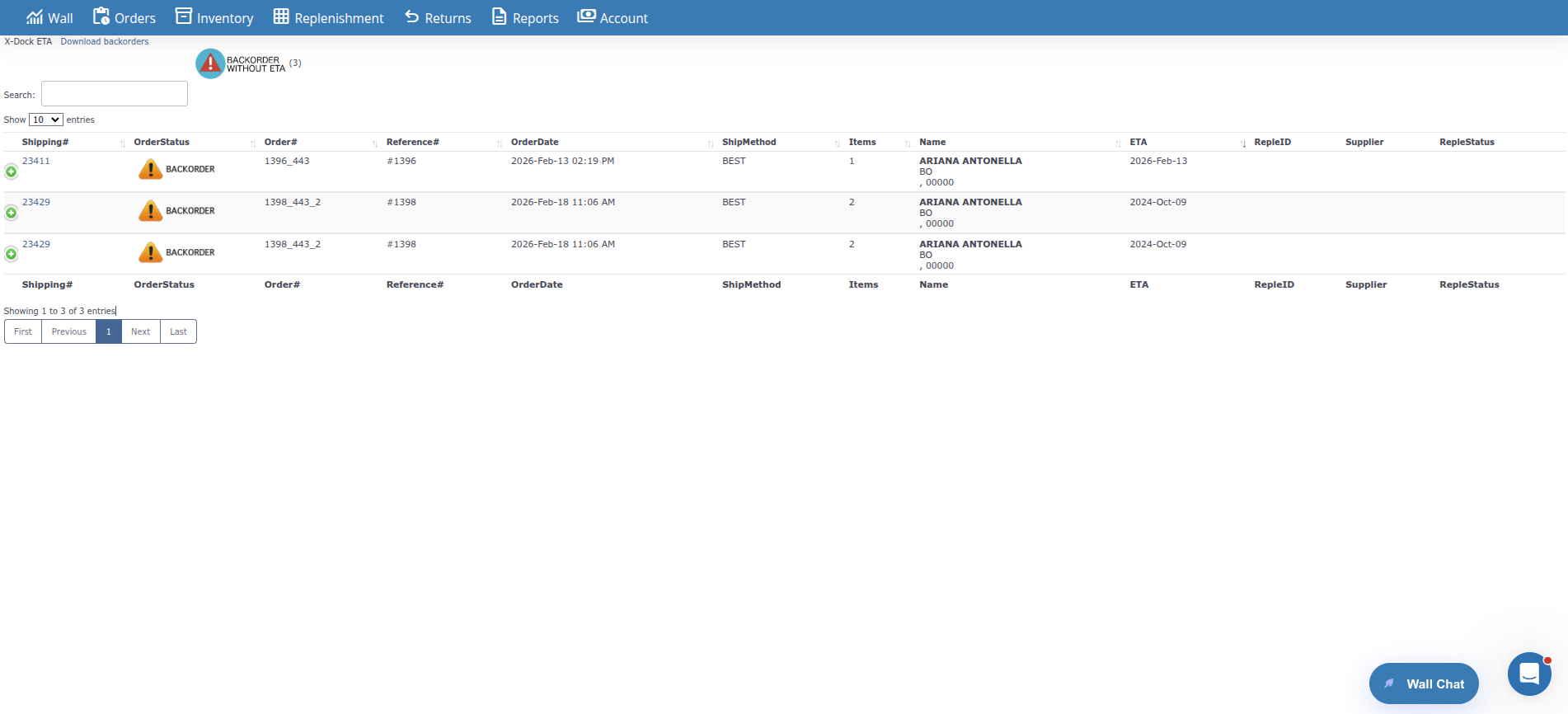
See all your backorder orders in one place with their expected inventory arrival dates.
Identify which replenishments are associated with each order and their current status (IN-TRANSIT, PROCESSING, ARRIVED).
Use ETA dates to inform your customers when they can expect to receive their orders.
Quickly identify orders that don’t yet have an assigned replenishment or ETA date.
Expand each order to see individual ETA for each SKU and its associated replenishment.
Download the complete list of backorders for external analysis or reports.
ETA Management uses a database view called eta that combines:
crossdock tabledate_expected_arrival date from replenishment, or DateStatus if there’s no expected dateThe system shows the most recent ETA date from all replenishments associated with each order, allowing you to know when necessary inventory will arrive.
Verify Your Permissions
Only users with administrator level can access this view. If you don’t have access, contact your administrator.
Navigate to the View
From the main menu, search for Replenishment > ETA Management
You’ll See the ETA Table
The system displays a table with all backorder orders that have associated replenishments, including:
The unique ID of the order. Click it to open the complete order view in a new tab.
Example: 12345, 67890
Shows the order status. In ETA Management, all orders have status BACKORDER, represented by the backorder icon.
Icon: backorder.png
The order number from the sales channel (Amazon, Shopify, etc.).
Example: 123-4567890-1234567 (Amazon), #1234 (Shopify)
The order reference provided by the customer or channel.
Example: CUST-REF-001, WEB-2024-001
The date and time when the order was created.
Format: YYYY-MMM-DD HH:MM AM/PM
Example: 2024-Mar-15 10:30 AM
The shipping method selected for the order.
Example: Standard Shipping, Express, Priority Mail
The total quantity of items (SKUs) in the order.
Example: 3, 15
Customer information, displayed in format:
Example:
John SmithUnited StatesCA, 90210The expected arrival date of the associated replenishment. This is the most recent date from all replenishments linked to the order.
Format: YYYY-MMM-DD
Example: 2024-Mar-22
Note: If there’s no date_expected_arrival in the replenishment, DateStatus (replenishment creation date) is used.
The ID of the replenishment associated with this order. Click it to see complete replenishment details.
Example: 12345, 67890
Note: Only appears if:
Reple = 'Y' statusThe RepleID shown corresponds to the replenishment with the most recent ETA date that matches the order’s ETA.
The name of the supplier of the associated replenishment.
Example: Acme Wholesale, Global Distributors
Note: Only appears if:
Reple = 'Y' statusThe supplier shown corresponds to the replenishment displayed in the RepleID column.
The current status of the replenishment, shown with icons. Only appears when there’s an ETA date and associated replenishment information.
Status Icons:
reple_intransit.pngreple_processing.pngarrived.pngNote: If the replenishment status doesn’t match any of these three states, the RepleID will be displayed as text instead of an icon.
Internal field indicating if the order has an associated replenishment:
This field is hidden in the view but used for internal filters.
Each order can be expanded to see detailed information for each SKU:
Click the Expand Icon
In the first column of each row, you’ll see an expand/collapse icon (details-control). Click it.
Details Table Is Displayed
An expanded table appears showing:
SKU ETA Information
For each SKU, the system shows:
YYYY-MMM-DDAccess Details
Expanded table example:
Sku | Qty | ETA | RepleID-------------|-----|--------------|--------WIDGET-001 | 5 | 2024-Mar-22 | 12345GADGET-002 | 3 | ASSIGNED |TOOL-003 | 2 | NOT ASSIGNED |The view includes a special filter to identify orders that don’t have an assigned replenishment or ETA date. This filter only appears if there are orders without ETA in your account.
Locate the Without ETA Filter
At the top of the table, you’ll see an icon (Without ETA) followed by a number in parentheses. This number indicates how many orders don’t have assigned ETA (Reple = 'N').
Note: If you don’t see this filter, it means all your backorder orders have associated replenishments with ETA dates.
Click the Icon
Click the icon to filter and show only orders without ETA.
Filter Activates
The icon changes to show the filter is active, and a Reset link appears.
View Only Orders Without ETA
Table now shows only orders where Reple = 'N' (don’t have associated replenishment).
Reset Filter
Click Reset to show all orders again.
You can export the complete list of backorders for external analysis:
Locate Download Link
At the top of the page, next to the title, you’ll see a link that says Download backorders.
Click the Link
This takes you to the export page which generates an export file.
File Downloads
System generates a file with all backorders and their associated ETAs.
In the DataTables toolbar, you’ll find buttons:
Use: Useful when you need to review multiple orders quickly.
The table includes complete DataTables functionality:
Default order: Table is sorted by ETA column (column index 9) in descending order (most recent dates first).
Note: Some columns (RepleID, Supplier, RepleStatus) are not searchable or sortable as they are dynamically generated based on ETA and replenishment information.
Scenario: A customer asks when their order will arrive. The order is in backorder.
Result: Accurate information about when inventory will arrive to communicate to customer.
Scenario: Need to know which backorder orders don’t yet have an assigned replenishment.
Result: List of orders requiring action to create replenishments.
Scenario: Want to see all orders waiting for replenishments that are in transit.
Result: Complete visibility of in-transit replenishment status and their associated orders.
Scenario: Need to analyze how long backorder orders are waiting.
Result: Data for performance analysis and delivery time improvement.
Regularly monitor backorder orders and their ETAs to keep customers informed and identify problems early.
When creating replenishments or receiving supplier updates, update date_expected_arrival dates so ETA Management shows accurate information.
Frequently review orders without ETA to identify opportunities to create replenishments or update missing information.
Use displayed ETA dates to proactively inform customers about expected delivery times, improving customer satisfaction.
Regularly review RepleStatus changes (IN-TRANSIT → PROCESSING → ARRIVED) to maintain updated information.
Download backorders periodically for trend analysis, wait times, and supplier performance.
Problem: Cannot access X-Dock ETA or it doesn’t appear in menu.
Possible Causes:
crossdockSolutions:
Problem: See orders in table but ETA column is empty.
Common Causes:
date_expected_arrival date: Replenishment doesn’t have expected date assignedcrossdock tableReple = 'Y' in eta view (meaning not all SKUs in the order have associated replenishments)Solutions:
date_expected_arrival fieldcrossdock table to confirm orders have associated repleidProblem: Click filter but view doesn’t change.
Causes:
Solutions:
Problem: Click expand icon but details don’t show.
Causes:
Solutions:
| Aspect | ETA Management | Orders View | Replenishments View |
|---|---|---|---|
| Focus | Backorder orders with ETAs | All orders | All replenishments |
| Order Status | Only BACKORDER (7) | All statuses | N/A |
| Information Shown | ETA + Associated replenishment | Order details | Replenishment details |
| Without ETA Filter | Available | Not available | Not available |
| SKU View | Expandable by order | In details view | In details view |
| Permissions | Admin only (UserLevel = 1) | According to user permissions | According to user permissions |
For API integrations or development, these are the main fields in the eta view:
| Field | Type | Description |
|---|---|---|
OrderID | INT | Unique order ID |
AcountID | INT | Account/customer ID |
OrderStatus | INT | Order status (7 = BACKORDER) |
orderNum | VARCHAR | Channel order number |
orderRef | VARCHAR | Order reference |
OrderDate | DATETIME | Order creation date |
orderShipMethod | VARCHAR | Shipping method |
items | INT | Quantity of items in order |
Name | VARCHAR | Customer full name |
custCountry | VARCHAR | Customer country |
custState | VARCHAR | Customer state |
custZip | VARCHAR | Customer postal code |
ETA | DATE | Expected arrival date (date_expected_arrival or DateStatus) |
Reple | CHAR(1) | ‘Y’ if has replenishment, ‘N’ if not |
repleid | VARCHAR | Associated replenishment IDs (comma-separated) |
See Also:
Related Flow:
date_expected_arrival in replenishmentETA Management is your visibility and tracking tool for backorder orders and their expected inventory arrival dates. Use this view to:
✅ Track when inventory needed to complete pending orders will arrive
✅ Communicate accurate delivery dates to your customers
✅ Identify orders that need replenishments or attention
✅ Monitor status of replenishments in transit and processing
✅ Analyze wait times and supplier performance
✅ Export data for reports and external analysis
This view provides complete transparency about your backorders status and helps you keep customers informed while they wait for necessary inventory to arrive.