
Efficient Bulk Upload
Upload hundreds or thousands of products in minutes instead of hours of manual entry.
Bulk Upload Inventory allows you to upload hundreds or thousands of products to your catalog in minutes using CSV files. You can create new products, update existing products, and even create replenishments automatically, all from a single file.
This tool is essential for:
Upload hundreds or thousands of products in minutes instead of hours of manual entry.
Choose whether to create only new products or update existing ones with new information.
Include a quantity column to automatically create replenishment requests when uploading the CSV.
Create and save mapping templates for different suppliers or e-commerce platforms.
The system validates your CSV before processing, detecting format errors and invalid SKUs.
View history of all your previous uploads with detailed results and re-processing capability.
The bulk upload process has 4 main phases:
Prepare your CSV file with product data. You can download a template for reference, but it’s not required - you can upload any CSV file directly with this fields(sku, qty, description).
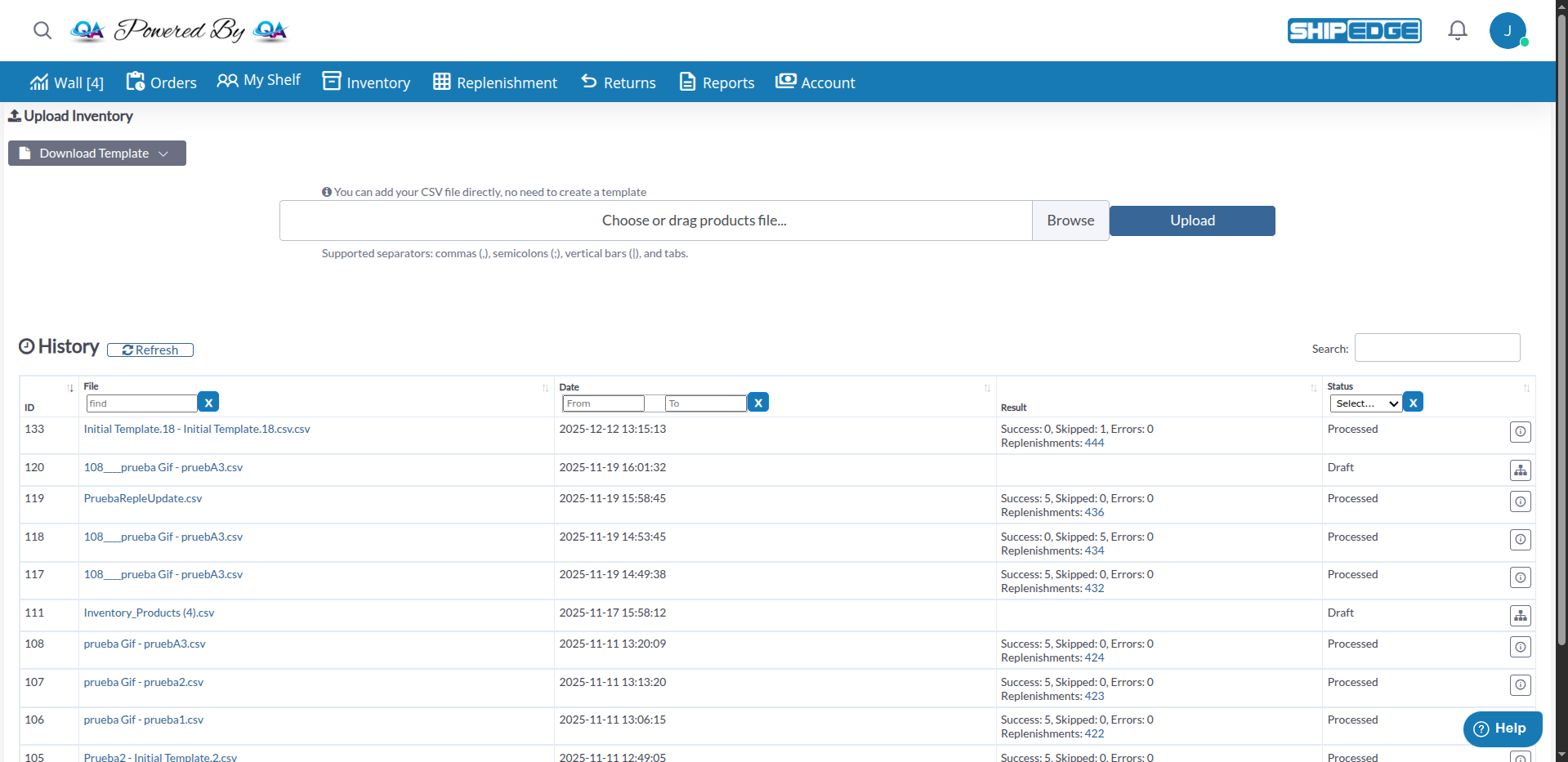
Upload your CSV file directly to ShipEdge. The system automatically detects the separator used (commas, semicolons, pipes, or tabs).
If your CSV doesn’t match the standard template, map your columns to ShipEdge fields. You can save this mapping as a template for future use.
The system processes the file in the background (queue), creating/updating products and generating replenishments if quantities were applied.
Navigate to Upload Inventory View
From the main menu, go to Inventory → Upload Inventory.
You can also access from:
Prepare Your CSV File
Create or export your CSV file with product data. You don’t need to download a template first - you can upload any CSV file directly.
Required Columns (minimum required):
SKU: Unique product codeDescription: Product descriptionQuantity: If you want to create a replenishment automaticallyRecommended Columns:
UPC: BarcodeCost: Unit costRetail or Declared: Declared value for shippingWeight: Product weightLength, Width, Height: Package dimensionsOptional Columns:
Supplier: Supplier nameDistributionCenter: If you handle multiple warehousesSynSet: To create product familiesTip: You can download templates from the “Download Template” dropdown button if you want a reference format.
Upload File in ShipEdge
In the Upload Inventory view:
System Validates File
The system automatically:
Column Mapping (If Needed)
If your CSV columns don’t match ShipEdge field names exactly, you’ll be redirected to the Map Inventory CSV page.
On this visual mapping page:
Required fields (marked with *):
Sku (SKU) - Must be mappedDescription - Must be mappedSave template: Click “Save as…” to save your mapping configuration for future uploads.
Process File
Click the Process button to start processing.
The system will:
File Processing States
Your upload will move through these states:
Estimated processing time:
Review Results
Once status changes to “Processed”:
Below, all available fields in the CSV, grouped by category:
Format: Alphanumeric, maximum 40 characters (less than 10 recommended)
Description: Unique product identifier. This is the code you use to identify each product in your system.
Examples:
Rules:
. - # / ~ & | ( ) + _Best Practices:
Format: Text, maximum 150 characters
Description: Product description that warehouse staff will use to verify they received the correct item.
Examples:
Rules:
Best Practices:
Format: Alphanumeric, maximum 255 characters (generally 12-15 digits)
Description: Product barcode. Can be UPC, EAN, ISBN, ASIN, or any other barcode.
Examples:
When to Use:
Note: If the product doesn’t have an official barcode, you can leave empty or use your own internal code.
Format: Decimal number, maximum 6 digits with 3 decimals (example: 123.456)
Description: Unit purchase cost of the product from your supplier. Used for:
Examples:
Best Practices:
Format: Decimal number, maximum 6 digits with 3 decimals
Description: Declared value of the product for shipping, customs, and insurance purposes. Generally your retail price to the public.
Examples:
Importance:
Note: If you don’t complete this field, some carriers may reject international shipments or apply default values.
Format: Decimal number (in pounds - lbs)
Description: Weight of individual product in its retail packaging (the one shipped to end customer).
Examples:
Importance:
Note: Warehouse can weigh product upon receipt and update this value if it differs significantly.
Format: Decimal number (in inches)
Description: The longest dimension of the product’s retail packaging.
Examples:
Format: Decimal number (in inches)
Description: The second longest dimension of the retail packaging.
Examples:
Format: Decimal number (in inches)
Description: The shortest dimension of the retail packaging (generally height when standing).
Examples:
Importance of Dimensions:
Best Practices:
Format: Integer (no decimals)
Description: ADVANCED - If you complete this field, the system will automatically create a Replenishment Request with this quantity for each SKU.
Examples:
How It Works:
When to Use:
Warning: Only use this field if you actually expect to receive inventory. Don’t use it just to create products without replenishment.
Format: Alphanumeric, maximum 255 characters (less than 15 recommended)
Description: ADVANCED - Name or code of your supplier. Associates the product with a specific supplier.
Examples:
How It Works:
Best Practices:
Format: Alphanumeric, 1-5 characters
Description: ADVANCED - Code of the distribution center or warehouse where the product is stored.
Examples:
How It Works:
Important:
Format: Full URL, maximum 250 characters
Description: Direct URL to the product’s main image.
Examples:
https://example.com/images/product123.jpghttps://cdn.shopify.com/s/files/1/0123/4567/products/widget.pngRequirements:
http:// or https://)Note: System downloads and stores image locally. If URL is invalid, product is created without image.
Format: Alphanumeric, maximum 40 characters
Description: ADVANCED - Creates or assigns the product to a SynSet (Product Family).
How It Works:
For Synonyms:
For Sets (Bundles/Kits):
Examples:
CSV for a Synonym:
SKU,Description,SynSetWIDGET-US,Widget for USA,WIDGET-GLOBALWIDGET-EU,Widget for Europe,WIDGET-GLOBALCSV for a Bundle (Kit):
SKU,Description,SynSetSHIRT-RED,Red Shirt,SUMMER-KITSHORTS-BLUE,Blue Shorts,SUMMER-KITHAT-WHITE,White Hat,SUMMER-KITWarnings:
Format: Alphanumeric, maximum 40 characters (generally 6-10 digits)
Description: Harmonized System code for international trade. Required if you import or export products.
Examples:
Importance:
Where to Find It:
Format: 2-letter country code (ISO 3166-1 alpha-2)
Description: The country where the product was manufactured or produced. Required for import/export.
Examples:
Importance:
Complete Code List: Search “ISO 3166-1 alpha-2” on Google for the complete list.
Format: One letter: Y, N, or R
Description: Controls whether the product requires serial number tracking.
Options:
N or empty = No serial number controlY = Outbound control (requires serial when shipping)R = Inbound and outbound control (requires serial when receiving and shipping)Usage Examples:
Y for electronics with warrantyR for medical devicesN for products without serialNote: If you enable serial numbers, warehouse staff will need to scan or enter serials during receipt and/or shipping.
The following fields are available but are less commonly used. They are listed here for reference:
Format: Alphanumeric
Description: ShipEdge’s internal barcode for products transferred between ShipEdge warehouses. Advanced use only.
Format: Alphanumeric
Description: Unique identifier for tracking pallets or packages in shipping. Requires Quantity field if used.
Format: Alphanumeric, maximum 40 characters
Description: Product model number or family (optional).
Format: Alphanumeric, maximum 40 characters
Description: Product manufacturer name (optional).
Format: Alphanumeric, maximum 40 characters
Description: Product category or family.
Format: Integer
Description: Number of individual units in a case pack from supplier.
Format: Specific text (predefined options)
Description: Picking strategy for warehouse operations. Options include STANDARD, FIFO, LIFO, FEFO, etc. Advanced use only.
Format: Alphanumeric
Description: International shipping document fields. Only available if your account has “International Documents” feature enabled.
Format: Various (alphanumeric, integer, decimal, text)
Description: Unit of Measure (UOM) fields for products sold in different unit sizes. Only available if your account has UOM feature enabled.
Format: Alphanumeric, maximum 10 characters each
Description: Custom optional fields for specific integration projects. Consult with your account manager before using.
Format: Alphanumeric, maximum 40 characters. Separate words with pipe (|)
Description: Tags or labels for integration rules and advanced filters.
All your uploads are saved in history and displayed in the table at the bottom of the Upload CSV view.
Each row shows:
Use the filters above the table:
Before uploading 5,000 products, test with 5-10 products to verify format and mapping are correct.
Save your CSV with UTF-8 encoding to support special characters (accents, ñ, etc.). In Excel: “CSV UTF-8 (Comma delimited)”.
Use only letters, numbers, and basic symbols (. - # / ~ & | ( ) + _). Avoid spaces, commas, quotes, and accents.
Updating existing SKUs is IRREVERSIBLE. If unsure, DO NOT check this option on first upload.
If you upload CSVs from the same supplier frequently, save the mapping as a template to reuse.
1 inch difference in dimensions can significantly change shipping costs by dimensional weight.
Always review details of completed upload to see if there were errors or warnings.
Problem: System rejects the file when trying to upload it.
Solutions:
.csv, not .xlsx or .txtProblem: CSV columns don’t match the expected template.
Solution:
Sku and DescriptionProblem: Included Quantity column but replenishment wasn’t generated.
Common Causes:
Solution:
Problem: Upload completed partially - some SKUs created, others didn’t.
Solution:
Problem: Upload has been in “Processing” or “In queue” for more than expected time.
Understanding Statuses:
Solution:
Problem: Checked “Update SKU” and some fields were deleted or changed unintentionally.
Explanation: When updating an existing SKU, ALL CSV fields overwrite current values. If a field is empty in CSV, it overwrites with empty.
Prevention:
Solution IF it already happened:
Next Steps:
See Also:
Complete Setup Process: