
Bulk Import
Import hundreds or thousands of orders at once instead of entering them manually one by one.
Uploading orders via CSV lets you import many orders at once instead of creating them one by one. This saves time when you have orders from spreadsheets, external systems, or bulk order files. The system guides you through uploading the file, mapping columns to ShipEdge fields, and processing the orders.
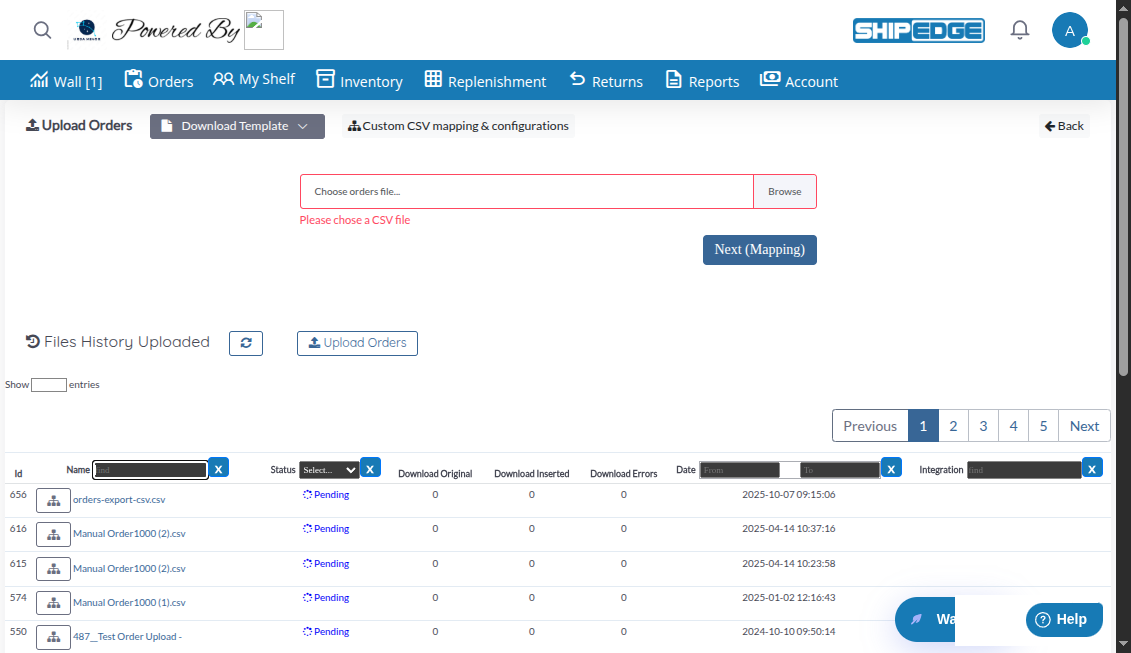
Import hundreds or thousands of orders at once instead of entering them manually one by one.
Map your CSV columns to ShipEdge fields, so you can use files from different sources or formats.
Download pre-configured templates that match your integration or create custom templates for your workflow.
Get detailed reports showing which orders imported successfully and which had errors, with downloadable error files.
Navigate to Upload Orders
Go to Orders in the main menu, then click Upload Orders.
Download a Template (Optional but Recommended)
Click the Download Template dropdown button to see available templates. Choose a template that matches your file format. This helps you understand the expected column structure.
Choose Your CSV File
Click Choose orders file… and select your CSV file from your computer. The file must be a .csv format. After selecting, the filename will appear next to the button.
Start the Upload Process
Click Next (Mapping) to upload the file and proceed to the column mapping screen. The system will upload your file and analyze its structure.
Map CSV Columns to ShipEdge Fields
On the mapping screen, you’ll see:
Drag and drop or click to connect CSV columns to ShipEdge fields. Required fields include:
orderNum)custFName)custAddress1)custCity)custState)custZip)custCountry)orderShipMethod)SKUi) - for product itemsQTYi) - for product quantitiesConfigure Header Line
In the right panel, set the header Line number (usually 1). If your file has no headers, set this to 0. The system will use this line to identify column names.
Select or Save Template Configuration
Process the Upload
Click Upload to start processing your orders. The system will:
Review Results
Return to the Upload Orders page to see your file in the Files History Uploaded table. Check the status:
Download Results
Once processing is complete, you can download:
Your CSV file should:
,) as the delimiterSingle-Line Format (OrderMultiple = N):
Multi-Line Format (OrderMultiple = Y):
These fields must be mapped for orders to import successfully:
| Field | Description | Example |
|---|---|---|
orderNum | Unique order number | ORD-12345 |
custFName | Customer first name | John |
custAddress1 | Street address | 123 Main St |
custCity | City | New York |
custState | State/Province | NY |
custZip | Postal/Zip code | 10001 |
custCountry | Country name or code | United States or US |
orderShipMethod | Shipping method code | UPS Ground |
SKUi | Product SKU | PROD-001 |
QTYi | Quantity | 2 |
You can also map these fields if your CSV includes them:
custLName)custEmail)custPhone)custCompany)custAddress2)orderRef)orderComments)custBillFName, custBillAddress1, etc.)orderCOD)orderInsurance)The Files History Uploaded table shows all your upload attempts:
Download and use templates that match your file format. Save your mappings as templates to reuse them later.
Check that your CSV has all required fields and that order numbers are unique. Verify SKUs exist in your inventory.
Start with a small test file (5-10 orders) to verify your mapping works correctly before uploading large batches.
Always download and review error files to understand why orders failed. Fix issues and re-upload corrected data.
Ensure shipping method codes in your CSV match exactly with shipping methods configured in ShipEdge.
Use standard country names or ISO codes (2-letter or 3-letter) that ShipEdge recognizes.
“Please chose a CSV file” error
.csv extensionOrders not importing
“Shipping method not found” errors
“Country not found” errors
“Address empty” errors
Processing stuck in “Pending” or “Processing”
If you continue to have issues: