
Track Order Progress
Know exactly where each order is in your fulfillment process. See if orders are waiting, being processed, or already shipped.
Orders move through different statuses as they progress from creation to shipment. Understanding order statuses helps you track order progress, identify bottlenecks, and manage your fulfillment workflow effectively.
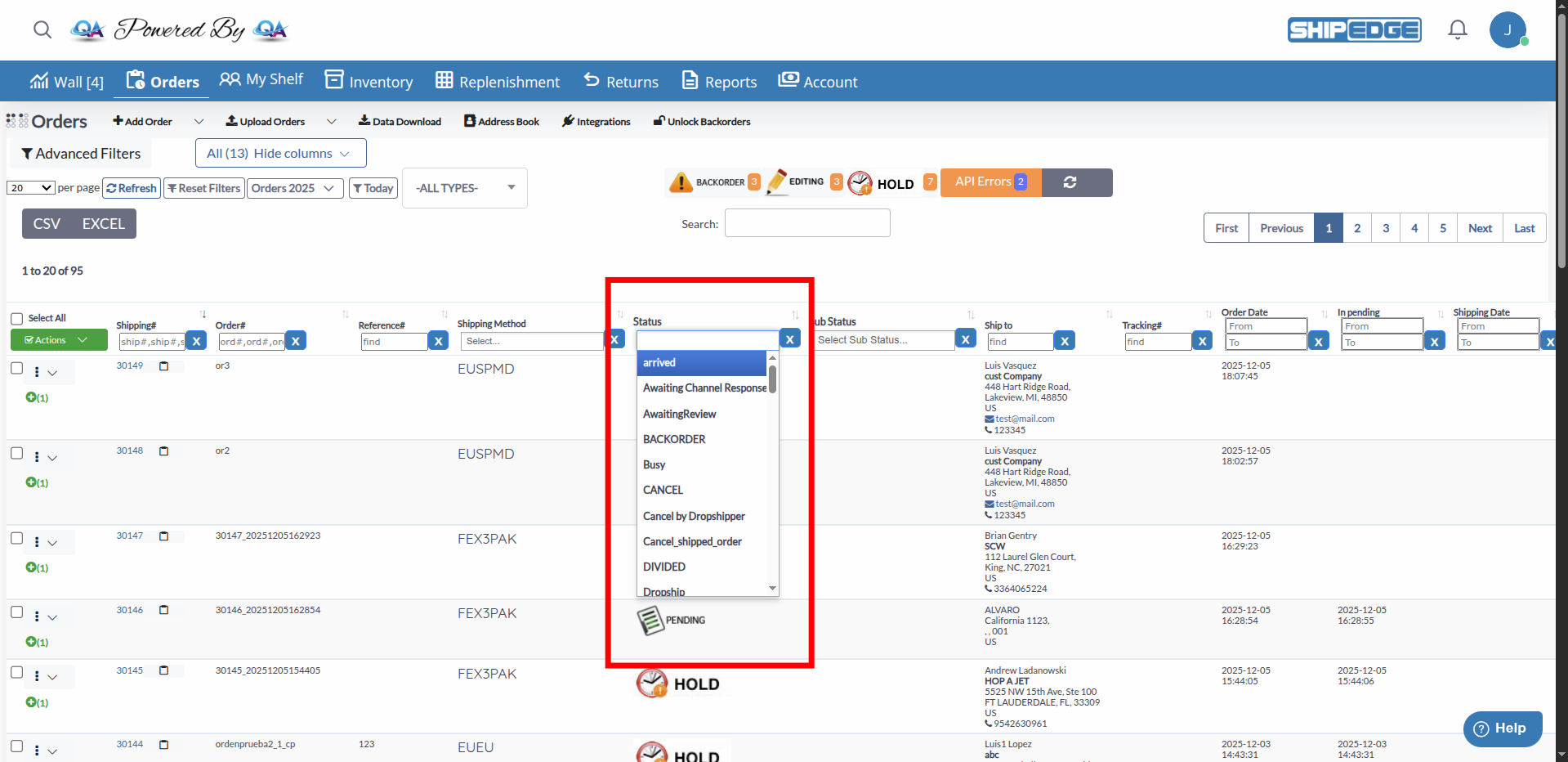
Know exactly where each order is in your fulfillment process. See if orders are waiting, being processed, or already shipped.
Spot problems early by monitoring status changes. Orders stuck in error states or held statuses need attention.
Analyze status patterns to find bottlenecks and improve processing times. See which statuses take longest.
Understand what actions are possible at each status. Some actions only work for specific statuses.
These are the primary statuses orders move through during fulfillment:
Orders waiting to be processed. Ready for fulfillment once inventory is available and validated. Orders automatically move from Pending to Processing when conditions are met.
Orders actively being picked, packed, and prepared for shipment in the warehouse. Inventory is allocated and items are being gathered.
Orders that have been shipped to customers with tracking numbers assigned. Final status for successfully fulfilled orders.
Orders with items out of stock. These orders wait for inventory to be replenished before they can be processed.
Orders temporarily paused from processing. Can be released when ready to resume. Inventory may be reserved depending on hold type.
Long-term hold status that does not reserve inventory. Used for orders waiting for specific conditions before processing.
Orders that have been cancelled and will not be fulfilled. Cancelled orders cannot be restored.
Orders split into multiple shipments when items are fulfilled from different locations or at different times.
The system also tracks these specialized statuses:
Orders missing required information or failing validation. Must be completed before processing can begin.
Orders on hold due to insufficient account balance. Add funds to your account to release these orders.
Orders currently being edited by a user. Prevents other users from editing simultaneously.
Orders fulfilled by dropshipping partners. Managed through dropship workflow.
Shipments returned by the carrier. Requires review and potential reprocessing or refund.
Order Created
When an order is created (manually or imported), it starts in Pending status. The order is validated and ready for processing.
Pending to Processing (Automatic)
The system automatically moves orders from Pending to Processing when:
Processing
In Processing status, warehouse staff:
Shipped
Once shipping label is printed and tracking assigned, order moves to Shipped status. This is the final status for successfully fulfilled orders.
Orders don’t always follow the standard path. Here are common alternatives:
Pending → Backorder:
Pending → Hold:
Pending → Error:
Processing → Divided:
ShipEdge automatically changes order statuses based on conditions:
The system automatically moves orders from Pending to Processing when:
Requirements:
Process:
orders/processing)Timing: This happens automatically through background jobs that process pending orders continuously.
When processing fails, orders may:
You can manually change order statuses through various actions:
Put on Hold:
Release Hold:
Cancel Orders:
Apply Alternatives:
Edit Order:
Complete Edit:
Some statuses prevent certain actions:
Cannot Edit:
Cannot Cancel:
Cannot Release:
In addition to main statuses, orders can have sub-statuses that provide more detail:
Common Sub-Statuses:
Sub-statuses appear alongside main status and provide additional workflow information.
Automatic Triggers:
Manual Triggers:
Regularly review orders in different statuses to identify bottlenecks. Use status filters to focus on specific workflow stages.
Check Error status orders daily. Fix issues promptly to keep orders moving through the workflow.
Check Hold status orders regularly. Release them promptly once issues are resolved to maintain workflow efficiency.
Monitor Backorder status closely. Coordinate with inventory team to prioritize replenishment for backordered items.
Know which actions work for which statuses. Trying to edit or cancel orders in wrong statuses causes errors.
Combine different status can be help to quickly access, “All Pending Orders” or “Orders on Hold” with one click.
Problem: Order remains in Pending status and doesn’t move to Processing.
Possible Causes:
Solution:
Problem: Order status changed without manual action.
Possible Causes:
Solution:
Problem: Unable to change order status manually.
Possible Causes:
Solution:
Problem: Status doesn’t update after action.
Solution:
Next Steps: After understanding order statuses, learn about Managing Orders to perform bulk actions that change order statuses efficiently.