
Complete Order Visibility
See all orders across all statuses in one place. Track pending, processing, shipped, and backorder items with real-time updates.
The Orders Overview is your central hub for managing all customer orders in ShipEdge OMS. View orders at any status, search across multiple fields, export data, and perform bulk actions on multiple orders at once.
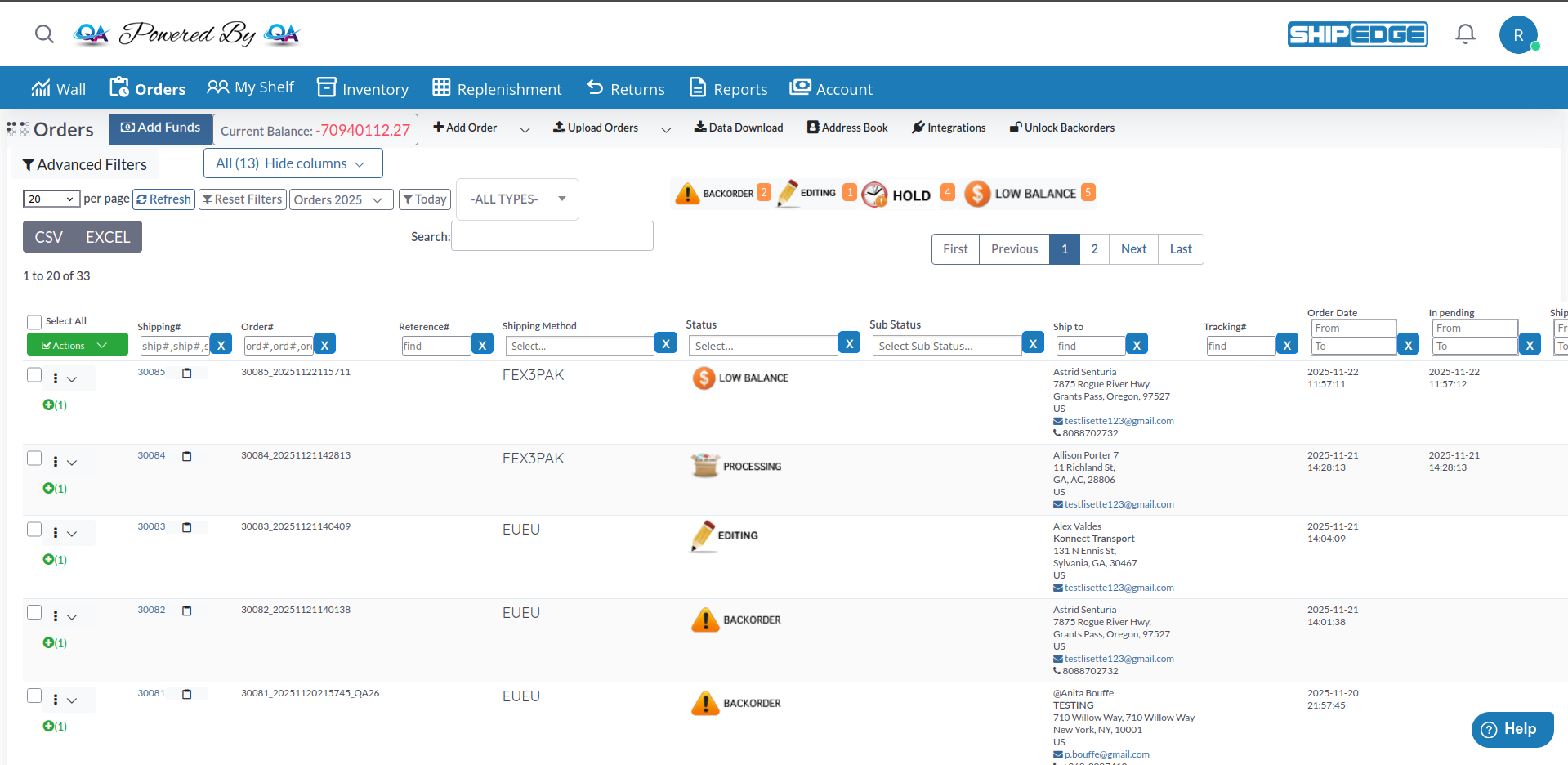
See all orders across all statuses in one place. Track pending, processing, shipped, and backorder items with real-time updates.
Find orders instantly using the search bar or apply advanced filters by status, date range, customer name, order number, or reference number.
Select multiple orders and perform actions like put on hold, release, apply alternatives, or cancel all at once.
Download order data to CSV or Excel format for reporting, analysis, or external processing. Export up to 5,000 records at a time.
Navigate to Orders
Click Orders in the main navigation menu. The Orders page loads with your current orders displayed in a searchable table.
View Order List
Browse the order table showing key information: Order ID, Order Number, Reference Number, Status, Customer Name, Shipping Method, and more.
Use Search and Filters
Type in the search box to find orders by any visible field. Use the filter dropdowns to narrow results by status, date range, or other criteria.
Select and Act on Orders
Check the boxes next to orders to select them, then use the action buttons to perform bulk operations.
ShipEdge tracks orders through multiple statuses as they move through your fulfillment workflow.
Orders waiting to be processed. Ready for fulfillment once inventory is available and validated.
Orders actively being picked, packed, and prepared for shipment in the warehouse.
Orders that have been shipped to customers with tracking numbers assigned.
Orders with items out of stock. These orders wait for inventory to be replenished.
Orders temporarily paused from processing. Can be released when ready to resume.
Orders on standby waiting for specific conditions to be met before processing.
Orders that have been cancelled and will not be fulfilled.
Orders split into multiple shipments when items are fulfilled from different locations or at different times.
The system also tracks these specialized statuses:
| Status | Description |
|---|---|
| Incomplete | Orders missing required information or failing validation |
| Error | Orders with processing errors that need attention |
| Packing Error | Issues encountered during packing process |
| Low Balance | Orders on hold due to insufficient account balance |
| Editing | Orders currently being edited by a user |
| Dropship | Orders fulfilled by dropshipping partners |
| Return by Carrier | Shipments returned by the carrier |
| Sent to ShipEdge | Orders sent to ShipEdge fulfillment network |
| Shipped by ShipEdge | Orders fulfilled and shipped by ShipEdge |
Located at the top of the orders page:
Create a new order manually. Opens the order creation form where you can enter customer information, products, and shipping details.
Import multiple orders at once using a CSV file. Access upload history to review past imports.
Generate a special pick order for warehouse operations or internal use.
The orders table displays the following information:
Click the actions menu (⋮) on any order row to access:
Available for All Orders:
Available for Pending/Backorder Orders:
Available for Orders on Hold:
Select multiple orders using the checkboxes, then perform bulk operations:
Download order data for external analysis or reporting:
CSV Export:
orders_YYYY_MM_D__HH_mm_ss.csvExcel Export:
orders_YYYY_MM_D__HH_mm_ss.xlsxGlobal Search:
Column-Specific Filters:
Advanced Filters:
Locate the Order
Search for the order using the search box or filter by Order# or Reference#.
Click Actions Menu
Click the three-dot menu (⋮) on the order row.
Select View
Click View to open the complete order details including products, pricing, shipping information, and activity history.
Find the Order
Locate the order you want to edit. Orders must be in Pending, Backorder, Hold, Incomplete, or Low Balance status to be edited.
Check Edit Availability
The Edit option appears in the actions menu only for editable order statuses.
Open Edit Form
Click Edit to open the order editing interface.
Make Changes
Update customer information, add/remove items, modify quantities, or change shipping method.
Save Changes
Click Save to apply your updates. The order refreshes with new information.
Select Orders
Check the boxes next to orders you want to hold. Orders must be in Pending or Backorder status.
Open Actions Menu
Click the actions menu (⋮) on any selected order.
Choose Put on Hold
Click Put on hold to pause processing.
Confirm Action
Confirm you want to hold these orders. They’ll change to Hold status immediately.
Orders on hold remain in that status until manually released. This is useful when:
Find Held Orders
Filter the orders table to show Hold status.
Select Orders to Release
Check the boxes next to orders ready to resume processing.
Click Release
In the actions menu (⋮), click Release to resume processing.
Verify Release
Orders return to their previous status (usually Pending) and will process normally.
Use date filters to focus on recent orders first. This improves page load performance and makes it easier to manage your daily workflow.
Save frequently used filter combinations as browser bookmarks so you can quickly access views like “Today’s Pending Orders” or “This Week’s Backorders”.
Always include a reference number (PO number, external order ID) when creating orders. This makes it much easier to search and match orders with external systems.
Check orders on Hold status daily to ensure they’re released promptly once issues are resolved. Held orders don’t process automatically.
Regularly export order data to analyze trends, identify bottlenecks, and optimize your fulfillment process.
Keep a close eye on backorder status. Work with your inventory team to prioritize replenishment for backordered items.
Problem: You know an order exists but can’t find it in the orders list.
Solutions:
Problem: Export button doesn’t download a file.
Solutions:
Problem: The Edit button doesn’t appear for an order.
Solutions:
Problem: Selected bulk action didn’t apply to all selected orders.
Solutions:
Next Steps:
Related Features: