
Flexible Entry
Enter orders from any source - phone calls, email, walk-in customers, or custom channels that don’t have integrations.
Creating orders manually lets you enter customer orders directly into ShipEdge. This is useful for phone orders, custom orders, or orders from channels that aren’t integrated. The order creation form includes customer information, products, shipping options, and special handling instructions.
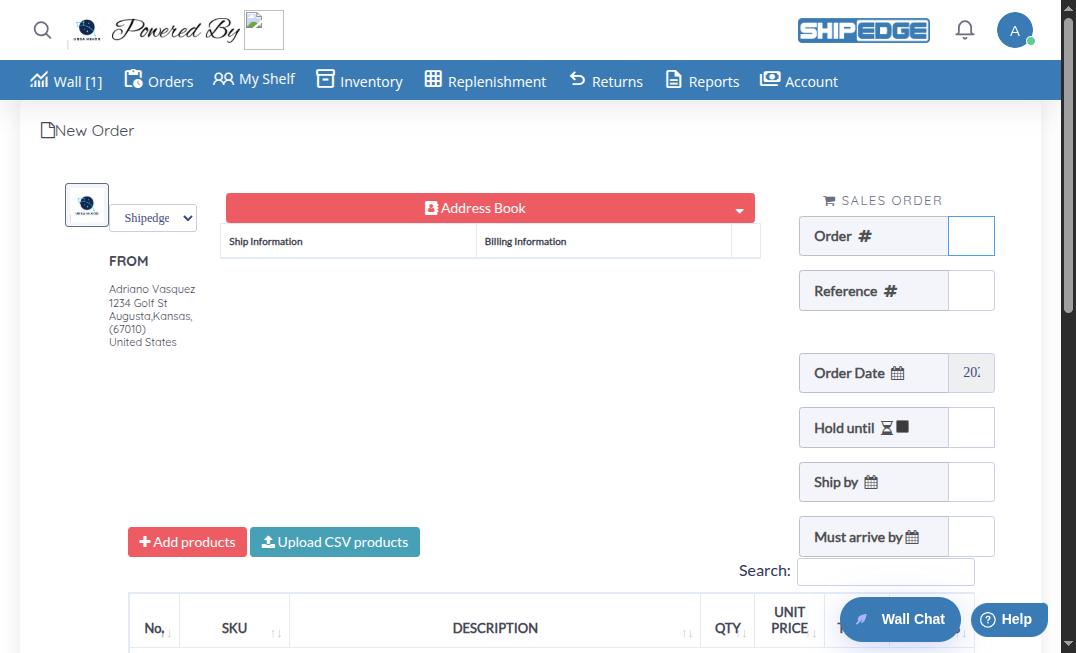
Enter orders from any source - phone calls, email, walk-in customers, or custom channels that don’t have integrations.
Set all order details including shipping method, special instructions, hold dates, and custom attributes.
Use saved customer addresses from your address book to speed up order entry and ensure accuracy.
Save orders as drafts, save and download PDF, or save and confirm - choose the workflow that fits your needs.
Navigate to Order Creation
From the Orders Overview page, click the Add Order button in the toolbar.
Select Channel (Optional)
Choose a channel from the dropdown at the top left. This defaults to “Shipedge” but you can select other channels if configured. The channel determines the “FROM” address shown on the order.
Add Customer Information
Click the Address Book button to open the customer information section. You can:
Required fields: First Name, Address 1, Zip/Postal Code (marked with red asterisk).
Enter Order Details
In the right sidebar, fill in:
Add Products
Click Add products to open the product selection modal. Search for products by SKU or description, then add them to the order. You can also click Upload CSV products to bulk add products from a CSV file.
Configure Shipping Information
Click Add Shipping Information to open the shipping modal. Configure:
Click Save configuration for future orders if you want to reuse these settings.
Add Handling and Shipping Costs
In the order totals section, enter:
Add Notes (Optional)
Enter any special instructions:
Save the Order
Choose your save option:
The customer information section includes two tabs: Ship Information and Billing Information.
Ship Information (Required):
Billing Information (Optional):
Located in the right sidebar, this section shows:
The products table shows:
Adding Products:
The shipping modal includes all carrier and shipping options:
Carrier & Method:
Shipping Options:
Special Options:
The order totals area shows:
Before saving, the system validates:
Create pick orders. Pick orders are used for internal warehouse operations.
Save customer addresses in your address book first. This speeds up order entry and reduces address errors.
Always click “Get Rates” in the shipping modal to ensure accurate shipping costs. This helps with pricing and customer expectations.
If you use the same shipping settings frequently, check “Save configuration for future orders” to reuse settings automatically.
Set “Hold until” dates for orders that shouldn’t ship immediately. This prevents accidental early shipments.
Use internal notes to warehouse for special packing instructions, gift wrapping requests, or handling notes.
Double-check order numbers before saving. Duplicate order numbers will cause an error, and numbers ending in “_C” are not allowed.
Speed up order creation with these shortcuts:
Problem: You see an alert saying “Required products” when trying to save.
Solution: Add at least one product to the order before saving. Click Add products and select products from your catalog.
Problem: Alert appears saying “Required add customers.”
Solution: Click Address Book and add customer information. At minimum, First Name and shipping address are required.
Problem: Alert appears when trying to save without selecting a shipping method.
Solution: Click Add Shipping Information, select a carrier and shipping method, then click Ok to close the modal.
Problem: Error message appears when saving with a duplicate order number.
Solution: Use a unique order number. Check existing orders to ensure the number isn’t already in use.
Problem: “Get Rates” button doesn’t return shipping costs.
Solutions:
Problem: Can’t find products when searching in Add Products modal.
Solutions:
After creating an order, explore these related features: