
Skip to content

Backorders

Backorders are orders that cannot be fulfilled because products are out of stock. When an order is created but inventory isn’t available, ShipEdge automatically moves it to Backorder status (Status 7). Once inventory is replenished, the system can automatically release backorders and move them to Pending status, ready for fulfillment.
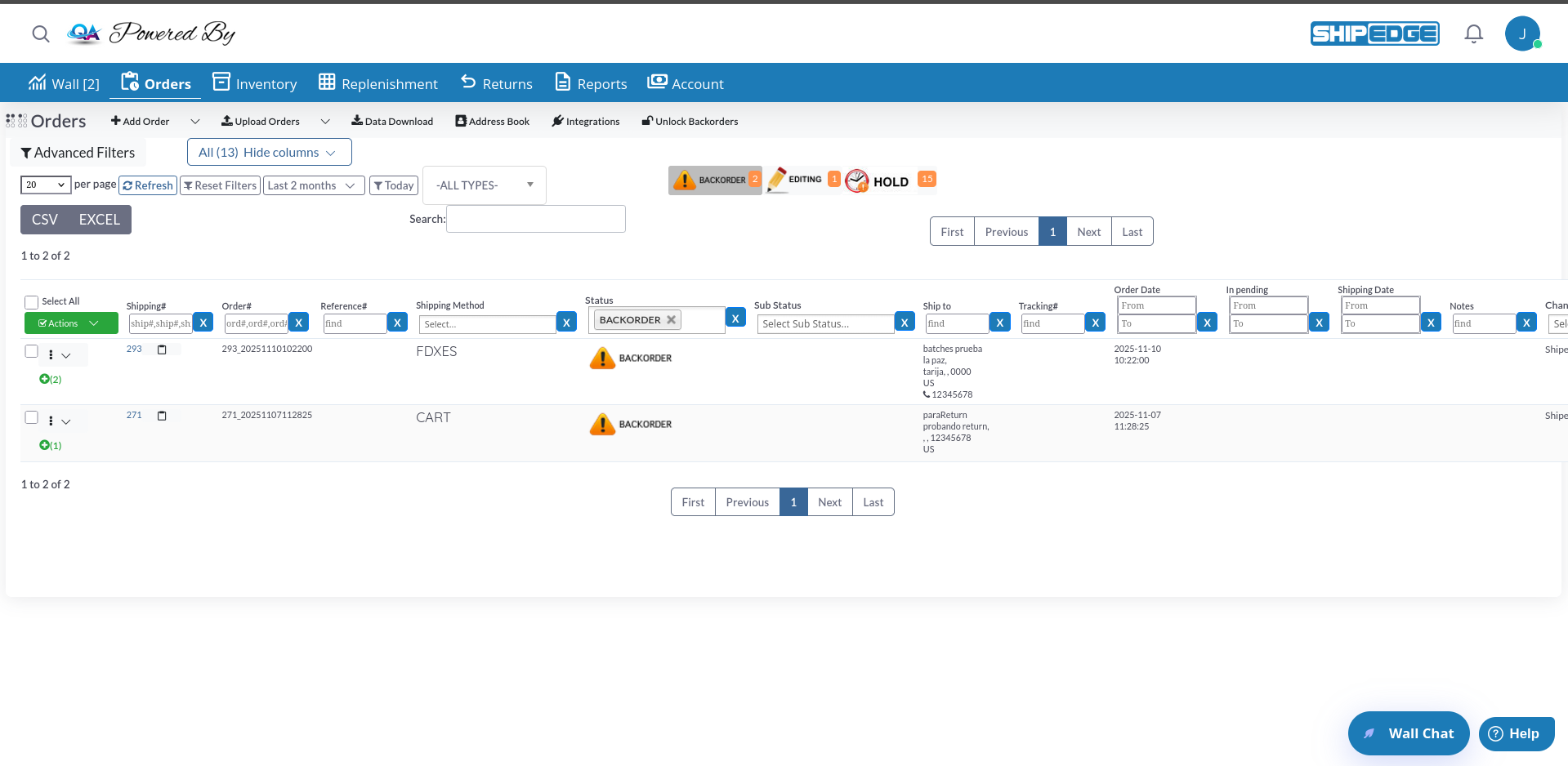
backorder

Prevent Lost Sales

Keep orders even when inventory is temporarily unavailable. Backorders ensure customers get their products once stock arrives.

Automatic Processing

System automatically releases backorders when inventory becomes available. No manual intervention needed for most cases.

Priority Handling

Backorders are processed by priority and order date. Older orders and higher priority orders get inventory first.

Inventory Management

Track which products need replenishment by monitoring backorders. See which SKUs are causing delays.

Orders automatically become backorders when:

  • Products are out of stock: Order items have Instock = 'N' (not in stock)
  • Insufficient inventory: Available quantity is less than ordered quantity
  • Inventory allocation fails: System cannot allocate required inventory
  • Order Status: 7 (Backorder)
  • Order Item Status: Items marked as Instock = 'N'
  • Visual Indicator: Red badge in Orders view
  • Alert: Appears in Order Alerts with count of backorders

Backorders automatically move to Pending (Status 3) when:

  • Inventory becomes available for all order items
  • System checks inventory levels
  • All items in the order have Instock = 'Y'
  • Order validation passes

The system processes backorders in priority order:

  1. Priority (highest first)
  2. Order ID (oldest first)
  1. Navigate to Orders View

    Go to Orders in the main menu, or navigate directly to /orders.php.

  2. Filter by Backorder Status

    Click the Backorder alert button at the top of the page.

    • Use the Status filter column
    • Select “Backorder” from the dropdown
    • Table shows only backorder orders
  3. Review Backorder Details

    In the filtered view, you’ll see:

    • Order numbers and dates
    • Customer information
    • Products that are out of stock
    • Order priority
    • How long orders have been waiting
  4. Check Individual Orders

    Click any order to view details:

    • Which products are unavailable
    • Current inventory levels
    • Order priority
    • Customer information

The system automatically releases backorders when:

  • Inventory is added to products
  • Stock levels increase above zero
  • All order items become available
  • System processes inventory updates

Process:

  1. Inventory is updated (received, adjusted, etc.)
  2. System checks for backorders with matching SKUs
  3. Backorders are evaluated in priority order
  4. Orders with all items available move to Pending
  5. Order items are marked as Instock = 'Y'

When backorders have some products available but not all:

  1. Check for Unlockable Backorders

    Look for the Unlock Backorders button in the Orders view menu. This button appears when:

    • Backorders exist with some products in stock
    • Orders can be partially fulfilled
    • Manual intervention is needed
  2. Click Unlock Backorders

    Click the Unlock Backorders button to open the divide orders notification window.

  3. Review Available Orders

    The window shows:

    • Order numbers
    • Order dates
    • Available SKUs (products now in stock)
    • Checkboxes to select orders
  4. Select Orders to Divide

    Check the orders you want to process, or click Select All to choose all available orders.

  5. Click Divide

    Click Divide to process selected orders:

    • Orders are divided into available and unavailable items
    • Available items are shipped immediately
    • Remaining items stay as backorder

For backorders with partial inventory:

  1. Select Backorder Orders

    In the Orders view, check the boxes for backorder orders you want to process.

  2. Choose Bulk Action

    Click Actions dropdown, then select Send what’s available.

  3. Confirm Action

    System processes selected orders:

    • Checks which items are available
    • Ships available items
    • Keeps unavailable items as backorder
    • Updates order status accordingly
  4. Review Results

    System shows which orders were processed:

    • Successfully sent orders
    • Orders that couldn’t be sent
    • Any errors encountered

Use product alternatives for backorders:

  1. Select Backorder Orders

    Check boxes for backorder orders that have product alternatives configured.

  2. Choose Apply Alternatives

    Click ActionsApply Alternatives.

  3. Confirm Action

    System checks for configured alternatives:

    • Replaces unavailable products with alternatives
    • Updates order items
    • Releases order to Pending if all items resolved
  4. Verify Changes

    Review orders to ensure alternatives were applied correctly.

Network backorders are a special type that use network inventory:

For orders using network inventory:

  1. Identify Network Backorders

    Network backorders show pendingprocess = 'network_backorder_process' in the orders table.

  2. Select Network Backorders

    Check boxes for network backorder orders (up to 200 orders).

  3. Click Divide Network Backorder

    Click the Divide Network Backorder button in the Actions menu.

  4. Monitor Progress

    System shows progress percentage:

    • Badge displays completion percentage
    • Button is disabled during processing
    • Process runs in background
  5. Review Results

    Once complete:

    • Orders are divided based on network inventory
    • Available items are processed
    • Remaining items stay as backorder

If a network backorder gets stuck:

  1. Open the order dropdown menu
  2. Click Release Stuck
  3. System releases the order from stuck state
  4. Order can be processed normally

Monitor Backorder Counts

Check Order Alerts daily to see how many backorders exist. High counts may indicate inventory issues.

Prioritize Old Orders

Review backorders by date. Older orders should be addressed first to maintain customer satisfaction.

Set Product Priorities

Use order priority settings to ensure important orders get inventory first when stock arrives.

Configure Alternatives

Set up product alternatives for common backorder situations. This helps automatically resolve some backorders.

Review Inventory Levels

When backorders increase, check inventory levels for those SKUs. Plan replenishments accordingly.

Use Unlock Feature

Regularly check for unlockable backorders. Use “Unlock Backorders” to process partial orders quickly.

When inventory becomes available, backorders are processed in this order:

  1. Order Priority (highest priority first)

    • Orders with higher priority get inventory first
    • Priority can be set manually or by system rules
  2. Order Date (oldest first)

    • Among orders with same priority, older orders process first
    • Ensures first-come-first-served fairness
  3. Order ID (lowest ID first)

    • Final tiebreaker for orders with same priority and date

When only partial inventory is available:

  • Automatic: System allocates available quantity to highest priority orders
  • Manual: Use “Send what’s available” to ship partial orders
  • Divide: Use “Unlock Backorders” to split orders into available/unavailable items

An order moves from Backorder to Pending when:

  • All order items have Instock = 'Y'
  • All products are available in sufficient quantities
  • Order validation passes
  • No holds or other restrictions exist

Backorders not releasing automatically

  • Cause: Inventory not properly updated or allocated
  • Solution: Check inventory levels, verify products have correct quantities
  • Check: Ensure inventory updates are processing correctly

Unlock Backorders button not appearing

  • Cause: No backorders have products available, or all backorders are fully unavailable
  • Solution: This is normal - button only appears when unlockable backorders exist
  • Check: Verify inventory levels for backorder products

Backorders stuck in status

  • Cause: Order may be in network backorder process
  • Solution: Use “Release Stuck” option for network backorders
  • Check: Review order details for pendingprocess status

Orders not becoming backorders when out of stock

  • Cause: Order may be in different status, or validation preventing backorder
  • Solution: Check order status and validation rules
  • Check: Verify order items and product availability

Priority not working

  • Cause: Priority may not be set, or multiple orders have same priority
  • Solution: Set distinct priorities for important orders
  • Check: Review order priority settings

If backorders aren’t processing correctly:

  1. Check inventory levels for backorder products
  2. Verify order status is actually Backorder (Status 7)
  3. Review order items to see which products are unavailable
  4. Check for holds or other restrictions on orders
  5. Contact ShipEdge support with specific order numbers