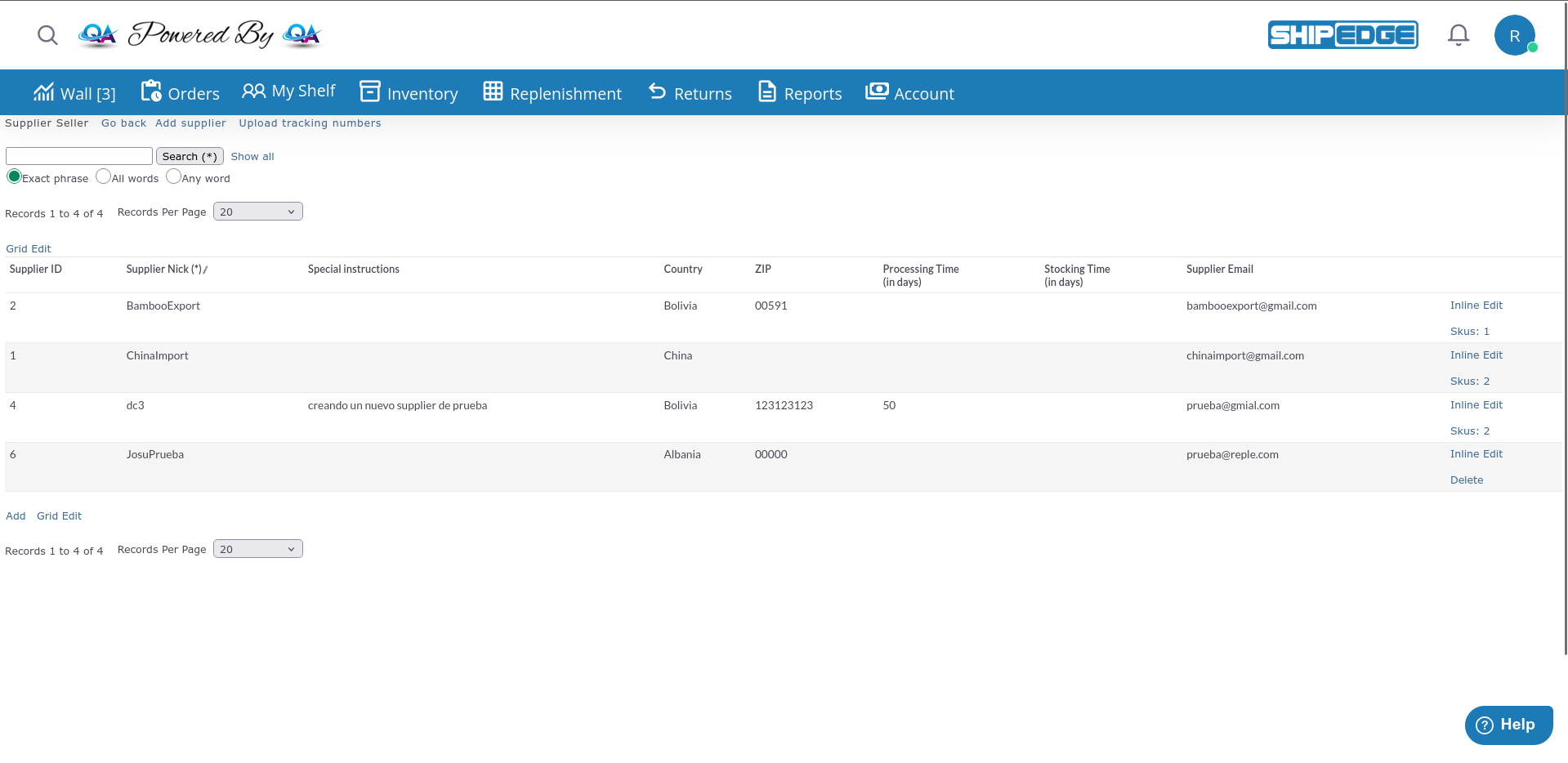
Suppliers lets you manage vendor information, track lead times, and organize inventory sourcing. Use suppliers to calculate replenishment needs, assign products to vendors, and manage dropshipping operations.
Add a supplier with their name, location, and timing information. The system calculates replenishment needs using Processing Time (shipping) and Stocking Time (inventory days). The sum must be at least 10 days.
Calculate when to reorder based on processing and stocking times to avoid stockouts.
Assign products to specific suppliers for better tracking and replenishment workflows.
Monitor how long it takes for inventory to arrive and be ready for sale.
Upload tracking numbers for dropshipped orders directly to supplier records.
Navigate to Suppliers from the catalog menu.
The interface displays all suppliers with:
Supplier ID : Unique identifierSupplier Nick : Supplier name (searchable)Special instructions : Notes and handling requirementsCountry : Supplier locationZIP : Supplier postal codeProcessing Time : Days from PO to warehouse arrival (0-90 days)Stocking Time : Days to hold inventory (0-365 days)Supplier Email : Contact email address
Click “Add supplier”
Opens the supplier creation form.
Enter Supplier Name
Supplier Nick (required): Enter a unique name for this supplier.
Add Contact Information
Special instructions : Notes about this supplier (optional)Country : Select from dropdownZIP : Postal codeSupplier Email : Contact email (validated format)
Set Timing Information
Processing Time (in days) : Number of days from when you send a purchase order until merchandise arrives at your warehouse (0-90 days).
Stocking Time (in days) : Number of days you want to keep stock in inventory. Used to forecast inventory needs (0-365 days).
Click “Add”
System validates the information and creates the supplier.
Individual Edit :
Click on a supplier row to select it
Modify the fields you need to change
The system updates immediately
Grid Edit :
Click Grid Edit to enable editing for all suppliers
Modify fields directly in the table
Click Save to apply changes
Click Cancel to discard changes
Use the search box at the top to find suppliers:
Exact phrase : Find the exact text you enterAll words : Find suppliers containing all search termsAny word : Find suppliers containing at least one search term
Click Search (*) to apply the filter. Click Show all to clear search and see all suppliers.
For dropshipping operations:
Click Upload tracking numbers
Upload a CSV file with tracking information
System associates tracking numbers with supplier shipments
When creating or editing products, you can assign a supplier:
Products inherit supplier information for replenishment calculations
Multiple products can share the same supplier
Supplier information appears in product catalog views
The system uses supplier timing information to calculate when to reorder:
Formula : (Processing Time + Stocking Time) = Total Lead Time
Example :
Processing Time: 7 days (shipping from supplier)
Stocking Time: 30 days (days to keep in stock)
Total Lead Time : 37 days
When inventory drops below safety stock levels, the system calculates reorder dates based on this total lead time.
Required Fields
Supplier Nick : Unique supplier name (text, required) Optional Fields
Special instructions : Internal notes (textarea)Country : Location (dropdown)ZIP : Postal code (text)Supplier Email : Contact email (validated format)Processing Time : 0-90 days (number)Stocking Time : 0-365 days (number) Name suppliers clearly (e.g., “ACME Electronics USA” instead of “Supplier1”).
Update processing and stocking times regularly to improve replenishment accuracy.
Use the special instructions field for handling requirements, minimum order quantities, or contact preferences.
Periodically check if actual lead times match your configured processing times.
Control how many suppliers you see per page:
Select records per page: 10, 20, 50, 100, 200, 500, or All Records
Use First , Previous , Next , Last buttons to navigate
Current page shows: “Records X to Y of Z”
Click any column header to sort:
First click: Ascending order (▲)
Second click: Descending order (▼)
Sortable columns: Supplier ID, Supplier Nick, Special instructions, Country, ZIP, Processing Time, Stocking Time, Supplier Email
Problem : Cannot create supplier due to duplicate name.
Solutions :
Choose a different, unique name
Check if the supplier already exists using search
Add location or identifier to make the name unique (e.g., “ACME-CA” vs “ACME-NY”)
Problem : Combined timing is less than 10 days.
Solutions :
Increase Processing Time (shipping days)
Increase Stocking Time (inventory holding days)
Ensure both values add up to 10 or more
Problem : Supplier email doesn’t validate.
Solutions :
Use proper email format: name@domain.com
Check for spaces before or after the email
Verify the email address is correct
Problem : Processing Time must be between 0 and 90 days.
Solutions :
Enter a value from 0 to 90
If supplier lead time exceeds 90 days, use 90 and document actual time in special instructions
Problem : Stocking Time must be between 0 and 365 days.
Solutions :
Enter a value from 0 to 365
Adjust your inventory holding strategy if you need more than 365 days
Product Catalog : Assign suppliers to products for trackingDistribution Centers : Link suppliers to distribution centers for dropshippingProduct Attributes : Manage supplier-specific product information
Next Steps: Product Management | Creating Products | Distribution Centers