
Discontinue
Mark the SKU as discontinued if you no longer want to stock it. This prevents new orders while allowing existing inventory to sell through.
When to Use: Product permanently discontinued, low demand, supplier issues.
Stagnated Inventory helps you identify products that haven’t moved in a specified number of days. Use this report to find slow-moving stock, make reordering decisions, and optimize warehouse space by clearing out dead inventory.
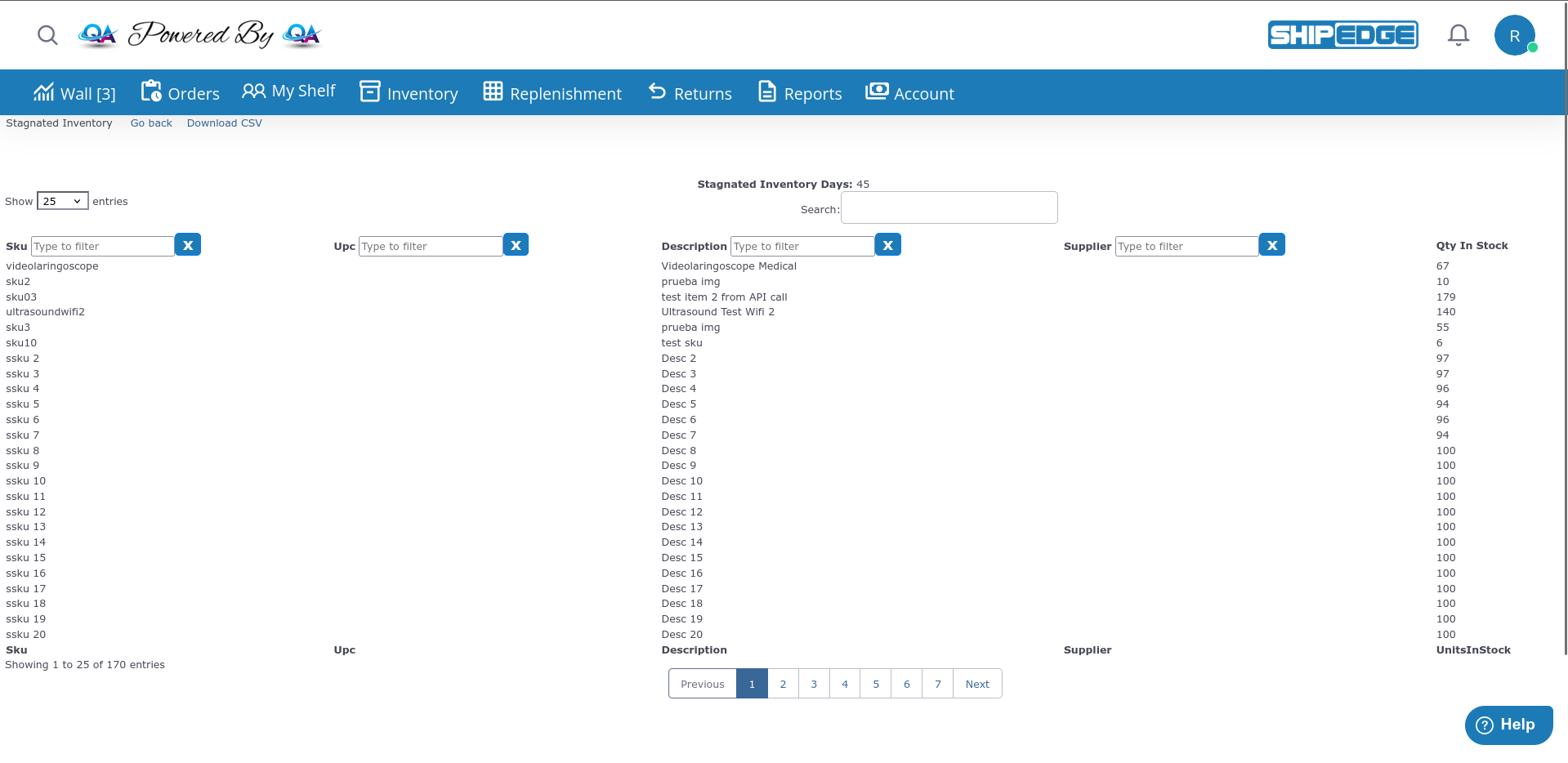
Identify products taking up valuable warehouse space without generating sales.
Lower storage fees and holding costs by clearing out slow-moving inventory.
Make better purchasing decisions by identifying products that don’t sell.
Convert stagnant stock back into cash through clearance sales or liquidation.
Navigate to Stagnated Inventory from the catalog menu.
From the Stagnated Inventory page, you can:
The report displays:
Open Stagnated Inventory
Navigate to Stagnated Inventory from the inventory menu.
Review the Threshold
Check the Stagnated Inventory Days displayed at the top. This shows your configured period (e.g., 45 days).
Search and Filter Products
Use the search boxes above each column header to filter:
Analyze the Results
Review products in the table. The default sort is by UPC code (ascending).
Key Questions to Ask:
Download CSV for Analysis
Click Download CSV to export the full report for spreadsheet analysis.
Take Action
Based on your analysis:
The stagnated inventory report uses real-time data:
The system tracks movement through the historybin table. A product is considered to have “moved” if there are records in historybin within your configured threshold period.
Movement Records:
historybin within the threshold periodProducts Shown in Report:
historybin records within the configured threshold periodNot Considered Movement:
historybin)historybin recordshistorybin activity within the threshold periodCheck stagnated inventory report monthly to identify trends early.
Don’t discontinue seasonal items just because they’re temporarily stagnant.
Group by supplier to identify vendors with consistently slow-moving products.
Create a clear process for handling stagnated inventory (clearance, liquidation, return to supplier).
Products with high quantities are more urgent to address than low-quantity stagnation.
Compare stagnated inventory with sales reports to understand demand patterns.
Once you’ve identified stagnated products, consider these actions:
Discontinue
Mark the SKU as discontinued if you no longer want to stock it. This prevents new orders while allowing existing inventory to sell through.
When to Use: Product permanently discontinued, low demand, supplier issues.
Clearance Sale
Reduce prices to move inventory quickly and free up space.
When to Use: Excess stock, seasonal items out of season, product refresh.
Transfer to Other DC
Move inventory to a distribution center where demand is higher.
When to Use: Multi-location operations, regional demand variations.
Return to Supplier
Negotiate returns or exchanges with your supplier.
When to Use: Vendor agreements allow returns, overstocked items, damaged/defective.
Liquidation
Sell to liquidation companies or secondary marketplaces at reduced prices.
When to Use: High-volume stagnation, warehouse space critical, product obsolete.
Bundling
Create product bundles or kits to include slow-moving items with popular products.
When to Use: Complementary products, promotional opportunities.
The CSV export includes additional fields beyond what’s shown in the table:
File Format: Standard CSV (comma-separated values) compatible with Excel, Google Sheets, and other spreadsheet software.
File Caching: The CSV file is generated on-demand and cached for the current day. If you download it again on the same day, you’ll get the cached version. A new file is generated if accessed on a different day.
Use the CSV export for:
Problem: Report shows no stagnated inventory.
Possible Reasons:
historybin.Solutions:
UnitsInStock > 0) in Distribution Center 1historybin records within the threshold periodProblem: Product appears in report but you know it sold recently.
Possible Causes:
historybin records until shippedhistorybin yetSolutions:
historybinhistorybin within your threshold periodProblem: Cannot download CSV file.
Solutions:
Next Steps: Catalog Overview | SKU Management | Distribution Centers