
Bulk Updates
Edit multiple products at once instead of changing them one by one.
Product Attributes lets you view, search, and bulk edit specific product information across your entire inventory. Instead of updating products one at a time, you can select multiple SKUs and change their dimensions, costs, suppliers, and other attributes all at once.
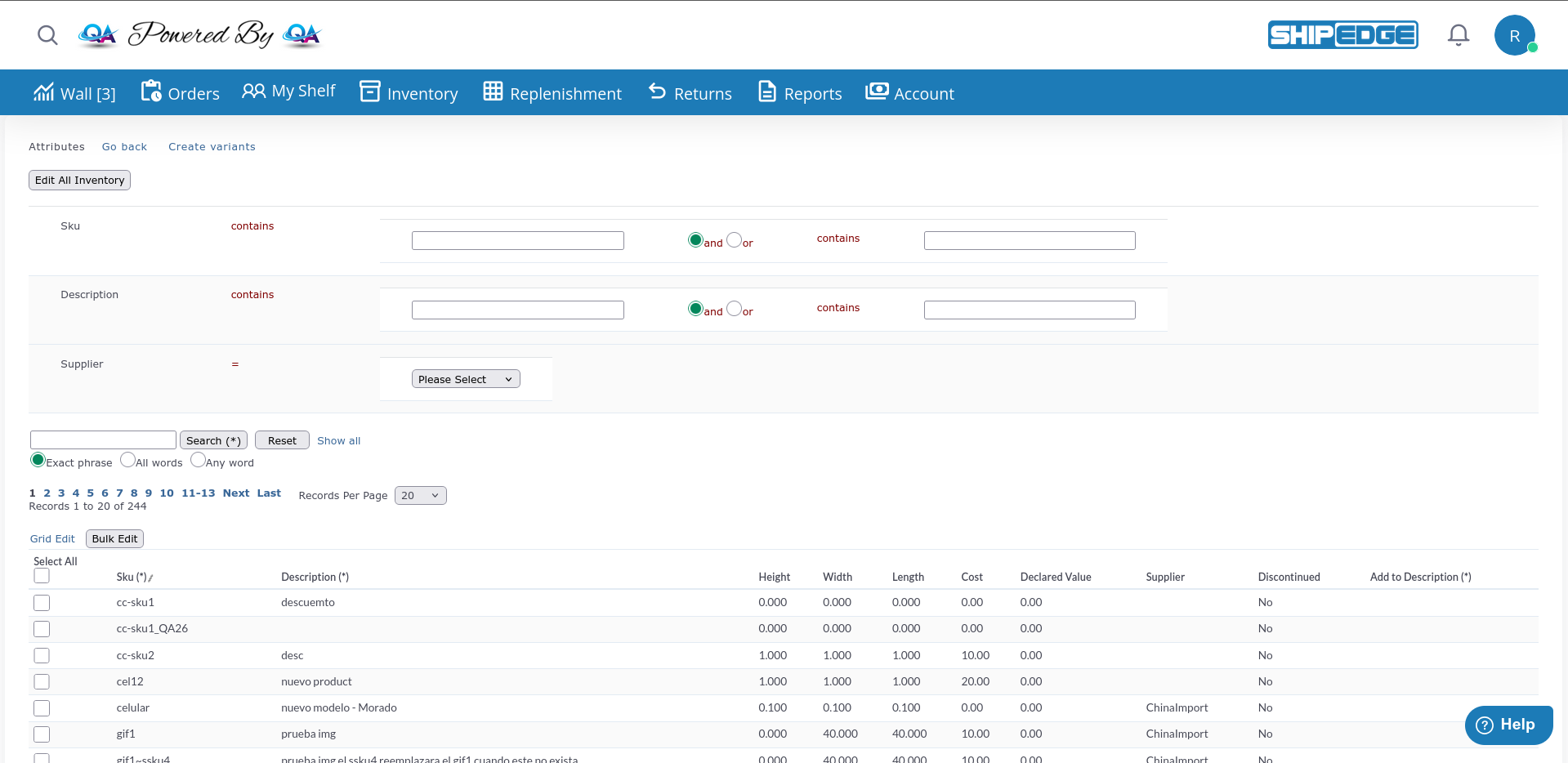
Edit multiple products at once instead of changing them one by one.
See only the attributes you need to update without extra information cluttering the screen.
Find products by SKU, description, or supplier to make targeted updates.
Edit attributes directly in the table for fast changes.
Navigate to Product Attributes
From the Catalog Overview page, click the Edit Attributes button in the toolbars.
View your products
You’ll see a table displaying products with these columns:
Go back to Catalog
Click Go back at the top to return to the main catalog view.
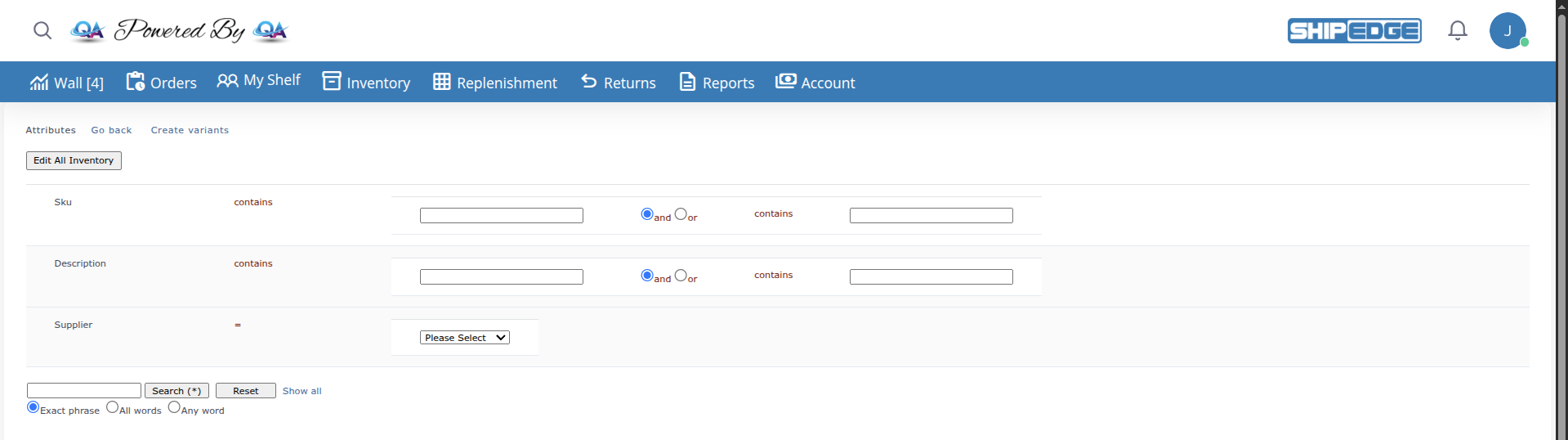
Use the search box at the bottom of the filters to quickly find products:
Enter search term
Type a keyword in the search box (marked with *).
Choose search type
Click Search
Results will update to show only matching products.
Clear filters: Click Show all to reset and see all products again.
Use the fields at the top for more specific searches:
Click Reset to clear all advanced search fields.
Grid Edit lets you edit attributes directly in the table without opening individual product pages.
Enable Grid Edit
Click the Grid Edit button above or below the product table.
Edit fields
The following fields become editable directly in the table:
Save changes
Click Save (top or bottom of page) to apply all your edits.
Cancel editing
Click Cancel to exit Grid Edit mode without saving changes.
Bulk Edit is the most powerful feature - it lets you update attributes for many products at once.
Choose products
Click Bulk Edit
Click the Bulk Edit button above or below the product table.
You’ll be redirected
The system will take you to the bulk edit page with your selected products.
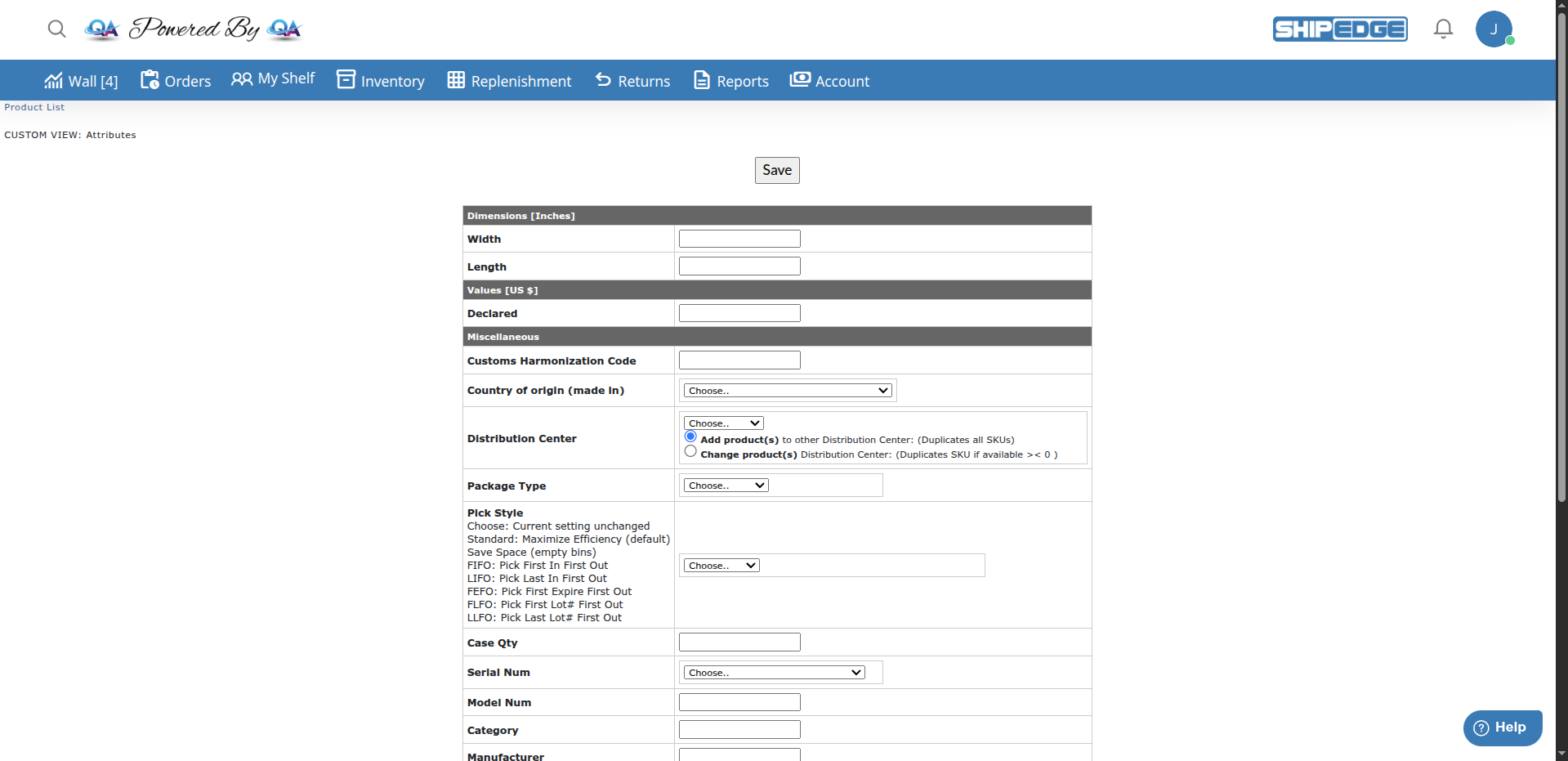
On the bulk edit page, you’ll see a form organized by attribute categories:
Fill in the fields
Enter values for the attributes you want to change. Leave fields empty to keep existing values.
Click Save
Click the Save button at the top to apply changes to all selected products.
Confirmation
You’ll see “Updated Skus !!!” message and be returned to the Product Attributes list.
This powerful option lets you update attributes for every product in your inventory at once.
Click Edit All Inventory
Click the Edit All Inventory button at the top of the page.
Confirm action
You’ll see a confirmation: “You are about to update ALL items in your Inventory. This action is irreversible. Are you sure you want to proceed?”
Edit attributes
You’ll be taken to the same bulk edit form, but changes will apply to your entire inventory.
Save
Click Save to apply changes to all products.
Use this feature to create variations of existing products with modified SKUs and descriptions.
Open Create variants popup
Click Create variants at the top of the page.
Choose products
Configure variants
Create variants
Click Create Variants to generate the new products.
Refresh your view
The popup will confirm creation. Refresh the Product Attributes page to see the new variants.
Example: If you have SKU “SHIRT-BLUE” and append “-LG”, you’ll get a new product “SHIRT-BLUE-LG” with modified cost and price.
Here’s a complete list of attributes you can edit in bulk:
| Attribute | Description | Field Type |
|---|---|---|
| Height | Product height in inches | Number |
| Width | Product width in inches | Number |
| Length | Product length in inches | Number |
| Weight | Product weight in pounds | Number |
| Cost | Your purchase cost | Number |
| Declared Value | Retail/declared value | Number |
| Add Description | Text to append to description | Text |
| SupplierID | Product supplier | Dropdown |
| Category | Product category | Text |
| Manufacturer | Manufacturer name | Text |
| Model Num | Model number | Text |
| Customs Harmonization Code | HS code for shipping | Text |
| Country of origin | Manufacturing country | Text |
| Pick Style | Inventory picking strategy | Dropdown |
| Package Type | Type of packaging | Dropdown |
| Case Qty | Units per case | Number |
| Serial Num | Serial number tracking | Dropdown |
| Discontinued | Product status | Radio (Yes/No) |
| One Time Product | One-time use product | Checkbox |
| Distribution Center | Assign to DC | Dropdown |
Before bulk editing many products, select 2-3 and verify the changes work as expected.
Search by supplier or category to update only the products that need changes.
Keep notes about bulk updates you make, especially when using Edit All Inventory.
When creating variants, double-check the append text and price changes before creating.
Changing serial number settings only works if the product has no existing serial numbers in the system.
Changing pick styles affects how warehouse staff find and pick products. Coordinate with your team.
Problem: Clicking Save shows validation errors.
Solutions:
Check number fields
Ensure Height, Width, Length, Cost, and Declared Value contain only numbers (no text).
Look for the red error message
The error will tell you which field has incorrect data (e.g., “Incorrect floating point number - Height”).
Fix the invalid field
Correct the value or clear it to leave unchanged.
Try saving again
Click Save once all values are valid.
Problem: Clicking Bulk Edit doesn’t do anything.
Solutions:
Check if products are selected
Make sure you have at least one product checkbox checked.
Select products
Click the checkbox for one or more products.
Try again
Click Bulk Edit after selecting products.
Problem: Text added via “Add to Description” doesn’t show up in product descriptions.
Solution: The “Add to Description” field is a temporary holding area. The text is appended to the main Description field when you save. After saving, refresh the catalog view to see the updated descriptions.
Problem: Serial number setting doesn’t update even after bulk edit.
Solution: You cannot change serial number tracking if:
To change serial tracking, you must first remove all serial numbers and clear inventory from bins for that product.
Problem: Bulk edit changed products I didn’t intend to modify.
Prevention: Always double-check your selected products before clicking Bulk Edit. There’s no undo for bulk edits.
If it happens: You’ll need to manually correct the affected products or run another bulk edit to revert the changes.
Problem: Clicking Create Variants shows an error message.
Solutions:
Check your SKU list
Make sure the SKUs you entered exist in your inventory.
Verify CSV format
If uploading CSV, ensure the SKU header name matches exactly.
Try manual selection
Use the SKU list search field instead of CSV upload to verify SKUs exist.
Next Steps:
See Also:
DateLastUpdate field automatically