
Prevents Pending Orders
Complete orders even when the main SKU is out of stock using predefined alternatives.
Alternative SKUs (also called Alternative or Active SKUs) allow you to define products that can substitute each other when one of them is not available in stock. When a main SKU runs out, the system can suggest or automatically use its alternative SKU to complete orders.
This feature is essential for businesses that handle similar or equivalent products, seasonal variants, or customer-approved substitutes.
Complete orders even when the main SKU is out of stock using predefined alternatives.
Define relationships between sizes, colors, versions, or equivalent models of a product.
Automate the process of finding replacements instead of canceling orders.
Configure unidirectional or bidirectional relationships according to your business needs.
When you create an Alternative SKU relationship, you define:
Alternative SKU (Individual Product):
Alternative SynSet (Product Family):
You can configure relationships that work in both directions:
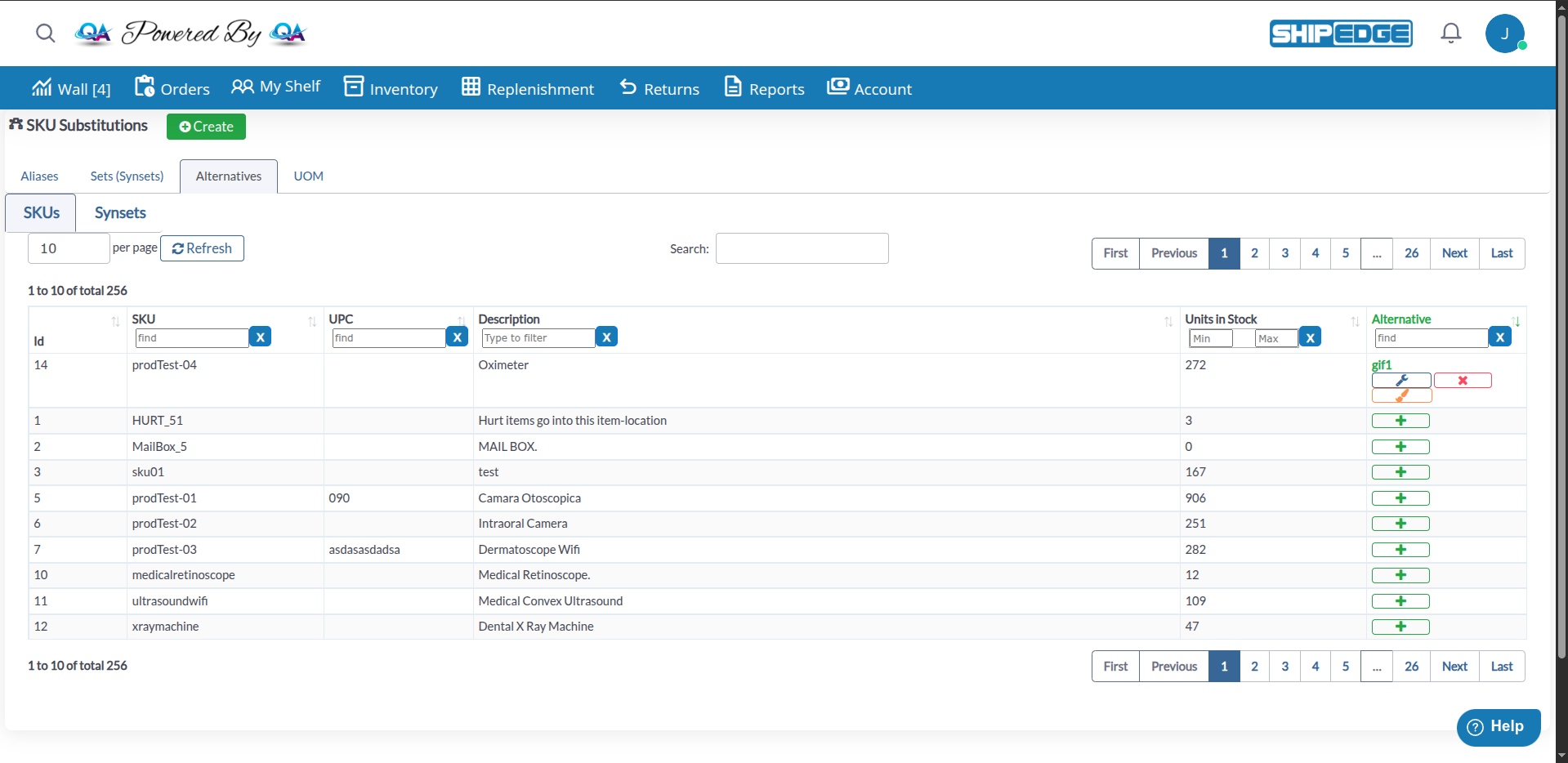
SKU Substitutions is a unified interface that manages different types of product relationships. The Alternatives tab within SKU Substitutions is where you configure alternative SKU relationships.
Access SKU Substitutions
Navigate to Inventory → Catalog, then click the SKU Substitutions button in the Catalog toolbar. This opens the SKU Substitutions page in a new tab.
Open the Alternatives Tab
Click on the Alternatives tab in SKU Substitutions to view all products and their alternative relationships.
Review the Product List
The table shows all your products with the following information:
Use Search Filters
You can filter the list using the search fields in the table header:
Refresh the List
Click the Refresh button to reload the table and see the latest data.
Access SKU Substitutions
Navigate to Inventory → Catalog, then click the SKU Substitutions button. Click on the Alternatives tab.
Option A: Use the Create Button
Click the Create button in the SKU Substitutions page header. In the modal that appears:
Find the Main SKU
In the Alternatives tab, locate the product (SKU) to which you want to add an alternative. You can use the search filters to find it quickly.
Click the Add Button
In the Alternative column, find the SKU without an alternative configured. Click the green button with the + icon (Add button) for that SKU.
A modal window will open showing available SKUs and SynSets.
Select the Alternative SKU or SynSet
In the modal window:
Choose the Alternative
Click the Select button next to the SKU or SynSet you want to use as alternative.
Configure Relationship Options
In the confirmation modal:
Confirm the Relationship
Click Confirm to create the alternative relationship.
The modal will close and you’ll see the new alternative displayed in the table.
Access SKU Substitutions
Navigate to Inventory → Catalog, then click SKU Substitutions button. Click on the Alternatives tab.
Locate the SKU with Alternative
Find the product that already has an alternative configured (it will appear in the “Alternative” column).
Click the Edit Button
In the Alternative column, click the blue button with the wrench icon (Edit button) for that SKU.
Modify Details
In the modal window that opens, you can:
Save Changes
Confirm modifications and the system will update the relationship.
Access SKU Substitutions
Navigate to Inventory → Catalog, then click SKU Substitutions button. Click on the Alternatives tab.
Locate the Relationship to Delete
Find the SKU whose alternative relationship you want to delete (it will show an alternative in the “Alternative” column).
Click the Remove Button
In the Alternative column, click the red button with the X icon (Remove button) for that SKU.
Confirm Deletion
The system will ask for confirmation. Click OK or Delete to confirm the removal.
Verify Deletion
The SKU’s “Alternative” column will now be empty and the green Add button (+) will appear again.
The Trace functionality allows you to visualize the complete relationship tree of a SKU, especially useful when you have multiple levels of alternatives.
Access SKU Substitutions
Navigate to Inventory → Catalog, then click SKU Substitutions button. Click on the Alternatives tab.
Select a SKU with Alternatives
Find a product that has alternative relationships configured (it will show an alternative in the “Alternative” column).
Click the Trace Button
In the Alternative column, click the yellow button with the paintbrush icon for that SKU.
View the SKU Mapping
A modal window will open showing:
The diagram visually displays how the SKU connects to its alternative SKUs or SynSets, helping you understand the relationship structure at a glance.
Configure alternatives for different sizes of the same product:
Define alternative colors when one runs out:
Manage product versions:
Alternate between individual and multipack packaging:
Use descriptive and consistent relationship type names (Upgrade, Downgrade, Same-Size, etc.) to easily identify the type of substitution.
Before configuring an alternative, verify it has available stock. An alternative without stock doesn’t help complete orders.
Only enable bidirectional relationships when products are truly equivalent. Don’t use bidirectional for upgrades or downgrades.
For products with multiple alternatives, use the Trace functionality to document and review the complete relationship tree.
Review and update Alternative SKU relationships when discontinuing products or adding new variants to the catalog.
Inform your customers when you use an alternative to complete their order. Transparency improves customer satisfaction.
Problem: When trying to create a relationship, an error appears or it doesn’t save.
Solution:
Problem: After creating the relationship, the “Alternative” column is empty.
Solution:
Problem: The Create button doesn’t appear or is disabled.
Solution:
Problem: When doing Trace, you see A → B → C → A (infinite circle).
Solution:
Problem: I want to link a SynSet but the option doesn’t appear.
Solution:
Next Steps:
See Also: