
Task Automation
Eliminate repetitive tasks by processing orders automatically according to conditions you define.
Order Rules allows you to automate order processing based on specific conditions you define. Rules can execute when specific events occur (such as when an order is imported) or according to a scheduled time.
With automation rules, you can eliminate repetitive tasks like changing shipping methods for certain channels, canceling orders that meet specific conditions, or sending orders directly to processing when certain criteria are met.
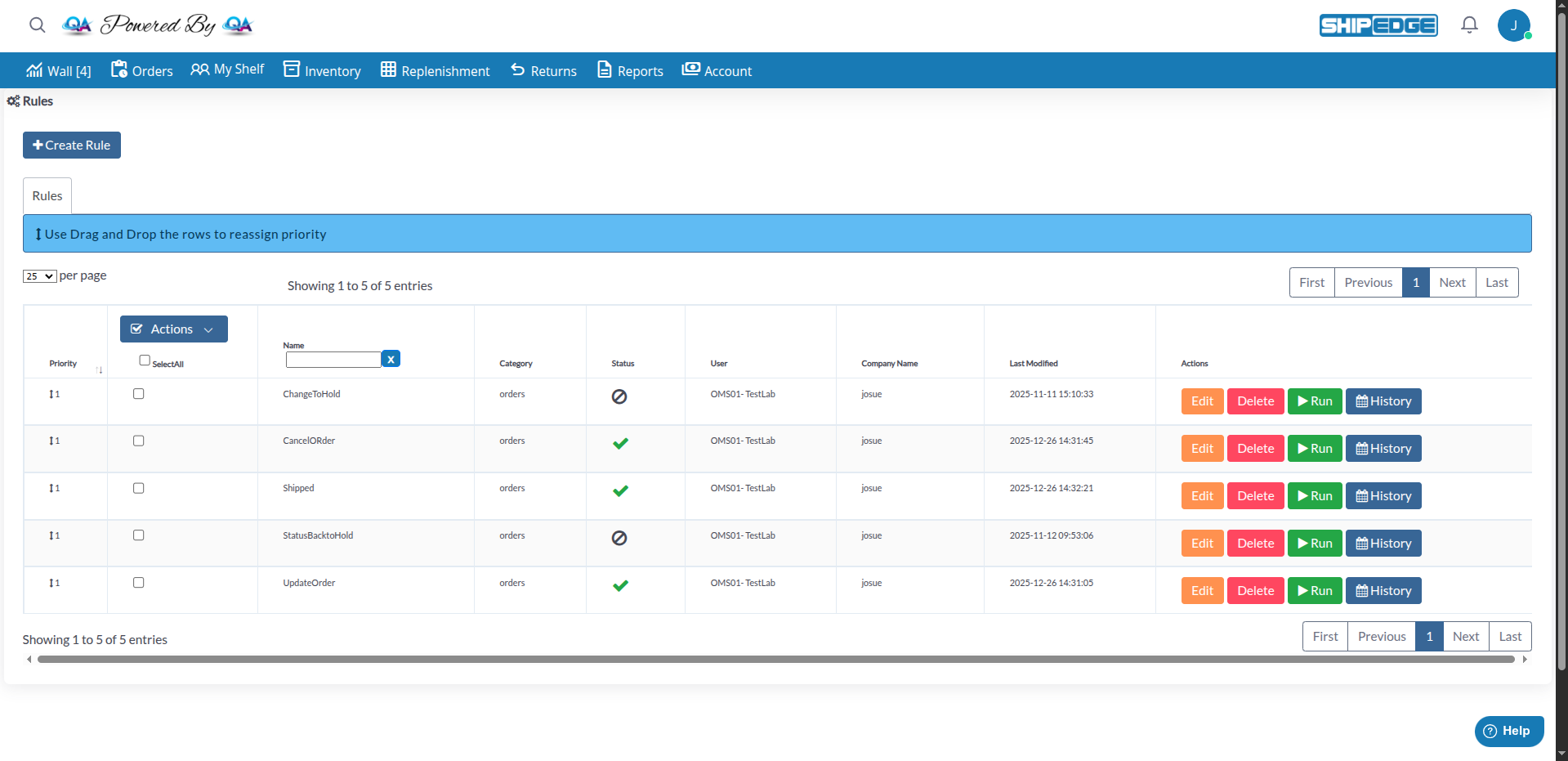
Eliminate repetitive tasks by processing orders automatically according to conditions you define.
Orders are processed automatically when they meet specific conditions, reducing manual errors.
Save hours of manual work by processing hundreds of orders automatically with well-configured rules.
Ensure all orders are processed consistently according to your business rules.
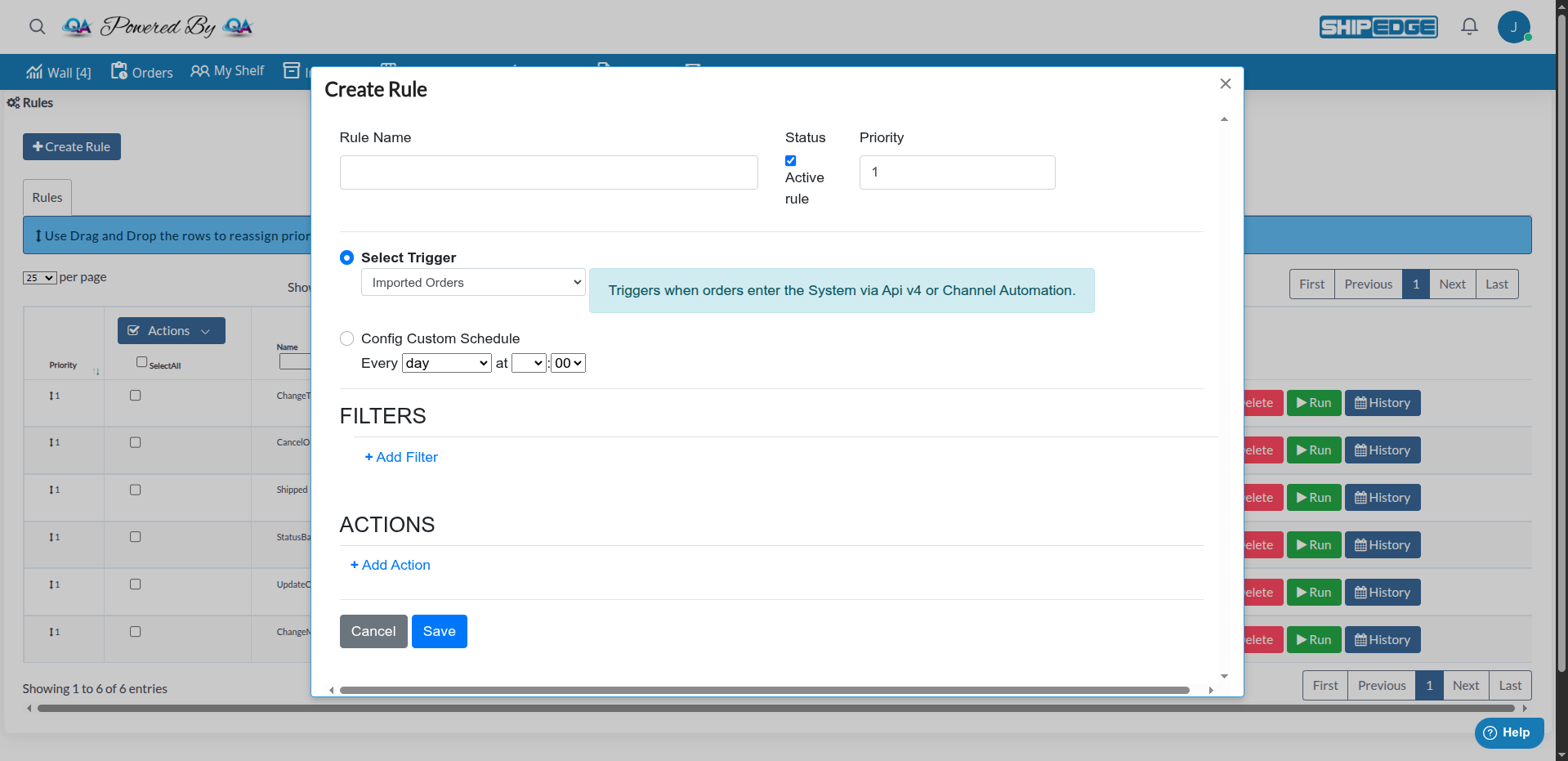
Automation rules have three main components:
The trigger determines when the rule executes:
Filters determine which orders are processed. You can use multiple filters combined with AND or OR to select specific orders.
Actions determine what is done with orders that meet the filters. You can configure multiple actions that execute in sequence.
Access Rules
Navigate to Rules from the dropdown menu Orders and select Order Rules.
Create New Rule
Click the “Create Rule” button located at the top of the page.
Configure Basic Information
Complete the basic fields:
Select Trigger
Choose how the rule will be triggered:
Option A: Select Trigger (Event-based)
Option B: Config Custom Schedule
Filters
Click ”+ Add Filter” to add conditions that select orders:
Add Actions
Click ”+ Add Action” to define what to do with selected orders:
Save the Rule
Click “Save” to create the rule. If it’s active, it will begin executing automatically.
Rules can execute when the following events occur:
You can filter orders using the following fields:
For each field, you can use different conditions depending on the type:
Text and Number Conditions:
=): Equal to a specific valueNumeric Conditions:
<): Less than>): Greater than<=): Less than or equal to>=): Greater than or equal toDate Conditions:
Rules can execute the following actions:
What it does: Sends only available products from selected orders, dividing the order if necessary.
Limitations:
When to use it: When you want to partially ship orders that have some products available and others not.
What it does: Cancels selected orders.
Limitations:
When to use it: To automatically cancel orders that meet specific conditions (e.g., very old orders, orders from certain channels with issues).
What it does: Places orders in “Hold” status for manual review.
When to use it: When you need to manually review orders that meet certain conditions before processing them.
What it does: Changes the shipping method of selected orders to a specific method you choose.
Required configuration: You must select the shipping method you want to change to.
When to use it: To apply specific shipping methods based on channel, carrier, or order conditions.
What it does: Sends an HTTP POST notification to a URL you specify with information about orders.
Required configuration:
https://your-server.com/webhook)When to use it: To integrate with external systems that need notifications when specific events occur.
What it does: Sends orders directly to “Processing” status for the warehouse to process.
Limitations:
When to use it: To automatically process orders that meet specific conditions without manual intervention.
What it does: Divides network backorders among multiple locations or warehouses.
When to use it: When you have multiple warehouses and want to automatically distribute backorders.
The main view shows all your rules with the following information:
Locate the Rule
In the rules table, find the rule you want to edit.
Click Edit
Click the “Edit” button in the actions column.
Modify Configuration
Make necessary changes in the form that opens.
Save Changes
Click “Save” to save changes.
Locate the Rule
In the rules table, find the rule you want to delete.
Delete
Click the “Delete” button in the actions column.
Confirm
Confirm that you want to delete the rule in the dialog that appears.
Locate the Rule
In the rules table, find the rule you want to execute.
Execute
Click the “Run” button in the actions column.
Wait for Processing
The system will process the rule and show a message when finished.
Locate the Rule
In the rules table, find the rule for which you want to view history.
Open History
Click the “History” button in the actions column.
Review Executions
You’ll see a complete history of all rule executions, including:
Individually:
Multiple Rules:
Start with simple rules and add complexity gradually. It’s easier to debug simple rules.
Use “Run” to test rules manually before fully activating them. Review history to verify results.
Use specific filters to ensure only correct orders are processed. Better to be too specific than too broad.
Use descriptive names for your rules that clearly explain what they do. This makes future maintenance easier.
Periodically review the execution history of your rules to ensure they’re working as expected.
Organize rules by logical priority. The most critical rules should have the highest priority.
Possible causes:
Solution:
Cause: Filters are not specific enough or are configured incorrectly.
Solution:
Possible causes:
Solution:
Cause: Several rules are trying to process the same orders with conflicting actions.
Solution:
Next Step: 3PL Carrier Management - Configure carrier management for 3PL services