
Billing History in One Place
See all your billing invoices and statement periods in a single table. Each row represents an invoice with dates, totals, and payment status.
The Invoices page shows your billing invoices and statement history for your ShipEdge account. Use this view to review charges, check final balances, and open detailed invoice lines for reconciliation and accounting.

See all your billing invoices and statement periods in a single table. Each row represents an invoice with dates, totals, and payment status.
Review the Final balance $ (*) column to understand how much you owe or have been charged for each invoice period.
Open the Statement Detail Seller view to see line‑level charges by service type, quantity, and description for a specific invoice.
Use invoice and detail exports to support reconciliation with your accounting system and internal financial reports.
Open My Account
Click My Account in the main navigation menu. This opens the Account Overview page with account-related shortcuts.
Go to Invoices
Click the Invoices option on the Account Overview page. This opens the Statement List Seller view .
The main Invoices page is labeled Statement List Seller and shows one row per invoice.
At the top of the page, you’ll find several quick access links:
At the top of the page, you can refine which invoices are shown:
Statement Name:
Statement Date:
yyyy/mm/dd 00:01:01yyyy/mm/dd 23:59:59Basic Search:
These tools let you quickly find a specific invoice by name, date range, or free‑text search.
The main table shows your invoices with sortable columns:
Statement Number:
Statement Description:
InvoiceName fieldStatement Date:
Initial Date:
Last Date:
Final balance $ (*):
Total Expenses:
Paid:
Y / N)Report:
You can click column headers to sort by that field (e.g., Statement Date, Final balance $, Paid).
Below the filters, the page includes pagination controls:
10, 20, 50, 100, 200, 500, All RecordsUse these controls to navigate through long billing histories.
To see line‑level charges for an invoice, open the Statement Detail Seller view.
Open an Invoice Detail
From Statement List Seller, use one of these methods:
Filter by Date
At the top of Statement Detail Seller, use the Date filter:
yyyy/mm/dd 00:01:01yyyy/mm/dd 23:59:59Filter by Service Type
Use the Service Type drop‑down:
=Use Search and Reset
In the search bar:
Review Totals and Pagination
A summary section uses the current filters to show total value for the invoice details. Pagination and Records Per Page behave like the main Invoices page.
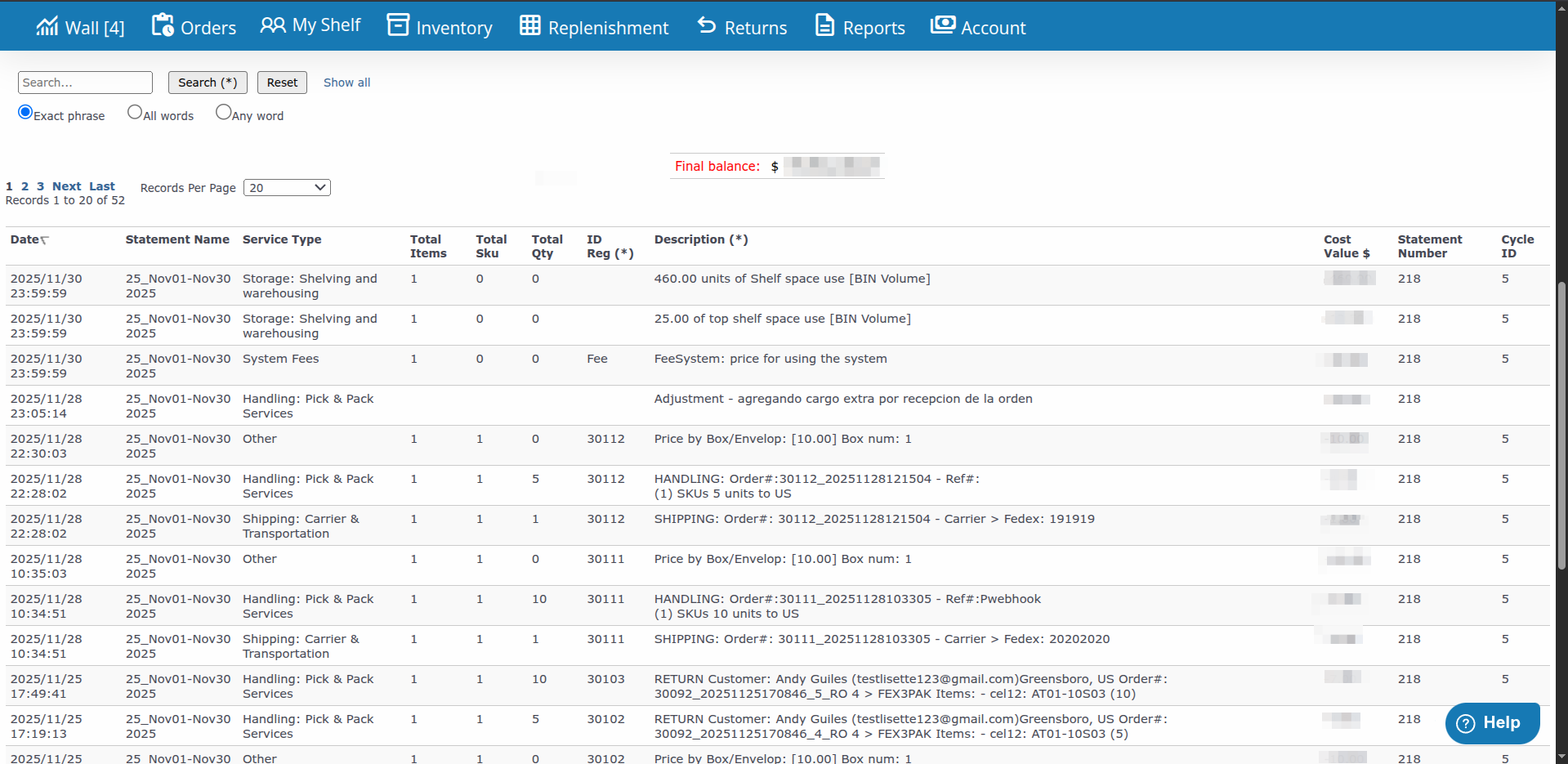
The Statement Detail Seller table uses a fixed set of columns:
Date:
RegisterDateStatement Name:
Service Type:
Total Items:
Total Sku:
Total Qty:
ID Reg (*):
Description (*):
Cost Value $:
Statement Number:
Cycle ID:
At the top of the Statement Detail Seller page:
Use this export for reconciliation and importing into your accounting system.
Always set a clear Statement Date range when reviewing invoices. This helps you focus on the correct billing period and reduces noise.
Check the Total Expenses column to understand total expenses and subtractions (debits) for each invoice period.
When you have a billing question or dispute, open Statement Detail Seller to review the exact lines and Description (*) values before contacting support.
Use Export to CSV from the detail view to load invoice lines into your accounting or BI tools for deeper analysis.
Use the Paid column on the main Invoices page to quickly see which invoices are still open and which have already been paid.
Limit access to Invoices to users who need billing visibility. Use the Statements permission in User Accounts under Preferences.
Invoices Option Not Visible
Export to CSV Not Working
Amounts Look Incorrect
Account & Billing:
Support & Disputes: