Skip to content

Disputes

Disputes

Disputes allows you to manage billing disputes related to packing errors, shipping issues, and carrier insurance claims. Track dispute status, view compensation amounts, communicate with warehouse staff, and resolve disputes through the dispute management system.

Billing Protection

Dispute incorrect charges for packing errors, shipping mistakes, or carrier issues. Protect your account from billing errors and get refunds when appropriate.

Track Compensation

Monitor compensation amounts including shipping, handling, return labels, restocking fees, and additional compensation. See total claim amounts at a glance.

Communication Channel

Communicate with warehouse staff about disputes. Add problem descriptions and view warehouse final comments to resolve issues.

Status Tracking

Track dispute status from creation to resolution. See when disputes are accepted, declined, or transferred to carrier insurance.

  1. Navigate to Account Overview

    Click My Account in the main navigation menu, then click Disputes from the Account Overview page.

  2. View Disputes List

    The Disputes page loads showing:

    • Active disputes for your account
    • Search and filter options
    • Dispute details table
    • Link to Disputes Archived
  3. Review Dispute Information

    Browse the disputes table showing dispute details sorted by ID (newest first).

Disputes are billing claims you can file when:

  • Packing Errors: Wrong items shipped, missing items, damaged items
  • Shipping Issues: Shipping mistakes, incorrect addresses, carrier problems
  • Carrier Insurance Claims: Lost or damaged shipments covered by carrier insurance

Disputes allow you to request compensation for these issues and track the resolution process.

Disputes move through different statuses:

Status 65 - Packing Error (Open): Dispute created and waiting for warehouse review

Status 66 - Accepted: Warehouse accepted the dispute. Compensation will be applied to your account.

Status 67 - Declined: Warehouse declined the dispute. No compensation will be applied.

Status 68 - Carrier Insurance Claim: Dispute transferred to carrier insurance. Waiting for carrier/administrator review.

Status 69 - Claim Accepted: Carrier insurance claim accepted. Compensation will be applied.

Status 70 - Claim Declined: Carrier insurance claim declined. No compensation will be applied.

Status 72 - Removed: Packing error dispute removed by seller.

Status 73 - Claim Removed: Carrier insurance claim removed by seller.

Status 74-77: Archived statuses for completed disputes.

The disputes table displays the following information:

ID: Unique dispute identification number

Report Date: Date when the dispute was created/reported

Account: Account name (admin view only)

Shipping#: The shipping number (order ID) with the problem. Click to view order details.

Claim Amount: Total compensation amount. Click to see breakdown:

  • Shipping & Handling (SH&H)
  • Return Label
  • Restocking
  • Additional Compensation

Picker’s Name: Name of the warehouse picker (admin view only)

Dispute Type: Type of dispute (e.g., “Send missing items”, “Return & Exchange”)

Status: Current dispute status

Problem Description (*): Your description of the problem. Required field.

Warehouse’s Final Comments (*): Comments from warehouse staff about the dispute resolution.

Corrective Shipping#: Shipping number for corrective order (if applicable). Click to view order details.

Sh & H: Shipping and handling amount for corrective order (if applicable)

Closed Date: Date when the dispute was closed/resolved

Recipient phone: Customer phone number (admin/manager view only)

Proof of compensation Value: File name of uploaded proof document (admin/manager view only)

  1. Open Search Form

    Scroll to the search form above the disputes table.

  2. Filter by Dispute ID

    Enter a specific Dispute ID# in the search field to find a particular dispute.

  3. Filter by Shipping Number

    Enter an Error Shipping# (FromOrderID) or Corrective Shipping# (OrderID) to find disputes related to specific orders.

  4. Filter by Account (Admin Only)

    Select an account from the dropdown to view disputes for a specific account.

  5. Use Basic Search

    Enter text in the search box and click Search (*) to search across all fields. Choose search type:

    • Exact phrase: Matches exact text
    • All words: All words must appear
    • Any word: Any word can match
  6. Reset Filters

    Click Reset or Show all to clear filters and show all disputes.

Archive Disputes:

  1. Check the box next to disputes you want to archive
  2. Click Archive button
  3. Disputes are moved to Disputes Archived

Remove Dispute:

  • For Status 65 (Packing Error): Click Remove to remove the dispute
  • For Status 68 (Carrier Insurance): Click Remove to remove the claim

Undo Removal:

  • For Status 72 (Removed): Click Undo to restore the dispute
  • For Status 73 (Claim Removed): Click Undo to restore the claim

Edit Problem Description:

  • Click Edit Comment to update your problem description
  • Click Update to save changes or Cancel to discard

Accept Dispute:

  1. Click Accept link
  2. Confirm the action in the popup
  3. Dispute moves to Status 66 (Accepted) and is archived
  4. Compensation is applied to seller’s account

Decline Dispute:

  1. Click Decline link
  2. Confirm the action in the popup
  3. Dispute moves to Status 67 (Declined) and is archived
  4. No compensation is applied

Transfer to Carrier Insurance:

  1. Click CarrierInsurance link (available for 30 days from Report Date)
  2. Confirm the action
  3. Dispute moves to Status 68 (Carrier Insurance Claim)
  4. Waiting for administrator review

Edit Warehouse Comments:

  • Click Edit Comment to add or update warehouse final comments
  • Click Update to save changes or Cancel to discard

For Administrators/Managers (User Level 2 Manager, Level 3)

Section titled “For Administrators/Managers (User Level 2 Manager, Level 3)”

Review Carrier Insurance Claims:

  • View disputes with Status 68 (Carrier Insurance Claim)
  • Accept or decline claims
  • Claims move to Status 69 (Accepted) or Status 70 (Declined)

Edit Comments:

  • Edit warehouse comments for disputes
  • Update dispute information as needed

When you click on the Claim Amount, you’ll see a detailed breakdown:

SH&H (Shipping & Handling): Shipping and handling costs for the original order

Return_Label: Cost of return shipping label (if applicable)

Restocking: Restocking fee (if applicable)

Additional_Compensation: Extra compensation amount added to the dispute

Total_Amount: Sum of all compensation components

Automatic Acceptance:

  • Packing errors (Status 65) are automatically accepted 60 calendar days after Report Date if warehouse doesn’t respond
  • Compensation is automatically applied to your account

Carrier Insurance Time Limit:

  • Transfer to carrier insurance is only available for 30 days from Report Date
  • After 30 days, the CarrierInsurance link disappears

Corrective Orders:

  • Some disputes may have a Corrective Shipping# (OrderID)
  • This is the shipping number for a replacement or corrective order
  • Sh & H amount shows shipping costs for the corrective order

Pending Actions:

  • If a corrective order exists and hasn’t shipped yet, actions may show “Pending actions”
  • Wait until the corrective order ships before taking action
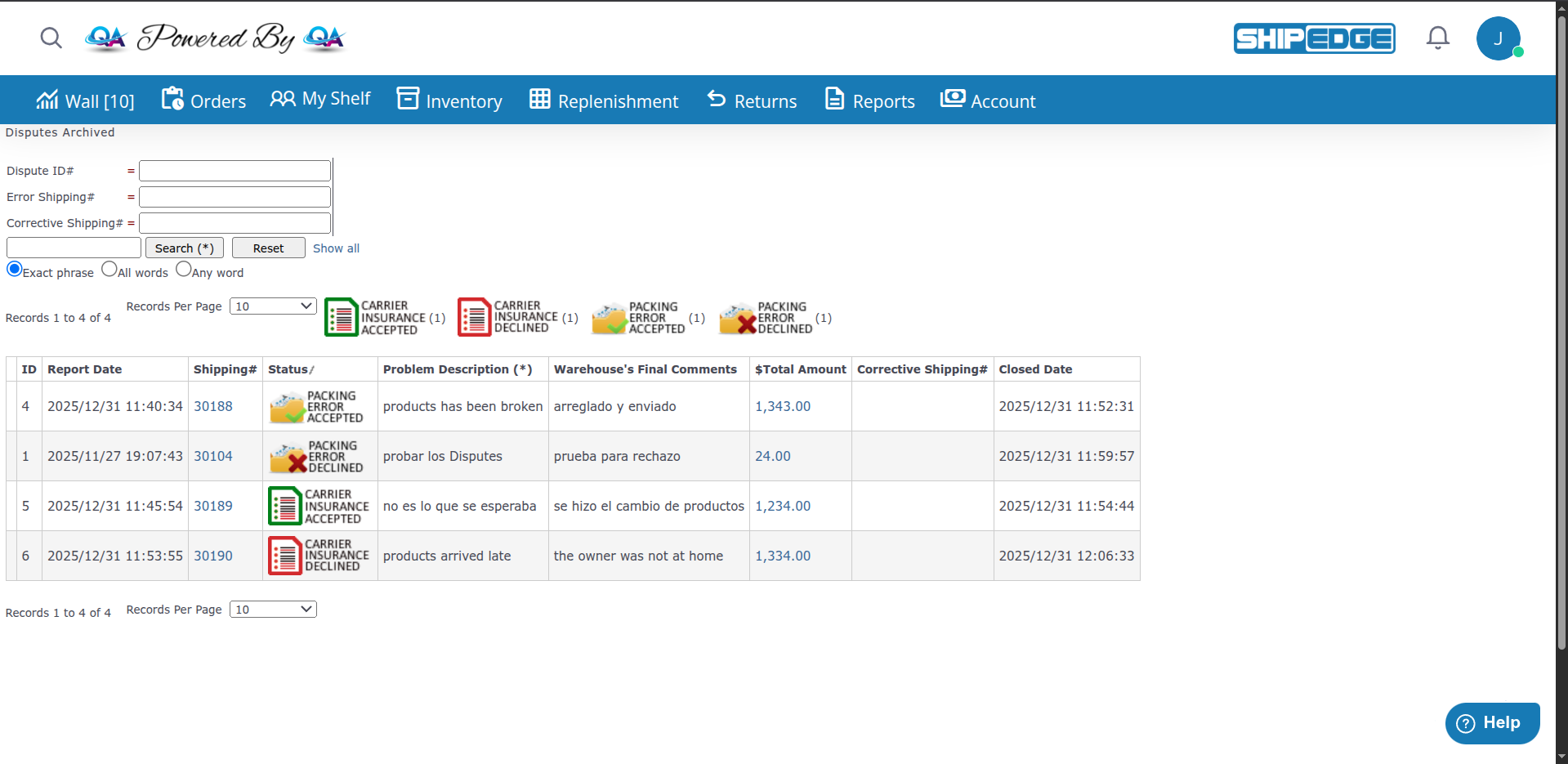
  1. Open Disputes Archived

    Click Disputes Archived link at the top of the Disputes page.

  2. View Archived Disputes

    Archived disputes open in a new tab showing all completed disputes:

    • Accepted disputes (Status 66, 69)
    • Declined disputes (Status 67, 70)
    • Other archived statuses
  3. Review Resolution History

    See Closed Date and final status for each archived dispute.

Provide Detailed Descriptions

Write clear, detailed problem descriptions when creating disputes. Include order numbers, item details, and photos if available. This helps warehouse staff resolve disputes quickly.

Monitor Dispute Status

Check dispute status regularly. Disputes auto-accept after 60 days, but you can track progress and respond to warehouse questions.

Use Carrier Insurance When Appropriate

Transfer disputes to carrier insurance within 30 days if the issue is carrier-related (lost package, carrier damage). This may result in faster resolution.

Archive Completed Disputes

Archive resolved disputes to keep your active disputes list clean. Archived disputes remain accessible for reference.

Review Compensation Breakdown

Click Claim Amount to see the detailed breakdown. Verify all compensation components are correct before accepting.

Keep Records

Save dispute IDs and resolution details for your records. This helps with accounting and future reference.

Cannot See Disputes

  • Ensure you’re logged into ShipEdge
  • Check that you have permission to view disputes
  • Verify you’re viewing the correct account
  • Contact support if disputes are missing

Cannot Archive Disputes

  • Only disputes with certain statuses can be archived
  • Status 65, 68, 72, 73 disputes cannot be archived (they’re already in process or removed)
  • Archive other statuses using the checkbox and Archive button

CarrierInsurance Link Not Showing

  • Carrier insurance transfer is only available for 30 days from Report Date
  • Check the Report Date - if more than 30 days have passed, the link won’t appear
  • Contact support if you need to transfer an older dispute

Cannot Accept/Decline Dispute

  • Warehouse actions may show “Pending actions” if corrective order hasn’t shipped
  • Wait until corrective order ships (Status 3, 4, 7, 8, 9, 17, 49, or 64)
  • Check order status before taking action

Dispute Status Not Updating

  • Status updates happen automatically when actions are taken
  • Refresh the page to see latest status
  • Check Disputes Archived if dispute was resolved
  • Contact support if status seems incorrect

Compensation Not Applied

  • Accepted disputes (Status 66, 69) should have compensation applied automatically
  • Check your Statements & Invoices for refund entries
  • Verify dispute was actually accepted (not just created)
  • Contact support if compensation is missing

Cannot Edit Comments

  • Sellers can edit Problem Description
  • Warehouse can edit Warehouse’s Final Comments
  • Administrators can edit both
  • Ensure you have the correct user level permissions

Dispute Removed by Mistake

  • Click Undo link if available (Status 72 or 73)
  • If undo is not available, contact support to restore the dispute
  • Keep dispute ID for reference

Account Management:

Orders: