
Direct Team Communication
Communicate directly with your warehouse team and ShipEdge support. Get answers to questions quickly without email delays.
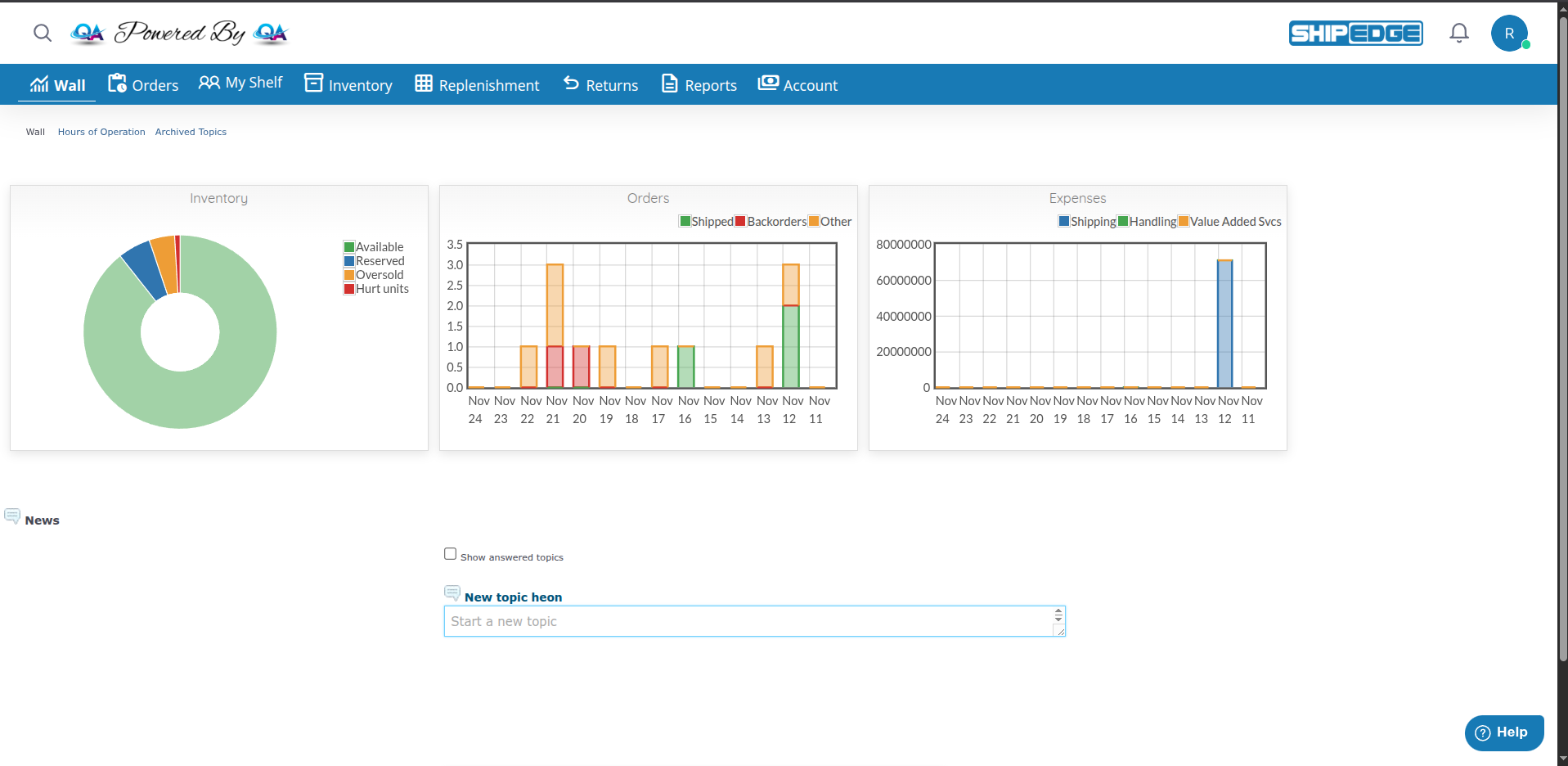
Wall Communication is ShipEdge Core’s internal messaging system. Use it to communicate with your warehouse team, ask questions, report issues, and get support. Think of it as a message board where you can post topics and have conversations with your team.
Communicate directly with your warehouse team and ShipEdge support. Get answers to questions quickly without email delays.
All messages are stored in one place. You can see the full conversation history and track which topics are resolved.
Get email notifications when new posts or replies are added. Stay updated even when you’re not logged in.
Topics can be marked as done, escalated, or archived. Keep your communication organized and easy to follow.
What you see in Wall Communication depends on your user type:
Seller users see:
You can:
Warehouse users see:
You can:
Warehouse managers see:
System admins see:
Navigate to Wall Communication
Click Wall in the main navigation menu. The Wall Communication page opens.
Find the Post Box
Look for the text area at the top of the page labeled “What’s on your mind?” or similar posting area.
Write Your Message
Type your question, comment, or message in the text box. You can include:
Post Your Topic
Click the Post button (or similar submit button). Your topic is created and appears on the wall.
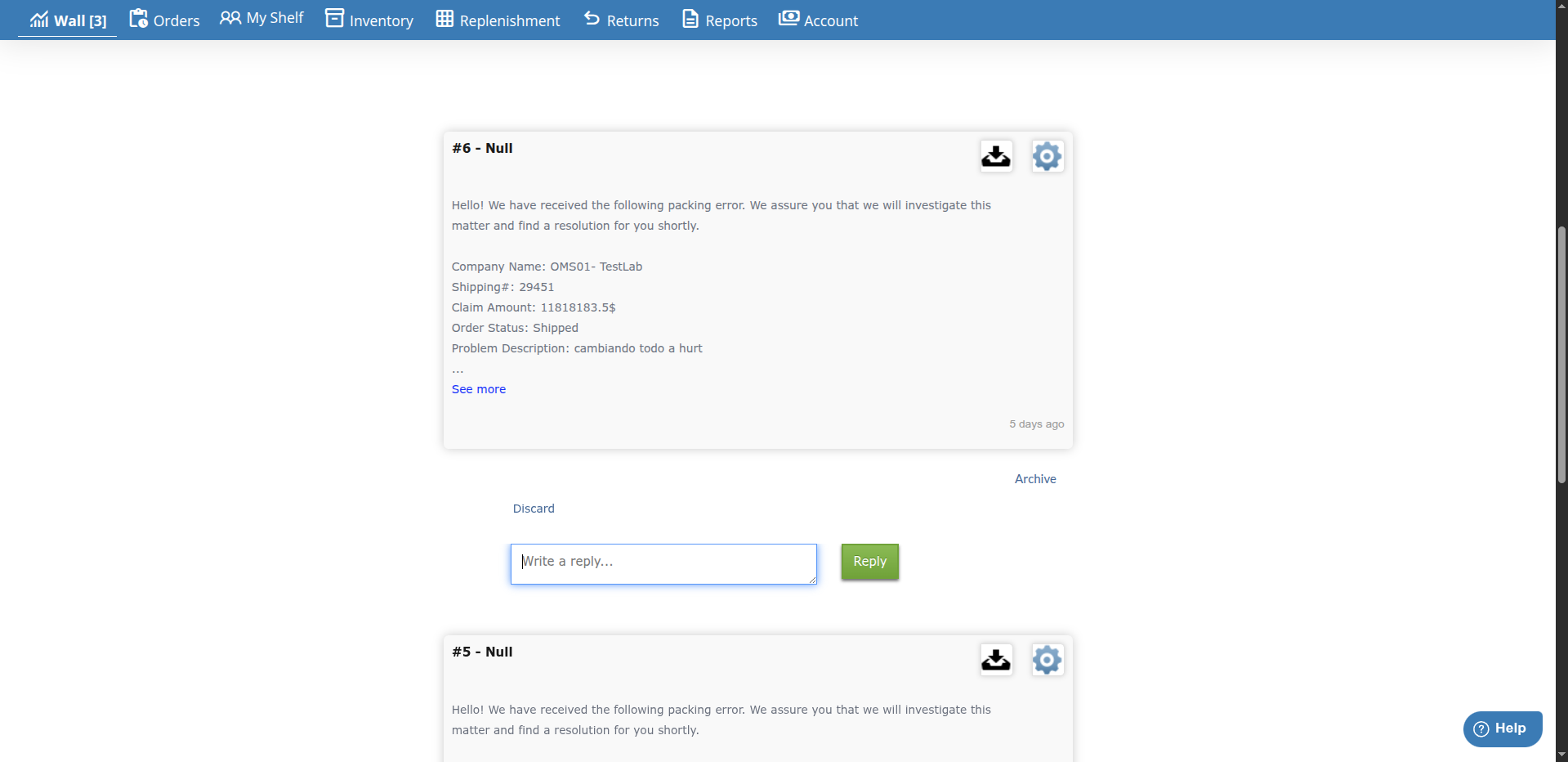
Find the Topic
Scroll through the wall to find the topic you want to reply to. Topics show the original message and any existing replies.
Click Reply
Click the Reply button below the topic or reply you want to respond to.
Write Your Reply
Type your response in the reply text box that appears.
Submit Your Reply
Click the reply submit button. Your reply is added to the conversation thread.
Warehouse users and managers can mark topics as resolved:
Find the Topic
Locate the topic that has been resolved or answered.
Mark as Done
Click the Done button or checkbox (if available). The topic is marked as resolved and moved to archived topics.
Warehouse users can escalate important topics to system administrators:
Find the Topic
Locate the topic that needs admin attention.
Escalate
Click the Escalate button (if available). The topic is flagged for system admin review.
Open Archived Topics
Click Archived Topics link at the top of the Wall Communication page.
Browse Archived Topics
View all topics that have been marked as done or archived. You can still view the conversation history.
Wall Communication can send email notifications for new posts and replies. Configure your email preferences:
Navigate to Preferences
Go to Preferences > Communications Settings tab.
Find Wall Communications Setting
Look for the Wall communications dropdown field.
Choose Notification Level
Select one of these options:
Set Courtesy Copy (CC)
Enter email addresses in the Courtesy Copy (cc) field to receive copies of wall communication emails.
Save Settings
Click Save to apply your email notification preferences.
Warehouse managers and system admins can configure system-wide email settings:
Navigate to Email Configuration
Go to Email Configuration page (warehouse/admin access required).
Open Wall Communication Tab
Click the Wall Communication tab.
Configure Send Emails
Choose when to send emails:
Set Notification Emails
Enter email addresses in the Notification emails field for system-wide notifications.
Save Configuration
Click Save to apply system-wide email settings.
View warehouse hours of operation:
Open Hours of Operation
Click Hours of Operation link at the top of the Wall Communication page.
View Schedule
A popup window shows the warehouse operating hours and schedule.
System administrators can access the Wall Rates page to view ratings and feedback:
Navigate to Wall Rates
Click Wall Rates link at the top of the Wall Communication page (admin access only).
View Ratings
See ratings and feedback submitted through the wall communication system.
Seller users see dashboard charts showing:
These charts update automatically and provide quick insights into your account status.
When creating topics, be clear and specific about what you need. Include order numbers, SKUs, or specific details to help the team respond quickly.
Create separate topics for different issues or questions. This makes it easier to track and resolve each item.
Mark topics as done when they’re resolved. This keeps the active wall clean and helps team members focus on open issues.
Use the reply feature for follow-up questions or clarifications. This keeps the conversation organized in one thread.
Before creating a new topic, check archived topics to see if your question was already answered.
Set up email notifications so you don’t miss important updates. Choose the notification level that works best for your workflow.
Problem: Wall Communication link doesn’t appear in navigation.
Solution:
Problem: Email notifications are not arriving.
Solution:
Problem: Reply button doesn’t appear or doesn’t work.
Solution:
Problem: Created topic doesn’t appear on the wall.
Solution:
Problem: Done button doesn’t appear or doesn’t work.
Solution: