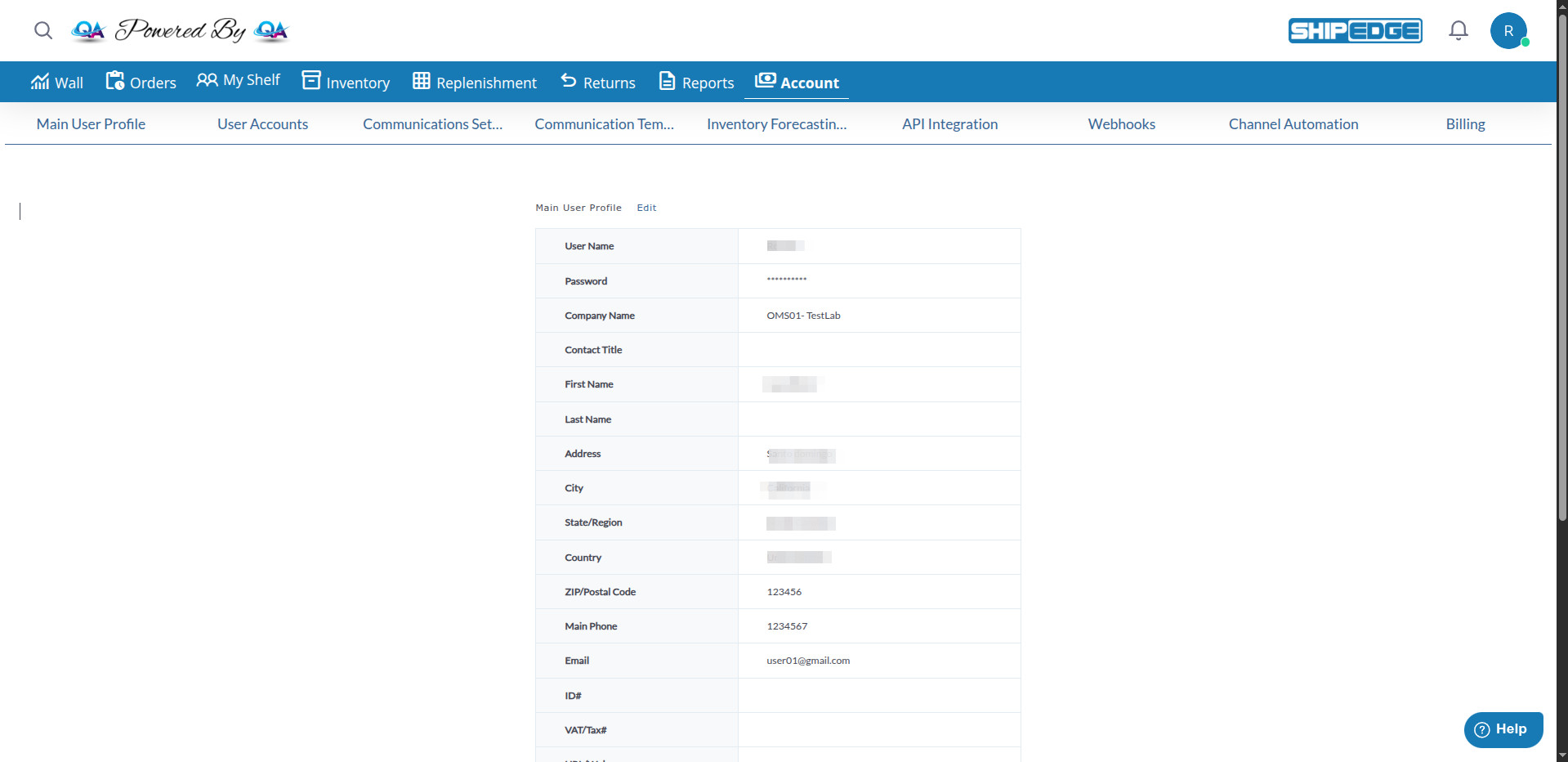
Set up your user profile with personal information, contact details, and password settings. Your profile information is used throughout ShipEdge for account management, communications, and system access.
Keep your profile information up to date for accurate account management. Your profile details are used in communications and system records.
Set a strong password to protect your account. Regular password updates help maintain account security.
Ensure your email and contact information is correct to receive important notifications and system updates.
Maintain professional contact details for customer communications and business operations.
-
Navigate to Preferences
Click Account in the main navigation menu, then click Preferences from the Account Overview page.
-
Open Main User Profile Tab
Click the Main User Profile tab in Preferences. This shows your current profile information.
-
Edit Profile Information
Click Edit button to modify your profile details. Update any fields you want to change.
-
Save Changes
Click Save or submit the form to save your updated profile information.
User Name
- Your login username
- Displayed but typically cannot be changed from profile
- Used for account identification
Password
- Your account password (masked for security)
- Change password using Change Password page
- See “Changing Your Password” section below
Company Name (Required)
- Your company or business name
- Required field (marked with *)
- Maximum 25 characters
- Used in communications and account records
Contact Title
- Your job title or position
- Optional field
- Maximum 40 characters
- Used in communications
First Name
- Your first name
- Optional field
- Used in communications and account records
Last Name
- Your last name
- Optional field
- Used in communications and account records
Address
- Your street address
- Optional field
- Used for account records and communications
City
- Your city
- Optional field
- Used for account records
State/Region
- Your state or region
- Optional field
- Maximum 40 characters
- Used for account records
Country
- Your country
- Optional field
- Used for account records
ZIP/Postal Code
- Your postal or ZIP code
- Optional field
- Used for account records
Main Phone
- Your primary phone number
- Optional field
- Maximum 60 characters
- Used for contact and communications
Email (Required)
- Your email address
- Required field (marked with *)
- Maximum 35 characters
- Must be valid email format
- Cannot contain spaces
- Used for notifications and account access
- Must be unique (not used by another account)
ID#
- Your identification number
- Optional field
- Maximum 35 characters
- Used for account records
VAT/Tax#
- Your VAT or tax identification number
- Optional field
- Maximum 35 characters
- Used for tax and billing records
URL/Web-page
- Your website URL
- Optional field
- Maximum 35 characters
- Used for account records
Required Fields
- Company Name: Must not be empty
- Email: Must not be empty and must be valid format
Email Validation
- Must be valid email format (e.g., user@domain.com)
- Cannot contain spaces
- Must be unique (not already used by another account)
- System checks email availability before saving
Field Length Limits
- Company Name: 25 characters maximum
- Contact Title: 40 characters maximum
- State/Region: 40 characters maximum
- Main Phone: 60 characters maximum
- Email: 35 characters maximum
- ID#: 35 characters maximum
- VAT/Tax#: 35 characters maximum
- URL/Web-page: 35 characters maximum
-
Navigate to Change Password
Go to My Account > Change Password.
-
Enter Old Password
Type your current password in the Old Password field. This verifies you have permission to change the password.
-
Enter New Password
Type your new password in the New Password field. Password must meet requirements listed below.
-
Confirm New Password
Type the same new password again in the Confirm Password field to verify it matches.
-
Submit
Click Change password button to update your password. You’ll be redirected after successful update.
Length
- Minimum: 8 characters
- Maximum: 20 characters
Character Requirements
- At least 1 uppercase letter (A-Z)
- At least 1 lowercase letter (a-z)
- At least 1 number (0-9)
- At least 1 special character:
! @ # $ % ^ & * ( ) _ + - = [ ] { } | ; : , . ?
Restrictions
- Cannot contain spaces
- Cannot contain emoji characters
- Must be different from your current password
Password Validation
- Old password must be correct
- New password must meet all requirements
- Confirm password must match new password
- System validates password format before saving
Validation Steps
- Old password is verified against current password
- New password format is validated (regex pattern)
- New password is checked to ensure it’s different from old password
- Confirm password is checked to match new password
- Password is updated in database (MD5 hash)
- Password update date is recorded
- Password history is saved (if enabled)
Password History
- System may track password history
- Prevents reusing recent passwords
- Helps maintain account security
After Password Change
- You’re redirected to your last accessed page or main dashboard
- New password is effective immediately
- Old password no longer works
- Session remains active
Company Information
- Company Name is stored at account level (
acounts table)
- Shared across all users in the account
- May be managed by account owner only
Account Details
- Address, City, Region, Phone, Fax, Country, Postal Code
- Stored in both user profile and account records
- Updates sync between user and account tables
Contact Information
- Contact Name (First Name)
- Contact Title
- Email
- Used for account-level communications
Personal Details
- First Name, Last Name
- Title (Contact Title)
- Address, City, Region, Country, Postal Code
- Home Phone
- Email
- Stored in
users table
Account Identifiers
- ID# (Fax field in accounts)
- VAT/Tax# (tax field in users)
- Used for tax and identification purposes
Profile Photo
- Photo field available in user profile
- Can be uploaded and displayed
- Stored as file path or reference
Update your profile whenever contact information changes. This ensures you receive important notifications and communications.
Create passwords with uppercase, lowercase, numbers, and special characters. Avoid common words or personal information.
Use a unique email address that only you control. This email is used for password resets and important notifications.
Change your password regularly for better security. Update passwords every 90 days or as recommended by your organization.
Fill in all relevant profile fields. Complete information helps with account management and communications.
Double-check your email address before saving. Email format must be valid and cannot contain spaces.
Problem: Cannot save profile changes
- Solution:
- Check that required fields (Company Name, Email) are filled
- Verify email format is correct (user@domain.com)
- Ensure email doesn’t contain spaces
- Check if email is already used by another account
- Verify field length limits aren’t exceeded
- Try refreshing page and updating again
Problem: Email validation error
- Solution:
- Verify email format is correct
- Remove any spaces from email address
- Check email isn’t already in use
- Try a different email address if needed
- Contact support if issue persists
Problem: Company Name cannot be changed
- Solution:
- Company Name may be managed at account level
- Only account owner may change company name
- Contact account administrator if you need changes
- Some company information may require support assistance
Problem: “The password is incorrect” error
- Solution:
- Verify you’re entering your current password correctly
- Check caps lock is off
- Try typing password instead of pasting
- Use password reset if you’ve forgotten current password
Problem: “New password does not meet requirements” error
- Solution:
- Ensure password is 8-20 characters
- Include at least 1 uppercase letter
- Include at least 1 lowercase letter
- Include at least 1 number
- Include at least 1 special character (!@#$%^&*()_+-=[]|;:,.<>?)
- Remove any spaces or emoji characters
- Check password meets all requirements
Problem: “Your new password must be different from the one you had” error
- Solution:
- You cannot reuse your current password
- Create a new password that’s different
- Ensure new password meets all requirements
- Try a completely different password
Problem: “Passwords don’t match” error
- Solution:
- Verify New Password and Confirm Password fields match exactly
- Check for extra spaces or characters
- Type passwords instead of copying/pasting
- Re-enter both passwords to ensure they match
Problem: Password change form doesn’t submit
- Solution:
- Check that all fields are filled
- Verify password meets all requirements
- Ensure passwords match
- Check browser console for JavaScript errors
- Try refreshing page and submitting again
Problem: Cannot access Profile Setup
- Solution:
- Profile Setup is only available to account owners (User Type 1)
- Verify you have account owner permissions
- Contact account administrator if needed
- Check that Preferences is accessible from Account Overview
Problem: Profile information not saving
- Solution:
- Check internet connection
- Verify all required fields are filled
- Check for validation errors
- Try refreshing page and saving again
- Contact support if issue persists
Next Steps:
