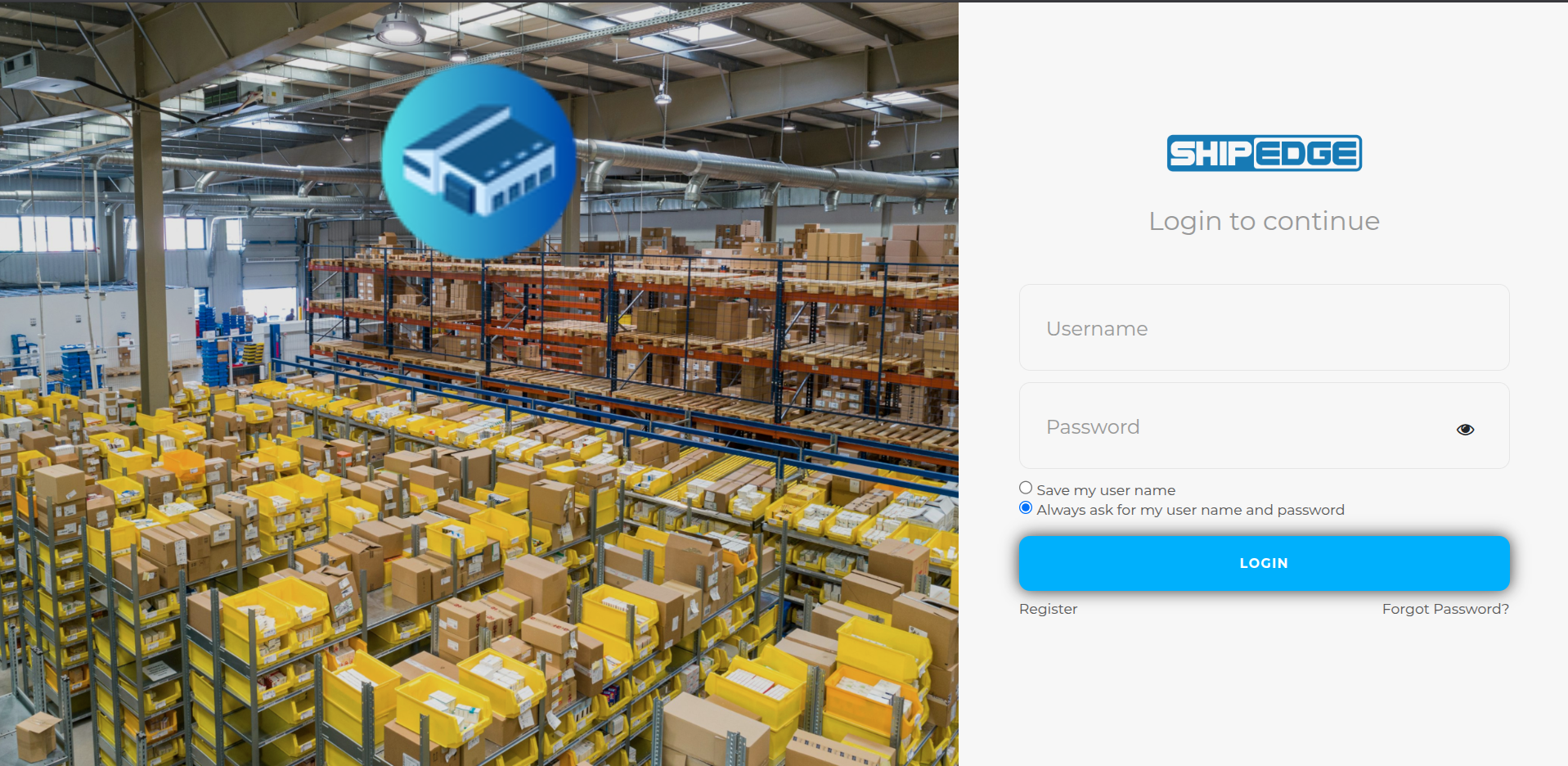
Access your ShipEdge account by logging in with your username and password. The system includes security features like saved username, password reset, and account protection. Accounts linked to SSO must use Continue with Single Sign On (SSO).
Your account is protected with username and password authentication. Security features help keep your account safe.
Save your username for faster access. Auto-login option remembers your credentials securely.
Forgot your password? Use the password reset feature to regain access to your account via email.
Security features protect your account from unauthorized access, including login attempt limits and location restrictions.
-
Navigate to Login Page
Access the ShipEdge login page. The system will check if you’re already logged in.
-
Enter Username
Type your username in the Username field. If you’ve saved your username before, it may be pre-filled.
-
Enter Password
Type your password in the Password field. Click the eye icon to show or hide your password as you type.
-
Choose Login Options
Select one of these options:
- Save my user name - Remembers your username for next time
- Always ask for my user name and password - Requires full login each time
-
Click Login
Click the Login button to access your account. You’ll be redirected to your last accessed page or the main dashboard.
-
Alternative: Single Sign On (SSO)
If your account uses SSO, click CONTINUE WITH SINGLE SIGN ON (SSO) to log in through your organization’s identity provider. For the full SSO flow, linking accounts, and troubleshooting, see SSO Login.
Field Name: Username
Required: Yes
Description: Your ShipEdge username or email address used to log in.
Details:
- Enter your username exactly as it was created
- Username is case-sensitive
- If saved, username may be pre-filled from cookies
- Username must match an active account
Field Name: Password
Required: Yes
Description: Your account password.
Details:
- Enter your password exactly as it was set
- Password is case-sensitive
- Click the eye icon to toggle password visibility
- Password is required for login
Field Name: Remember Me
Options:
- Save my user name - Saves username in cookies for 30 days
- Always ask for my user name and password - No saved credentials
Details:
- Username cookie expires in 30 days
- Password is never saved with the “Save my username” option (username only)
- Cookies are cleared when you log out
Automatic Login
- When you visit the login page, ShipEdge checks for saved cookies from a previous session
- If valid auto-login cookies exist (from legacy login flow), the system may log you in automatically
- If successful, you’re redirected to your last accessed page
- If cookies are invalid or expired, you’ll see the login form
Cookie Storage
- Username cookie expires in 30 days
- When auto-login was used historically, password was encrypted (TEA) in cookies
- Cookies are domain-specific and secure
Security
- Auto-login only works from the same browser and device
- Cookies are cleared when you log out
- Invalid cookies require manual login
-
Click Forgot Password
On the login page, click Forgot Password? link below the login form.
-
Enter Email Address
In the modal window, enter your account email address in the Email field.
-
Send Request
Click Reset Password button. The system will send a password reset email to your address.
-
Check Your Email
Look for an email from “no-reply@shipedge.com” with subject “Password Request”. Check your spam folder if you don’t see it.
-
Click Reset Link
Open the email and click the reset password link. The link expires at the end of the day.
-
Open Reset Link
Click the reset password link from your email. The link includes a unique code.
-
Enter New Password
Enter your new password in the Password field (placeholder: “Password”). Password requirements:
- At least 8 characters
- At least 1 numeric character
- At least 1 lowercase letter
- At least 1 uppercase letter
-
Confirm Password
Enter the same password again in the Repeat password field to confirm.
-
Submit
Click Submit button. Your password will be updated and you’ll be redirected to the login page. If passwords don’t match, you’ll see “Mismatch Password”.
-
Log In
Log in with your username and new password.
Email Process
- Reset email sent from:
no-reply@shipedge.com
- Email includes unique reset link with code
- Link expires at end of day (midnight)
Reset Code
- Unique code generated for each request
- Code includes timestamp for expiration
- Code stored as MD5 hash in database
- Code cleared after successful reset
Password Requirements
- Minimum 8 characters
- Must include uppercase letter
- Must include lowercase letter
- Must include number
- Passwords must match in both fields
Failed Login Attempts
- System tracks failed login attempts by IP address and username
- After 3 failed attempts, account is temporarily blocked
- Block duration: 10 minutes
- Attempts reset after successful login
Blocking Messages
- “User Name Blocked, try to login in [X] minutes”
- Shows remaining time until block expires
- Block applies to specific username and IP address
- Different IP addresses have separate attempt counts
Audit Trail
- All login attempts are logged in
audit table
- Records IP address, username, and timestamp
- Successful logins update audit record with user ID
- Failed attempts remain with null user ID
User Activation
- Account must be active (
Activated = 'Y')
- Inactive accounts show: “User Inactive”
- Deleted accounts (
isDeleted = 'N') cannot log in
- Account status checked before password validation
Account Validation
- Username must exist in database
- Account must not be deleted
- Account must be activated
- Password must match stored value
Country Access Control
- Some accounts have country-based access restrictions
- System checks your IP address location
- Restricted countries show: “Access is restricted from your location”
- Restrictions configured per account in
countryaccess table
IP Address Restrictions
- Specific users may have IP address restrictions
- Certain IP ranges may be blocked
- VPN IPs may be allowed for specific users
- Restrictions enforced before login validation
GeoIP Detection
- System uses GeoIP to detect your country
- Checks country code (ISO 2 and ISO 3)
- Compares against account restrictions
- Blocks access if country is restricted
Step 1: Form Validation
- Username field must not be empty
- Password field must not be empty
- Client-side validation before form submission
Step 2: Security Checks
- Check for account blocking (failed attempts)
- Verify account is not deleted
- Verify account is activated
- Check location restrictions
Step 3: Password Validation
- Compare entered password with stored password
- Supports MD5 hashed passwords
- Supports plain text passwords (legacy)
- Supports crypt-based passwords
Step 4: Session Creation
- Create user session
- Set session variables (UserID, Username, AccountID)
- Load user level and permissions
- Set account identity based on user level
Step 5: Cookie Management
- Set cookies based on “Remember Me” option
- Save username if requested
- Save encrypted password for auto-login if enabled
- Set cookie expiration (30 days)
Step 6: Redirect
- Redirect to last accessed URL (
LastUrl)
- Clear any error messages
- Write audit trail for login
User Level Types
- Level 1: Account owner (
userIdentity = AccountID)
- Level 2 (WMS Manager): Warehouse manager (
userIdentity = 'wh' or 'gerente')
- Level 3: System admin (
userIdentity = 'admin')
- Level 4: Sub-admin (
userIdentity = 'subadmin')
Session Variables
CurrentAcountID: Current account IDalpaca_status_UserID: Current user IDalpaca_arUserLevel: User level arrayuserIdentity: User identity string
“Incorrect username or password”
- Username or password is wrong
- Check spelling and case sensitivity
- Verify account is active
- Try password reset if needed
“User Inactive”
- Account is deactivated
- Contact ShipEdge support to reactivate
- Account may be suspended
“User Name Blocked, try to login in [X] minutes”
- Too many failed login attempts
- Wait for block to expire
- Block lasts 10 minutes
- Try again after waiting
“Access is restricted from your location”
- Your IP address or country is restricted
- Account has location-based access control
- Contact administrator to update restrictions
- May need to use approved IP address
“Login cancelled”
- Login process was cancelled
- May occur during validation
- Try logging in again
“Please enter user ID” or “Please enter username and password”
- Username or password field is empty
- Enter your credentials
- Both fields are required
“Please enter password”
- Password field is empty
- Enter your password
- Field is required
Create passwords with at least 8 characters, including uppercase, lowercase, and numbers. Avoid common words or personal information.
Use “Save my user name” option instead of auto-login for better security. Enter password manually each time.
Always log out when finished, especially on shared computers. This clears your session and cookies.
Ensure your account email is current for password reset emails. Check spam folder if reset email doesn’t arrive.
If you notice unusual login activity, contact ShipEdge support immediately. Change your password if account may be compromised.
Avoid logging in from public Wi-Fi networks. Use secure, private networks when possible to protect your credentials.
Problem: Login button doesn’t work or form doesn’t submit
- Solution:
- Check that username and password fields are filled
- Verify JavaScript is enabled in browser
- Try clearing browser cache and cookies
- Try different browser
- Check browser console for errors
Problem: “Incorrect username or password” but credentials are correct
- Solution:
- Check for extra spaces in username or password
- Verify caps lock is off
- Try copying and pasting credentials
- Use password reset if needed
- Contact support if issue persists
Problem: Account is blocked
- Solution:
- Wait 10 minutes for block to expire
- Verify you’re using correct username
- Check IP address hasn’t changed
- Try from different network if possible
- Contact support if block persists
Problem: Reset email not received
- Solution:
- Check spam/junk folder
- Verify email address is correct in account
- Wait a few minutes for email delivery
- If you see “Please enter a valid email address”, fix the email format
- If you see “Please wait 1 minute before requesting another password reset”, wait and try again
- Try requesting reset again
- Contact support if email never arrives
Problem: Reset link expired
- Solution:
- Reset links expire at end of day
- Request new password reset
- Use new link immediately
- Complete reset process quickly
Problem: Password reset form shows error
- Solution:
- Verify passwords match exactly
- Check password meets requirements (8+ chars, uppercase, lowercase, number)
- Try different password
- Clear browser cache and try again
Problem: Auto-login not working
- Solution:
- Check that auto-login was enabled previously
- Verify cookies are enabled in browser
- Check cookies haven’t expired (30 days)
- Try clearing cookies and logging in again
- Re-enable auto-login if needed
Problem: Username not saved
- Solution:
- Select “Save my user name” option
- Verify cookies are enabled
- Check browser isn’t blocking cookies
- Try different browser
- Clear cookies and try again
Problem: “Access is restricted from your location”
- Solution:
- Verify you’re using correct account
- Check if account has location restrictions
- Contact administrator to update restrictions
- Use approved IP address or VPN if allowed
- Contact support for assistance
Next Steps:
