
Picking Optimization
Flow bins are automatically prioritized during order processing, reducing picking time and improving operational efficiency.
MinMax Bins is an advanced functionality that allows you to configure minimum and maximum levels (MinMax) for specific bins in your warehouse. These special bins, called “flow bins”, are automatically prioritized when ShipEdge processes orders, helping you maintain optimized inventory in strategic locations.
When a flow bin is below the configured minimum, you can use the refill function to automatically move inventory from other source bins to the flow bin, maintaining optimal levels without constant manual intervention.
Flow bins are automatically prioritized during order processing, reducing picking time and improving operational efficiency.
Define minimum and maximum levels for each flow bin. The system alerts you when levels are low and need replenishment.
Replenish flow bins automatically from recommended source bins. The system calculates the needed quantity and facilitates inventory movement.
When your inventory rotation is set to “Maximum Efficiency”, ShipEdge attempts to fill orders from flow bins first, optimizing workflow.
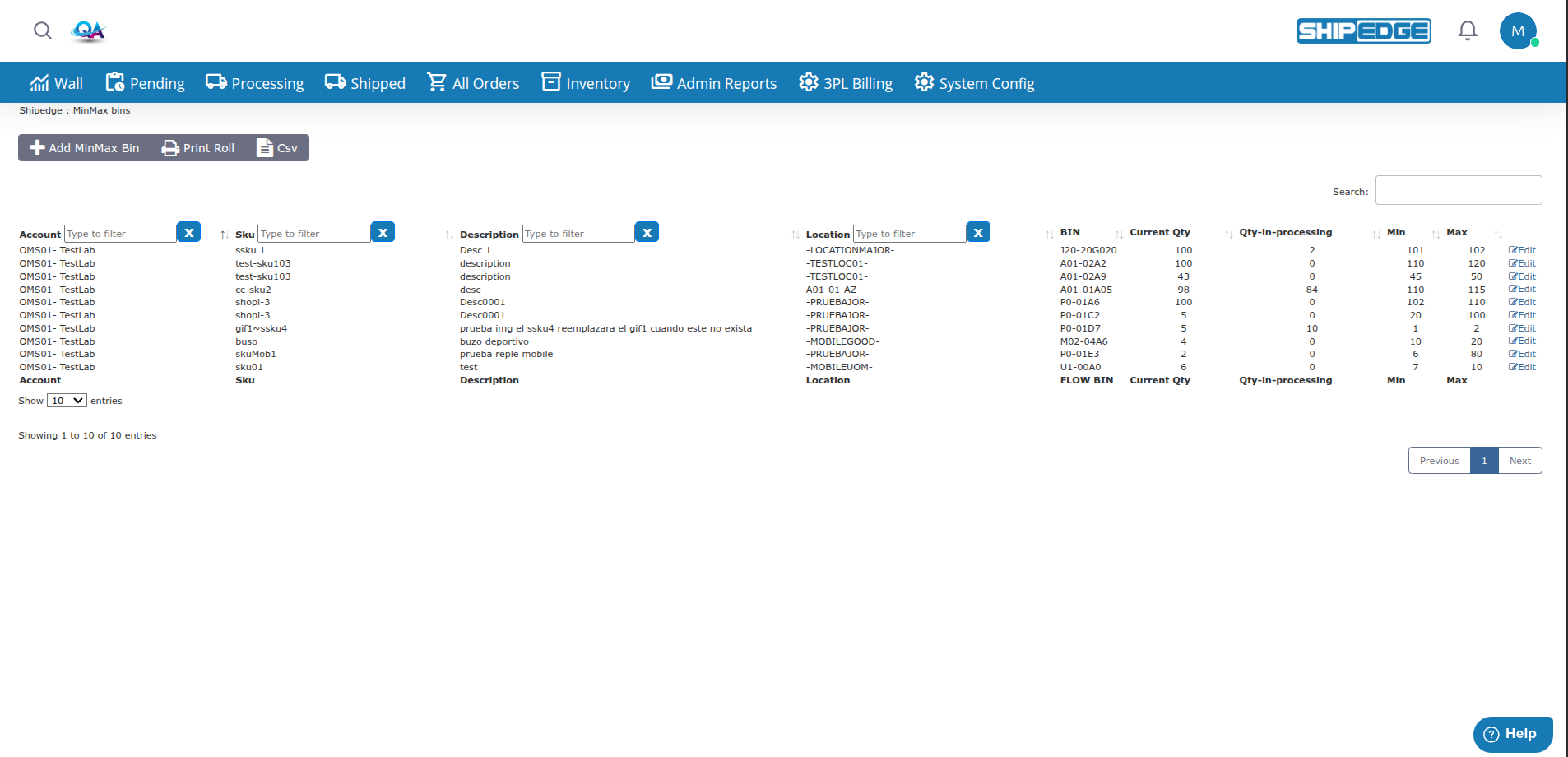
View all your flow bins in a complete table with account information, SKU, location, current quantities, and configured Min/Max levels.
Manage all your flow bins from a single view. Add, edit, or delete MinMax configurations easily.
Verify MinMax Bins is enabled
MinMax Bins is only available if it’s enabled in warehouse preferences. If you don’t see the option, contact the administrator.
Navigate to MinMax Bins
Access from the Warehouse Overview menu. Look for the “MinMax bins” option.
Explore the view
The page displays a table with all configured flow bins, including account information, SKU, location, bin, current quantities, and Min/Max levels.
The page automatically displays all configured flow bins in a DataTable with the following columns:
You can filter, search, and sort the table using standard DataTables functions.
Click the “Add MinMax Bin” button
Look for the “Add MinMax Bin” button at the top of the table.
Search for the bin
A modal will open. In the “Search Bin” field, start typing the name of the bin you want to configure as a flow bin.
Select the bin
The system will show suggestions as you type. Select the correct bin from the dropdown list.
Review the information
Once selected, the modal will automatically display:
Configure Min/Max levels
Enter the minimum and maximum values:
Save the configuration
Click “Save” to save. The system will validate that:
Confirm saving
The modal will close and the table will automatically update showing the new flow bin configured.
Find the flow bin
Search or filter the table to find the flow bin you want to edit.
Click edit
Click the edit button (pencil icon) in the flow bin row.
Modify the values
The modal will open with current information. Modify the Min and/or Max values as needed.
Save changes
Click “Save” to save changes. The system will validate values before saving.
Verify the update
The table will automatically update with the new values.
Select bins (optional)
If you want to print only specific bins, you can filter the table. If you want all, leave it without filters.
Click print
Look for the “Print Roll” button at the top of the table.
Review the report
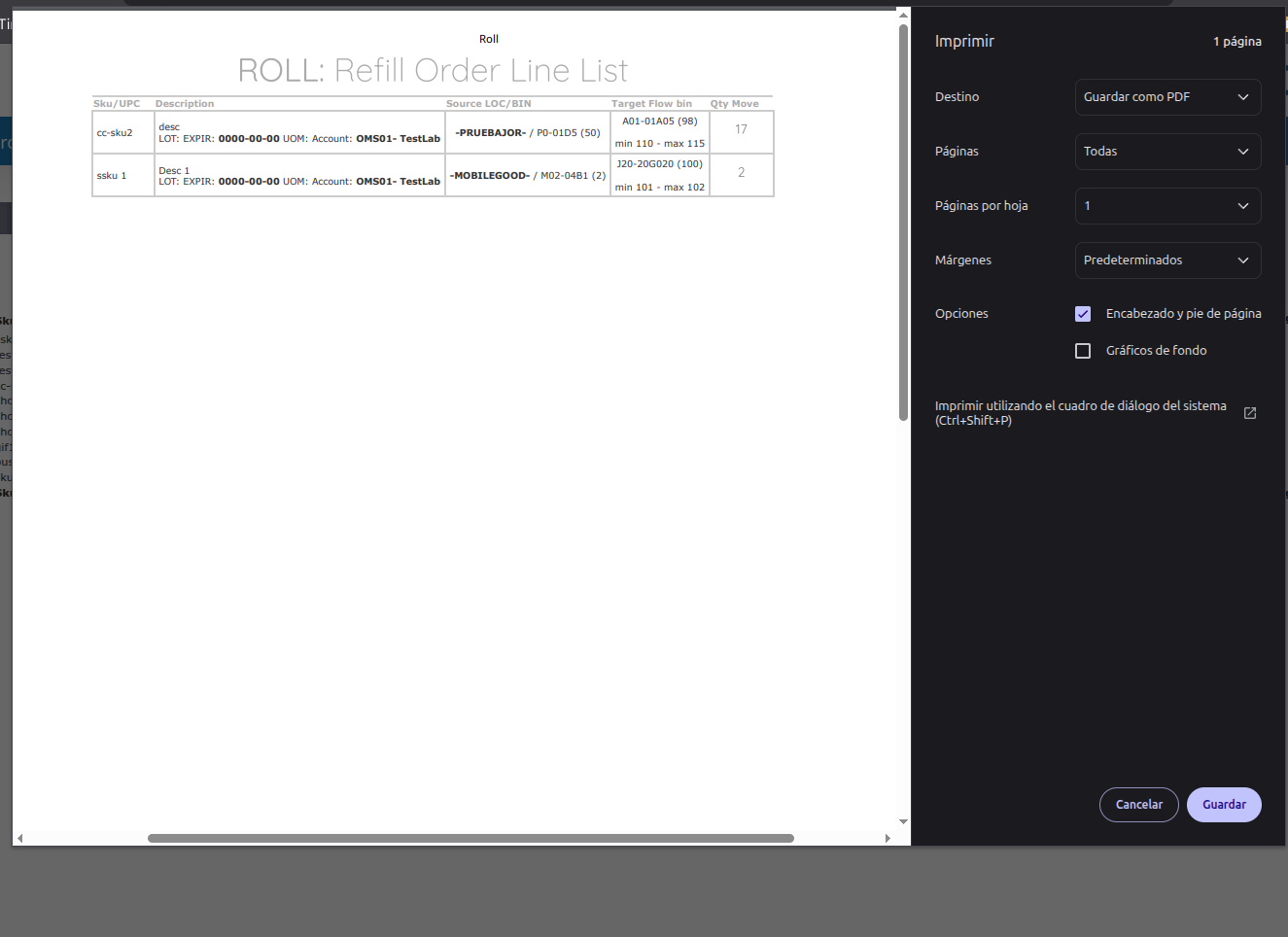
A window will open with the refill report showing bins that need replenishment and suggested quantities.
Print or save
Use browser options to print or save the report as needed.
The system validates that:
If any value doesn’t meet these requirements, you’ll see an error message and must correct it before saving.
When Bin Flow is enabled and your inventory rotation is set to “Maximum Efficiency”:
This optimizes workflow ensuring the most efficient bins are used first.
When you request a refill, the system automatically calculates:
Refill = Max - Current QtyFor example:
You can adjust this quantity according to your needs, but you cannot exceed the flow bin maximum.
You cannot refill if:
Set minimum and maximum levels based on your actual sales volume. Values that are too high waste space; values that are too low require constant refill.
Regularly review which flow bins are below minimum. Set up alerts or review daily to maintain optimal levels.
Don’t wait for bins to be completely empty. Refill when they’re near minimum to avoid picking interruptions.
Configure as flow bins those that are in easily accessible locations with high rotation. Optimize picking efficiency.
If you use “Maximum Efficiency” in inventory rotation, Bin Flow works better. Make sure both configurations are aligned.
For significant changes in Min/Max levels, document the reason outside the system for future reference and trend analysis.
Problem: I can’t find the MinMax Bins page or button.
Solutions:
Problem: When trying to save, a validation error appears.
Solutions:
Problem: The source bins menu is empty or doesn’t show options.
Solutions:
Problem: Orders are not using flow bins first.
Solutions:
Next Steps: